Collect VLA Training Data with Trainer
MoveIt Pro Trainer turns robot demonstrations into a dataset you can use to train a vision-language-action (VLA) policy. The whole workflow stays inside MoveIt Pro, and the data stays on the Runtime computer unless you choose to move or upload it later.
This guide uses the vla_sim robot configuration package, the same block-stacking scene used in Run the VLA Cube-Stacking Example. You will record a Kinova Gen3 arm picking up the red cube, then convert the recording into a LeRobot dataset.
| Stage | What it does |
|---|---|
| Training Config | Chooses the robot state, command, and camera topics to capture. |
| Dataset | Creates or selects the folder that will hold your demonstrations. |
| Record | Saves synchronized robot and camera data as episodes. |
| Playback | Lets you inspect an episode before using it. |
| Prepare | Packages episodes as LeRobotDataset v3.0 and can optionally upload the result. |
How Trainer is organized
The Dataset, Record, and Prepare tabs cover four connected concepts:
- Training Config — the saved capture profile: which robot state, command, and camera topics to capture. Trainer reads it at the start of every recording session.
- Recording session — one run of the recorder, started by Start recording and ended by Save & Stop, Discard & Stop, or by reaching the requested episode count.
- Episode — one saved demonstration. The recorder holds data in memory as you go and writes a file only when an episode is saved, either by you or automatically at the end of a fixed-length episode. That file is the episode. Selecting Discard & Stop discards what was buffered for the in-progress episode — nothing is written for it.
- Dataset — the folder that accumulates episodes. Recording into the same dataset again adds to it; nothing is removed or reset between sessions.

This guide shows the Trainer interface in MoveIt Pro 10.2. Local recording and conversion are available in 10.0 and newer.
Prerequisites
vla_sim ships in the example workspace, which MoveIt Pro downloads and builds for you the first time you use it — there is no separate checkout or build step.
Launch the Runtime and Desktop App
We assume you have already installed MoveIt Pro to the default install location. Start the MoveIt Pro Runtime using:
moveit_pro run -c vla_sim
Then launch or connect the separately distributed MoveIt Pro Desktop App. The Runtime does not serve a bundled user interface.
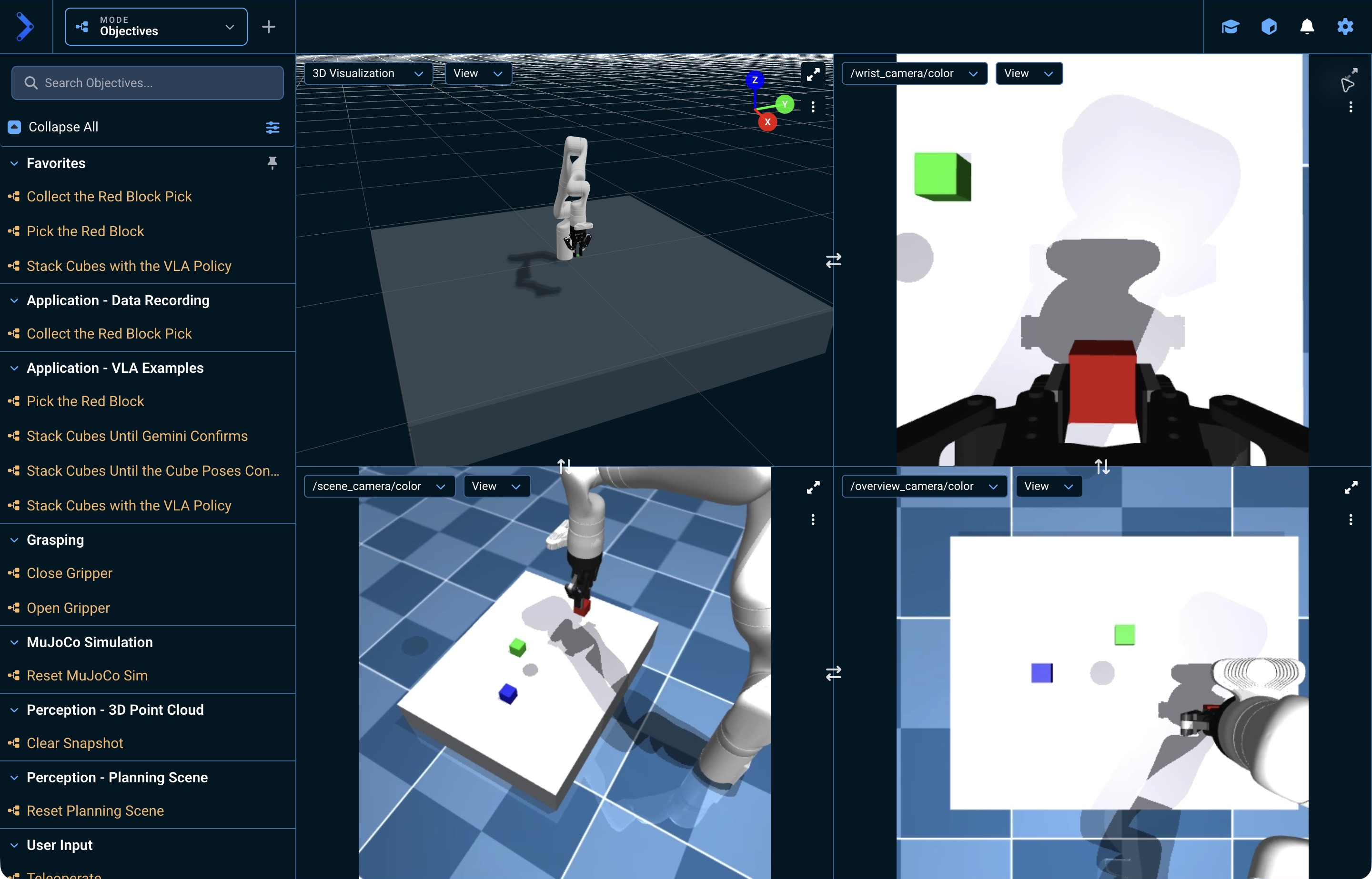
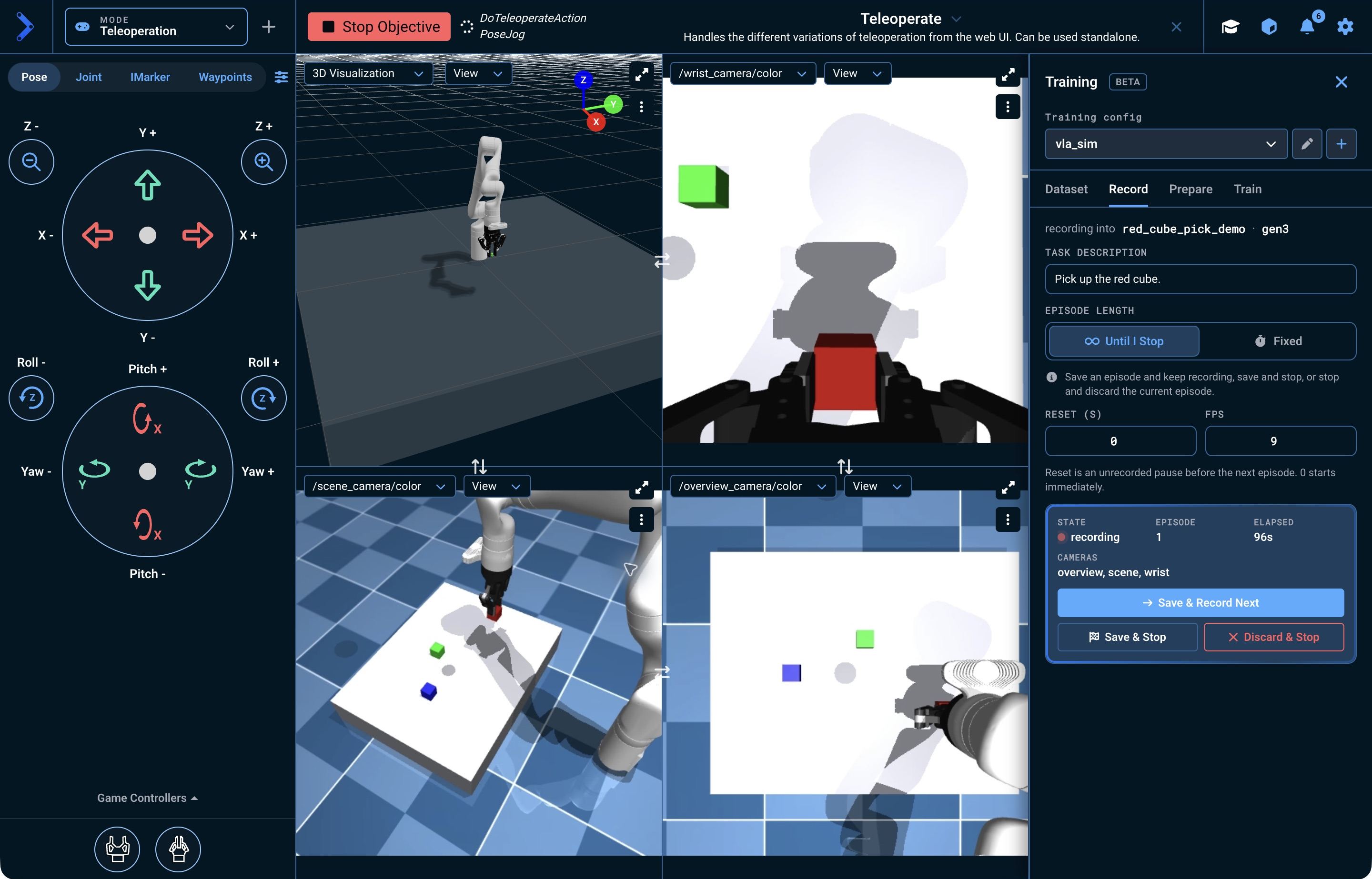
Confirm that the robot is publishing joint states and that all three cameras are streaming. Each view pane has a dropdown in its top left that changes what the pane shows: select Joint Monitor for live joint values, then step a pane through the overview, scene, and wrist camera views. About the User Interface covers pane layouts and view switching.
vla_sim renders the cubes for the camera topics but not in the 3D Visualizer, so the 3D pane always shows an empty table. This is expected: check a camera pane, not the 3D Visualizer, to see the cubes. Nothing is wrong with your simulation.
Open Trainer with the graduation-cap button in the upper-right corner. You can also press T.
1. Create a Training Config
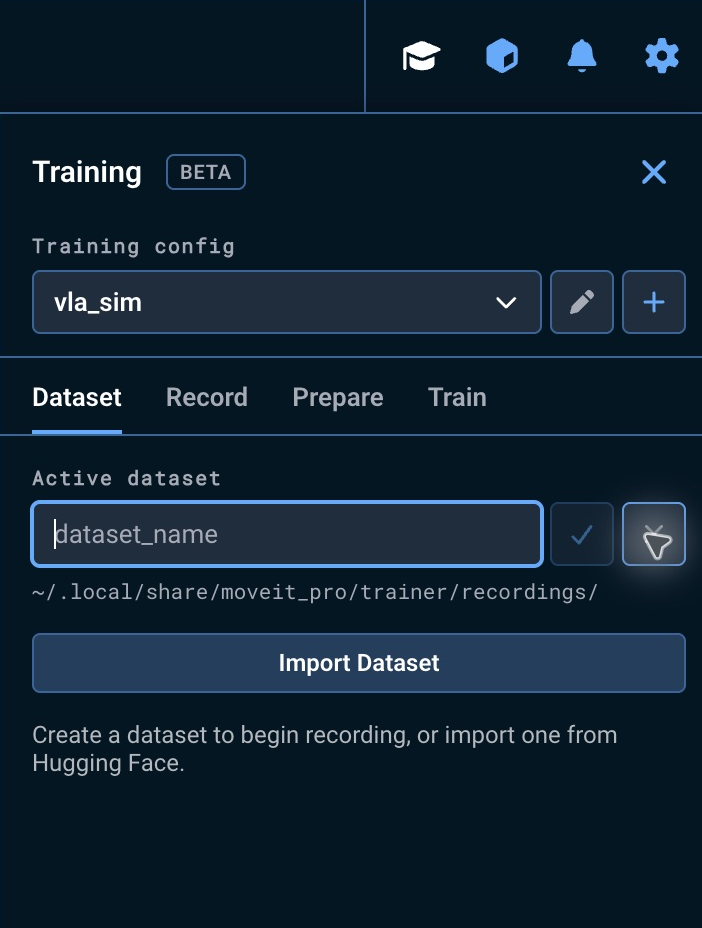
Trainer opens on the Dataset tab. Below its Training header, select the button under Training config to open Training Config. Once a config is saved, that control becomes a list of saved configs, with Edit Training Config and New Training Config beside it.
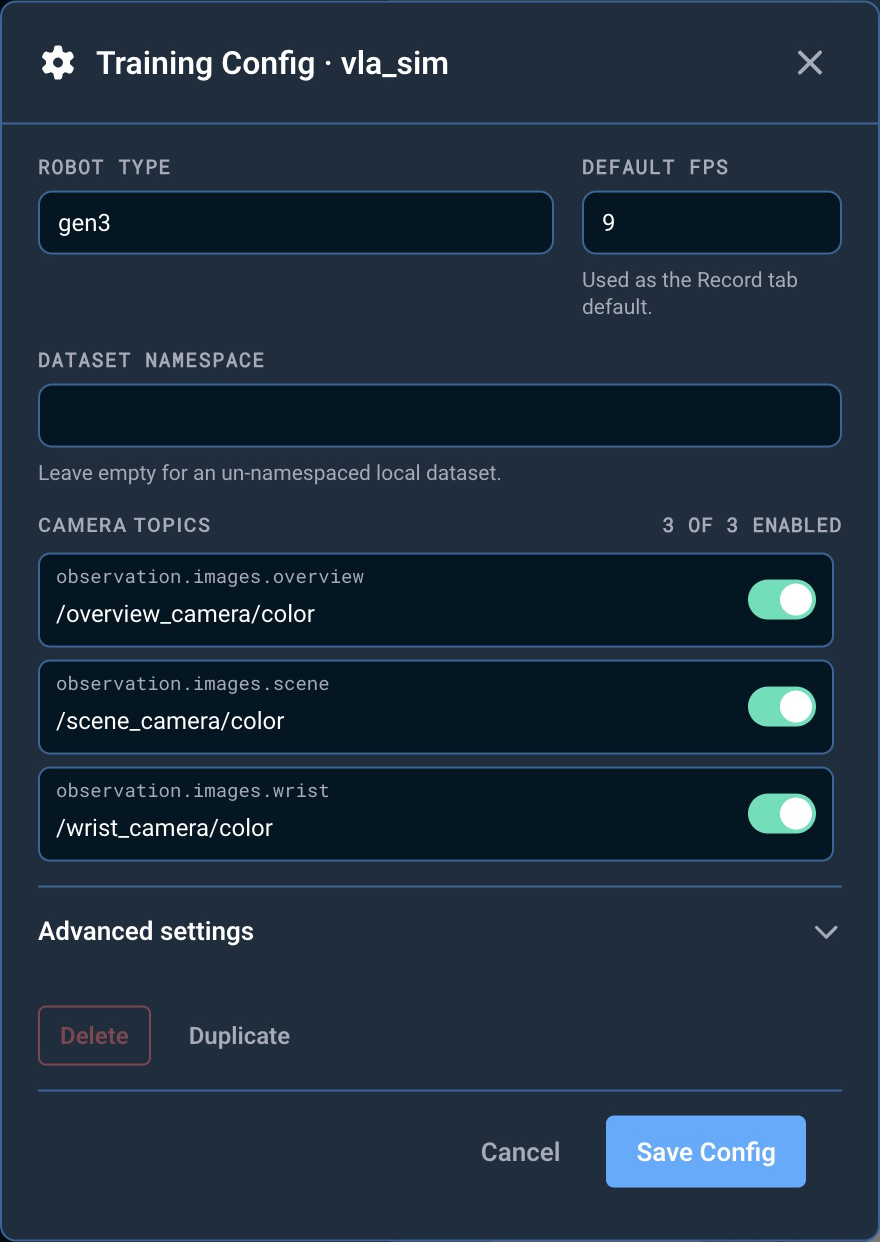
Set:
- Robot type: a short name for the robot. This example uses
gen3. - Default FPS: the FPS shown when you start a recording, applied at conversion rather than at capture. A new default Training Config uses the slowest camera's measured rate, rounded to the nearest integer (down to
1for rates from1to below2fps);vla_simcameras publish at10fps. Existing saved configs keep their FPS until you edit them. Choose a rate your slowest camera can sustain. A different Record-tab value is labeled as an override and is invalidated if this default changes. - Dataset namespace: optional; leave it empty for a local, un-namespaced dataset.
- Camera topics: enable each view you want in the dataset and confirm its live ROS topic. This example enables all three
vla_simcameras:/overview_camera/color,/scene_camera/color, and/wrist_camera/color.
Open Advanced settings to check the joint-state and joint-command topics. Joint states become observation.state. Joint commands become the action labels. Sidebar conversion defaults to Auto: it uses commands when present and next-state labels for source MCAP files with no command messages. Results identify which label source was used. Select Command to require recorded commands, or Next state to always use the following frame's measured joint positions. The API, converter CLI, and ConvertDataset Behavior retain the Command default and refuse episodes with no command samples or commands that only mirror the recorded state.
When all reported episodes fail because action labels are missing, the failed conversion offers Use Next-State Labels. Review the explanation and select Retry Conversion to use the following frame's measured joint positions as actions. The retry keeps the original conversion settings, including the output location and overwrite choice. Other failures require reviewing their reported reasons.
Select Save Config.
A new dataset is pinned to the recording options that are set when you create it: the enabled Camera topics and their order, the FPS, the joint-state and joint-command topics, and the robot type. If you change any of them after creating the dataset, Trainer refuses further recordings into it and names the field that no longer matches. Restore the value it names, or create a new dataset for the new settings; for FPS you can instead enter the pinned rate as a Record-tab override. Episodes recorded under different camera sets or rates are not comparable training data, which is what the refusal protects.
This is also why a dataset can only be created once a Training Config is saved: those options are copied from it, so the create control stays unavailable until you save one.
2. Create a Dataset
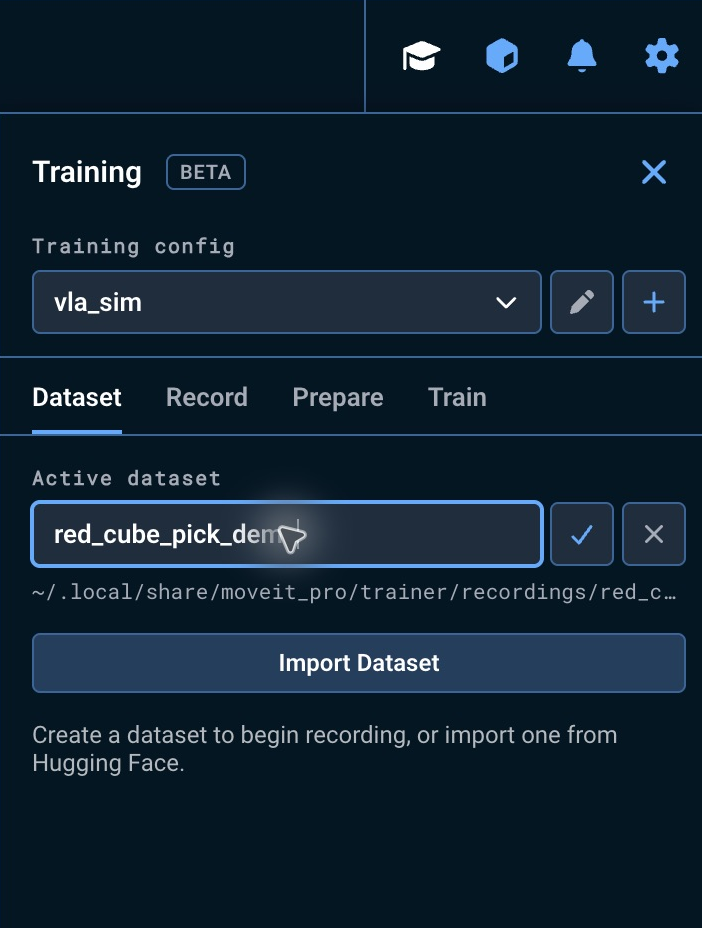
Open the Dataset tab. With no dataset yet, it opens with the Active dataset name field ready: enter a descriptive name, then select the checkmark to create it. Trainer selects the new dataset and switches to the Record tab, so you can start recording straight away.
This example uses red_cube_pick_demo for episodes recorded while picking up the red cube.
Recordings and converted datasets are written under ~/.local/share/moveit_pro/trainer inside the Runtime container. That path is bind-mounted from the host directory MOVEIT_HOST_DATA_DIR (default ~/.local/share/moveit_pro). To put Trainer data elsewhere, set MOVEIT_HOST_DATA_DIR on the host before starting the Runtime; the Trainer subdirectory follows it. Because the data lives on the host, restarting or recreating the Runtime container never deletes it.
Raw datasets are stored at:
~/.local/share/moveit_pro/trainer/recordings/<dataset-name>
You can return to the Dataset tab at any time to switch datasets, rename one, or delete an episode you do not want. Once a dataset exists, Active dataset is a selector rather than a name field, and the + button beside it starts another one.
3. Record Episodes
Select a Recorded dataset before recording new episodes. Imported and converted LeRobot datasets are for review and training; select Choose Dataset in Record to return to dataset selection.
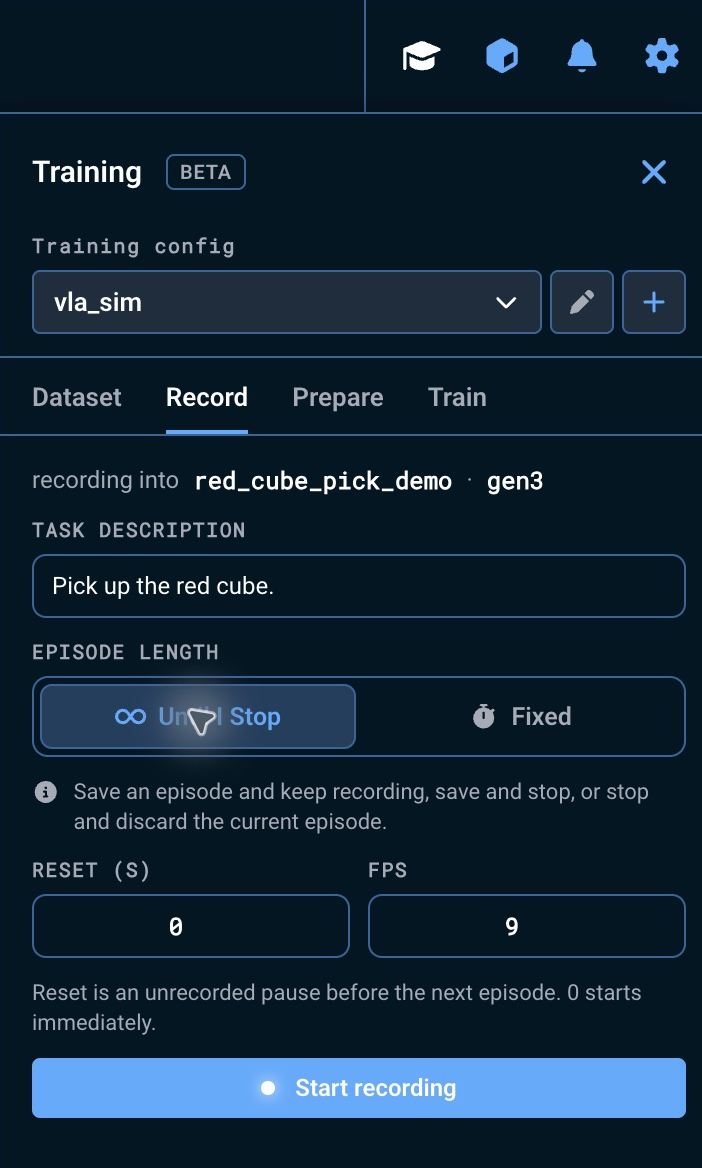
Open the Record tab and describe the task in plain language. This description is saved with the episode and later becomes the training task. For this example, use:
Pick up the red cube.
Choose how the episode ends:
- Until I Stop leaves each episode open until you choose a recording action. Reset (s) is the unrecorded pause before the next episode after Save & Record Next; it defaults to 0, which starts the next episode immediately. Episodes is only shown in Fixed mode.
- Fixed stops each episode automatically after the number of seconds you enter. Set Episodes for the batch size and Reset (s) for the delay between episodes. These settings are preserved when you switch to Until I Stop and back.
Set FPS, then select Start recording. Leaving FPS at the Training Config's Default FPS is the usual case. If you do change it, the new value applies to this recording only, and a note appears under the field naming the Training Config's Default FPS until you set it back. Creating a new dataset also clears it, so that dataset's first recording uses the FPS it was created with.
Wait until the status changes from Preparing to Recording before you move the robot. The preparing phase is not recorded, and the recording actions stay unavailable until it ends. Once the status reads Recording, teleoperate the robot with any of MoveIt Pro's teleoperation modes to perform the task while Trainer captures joint states, joint commands, and every enabled camera stream.
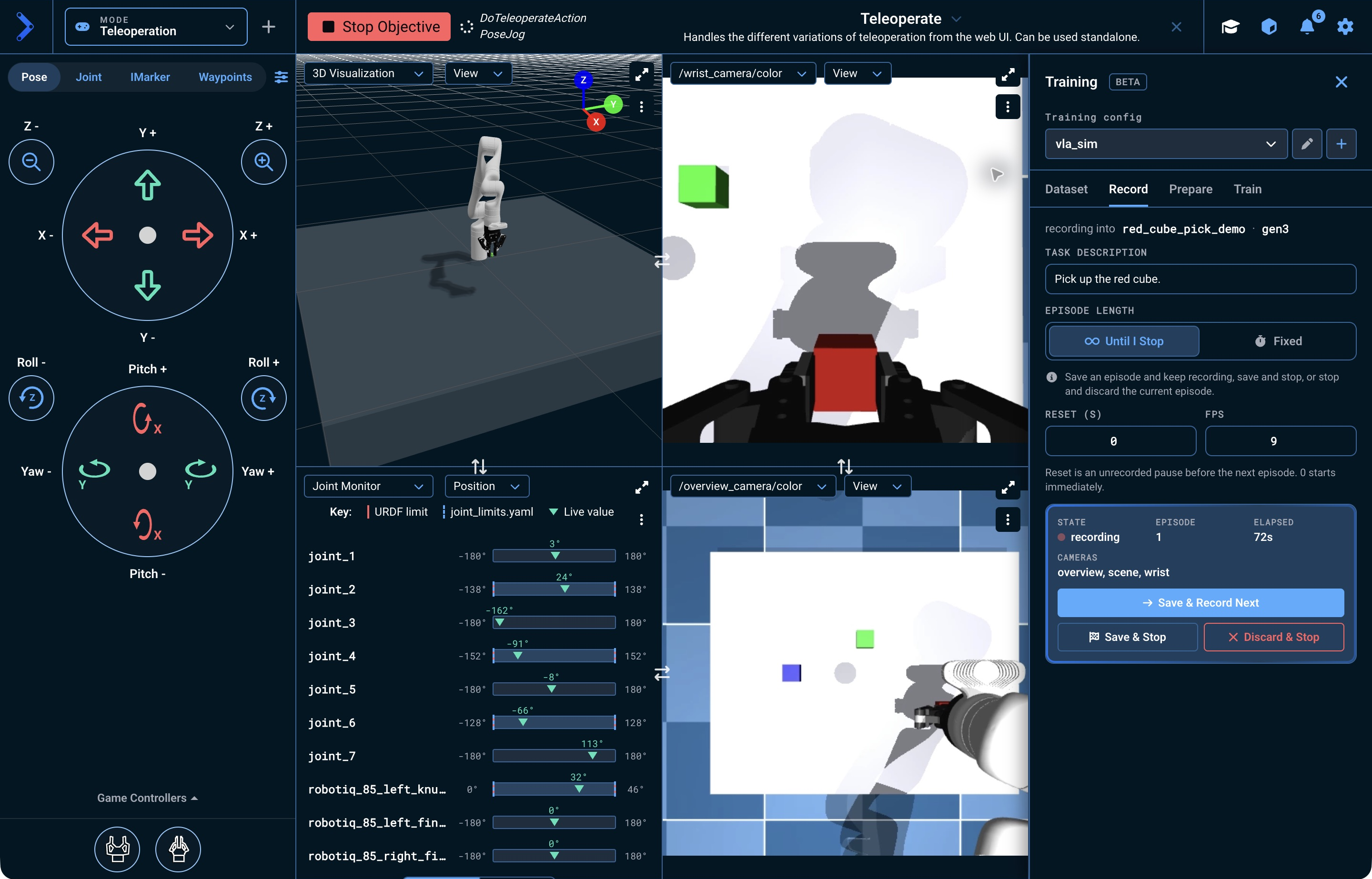
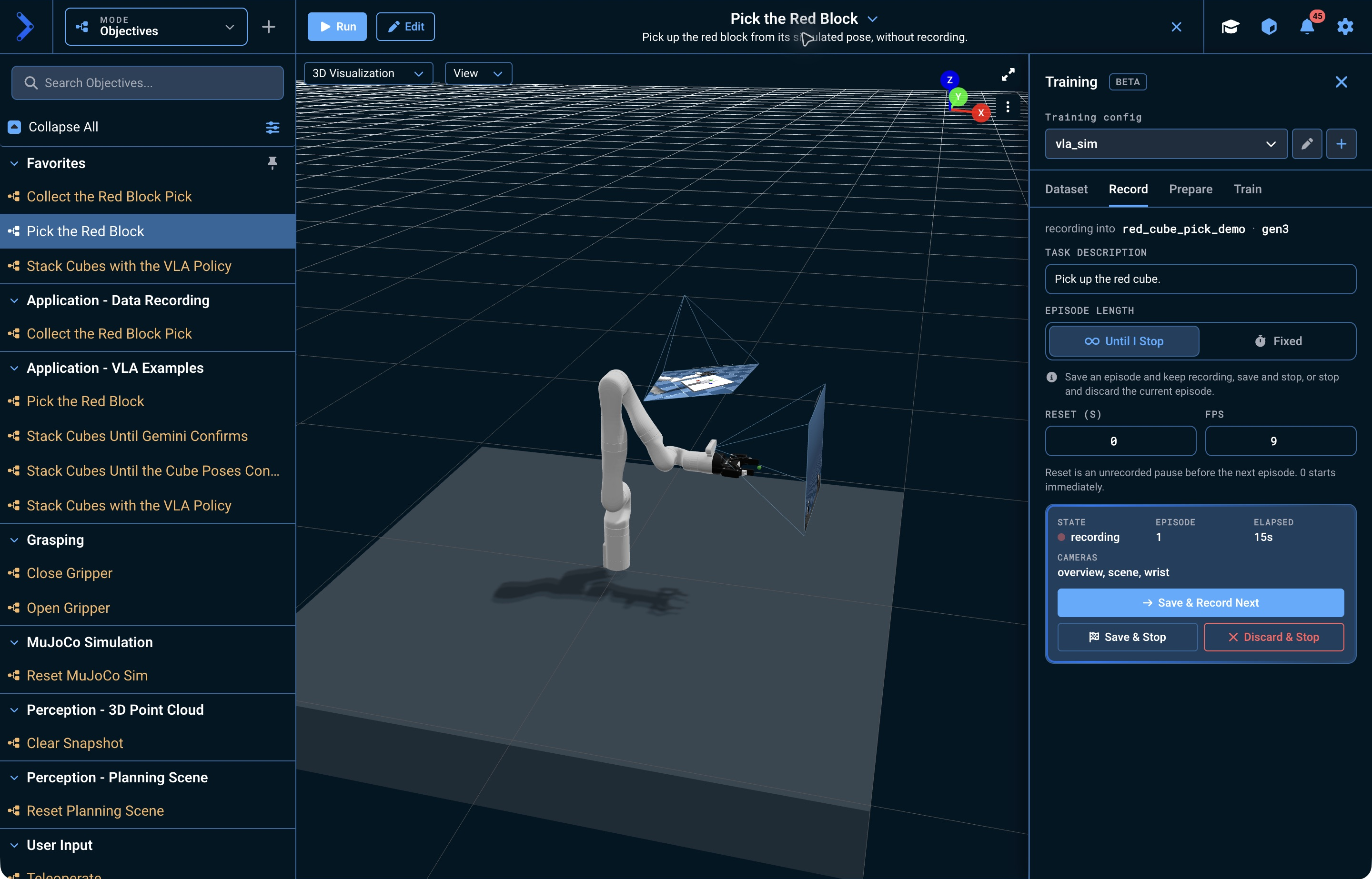
The Record tab continues counting time while you jog the robot. Choose one of the three recording actions:
- Save & Record Next saves this episode, waits for Reset (s), and starts the next episode. If this was the last requested Fixed episode, the session extends by one episode.
- Save & Stop saves this episode and ends the session without a reset pause or another episode.
- Discard & Stop ends the session and discards only the episode in progress. Previously saved episodes remain in the dataset.
Reset is time for you to reposition the robot or scene; it does not move the robot automatically. Each mode remembers its own reset delay.
Use the wrist camera to inspect the grasp; the cube is visible in camera images even though the 3D Visualizer does not render it.
After saving, Trainer confirms the episode count and returns to the regular Record controls. Repeat the task with natural variation, such as different starting cube positions, to build a more useful training set.
A clumsy demonstration is still a valid episode. How well you perform the task affects how good a policy trained on the data would be, not whether you can finish this guide, so carry on with the episodes you have.
4. Review and Play Back an Episode
Open the Dataset tab. Each episode row shows its duration, task, robot type, and two frame rates: cfg is the FPS the recording was configured for, and obs is the rate the enabled cameras actually delivered, measured from that episode's own recording. Compare them — an episode captured well below its configured rate produces training data labeled with timesteps it was never recorded at. Episodes are listed newest first, and obs is measured rather than assumed, so the newest row normally shows only cfg: that episode's rate is measured when the next episode is saved. Record again and its obs appears. Episodes recorded before MoveIt Pro measured observed rates, or whose recording could not be read, also show only cfg.
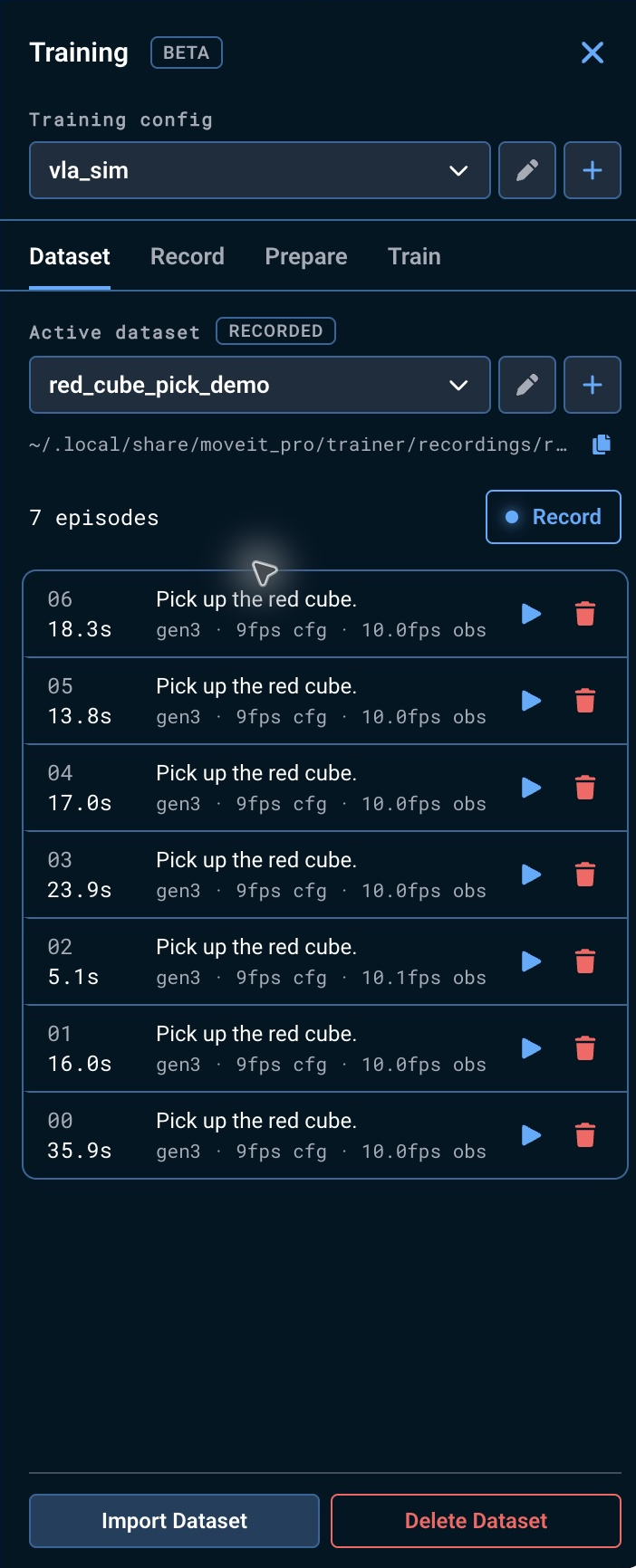
Each episode shows at most one outcome label. Objective failed means at least one Objective failure has not been recovered. Objective recovered means each failed Objective subsequently succeeded on a retry in the same episode. The successful retry must start after the failure finishes and use the same Objective name. Success from a different Objective does not count as recovery. Objective succeeded means at least one execution succeeded and none failed. Hover over the label to read the individual Objective results and available messages. An episode with no successful or failed Objective, including teleoperation and cancelled Objectives, has no outcome label. An Objective spanning several episodes labels each one when it finishes. For an outcome that describes one demonstration, record one Objective run per saved episode; an Objective that records several episodes gives them all its final result, so Exclude failed episodes can omit earlier successful attempts. The individual execution results remain in metadata, independently of your keep or reject review marks.
Preparing a dataset carries these outcomes into the LeRobot export’s meta/objective_outcomes.json, keyed by exported episode index. After a successful or failed Objective run, wait for its episode label before preparing: conversion captures the outcomes available when it starts, and a late result does not update an existing export. Converted episodes inherit the outcomes of the original recorded episodes they overlap, including when conversion divides a recording into smaller episodes. Failed episodes remain available for review and later training.
Playback is a review tool: it replays a recording in the panes and never commands the live robot. For that reason it cannot run alongside one — starting playback while an Objective is executing is refused with "Cannot start playback while an Objective is running.", and an Objective started during playback stops it immediately. Stop any running Objective before you play an episode. Playback also waits for recording: the play buttons stay disabled while a recording runs and until it finishes saving. Select the A recording is running. note in the Dataset tab to open the Record tab, where you can stop the recording.
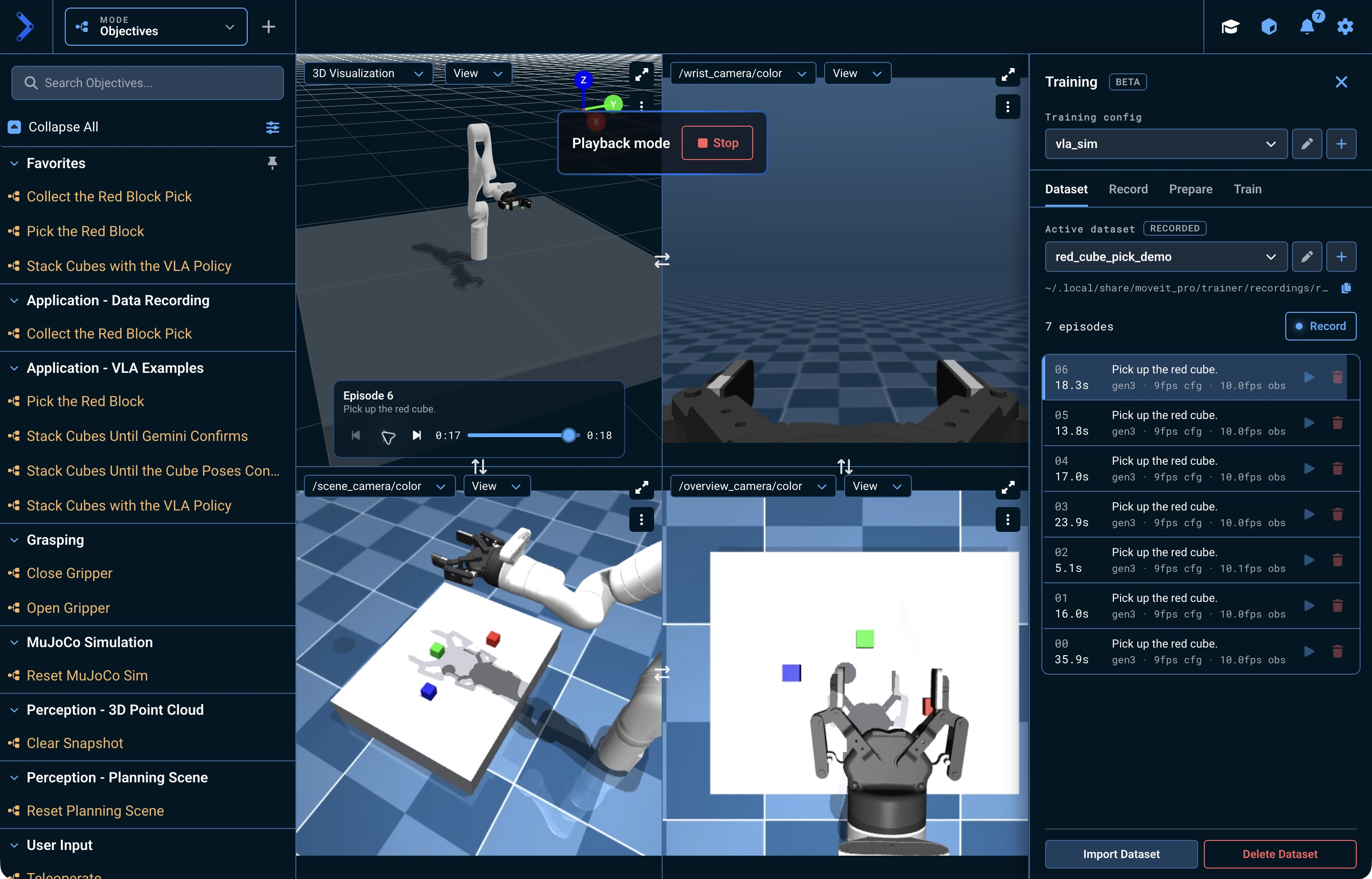
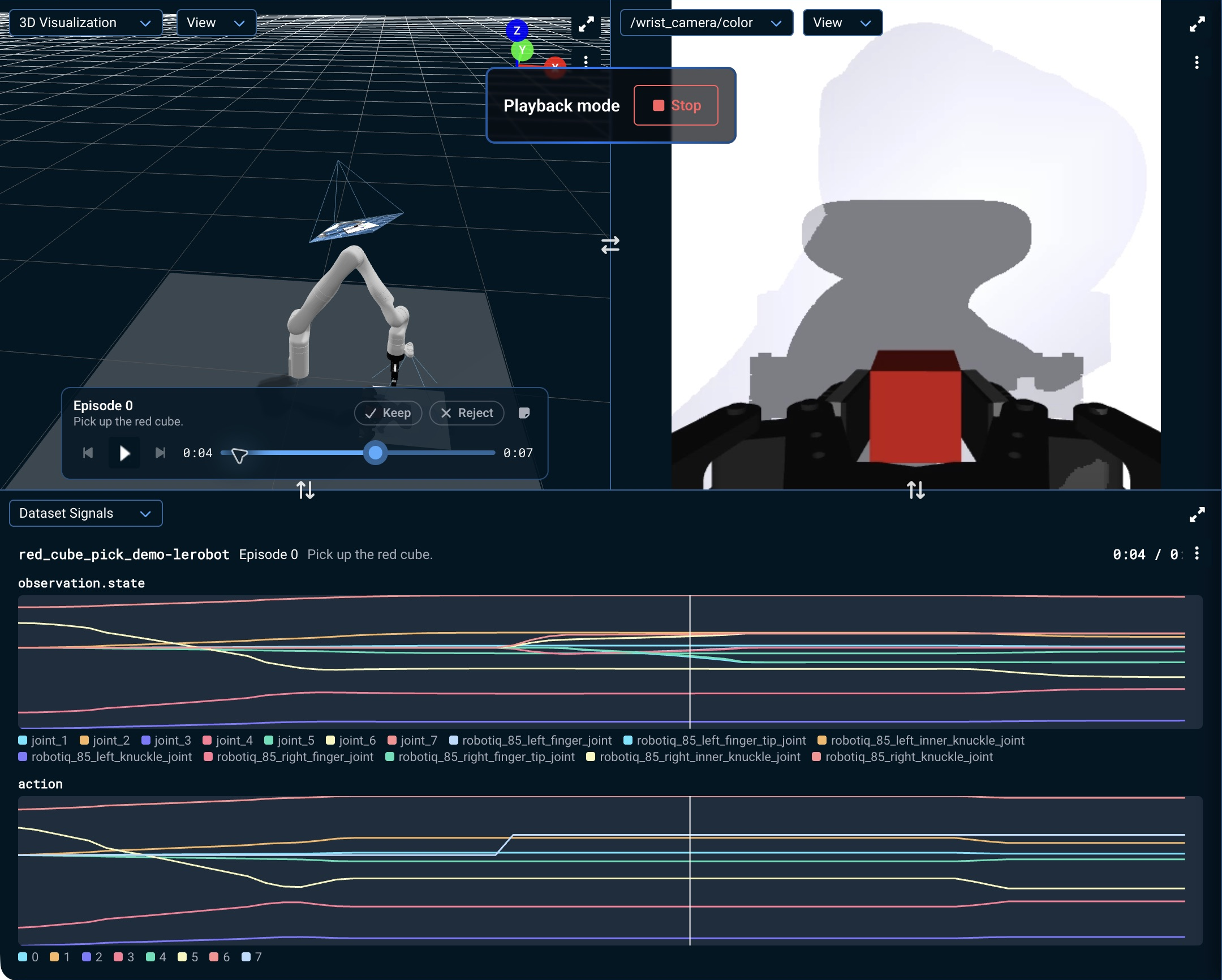
Select the play button on an episode. Playback controls appear over the camera panes and 3D pane:
- Use the play/pause button to pause on a single frame and study it.
- Drag along the timeline to jump to any moment in the episode.
- Select Stop in the Playback mode card to return to the live robot view.
Conversion in step 5 takes the whole dataset and offers no way to choose episodes. To keep episodes with failed Objectives out of a training run while retaining their recordings, enable Exclude failed episodes in the training setup. Recovered episodes remain included. To exclude an arbitrary episode from conversion, delete it from the recorded dataset before conversion. Keep and Reject marks on a local LeRobot dataset are review metadata and do not remove its episodes from training. Conversion may still skip an episode it cannot use; that is its own decision, not a selection you make.
Select an episode's trash icon to delete it and exclude it from conversion. A spinner shows deletion progress. You can cancel until Trainer starts applying the change; playback and further deletions for that dataset remain unavailable until the operation finishes.
5. Prepare a LeRobot Dataset
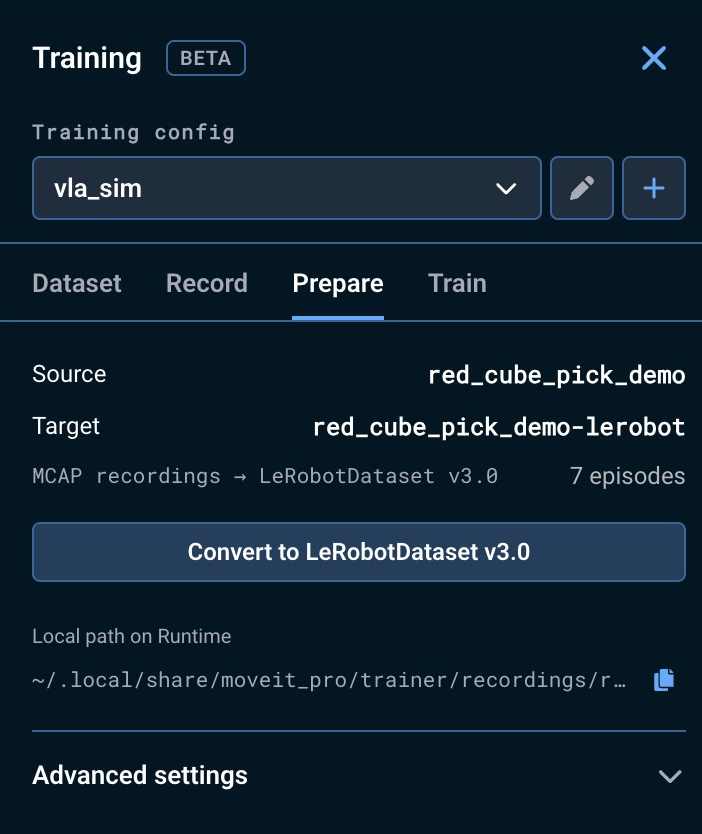
Open the Prepare tab. Trainer shows the active MCAP dataset, the proposed output name, and the number of episodes it will convert.
Conversion reads the episodes already saved in the dataset folder, so editing the Training Config after recording does not change how they convert.
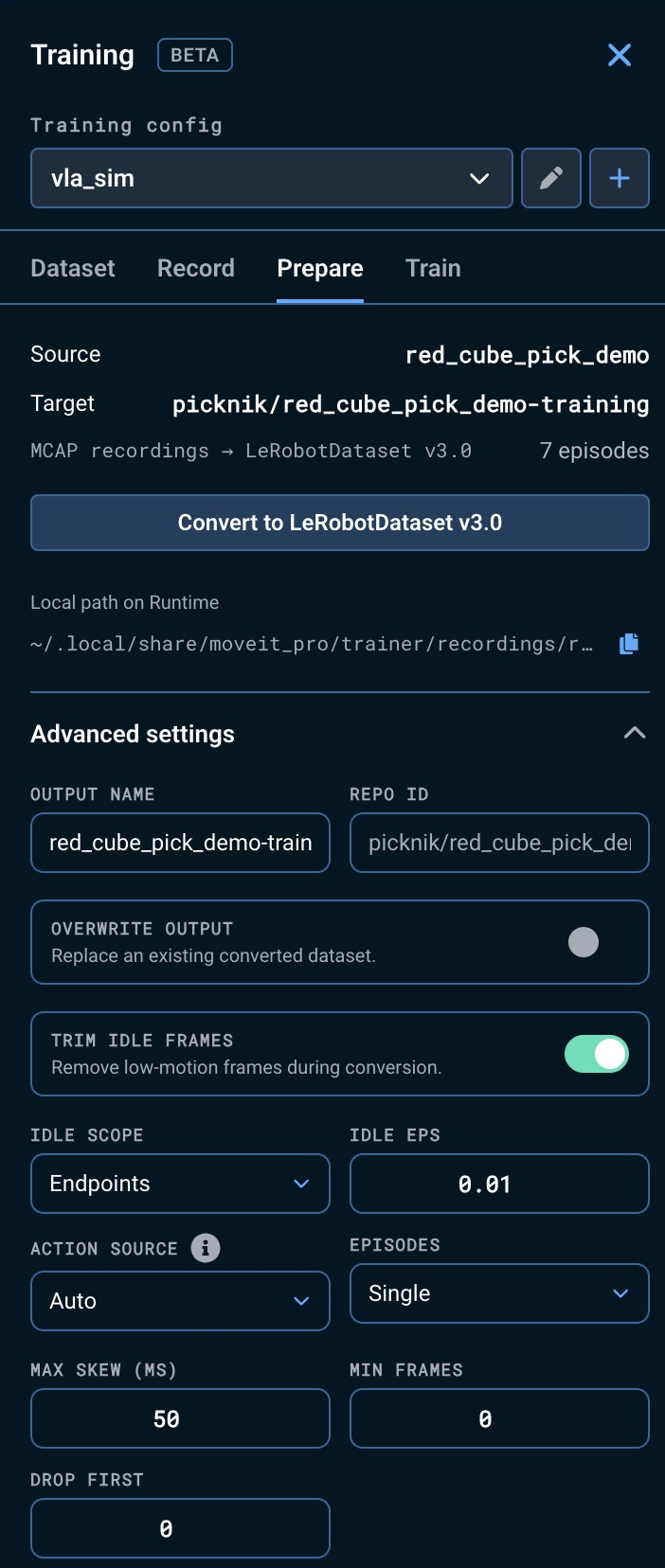
The default settings work for most demonstrations. Open Advanced settings when you need to change any of the following.
Where these settings say "frame", they mean one message from the first enabled camera. Every other stream is synced to that camera, so both FPS and the frame counts below describe the camera rate, not how often joint states were sampled.
- Output name and Repo ID for the local LeRobot metadata.
- Overwrite output when replacing a previous conversion.
- Trim idle frames to remove still frames before and after the task moves. Turn this off for a deliberately stationary test episode; otherwise every frame may be filtered out.
- Idle scope chooses where trimming applies: Endpoints (the default) trims only the leading and trailing idle runs of each episode, leaving mid-episode pauses alone; All frames collapses every idle dwell anywhere in the episode, which can remove an intentional pause such as a grasp hold.
- Idle eps is the motion threshold below which a frame counts as idle. Raise it to trim more aggressively; lower it if trimming cuts into slow, deliberate motion at the episode boundaries.
- Min frames and Drop first, both off at
0. - Action source: Auto (default) uses recorded commands when present and falls back to the following frame's measured joint positions only for source MCAP files with no command messages. Command requires recorded commands. Next state always uses measured next-state labels. Auto still refuses commands that only mirror the current state. Results show how many episodes used each label source. Auto stops before publishing if the converted episodes would mix command and next-state labels. Select Use Next-State Labels for All Episodes and confirm to retry with consistent labels. Any previous output remains unchanged until a conversion succeeds. The dataset's
meta/conversion_outcomes.jsonrecords next-state episodes withrelabelled: true. - Episodes chooses how recordings are divided into training episodes. Single, the default, keeps each recording as one episode; Marker, Time gap, and Segment divide them by other rules, and each reveals a further field when selected.
vla_sim ships a joint_command_bridge node that publishes on /joint_commands, the command topic a dataset is pinned to by default. That node assembles the trajectory controller's reference setpoint, which the controller reports while it executes a goal, so an Objective driving the robot records commands and Auto labels its episodes from them. A configuration with no such publisher has an empty command topic: Auto labels every episode with next-state labels, and Command refuses every one.
Select Convert to LeRobotDataset v3.0. Conversion runs in the background in a queue; monitor it until it reports completion and shows the local output path.
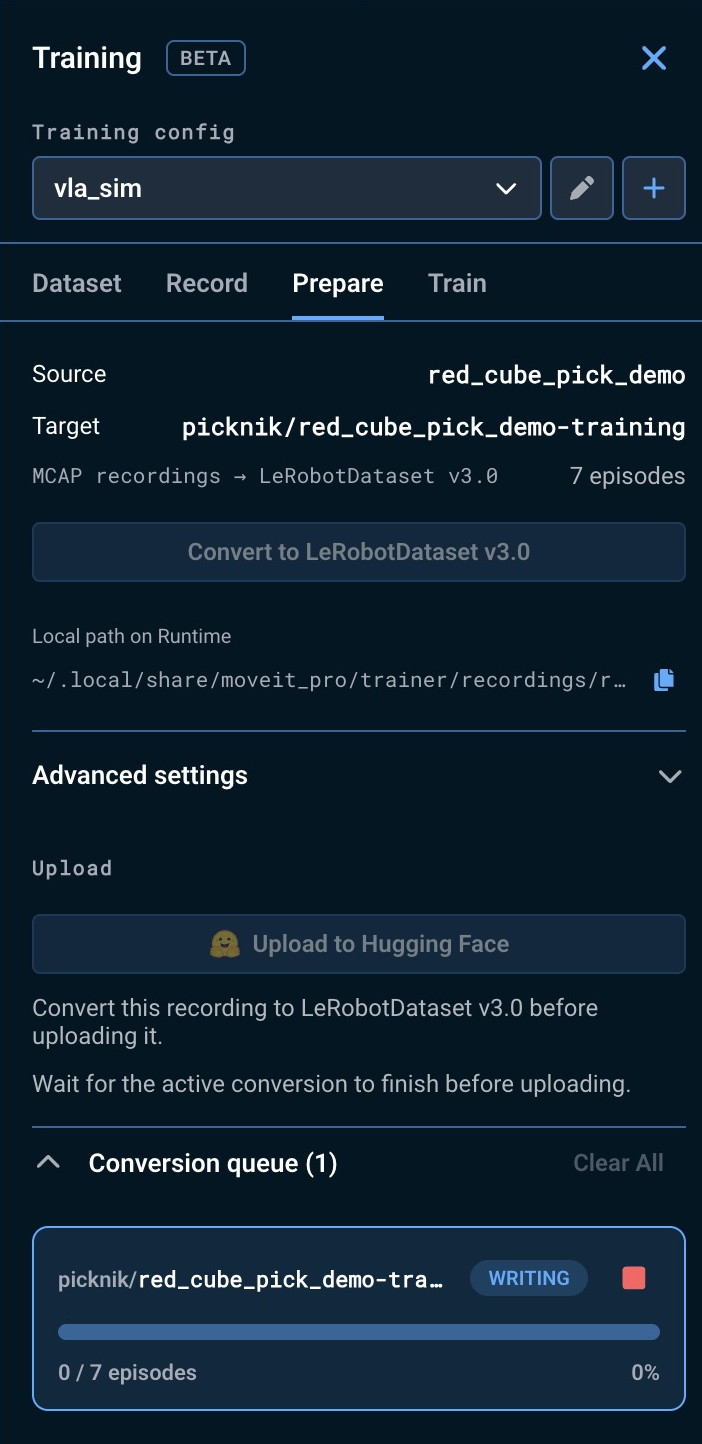
Conversion skips episodes it cannot turn into sound training data and continues with the rest — for example a recording gap that dominates the episode's time span, or an FPS more than 25% above the rate that camera delivered in that episode. A conversion in which no episode survives fails outright, and some faults fail the whole job rather than skipping one episode. The Prepare tab shows the converter log for a failed job, and that log names the reason.
The converted dataset is written next to the raw dataset:
~/.local/share/moveit_pro/trainer/recordings/<output-name>
It contains LeRobot data and meta folders. Conversion does not automatically upload data to any external service.
A videos folder holds each camera as H.264 video in MP4 files.
A completed job lists the skipped episodes under Skipped episodes on the Prepare tab, one entry per reason. A job in which every episode was skipped fails instead of completing, so it has no such list; its failure log on the same tab carries the same reasons. Either way, the FPS reason reports both numbers: the frames per second the recording provides and the FPS the dataset is pinned to. That reason is the only place that camera's own rate is shown. The obs value from step 4 will not always agree with that number. obs averages every enabled camera across the whole episode, while the skip reason reports one camera's typical gap between frames. A single multi-second stall during recording is enough to separate the two.
Conversion has no FPS setting of its own. It uses the FPS the dataset was created with, and applies that one value to every episode in the folder. An episode skipped over FPS therefore cannot be fixed where it is: record it again into a new dataset, created at an FPS no higher than the rate the skip entry reports. Never raise the FPS to make up for a slow camera. Episodes skipped over a recording gap or idle filtering name their own remedies.
To check what a policy will train on, select the converted dataset on the Dataset tab and play one of its episodes. The robot and camera panes replay it, and a Dataset Signals pane charts its observation.state and action values on the same timeline. Previous Episode and Next Episode move through the dataset.
Review a Dataset Before Importing
Use vla_sim with PickNik's public Kinova Gen3 cube-stacking dataset, which has 360 demonstrations and three camera views.
Use data from the same robot model with compatible joints and camera placement. Mapping assigns joints and camera views; it does not retarget demonstrations to a different robot. Matching names alone do not guarantee compatibility.
- In Dataset, select Import Dataset and enter
PickNikRobotics/kinova_gen3_cube_stack_sim. - Leave Revision at
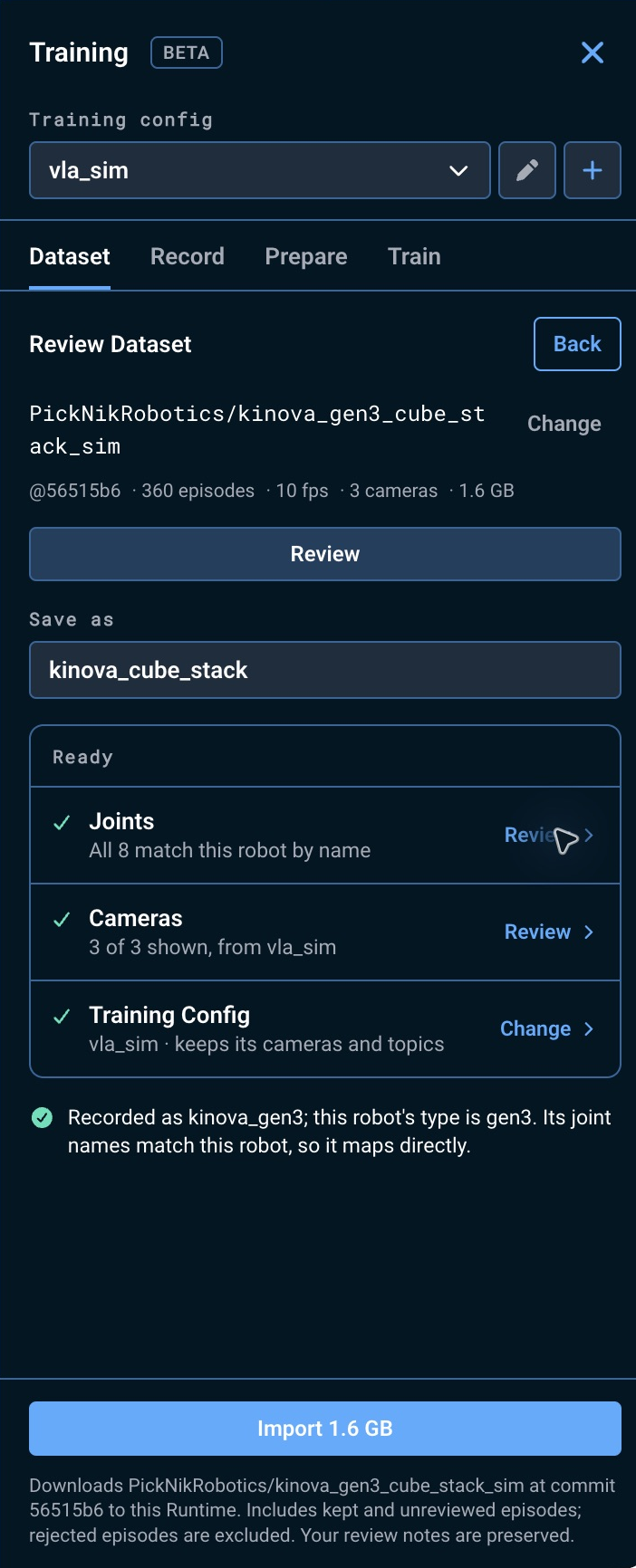
mainand select Check Dataset. Withvla_sim, all eight joints and the overview, scene, and wrist cameras match. - Select Review. The dataset appears as External; episode data is read as needed instead of downloading the entire dataset. Review requires a usable joint mapping, and video playback requires the Desktop App.
Play an episode to inspect the robot and cameras. Choose Dataset Signals from a pane's dropdown for joint and action charts. Use Keep, Reject, or the note button during playback, or the row's ⋯ menu. Marks and notes stay local; selecting a mark again clears it.
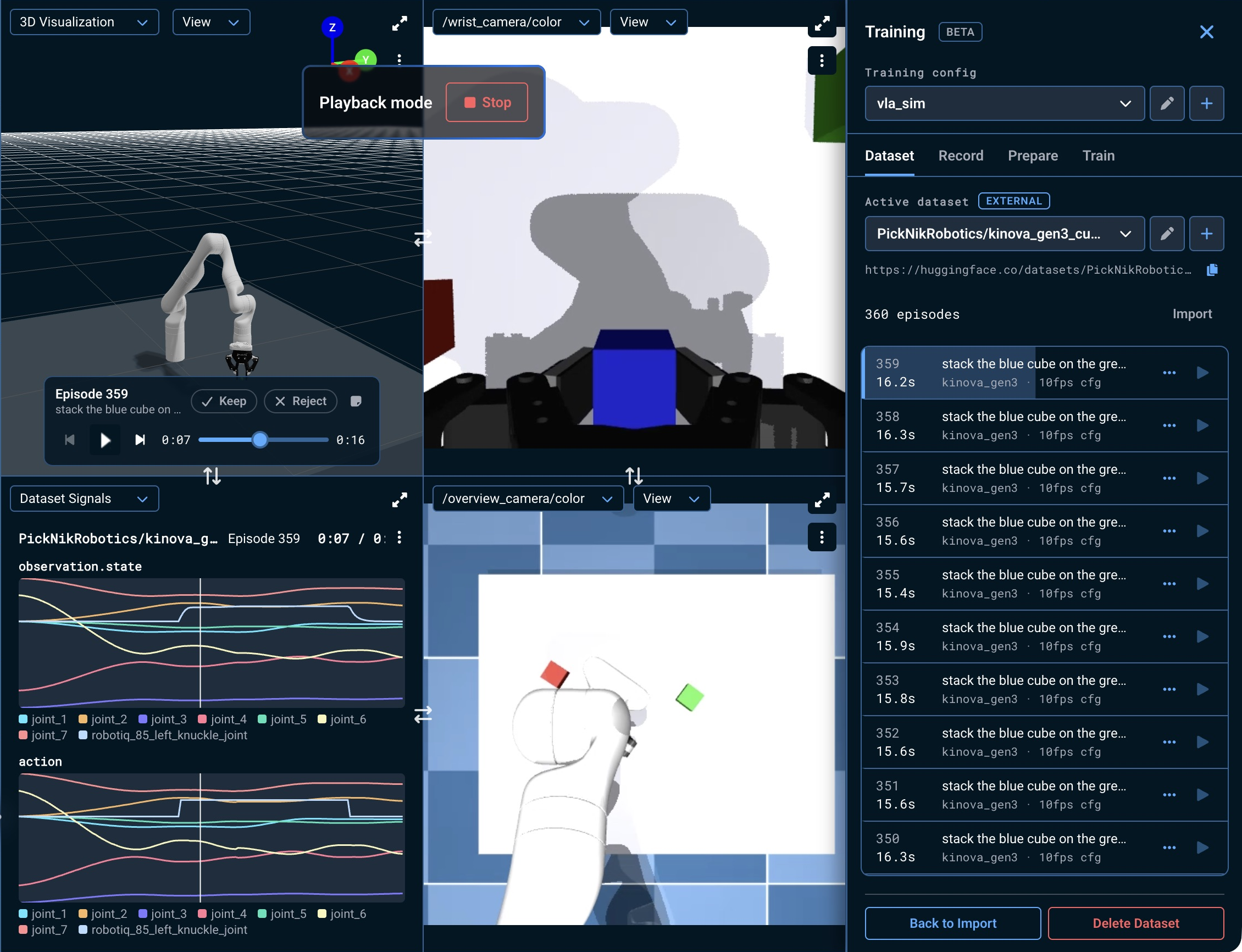
Select Import beside the episode count or Back to Import, confirm the local name, and import. Kept and unreviewed episodes are included; rejected episodes are excluded. Included notes are preserved, although shared files may still need downloading. Progress and Cancel stay visible. Success replaces External with Imported; cancellation preserves the review.
Upload the imported copy from Prepare to train on that selection. Training directly from the External Hub source uses all published episodes, including locally rejected ones. Notes are review metadata, not training labels.
6. Optionally Upload to Hugging Face
Uploading is optional and does not start a training job. Select a converted or imported LeRobot v3 dataset in Trainer, open the Prepare tab, and select Upload to Hugging Face to enter the upload settings in a dialog:
- Dataset repository — a Hugging Face repository name such as
my-account/red-cube-pick. - Hugging Face write token — a token that can create or write that dataset repository, unless a saved token or Runtime credential is selected.
- Private repository — enabled by default for a new repository. An existing repository keeps its current visibility.
- Override with local version — off by default. Leave it off to add episodes while preserving every previously uploaded episode. Turn it on to replace the remote dataset with the local version, including removing remote files that no longer exist locally.
Select Prepare and Upload. Trainer validates that the selected folder is a local LeRobot v3 dataset, adds the q01, q10, q50, q90, and q99 statistics required by quantile-normalized policies when they are missing, validates your token, and then uploads the dataset. The upload card shows each phase and ends with a View Repository link, an actionable error, or a Cancelled status. Select Stop Upload to cancel a live job. In Train, a completed upload prefills Train a Model with its repository and revision. Training setup remains available without an upload: select an External dataset to use its checked Hub revision, or enter a Hub repository explicitly.
After adding or editing recordings, convert the complete dataset again before uploading to the same repository. Add only rejects changed or removed episodes; use Override with local version for those changes. It also rejects changed video files or rearranged data files that it cannot verify as an addition. It does not merge separate datasets.
Conversion queue and Upload history start expanded; select a heading to collapse it. Clear removes one finished result, and Clear All removes finished results from that history. Neither deletes datasets.
If no Desktop App token is saved and the Runtime already has HF_TOKEN or an active Hugging Face CLI login, the dialog shows Using Runtime credentials and the verified account when available. These credentials must be available to the Runtime process inside its container, not only in a host terminal. The token stays on the Runtime and is shared by authorized users who can upload through it. Select Use Another Token to use your own credential.
In the installed Desktop App, select Remember securely on this computer to save an entered token using the operating system's protected credential storage. The saved token is bound to this Runtime connection. Future uploads show Using saved token, with Change and Forget controls. Changing the Runtime address or service ports requires entering the token again. Remembering is unavailable when the operating system has no protected secret store. The web app supports Runtime credentials and temporary token entry without persistent browser storage.
An entered or saved Desktop App token is sent to the selected Runtime over the existing authenticated connection. The Runtime passes the selected credential to a dedicated upload process through its private standard input. It is not saved in Trainer settings, job history, command-line arguments, or logs. The converted dataset, including any recorded images of people, is sent to your Hugging Face account only when you select Prepare and Upload; PickNik does not receive it. Hugging Face storage and transfer limits for your account apply.
Dataset file updates and removals publish together in one commit. If another upload changes the repository first, this upload fails; retry after checking the remote version. A failed or cancelled job can leave a newly created repository, or a completed commit whose confirmation did not reach Trainer. Inspect the repository before retrying.
Troubleshooting
- The Start recording button is unavailable. Create or select a dataset, enter a task description, and make sure the Training Config has been saved. If a warning icon appears next to the button, the options the dataset was pinned to no longer match the current Training Config — hover or focus the icon for details.
- Conversion says the episode is empty. Confirm the configured camera and joint topics have live messages. If the robot did not move, turn off Trim idle frames and convert again.
- Upload says the token cannot write the repository. Create a Hugging Face write token, or grant a fine-grained token access to the destination repository or organization, then submit the upload again. Use Change for a saved token or Use Another Token for Runtime credentials.
- Upload preparation rejects the dataset. Select the converted LeRobotDataset v3.0 entry rather than its source recording. If metadata or Parquet files were changed outside Trainer, convert the recording again to produce a complete local dataset.
- A camera is missing in playback or conversion. Open Training Config, correct that camera topic, then create a new dataset and record into it. The existing dataset is pinned to the old camera set and refuses the corrected recording. Existing MCAP files are not changed when you edit the Training Config.
- Recording is refused because the dataset was pinned with different options. The Start recording button is disabled and a warning icon appears beside it; hover or focus the icon to see which fields no longer match. Either restore those Training Config values (or enter the pinned rate as the labeled FPS override), or create a new dataset for the new settings.
- A folder under
~/.local/share/moveit_pro/trainer/recordingsdoes not appear in the Dataset tab. Trainer lists a dataset only when it can read the rate its episodes were recorded at, from that dataset's owndataset.jsonor, for a converted dataset, itsmeta/info.json. A folder copied in by hand, or one whose metadata file is missing or damaged, is skipped and the Runtime log names it. Trainer never guesses a rate, because a wrong one mislabels every frame in the dataset. Record the demonstrations into a dataset created in Trainer.