Train a VLA Policy with Trainer
The Train tab in the MoveIt Pro Desktop App fine-tunes pi0.5 on a LeRobot dataset. The MoveIt Pro Runtime rents a GPU pod in your RunPod account and publishes the checkpoint to your Hugging Face Hub account. PickNik does not host the training service, and the workflow does not require a local GPU.
To train without the Desktop App, use the bundled train-model skill instead: see Train a VLA Policy on Your Own Runpod.
- pi0.5 (
lerobot/pi05_base) is a vision-language-action model for generalization across robots and environments. See Physical Intelligence's pi0.5 announcement and paper.
Trainer does not accept an arbitrary base-model repository. Each supported policy has a reviewed training recipe, camera contract, checkpoint format, and dense-export path in the Runtime. Supporting another LeRobot policy therefore requires a MoveIt Pro update rather than only a different model ID. This prevents an unreviewed model repository from changing the code or artifact formats used inside a paid training run.
Costs
You pay the providers directly:
- RunPod bills the selected GPU while the pod exists. Check Setup displays current stock, hourly price, an estimated run cost, and a wall-clock budget before launch.
- RunPod bills the 100 GB network volume until you delete it. The volume keeps dataset downloads, outputs, and checkpoints for later runs. The training environment and reviewed base model are rebuilt on each pod's ephemeral disk.
- Hugging Face bills dataset and model storage according to your account's plan.
The Runtime binds launch to the reviewed GPU, datacenter, pinned image, and hourly-price ceiling. If stock or price changes, setup must run again instead of silently selecting another paid resource.
Prerequisites
- A RunPod account with billing and an API key from the RunPod settings.
- A Hugging Face account and a token with write access to the output model repository. Use a missing repository name, which Trainer creates as private, or an existing private repository; setup refuses an existing public repository.
- A running MoveIt Pro Runtime and a connected MoveIt Pro Desktop App.
- A LeRobot v3 dataset on Hugging Face Hub. Prepare and upload a local recording from Trainer's Prepare tab. See Collect Training Data with Trainer.
- Knowledge of which recorded camera is the base view and which is attached to a wrist.
A third-party Hub dataset must contain pi0.5's required q01 and q99 statistics for both observation.state and action. Trainer adds the required statistics when it prepares a MoveIt Pro recording.
The fine-tuned policy inherits its base model's terms. lerobot/pi05_base uses the Gemma Terms of Use. Trainer links to the applicable terms during setup and requires acceptance before launch. The output repository is private, but you remain responsible for compliance before sharing or hosting the checkpoint.
Train the Policy
-
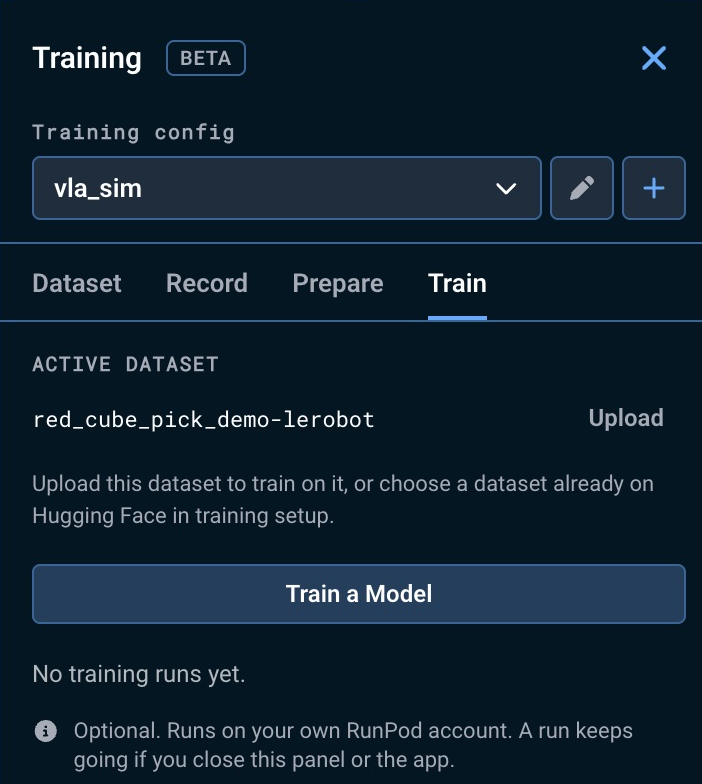
Open Trainer with the graduation-cap button or T, then select Train.
-
Select the dataset. A local recording shows Prepare Dataset; a prepared local dataset shows Upload; an uploaded dataset, or an External dataset reviewed from Hugging Face, is ready for training.
-
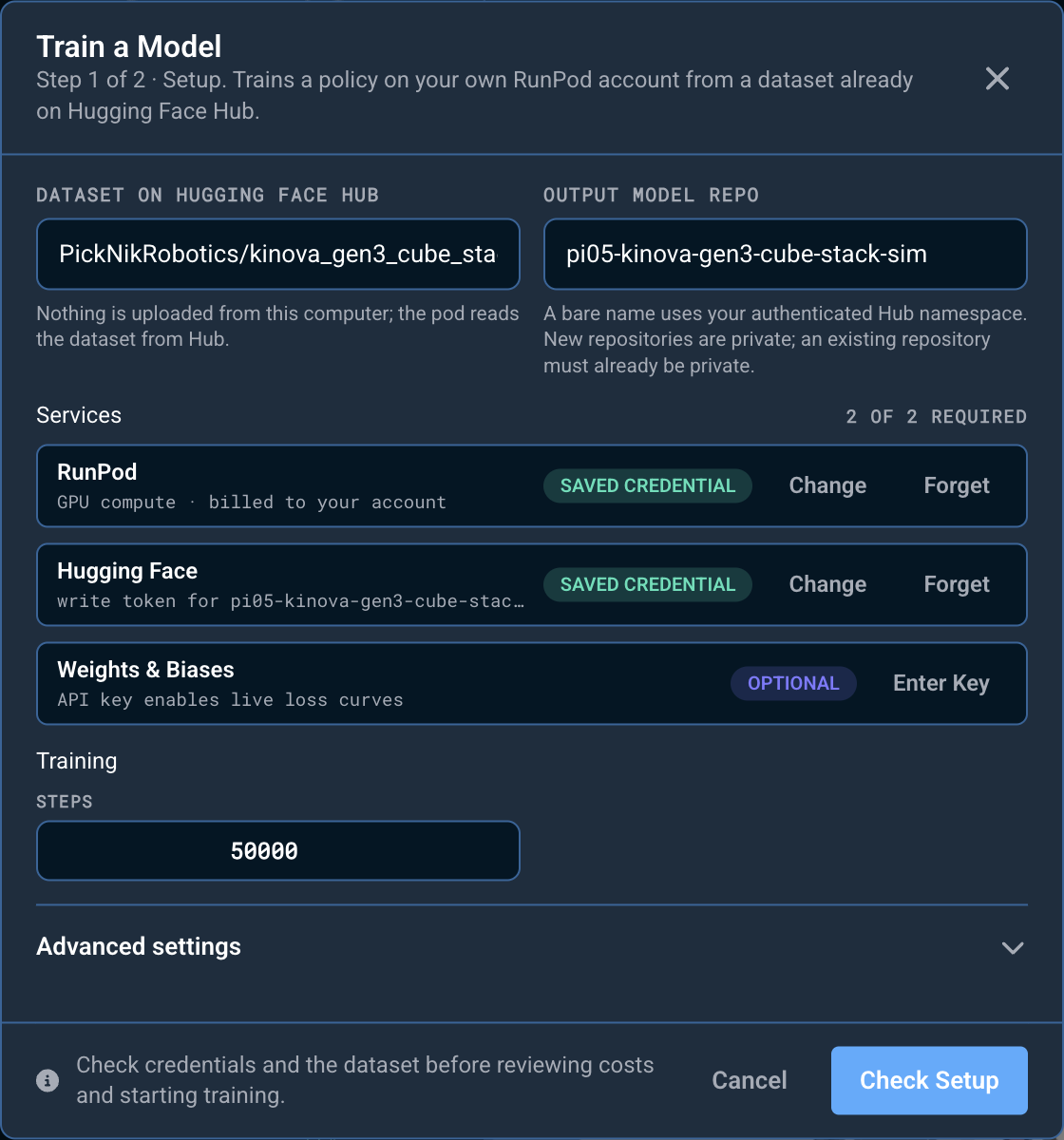
Choose Train a Model. Trainer fills an uploaded or External dataset's Hub source; otherwise enter a Hub repository in setup. It suggests a policy-specific output model name. A bare output name is created as private under the authenticated Hugging Face user's namespace; enter
organization/model-nameonly when the token can write to that organization. An existing repository must already be private. -
Configure RunPod and Hugging Face when prompted. A saved Weights & Biases key is optional and enables logging automatically. Remember securely on this computer stores a credential through the installed app's protected credential storage; Use for This Run applies it to this run only. The Runtime keeps the run's credentials in an owner-only file on its host while the run is live so it can resume monitoring after a restart. When the run ends it keeps only the RunPod key, and only while pod cleanup is unconfirmed or the run's network volume is kept.
-
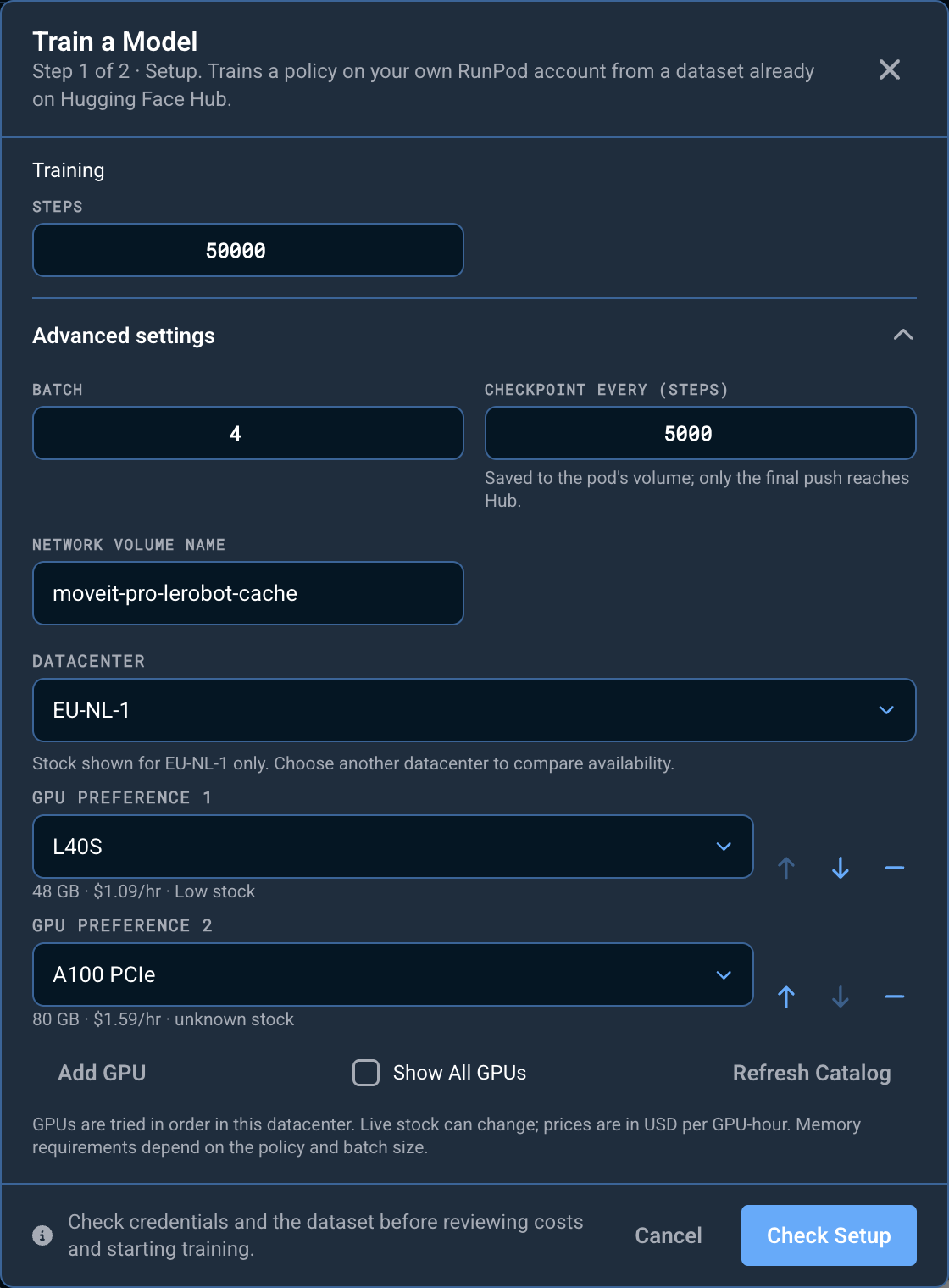
Choose the training steps. Most runs can use the remaining defaults. Advanced settings contains batch size, checkpoint frequency, the reusable network-volume name, datacenter, and GPU fallback order. The GPU catalog shows memory, current price, and stock. Until you pick a datacenter, Trainer proposes the one that currently stocks the most of your preferred GPUs; network volumes are datacenter-pinned, so choose the datacenter of an existing cache volume to reuse it.
-
Choose Check Setup. The Runtime verifies the credentials, output-repository write access and private visibility, dataset metadata, volume, GPU stock, and price. Setup creates no paid resource.
-
Confirm the camera slots in the review step. The proposed pairing is only a candidate: it follows the
image_namesorder of the active configuration'sExecutePolicyObjective when that Objective names exactly the dataset's cameras, and detection order otherwise; use the recording configuration or an episode preview to identify physical intent. Each dataset camera can fill one slot. Review and accept the linked model terms separately.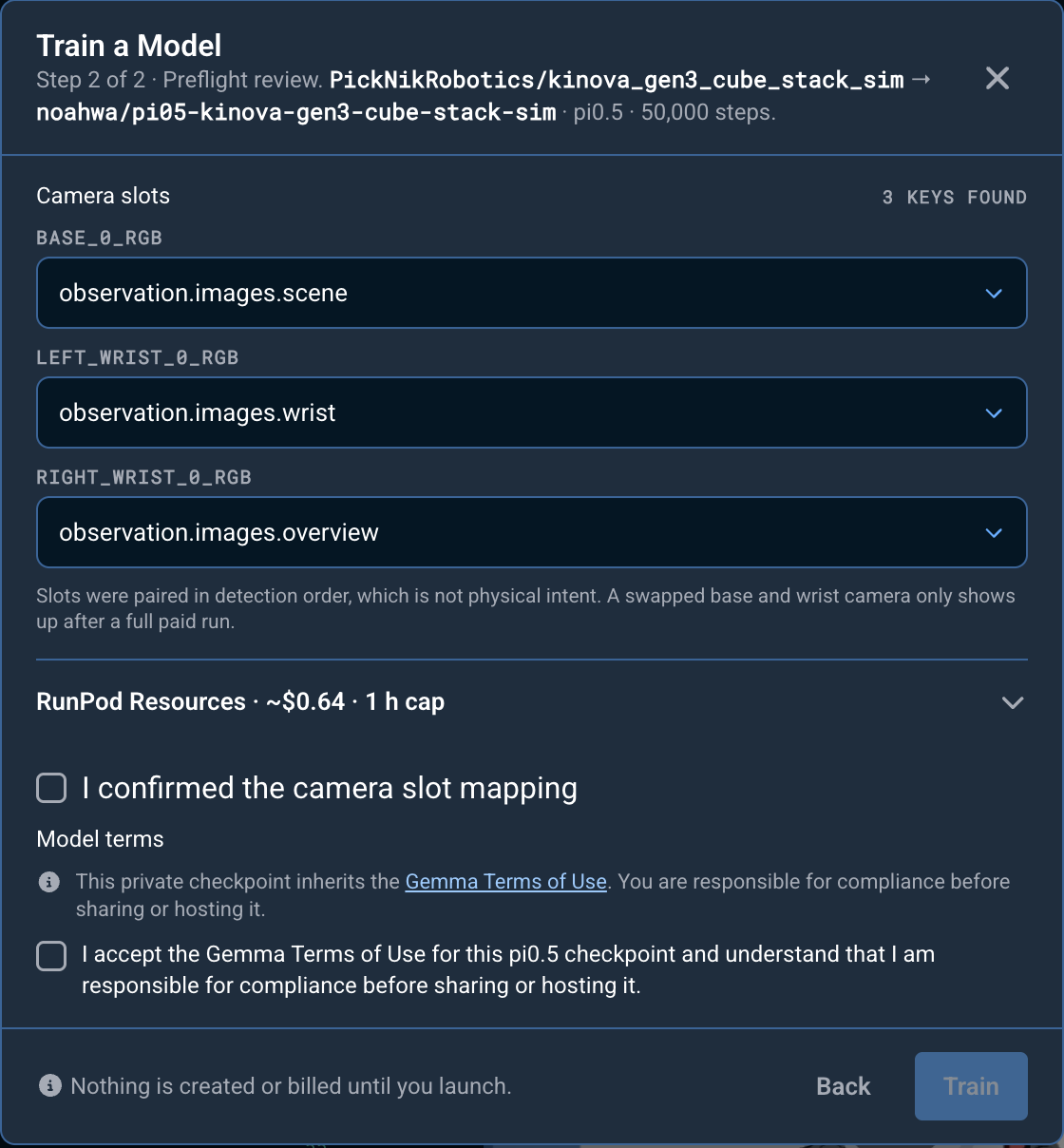
-
Expand RunPod Resources when you need to inspect the GPU, datacenter, estimate, network volume, or budget cap. Select both confirmations, then choose Train.
Enable Exclude failed episodes in training setup to omit episodes containing a failed Objective from this run. Setup reads the outcomes in the selected Hub dataset revision and shows the selected episode count. Episodes with no outcome or only cancelled Objectives remain eligible; a dataset without outcome metadata keeps all episodes. If every episode failed, setup asks you to include failures or choose another dataset. Very large selections that exceed the training launcher's argument limit also fail setup before compute starts; use a smaller subset dataset or include failures. The filter preserves the recordings and uploaded dataset.
The Runtime creates the network volume at launch when needed, then creates a pod directly from a digest-pinned image. Before pod creation, it records the pod's unique SSH host key. It then verifies the resources returned by RunPod, installs the hash-locked LeRobot environment, and downloads the selected base model from a reviewed immutable Hub revision onto ephemeral pod storage. The Runtime verifies the local model files before sending Hugging Face or Weights & Biases credentials. Credentials never enter the persistent network volume.
Monitor and Clean Up
The run card shows the stage, step progress, loss, elapsed time, budget, and estimated cost. Details opens the log and the Weights & Biases link when configured. Weights & Biases is optional: Check Setup warns when the saved key cannot log runs, and if Weights & Biases still fails at run time, the log shows a warning and training continues without it. Closing the panel or Desktop App does not stop training; the Runtime keeps monitoring and reconnects after a restart.
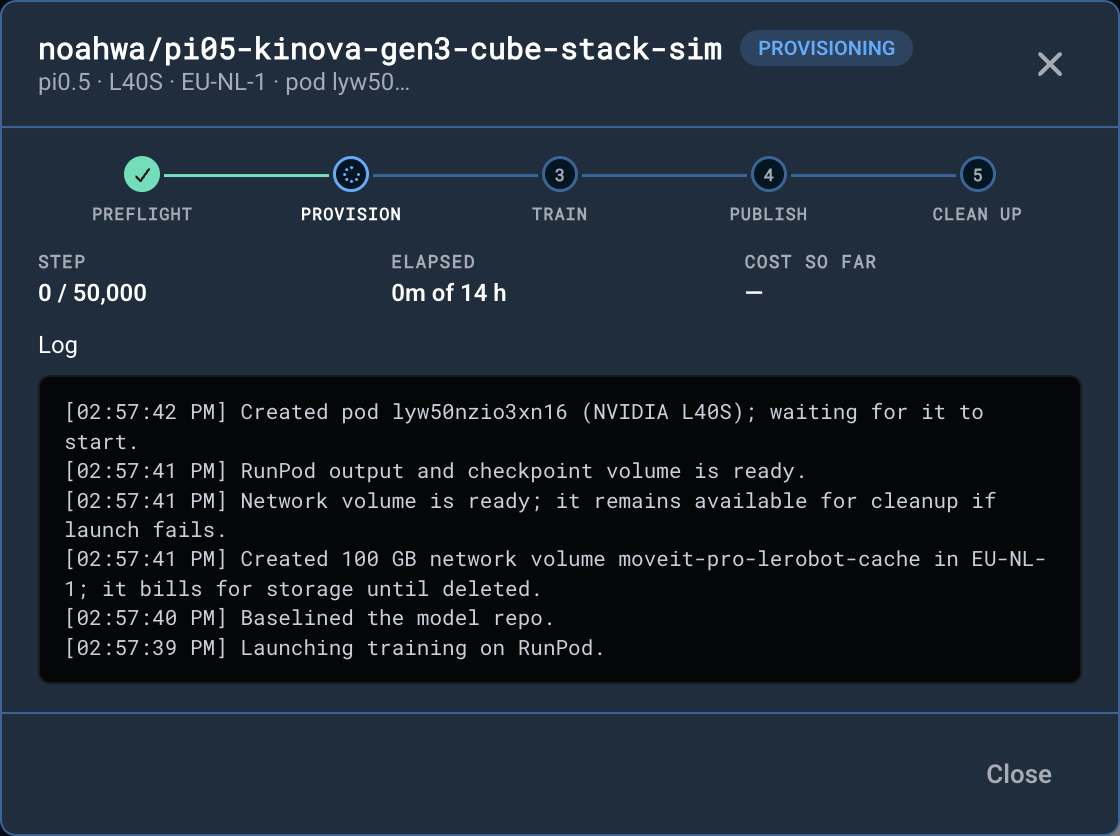
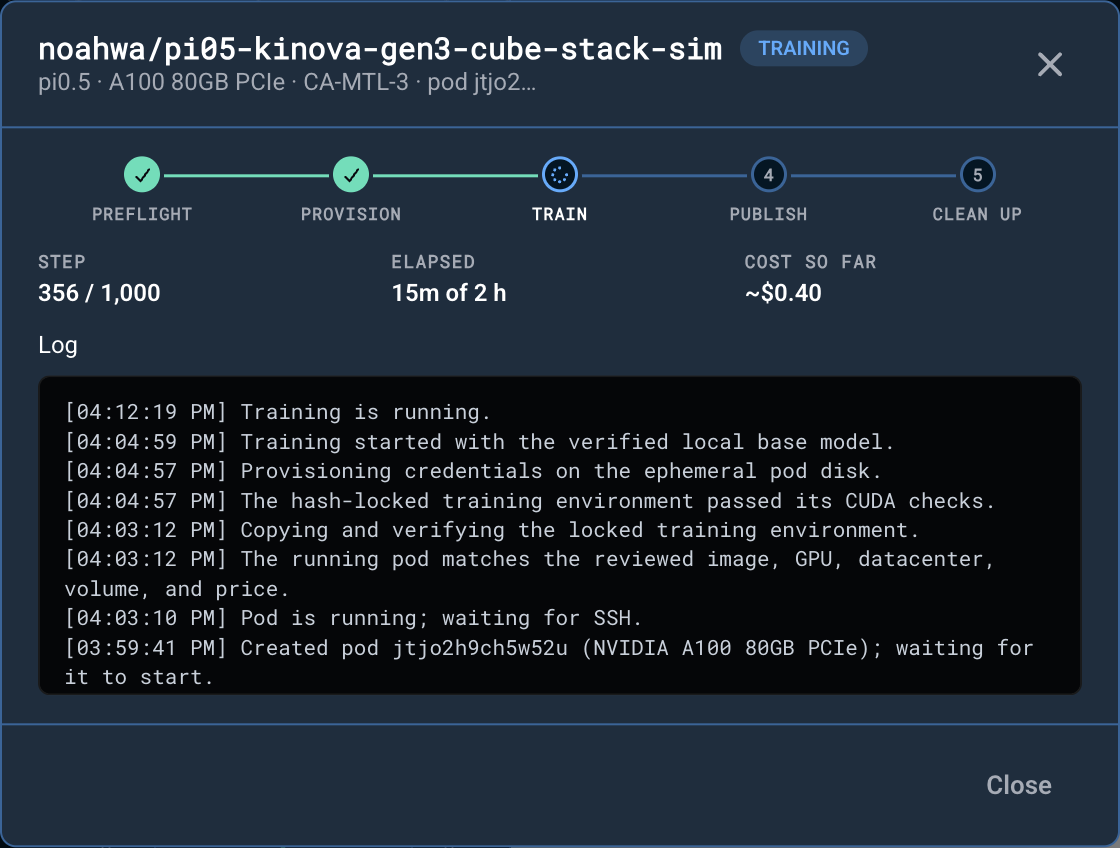
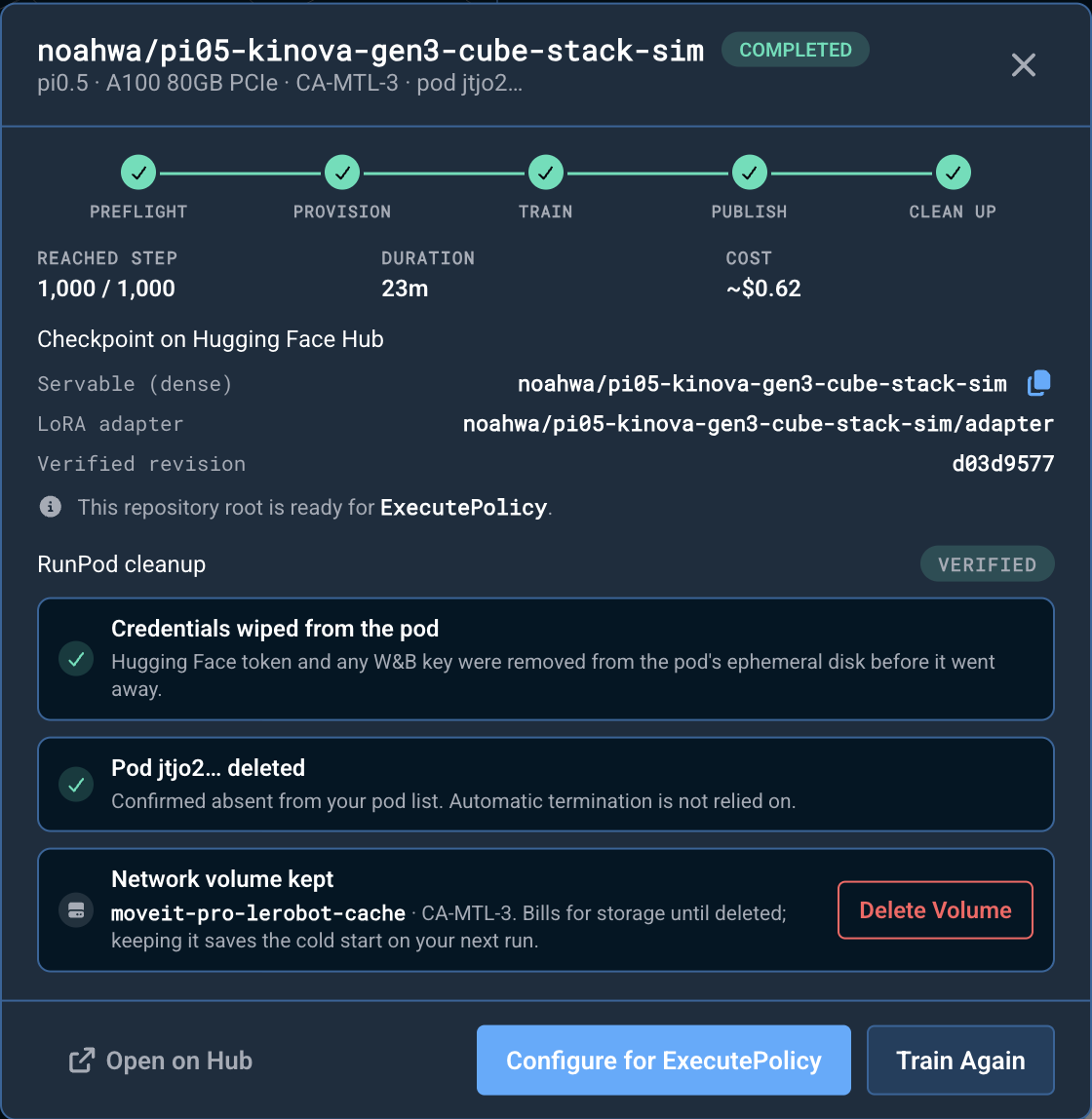
Stop cancels the run and deletes the pod. A completed or failed run also deletes the pod and reports cleanup separately from the training outcome.
For locally managed inference, successful training makes the checkpoint eligible for Configure for ExecutePolicy. The button appears when the active robot configuration package provides a writable config/vla_serving.yaml whose inference server declares support for immutable Trainer checkpoints; otherwise open Details for the prerequisite. Cleanup is tracked separately, so a completed run can still require cleanup attention. Cleanup is complete when:
- pod cleanup is marked verified; and
- credentials are marked wiped from ephemeral pod storage.
Use Retry Delete when pod deletion is unconfirmed, then verify the RunPod console. Use Delete Volume when its outputs and checkpoints are no longer useful. If a lost create response leaves a pod or volume unconfirmed, open the RunPod console from Details and remove every matching resource. The Runtime reports a charge as stopped only after it verifies that the resource is absent.
Train on the PickNik Example Dataset
PickNikRobotics/kinova_gen3_cube_stack_sim is a public LeRobot v3 dataset with 360 MuJoCo demonstrations, three camera views, and the statistics pi0.5 requires.
For this dataset, set the camera slots explicitly:
| Policy slot | Dataset camera |
|---|---|
base_0_rgb | observation.images.scene |
left_wrist_0_rgb | observation.images.wrist |
right_wrist_0_rgb | observation.images.overview |
The overview key sorts first but is a fixed overhead view, so the detection-order candidate is not the intended mapping.
Use the Checkpoint
The output model repository contains the servable dense checkpoint at its root and preserves the LoRA adapter under adapter/. Beside the checkpoint, moveit_pro_policy.json records what it was trained with: the policy type, the base model and dataset revisions, the frame rate, the robot-state width, and the confirmed camera-to-slot mapping in the order ExecutePolicy lists its cameras. It lets you configure the checkpoint from the repository alone, including on an inference server Trainer does not configure: copy its frame rate and state width into that server's config/vla_serving.yaml, and its camera names, without the observation.images. prefix, into the Objective's image_names.
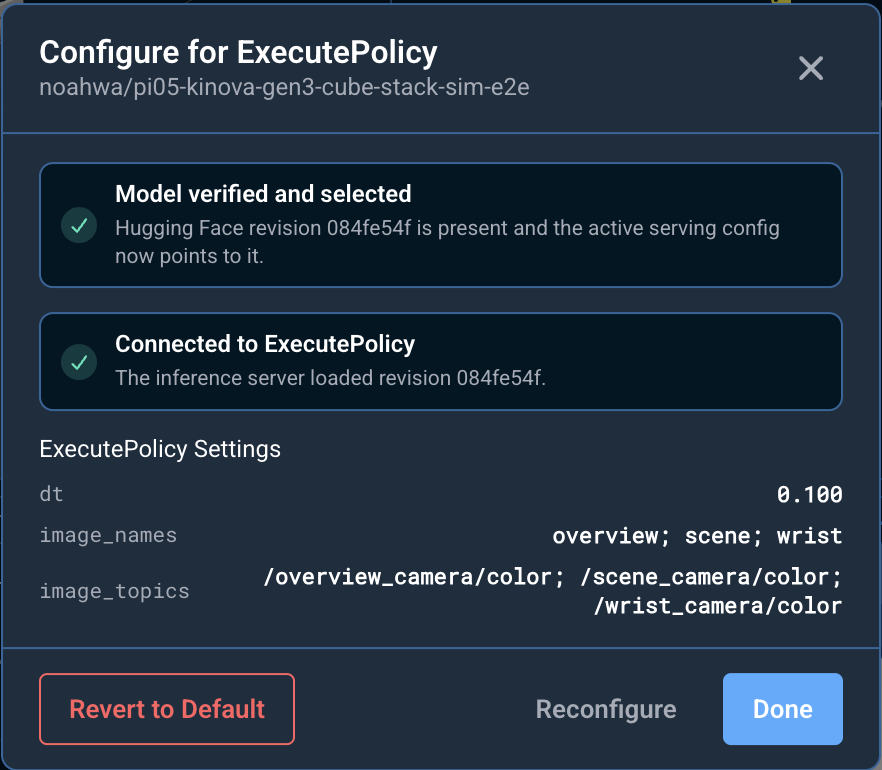
Choose Configure for ExecutePolicy on the completed run card or in Details. Trainer verifies the exact Hugging Face revision and reads its moveit_pro_policy.json, securely provisions the selected token to the inference server, and updates the model selection, immutable revision, private-model access requirement, frame rate, and state width in the active robot configuration package's compatible, writable config/vla_serving.yaml. Existing device and real-time chunking settings are preserved. A running inference server reloads automatically once no policy is executing; the run card reports Connected to ExecutePolicy only after the server confirms that it loaded the exact repository revision. If the server is offline, start MoveIt Pro with --with-inference-server. Opening the run card again shows the same load progress. While the model is still loading, Stop Loading restores the earlier model selection; once it is connected, Revert Model returns to the previously configured model and Revert to Default returns to the selection the configuration had before Trainer first changed it. The inference server reloads after each of these, and the card goes back to Configure for ExecutePolicy.
The confirmation reports the ExecutePolicy values implied by the training dataset: dt, dataset-native image_names, and, when the active recording configuration identifies every source camera, image_topics. If the topics are not resolved, review them in the Objective. Update the Objective with those values before running the policy. Trainer does not change an Objective automatically.
When INFER_URL selects an external HTTPS server, Trainer shows that inference is externally managed. Configure for ExecutePolicy then verifies the checkpoint and reports the ExecutePolicy settings and the serving settings to set on that server (the checkpoint, its revision, the policy class, fps, and state_dim), but writes no serving file and installs no credential on this Runtime. Set the model and Hugging Face access on the inference host.
See Connect a VLA Policy to the ExecutePolicy Behavior for the inference connection and Run the VLA Cube-Stacking Example for replacing the example checkpoint.
This workflow has no held-out validation split or policy rollouts. Low training loss means the model reproduces its demonstrations; it does not prove task completion. Measure task success in Trainer's Evaluate tab, as described in Evaluate a VLA Policy.
Troubleshooting
- Setup cannot validate the dataset: confirm the repository ID and
meta/info.json; private repositories require the configured Hugging Face token. - Setup rejects the output repository: make an existing repository private, or choose a missing repository name for Trainer to create privately.
- No GPU has priced stock: refresh the catalog or choose another datacenter, then run setup again. Network volumes are datacenter-pinned.
- RunPod rejects launch after review: stock or price changed. Run setup again so the next launch has a fresh approval.
- The pod exits before training: open Details for the environment-verification error. Credentials are not provisioned until that phase succeeds.
- The configured model fails to load with a permissions error: an
HF_TOKENset in the environment or the workspace.envoverrides the token Trainer provisions. Unset it, or give it read access to the private output repository. Unlike the provisioned token, anHF_TOKENenvironment value is visible indocker inspect. - Configure for ExecutePolicy reports that the inference server is not following this config: if the server loaded another serving config, or still serves another model well after Trainer changed
config/vla_serving.yamlwith no reload pending, it is reading a different file. Check that the inference server mounts theconfigdirectory of the active robot configuration package. If it read that file but serves another model, check the server's command line. A--checkpointor--checkpoint-revisionoption on thevla_simserver overrides the file. - Pod cleanup is unconfirmed: use Retry Delete and inspect the RunPod console. A listed pod can still bill.
- Volume creation is unconfirmed: open the RunPod console from Details and remove every matching volume; storage may still bill even when no id was returned.