Evaluate a VLA Policy
An evaluation tells you how often a policy gets its task done. The Evaluate tab in Trainer runs your task Objective for a fixed number of trials and reports how many passed, as in 11/16 (69%). Compare that pass rate with the one your application needs.
You can evaluate any Objective this way, in simulation or on hardware. It does not have to run a VLA policy.
What an Evaluation Runs
You pick a task Objective and a trial count, and optionally a reset Objective and a scoring Objective. Each trial runs up to three Objectives, one after the other:
- The reset Objective puts the scene into the trial's starting state. Leave it out for a task that sets up its own scene.
- The task Objective attempts the task.
- The scoring Objective decides whether the trial passed. Without one, the trial passes when the task Objective succeeds. Leave it out only when the task Objective's SUCCESS means the task got done. A policy run needs a scoring Objective, because
ExecutePolicysucceeds when its step budget runs out, done or not.
The evaluation sets no time limit. Each Objective must end on its own, and one that never ends holds the evaluation until you stop it.
Give Each Trial Its Own Scene
By default, nothing tells your Objectives which trial they are running. So a reset Objective that always loads the same keyframe starts every trial from the same scene.
To make the trials differ, declare an int input port named trial_index on an Objective. The evaluation sets it to the trial's number, counting from 0, before it runs the Objective. A reset Objective can then build a different scene for each number, for example by drawing object positions from a random generator seeded with the number. If the scene depends only on the number, trial 7 starts from the same scene in every evaluation, and two policies face the same scenes.
When the task Objective or the scoring Objective needs to know what the reset Objective set up, such as which object to pick, give it the trial_index port too. The three Objectives share no blackboard, so have all three call one Subtree that turns the number into the trial's setup. The vla_sim example does this with its Sample a Cube Stacking Trial Subtree.
Leave the port out when every trial should start from the same scene, or when a person sets up each trial.
Run an Evaluation
Open Trainer with the graduation-cap button in the upper-right corner, or press T, and select the Evaluate tab.
- Choose the task Objective. Choose a reset Objective and a scoring Objective, or leave either at None. The lists include Objectives you cannot run on their own.
- Set the number of trials. The default is 20.
- Optionally, name the evaluation, for example after the checkpoint you are testing.
- Select Start Evaluation.
If your Objectives run ExecutePolicy on a local inference server, the evaluation records the model the server has loaded. It refuses to start until the server is ready, and it stops if the server goes down or loads another model. The evaluation does not record a remote server's model, so put the checkpoint in the name.
While the evaluation runs, the tab shows the current trial, which of its Objectives is running, and the pass rate so far.
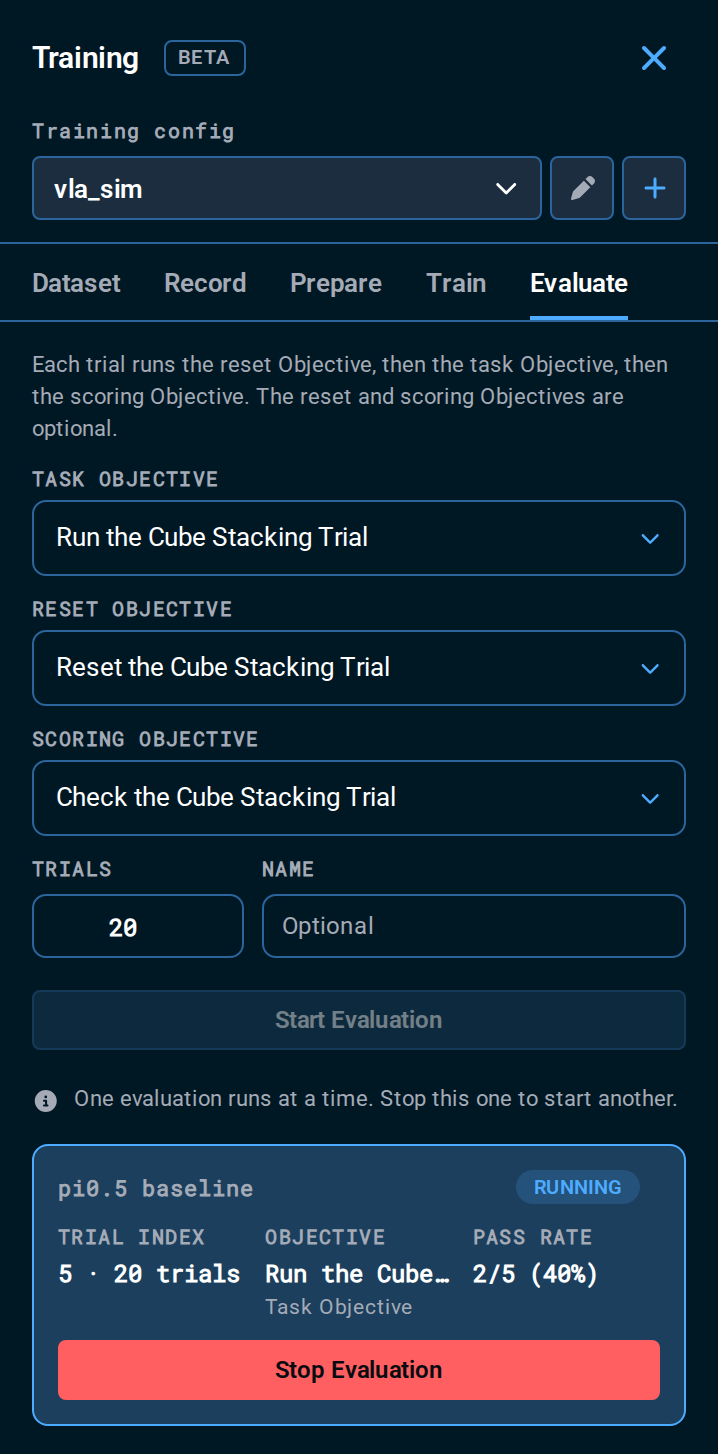
Select Stop Evaluation to end the evaluation early. The button cancels the running Objective, and the evaluation ends once that Objective does. The MoveIt Pro Desktop App's Stop button works too, except in the instant between two of the evaluation's Objectives. Stop Evaluation always works.
MoveIt Pro runs one Objective at a time, so starting an evaluation stops any Objective already running. Starting another Objective while the evaluation runs ends the evaluation.
Read the Results
The tab lists past evaluations newest first. Each row shows the date, the evaluation's name, the task Objective, and the pass rate. An evaluation without a name shows its model instead. Select Details on one to see the likely range and each trial's outcome and message. Each trial shows its trial_index. When your Objectives build the scene from that number, you can set up the same scene again.
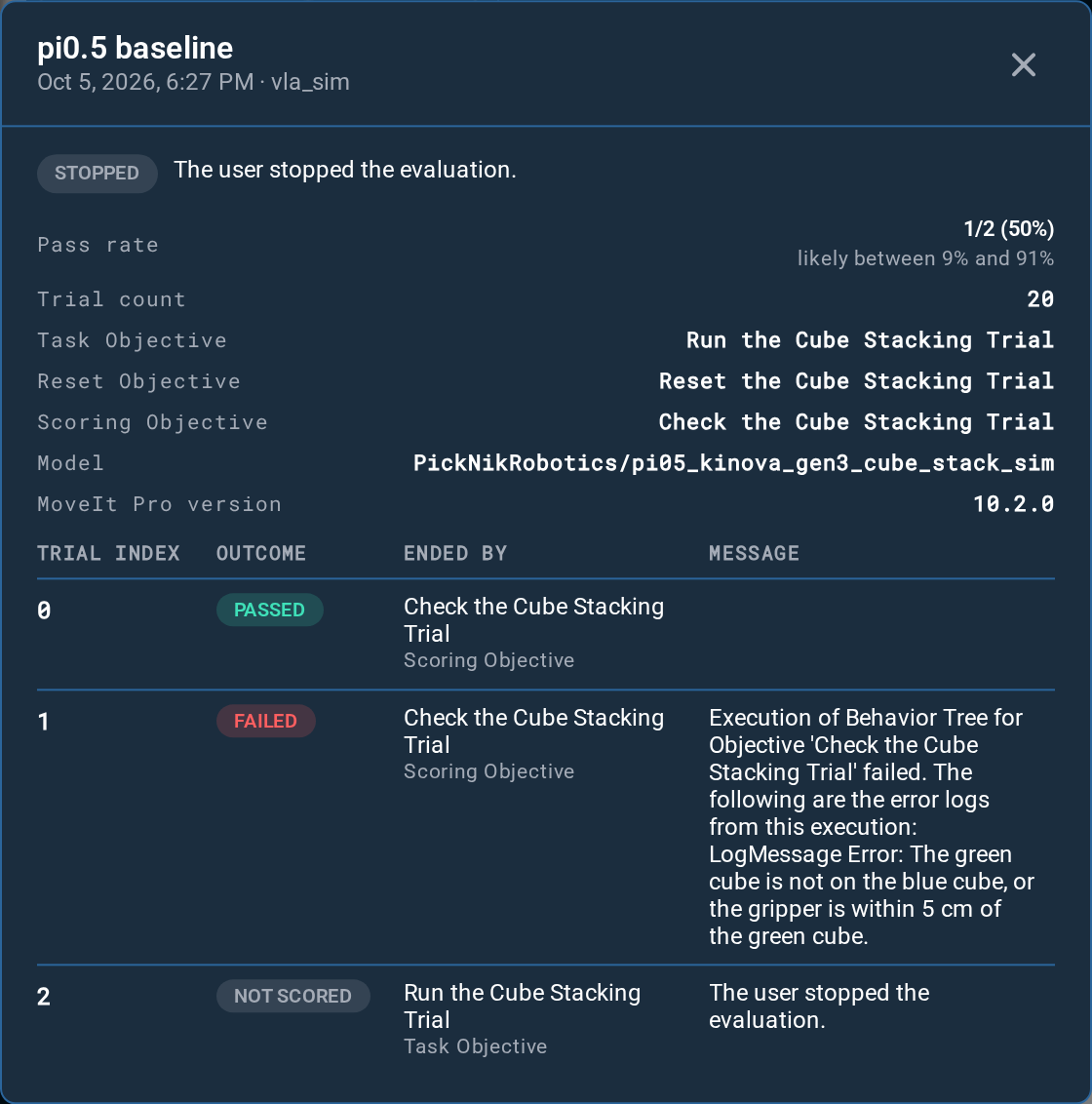
A trial ends in one of three outcomes:
| Outcome | When | The evaluation |
|---|---|---|
| Passed | The scoring Objective succeeds, or there is none and the task Objective succeeds | Continues |
| Failed | The task Objective or the scoring Objective fails. After a failed task Objective, the scoring Objective does not run | Continues |
| Not scored | The reset Objective fails, you stop the evaluation or start another Objective, the local inference server goes down or loads another model, or the MoveIt Pro Runtime does not accept an Objective, so it never starts | Stops |
A failed reset Objective stops the evaluation because the scene is in an unknown state. The pass rate counts only trials that passed or failed. A stopped evaluation keeps the trials it already scored.
A pass rate from a few trials is an estimate, which is why Details shows a likely range. After 11 of 16 trials passed, it reads "likely between 44% and 86%". Over many more trials, the pass rate would probably land in that range. More trials narrow it. At 69 of 100, it is 59% to 77%. The range is the 95% Wilson score interval.
When the likely ranges of two evaluations overlap, their pass rates may differ only by chance. Run more trials before you pick one policy over the other. The same policy's pass rate can also change from one evaluation to the next, even when every trial starts from the same scene. A policy can sample random noise, and inference time varies from call to call, so the same scene does not always give the same motion.
Before you compare two evaluations, check that they ran the same Objectives. When an evaluation starts, it saves a copy of its Objectives and every Subtree they call. Compare the copies, by default in ~/.local/share/moveit_pro/trainer/evaluations/<id>/objectives/.
Check Why Trials Failed
The evaluation counts every failure the same way. A policy motion that would hit something, a camera that sends no frame, and a remote inference server that does not answer each fail the trial.
A cause that does not go away fails every later trial too. If a remote inference server goes down after the first 5 of 20 trials, a pass rate of 4/5 (80%) ends at 4/20 (20%). Each trial keeps the message of the Objective that ended it, so read the failed trials' messages, fix the cause, and start a new evaluation.
Write a Reset Objective
Make the reset Objective fail when it cannot set up the trial.
In simulation, deactivate the robot's controllers before the reset and activate them after, as Reset MuJoCo Sim does. Reset MuJoCo Sim returns SUCCESS even when its keyframe reset fails. If your reset Objective calls it, add a Behavior after it that fails when the simulation does not answer, such as SetMujocoFreeBodyPoses. Or copy Reset MuJoCo Sim and remove its ForceSuccess.
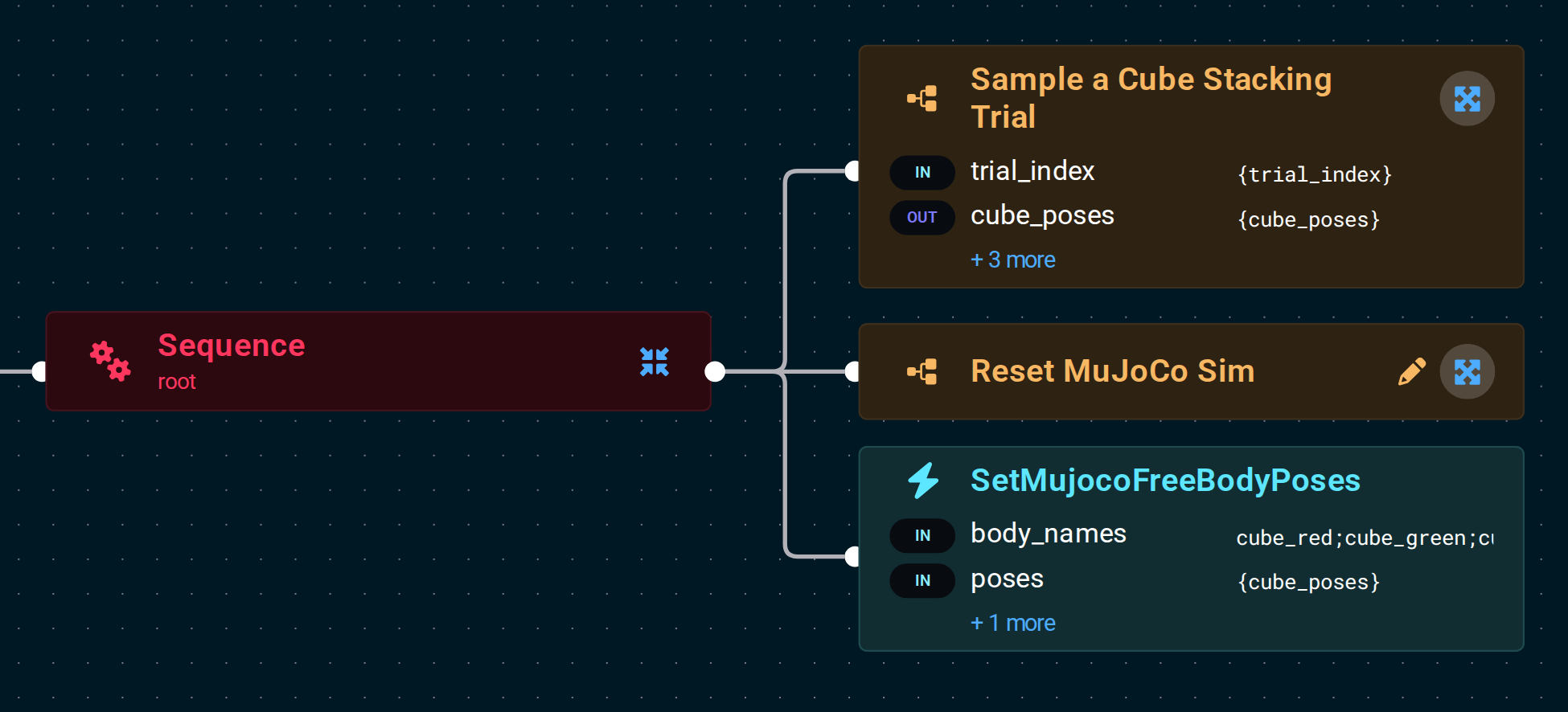
The cube-stacking example at the end of this page resets each trial with this tree. Sample a Cube Stacking Trial draws the cube layout from trial_index, Reset MuJoCo Sim resets the simulation, and SetMujocoFreeBodyPoses places the cubes.
Write a Scoring Objective
The scoring Objective runs as soon as the task Objective succeeds. Have it look at the scene once and answer. Do not make it wait for anything, because the evaluation sets no timeout for it either. Return SUCCESS when the trial passed. Return FAILURE when it failed or the check cannot tell, and log an error that says why, such as that the top cube is not on the bottom one. The evaluation shows that error as the trial's message.
Use a scoring Objective even when the task Objective already ends the policy run with a check or a detector from End a Policy Run on a Signal. The scoring Objective checks the scene again after the run ends, so a signal that fires by mistake does not pass the trial on its own.
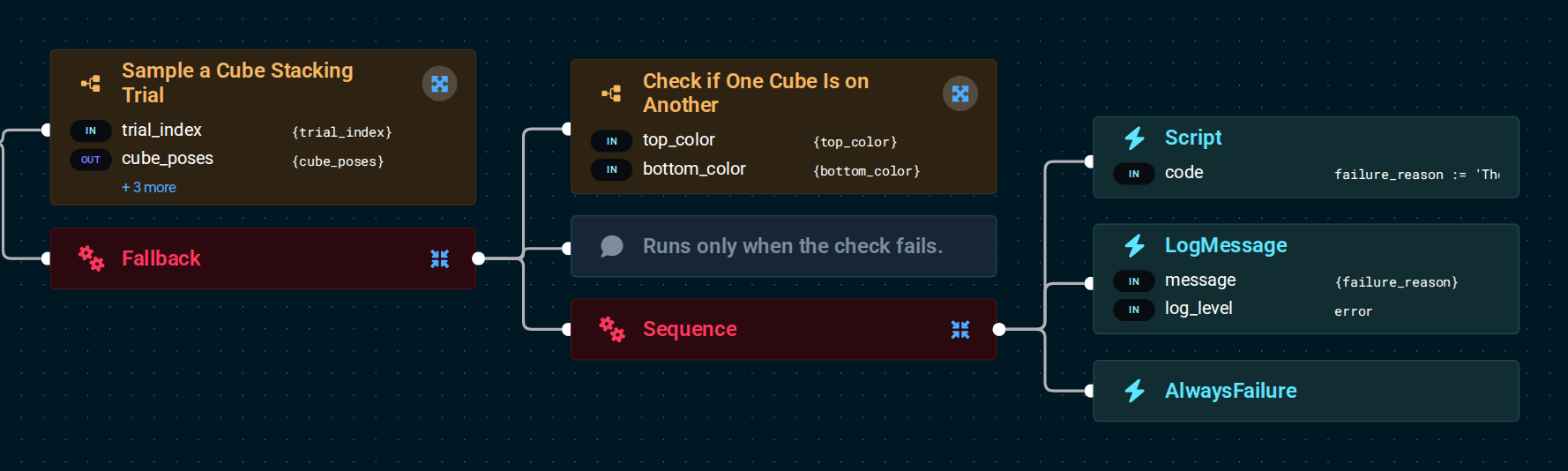
You can reuse one of that guide's checks in the scoring Objective. Those checks log nothing when they fail, so put the check in a Fallback, followed by a Sequence that logs the reason and fails. The Fallback runs the Sequence only when the check fails. The cube-stacking example's scoring Objective does this, after it calls Sample a Cube Stacking Trial to learn which cube belongs on top:
Ask the Operator on Hardware
On hardware, a person can reset the scene and judge the result. The WaitForUserDecision Behavior shows a prompt with two buttons in the Desktop App and waits for a click. It returns SUCCESS when the operator clicks the approve_label button and FAILURE for the reject_label button. It also fails with an error when no Desktop App is connected, or when nobody clicks within timeout_sec, 300 seconds by default.
To have the operator reset or judge each trial, build an Objective with a single WaitForUserDecision, set up like this:
| Objective | prompt | approve_label | reject_label |
|---|---|---|---|
| Reset Objective | Reset the scene for the next trial, then step away from the robot. The robot starts moving when you click Scene is reset. | Scene is reset | End evaluation |
| Scoring Objective | Did the trial pass? | Passed | Failed |
End evaluation fails the reset Objective and so stops the evaluation. With Failed, only the current trial fails and the next one starts. Neither button logs an error, so the trial's message says only which Objective failed.
Clicking Scene is reset lets the task Objective move the robot right away. After a failed trial, check the robot before you click. If the reset Objective does not ask the operator, no one confirms before a trial moves the robot.
The emergency stop does not stop the evaluation. The MoveIt Pro Runtime keeps running the trials, so the next Objective can move the robot the moment you release the emergency stop. Select Stop Evaluation before you release the emergency stop. Closing the Desktop App does not stop the evaluation either, so select Stop Evaluation before you close it.
Run Evaluations from a Script
The MoveIt Pro Runtime's REST API has these evaluation endpoints:
POST /train/evaluationsstarts one. The body names the Objectives, the trial count, and an optional name, as in{"taskObjective": "...", "resetObjective": "...", "scoringObjective": "...", "trialCount": 20, "name": "..."}. Leave outresetObjectiveorscoringObjectiveto run without it.GET /train/evaluationslists them, newest first, without their trials.GET /train/evaluations/{id}reads one with its trials. Whilestateisrunning, read it again to follow its progress.POST /train/evaluations/{id}/stopcancels the running Objective. The evaluation'sstatebecomesstoppedwhen that Objective has ended. For an evaluation that has already ended, it changes nothing.DELETE /train/evaluations/{id}deletes one that is not running.
Both the list and a single evaluation carry passed, scored, and likelyRange, whose low and high are fractions from 0 to 1. See Endpoint Authentication for how to authenticate the requests.
Try It in the Cube-Stacking Example
Start vla_sim with its inference server as described in Run the VLA Cube-Stacking Example. vla_sim has three Objectives for evaluating its cube-stacking policy:
Reset the Cube Stacking Trial, the reset Objective, resets the simulation and places the three cubes in the trial's layout.Run the Cube Stacking Trial, the task Objective, runsStack Cubes with the VLA Policywith the trial's prompt, such as "stack the red cube on the blue cube".Check the Cube Stacking Trial, the scoring Objective, passes when the cubes are stacked as the prompt asks and the gripper is at least 5 cm from the top cube. When it fails, it logs why.
Sample a Cube Stacking Trial draws each trial with SampleCubeStackTrial, a Behavior in the vla_sim_behaviors package. It cycles through the six ordered cube pairs, so a trial count that is a multiple of 6 tests each pair the same number of times. Use the Behavior as a starting point for a reset Objective in your own simulation.
Wait until the model is ready, choose the three Objectives in the Evaluate tab, and select Start Evaluation. Each trial takes about 35 seconds, because the policy runs its full step budget.