Collect VLA Training Data with Trainer
MoveIt Pro Trainer turns robot demonstrations into a dataset you can use to train a vision-language-action (VLA) policy. The whole workflow stays inside MoveIt Pro, and the data stays on the Runtime computer unless you choose to move or upload it later.
This guide uses the vla_sim robot configuration package, the same block-stacking scene used in Run the VLA Cube-Stacking Example. You will record a Kinova Gen3 arm stacking a red cube on a blue cube, then convert the recording into a LeRobot dataset.
| Stage | What it does |
|---|---|
| Training Config | Chooses the robot state, command, and camera topics to capture. |
| Dataset | Creates or selects the folder that will hold your demonstrations. |
| Record | Saves synchronized robot and camera data as episodes. |
| Playback | Lets you inspect an episode before using it. |
| Convert | Packages the selected episodes as a LeRobotDataset v3.0. |
Prerequisites
vla_sim ships in the example workspace, so check that workspace out and run moveit_pro build in it before launching.
Launch the Runtime and Desktop App
We assume you have already installed MoveIt Pro to the default install location. Start the MoveIt Pro Runtime using:
moveit_pro run -c vla_sim
Then launch or connect the separately distributed MoveIt Pro Desktop App. The Runtime does not serve a bundled user interface.
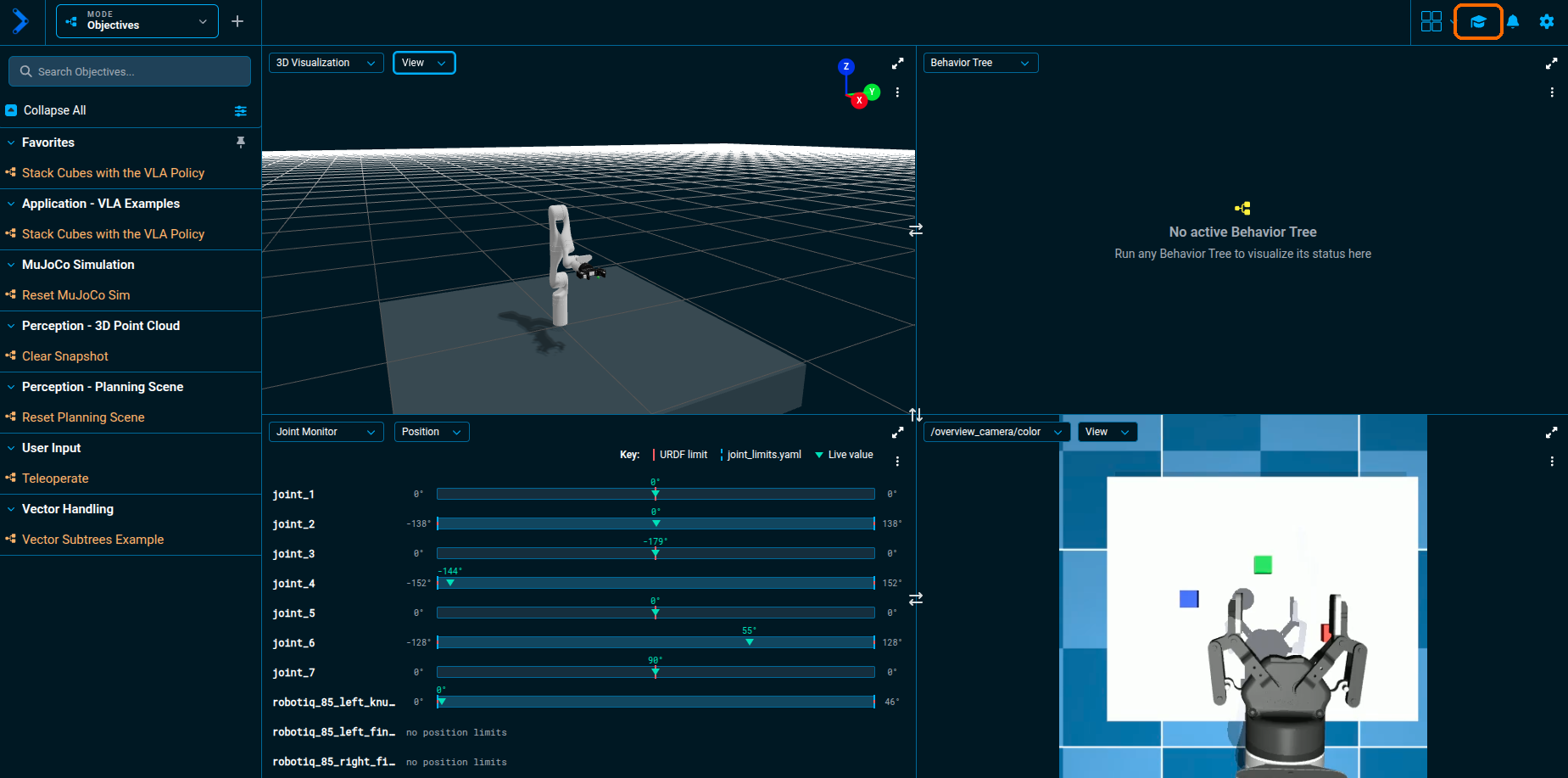
Confirm that the robot is publishing joint states and that each of the three cameras (overview, scene, wrist) is visible in a camera pane.
vla_sim renders the cubes for the camera topics but not in the 3D Visualizer, so the 3D pane always shows an empty table. This is expected: check a camera pane, not the 3D Visualizer, to see the cubes. Nothing is wrong with your simulation.
Open Trainer with the graduation-cap button in the upper-right corner. You can also press Ctrl+\ on Linux and Windows, or Command+\ on macOS.
1. Create a Training Config
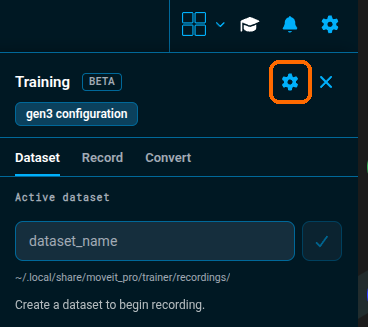
Trainer opens on the Dataset tab. Select the gear icon next to Training to open Training Config.
Set:
- Robot type: a short name for the robot. This example uses
gen3. - Default FPS: the sampling rate shown when you start a recording. This example uses
10, matching the Gen3 cube-stacking policy. - Dataset namespace: optional; leave it empty for a local, un-namespaced dataset.
- Camera topics: enable each view you want in the dataset and confirm its live ROS topic. This example enables all three
vla_simcameras:/overview_camera/color,/scene_camera/color, and/wrist_camera/color.
Open Advanced settings to check the joint-state and joint-command topics. Joint states become observation.state. Joint commands become the action labels; when the command topic has no messages, conversion can derive actions from the next recorded state instead.
Select Save Config.
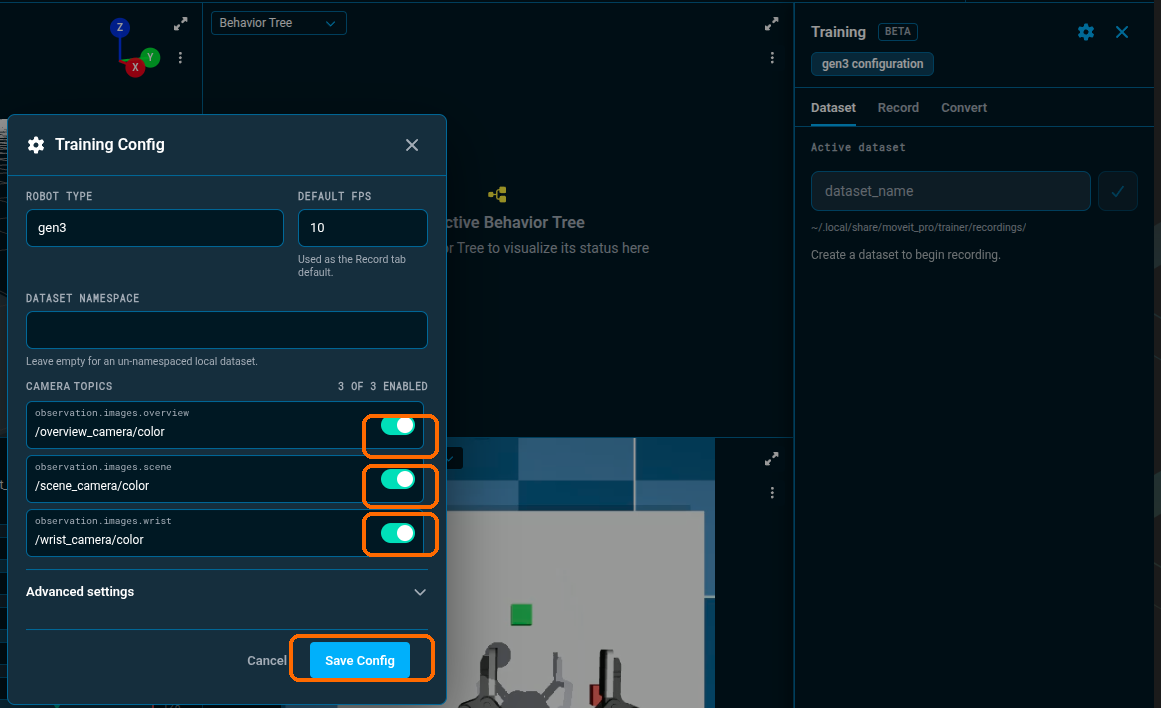
Trainer keeps the configuration as a reusable named profile, shown here as gen3 configuration. The active profile appears at the top of the Training sidebar; select it whenever you need to review or update the recording defaults.
The Camera topics you enable here become the camera set recorded into every dataset you create afterward. If you add a camera to the Training Config after a dataset already exists, that dataset keeps recording only its original cameras. Recreate the dataset to capture the new camera in every episode.
2. Create a Dataset
Open the Dataset tab. With no dataset yet, it opens with the Active dataset name field ready: enter a descriptive name, then select the checkmark to create it. Once a dataset exists, that field becomes a selector, and the + button beside it starts another one.
This example uses vla_sim_block_stacking for episodes recorded while stacking the red cube on the blue cube.
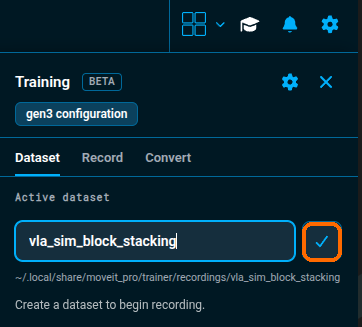
Trainer makes the dataset active immediately.
Recordings and converted datasets are written under ~/.local/share/moveit_pro/trainer inside the Runtime container. That path is bind-mounted from the host directory MOVEIT_HOST_DATA_DIR (default ~/.local/share/moveit_pro). To put Trainer data elsewhere, set MOVEIT_HOST_DATA_DIR on the host before starting the Runtime; the Trainer subdirectory follows it. Container recreation never wipes this data.
Raw datasets are stored at:
~/.local/share/moveit_pro/trainer/recordings/<dataset-name>
You can return to this tab to switch datasets, rename one, record another episode, or delete an episode you do not want.
3. Record Episodes
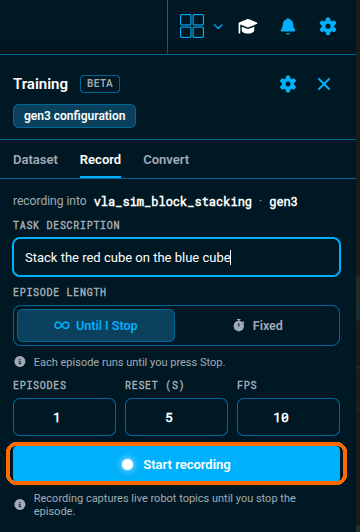
Open the Record tab and describe the task in plain language. This description is saved with the episode and later becomes the training task. For this example, use:
Stack the red cube on the blue cube
Choose how the episode ends:
- Until I Stop keeps recording until you decide the demonstration is complete.
- Fixed stops automatically after the number of seconds you enter.
Set the number of episodes, reset time between episodes, and FPS, then select Start recording.
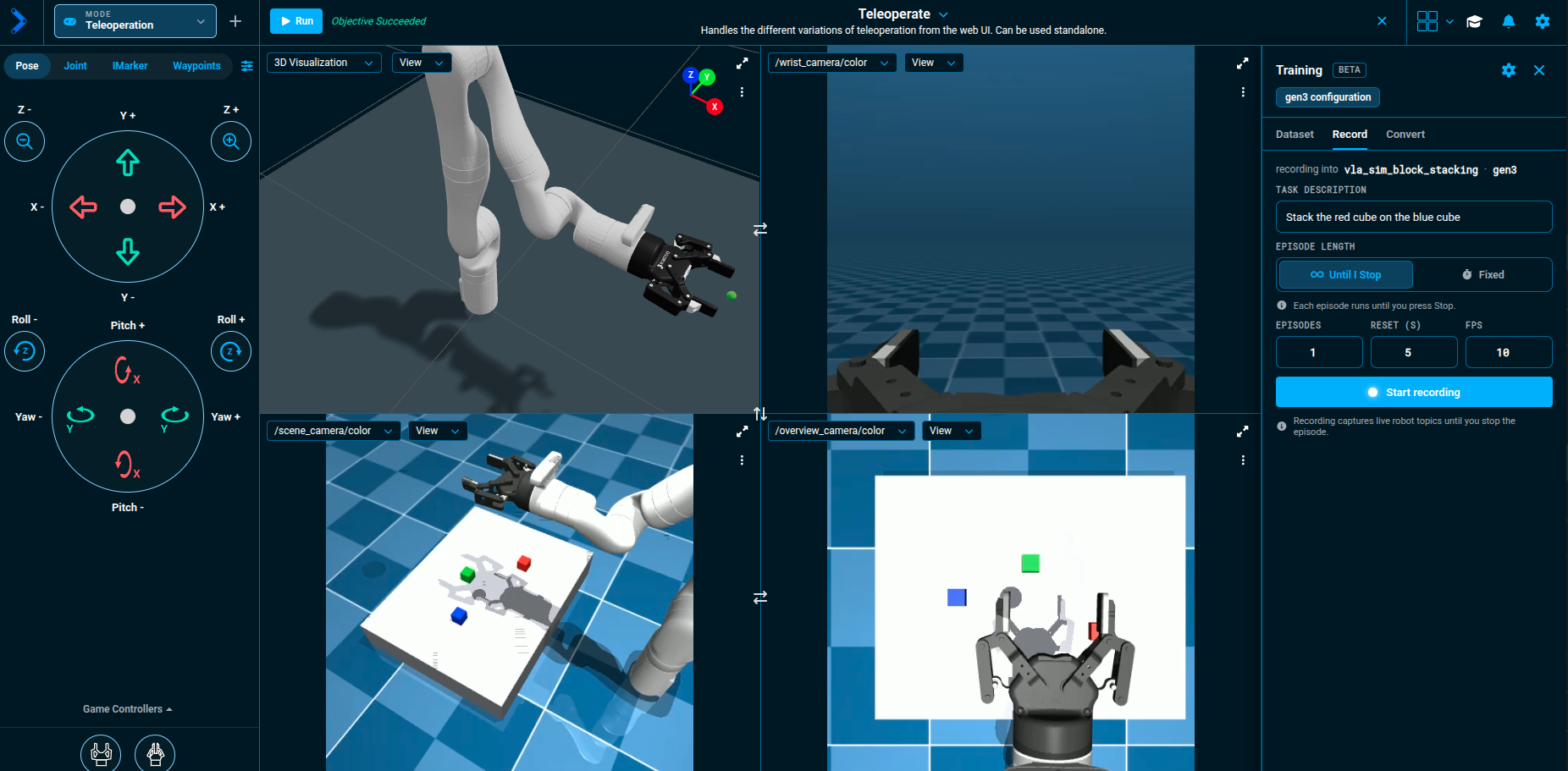
Wait until the status changes from Preparing to Recording before you move the robot. The preparing phase is not recorded, and Save and Stop stay unavailable until it ends. Once the status reads Recording, teleoperate the robot with any of MoveIt Pro's teleoperation modes to perform the task while Trainer captures joint states, joint commands, and every enabled camera stream.
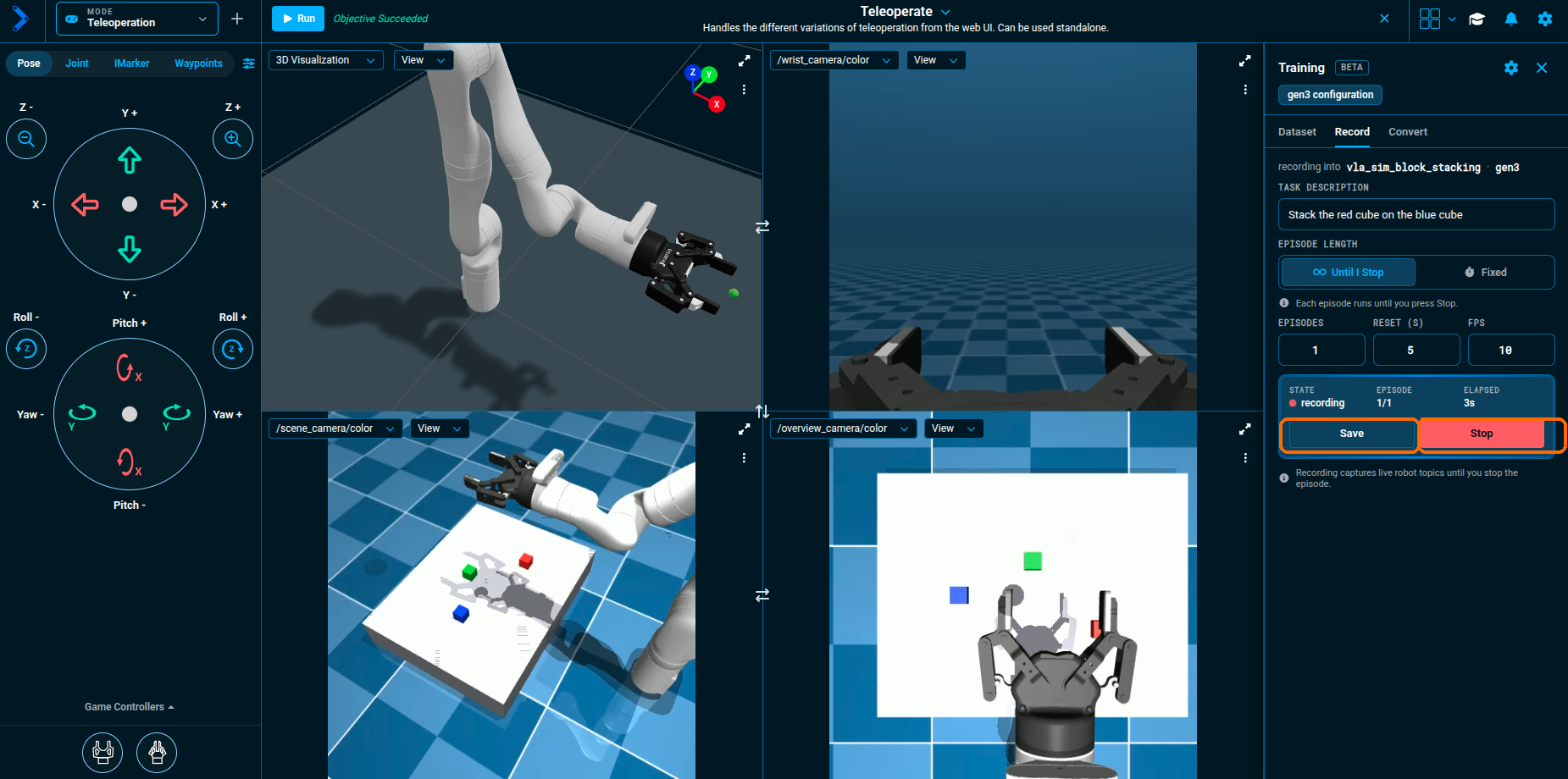
The Record tab continues counting time while you jog the robot. Select Save when the useful part of the demonstration is complete; this keeps the episode. Select Stop instead to discard the in-progress episode without saving it.
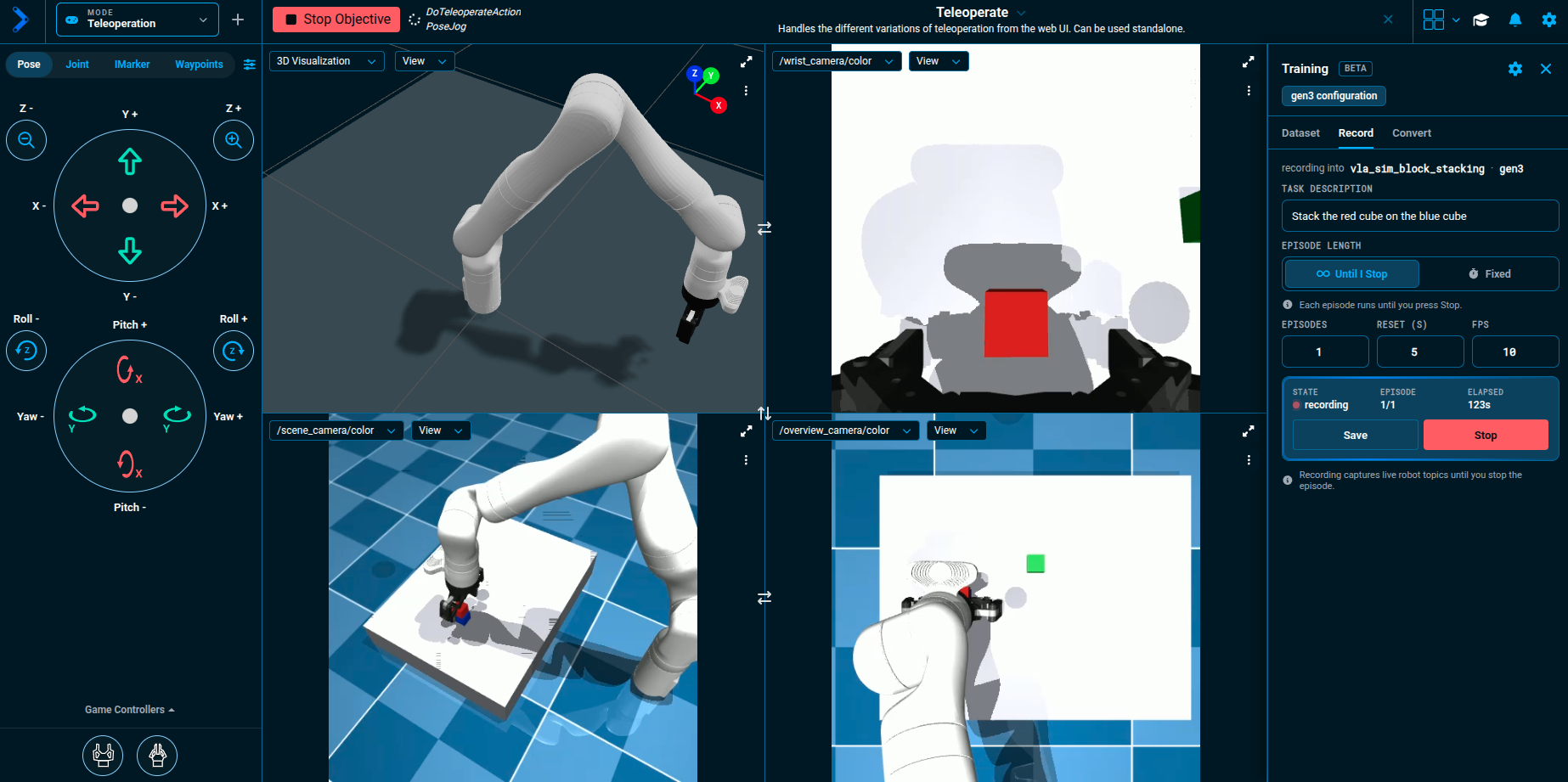
The wrist camera confirms the cube is in view and being manipulated, even though the 3D Visualizer never shows it.
After saving, Trainer confirms the episode count and returns to the regular Record controls. Repeat the task with natural variation, such as different starting cube positions, to build a more useful training set.
4. Review and Play Back an Episode
Open the Dataset tab. Each episode row shows its duration, task, robot type, and two frame rates: cfg is the FPS the recording was configured for, and obs is the rate the enabled cameras actually delivered, measured from that episode's own recording. Compare them — an episode captured well below its configured rate produces training data labeled with timesteps it was never recorded at. obs is omitted when it could not be measured, and episodes recorded before MoveIt Pro measured it show only cfg.
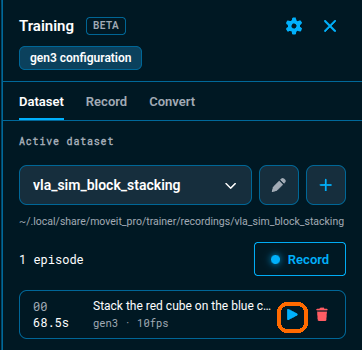
Select the play button on an episode. Playback controls appear over the camera panes and 3D pane:
- Use the play/pause button to inspect a moment closely.
- Drag the timeline to scrub through the episode.
- Select Stop in the Playback mode card to return to the live robot view.
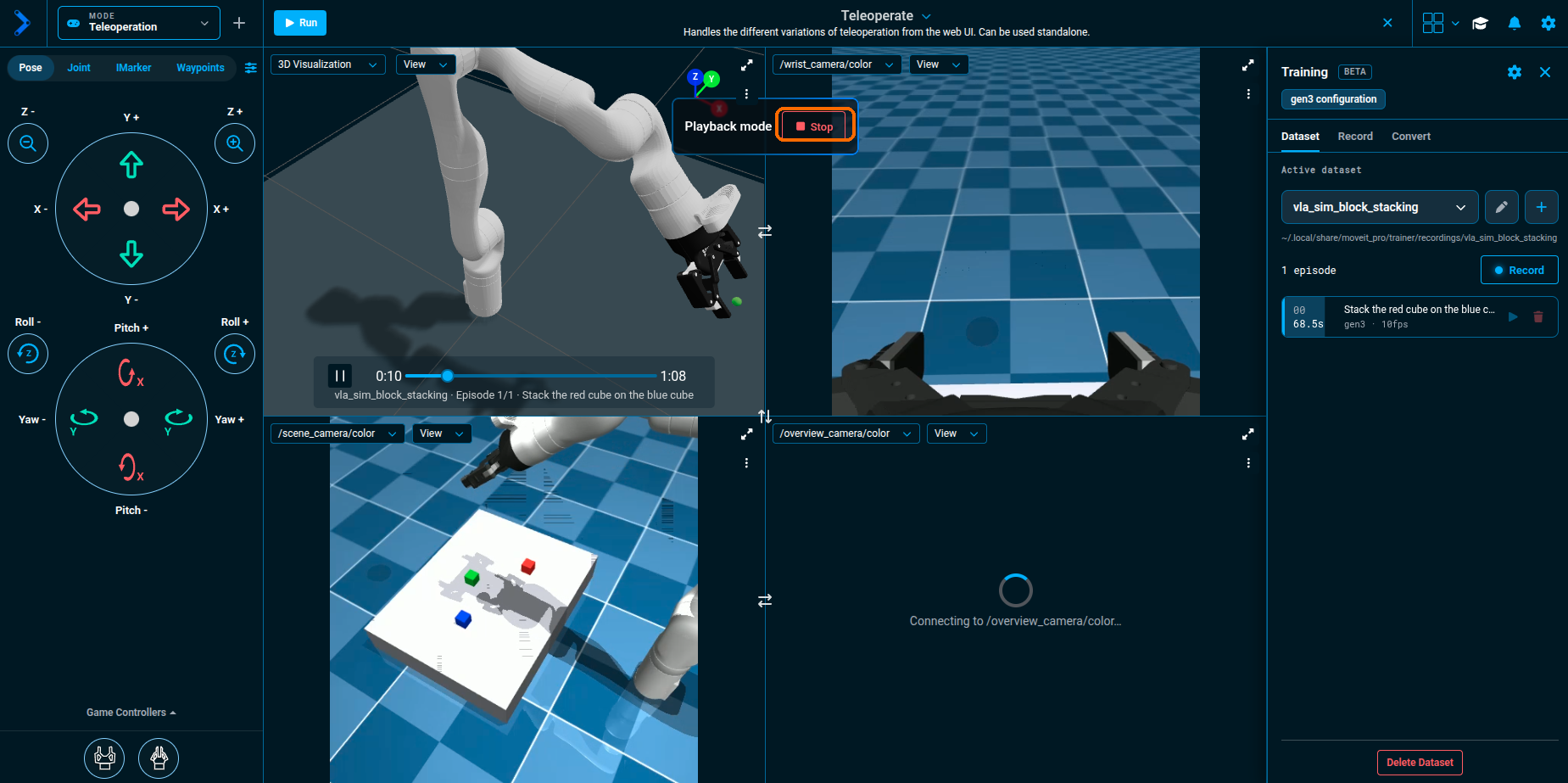
Playback is a review tool; it does not command the live robot. Delete a poor episode and record it again before conversion.
5. Convert to LeRobot
Open the Convert tab. Trainer shows the active MCAP dataset, the proposed output name, and the number of episodes it will convert.
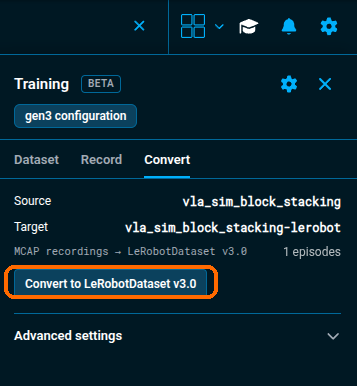
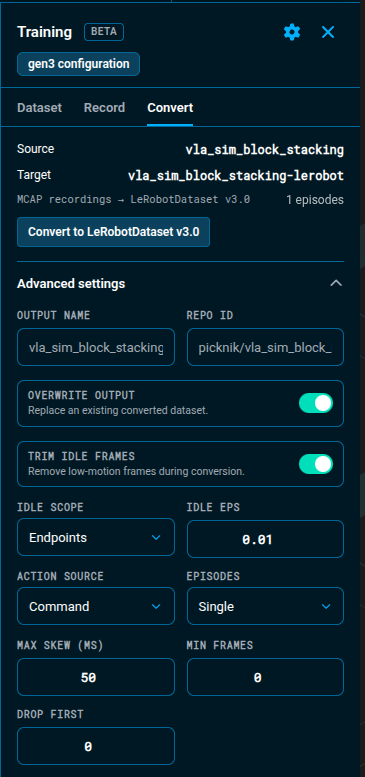
The default settings work for most demonstrations. Open Advanced settings when you need to change:
- Output name and Repo ID for the local LeRobot metadata.
- Overwrite output when replacing a previous conversion.
- Trim idle frames to remove still frames before and after the task moves. Turn this off for a deliberately stationary test episode; otherwise every frame may be filtered out.
- Idle scope chooses where trimming applies: Endpoints (the default) trims only the leading and trailing idle runs of each episode, leaving mid-episode pauses alone; All frames collapses every idle dwell anywhere in the episode, which can remove an intentional pause such as a grasp hold.
- Idle eps is the motion threshold below which a frame counts as idle. Raise it to trim more aggressively; lower it if trimming cuts into slow, deliberate motion at the episode boundaries.
- Action source to choose command labels or state-derived actions.
- Episodes to keep each recording separate or apply another supported split strategy.
Select Convert to LeRobotDataset v3.0. Conversion runs in the background in a queue; monitor it until it reports completion and shows the local output path.
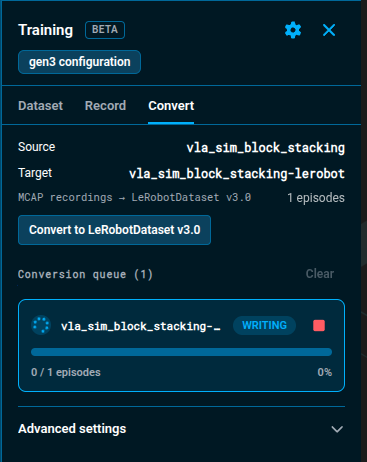
Conversion skips episodes it cannot turn into sound training data and continues with the rest; the job log names the reason, for example a recording gap that dominates the episode's time span, or a requested FPS the cameras never delivered. Only a conversion in which no episode survives fails outright.
The converted dataset is written next to the raw dataset:
~/.local/share/moveit_pro/trainer/recordings/<output-name>
It contains LeRobot data, meta, and videos folders. Conversion does not upload data to any external service.
Troubleshooting
- The Start recording button is unavailable. Create or select a dataset, enter a task description, and make sure the Training Config has been saved.
- Conversion says the episode is empty. Confirm the configured camera and joint topics have live messages. If the robot did not move, turn off Trim idle frames and convert again.
- A camera is missing in playback or conversion. Open Training Config, correct that camera topic, and record a new episode. Existing MCAP files are not changed when you edit the Training Config.
- The cubes are missing from the 3D Visualizer. This is expected in
vla_sim: the cubes render only in the camera views. Check a camera pane instead.