Tutorial 1 - Intro & Basic Usage
🕒 Duration: 1-2 hours
💪 Level: Beginner
Four Course Overview
Welcome to MoveIt Pro's four part tutorial series for teaching you how to use MoveIt Pro. Each tutorial is intended to be completed within two hours. We recommend taking these in our monthly live training courses, where two PickNik engineers are available to answer questions and help you get unstuck if anything comes up.
Training Goals
The tutorials all build on top of each other, and assume you have completed the previous tutorial:
- Tutorial 1 gives you a general beginner's overview of the platform using our optional, yet comprehensive, user interface.
- Tutorial 2 covers how to use MoveIt Pro without its frontend, diving into the runtime SDK, Python integrations, and how to build Behavior plugins / extensions.
- Tutorial 3 teaches more advanced Behavior Tree concepts with Subtrees and using more computer vision and machine learning.
- Tutorial 4 teaches advanced motion planning and control concepts, including the many types of dynamic trajectory generation, collision checking, and Cartesian control.
Tutorial 1 Basic Usage - Overview
This tutorial is designed to be your first hands-on introduction to the platform, giving you a general overview of MoveIt Pro, including how to:
- Run and edit robot applications (Objectives) built with Behavior Trees
- Use teleoperation to manually control the robot and create waypoints
- Build your own Objective from scratch
- Set up keep-out zones for motion planning
- Use AprilTag-based perception for object detection and grasping
An Objective is basically an application in MoveIt Pro, though it can also be a lower-level function (a Subtree) that is then combined into a higher-level Objective. Objectives are created using Behavior Trees, which are similar to state machines. Behavior Trees are composed of Behaviors, which are the low-level nodes or skills. An example of a Behavior is opening a gripper or moving to a pose. To learn more about Behaviors, see the Behaviors Concepts Page.
Pre-reqs
For a local Runtime, install MoveIt Pro before continuing. That guide covers both the desktop app and the Runtime, and walks through connecting the two. We assume you have some familiarity with robotic arms.
Start MoveIt Pro
No launch command or desktop app is necessary. Open the application using the browser link provided for your Cloud deployment, then continue below. Cloud runs in simulation only and cannot be connected to robot hardware; it is intended for testing and training.
For a self-hosted Runtime:
-
On the Runtime computer, start the Runtime if you haven't already:
moveit_pro run -c lab_sim -
Open the MoveIt Pro desktop app and select Set Up on the discovered Runtime.
-
Enter the active frontend key if prompted, then select Save & Connect.
If the Runtime is not discovered, select Add Connection and enter its hostname or IP address.
Once MoveIt Pro is loaded, you should see a UI similar to the following, though the exact view pane layout may vary as it is customizable:
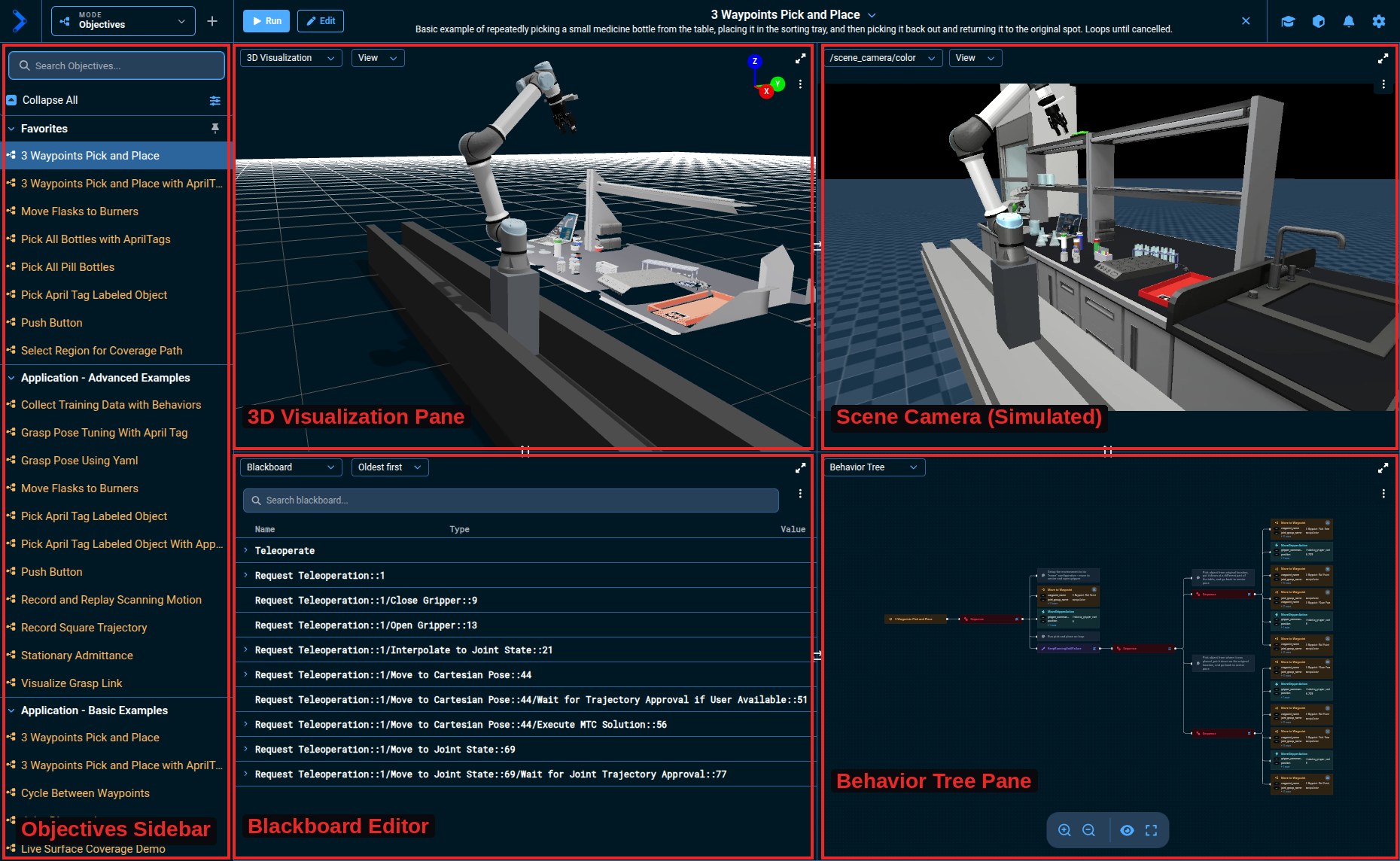
In this beginner tutorial we are showing you how to do everything from the UI. However, MoveIt Pro ships with a powerful API that allows you to start, stop, and monitor Objectives without the UI.
Exploring the User Interface
Workspace Modes
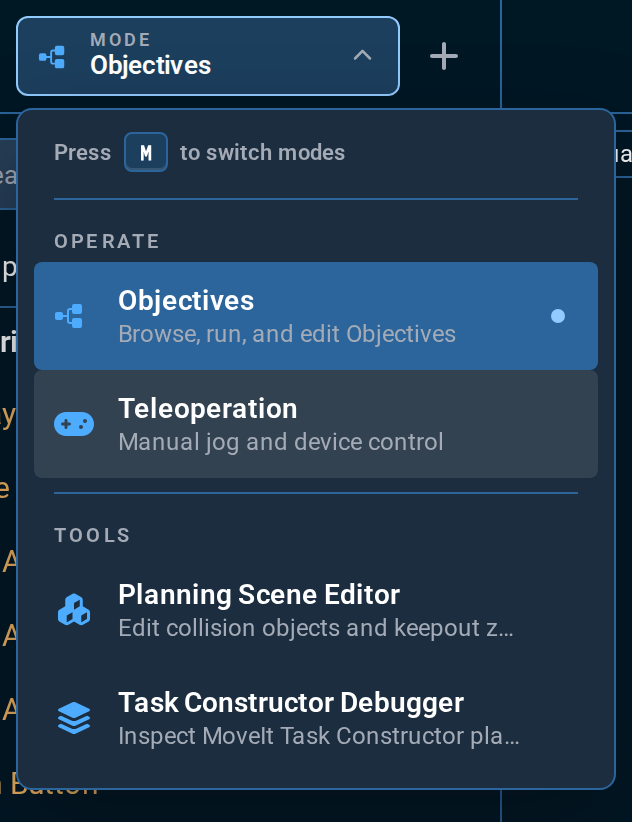
The Mode menu in the top left is how you move between the four workspaces MoveIt Pro provides. Every task in this tutorial starts by picking one, so open the menu now to see them.
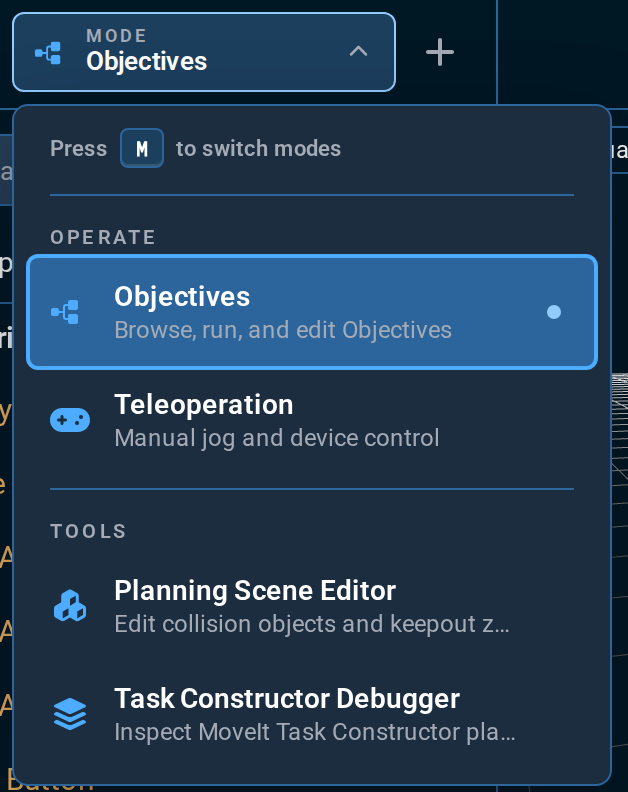
Operate holds the two modes you drive the robot from:
- Objectives — browse, run, and edit Objectives. This is where you start, and where most of this tutorial happens.
- Teleoperation — manually jog the robot and save waypoints.
Tools holds two workspaces for inspecting and shaping what the robot plans against:
- Planning Scene Editor — add and edit collision objects such as keep-out zones.
- Task Constructor Debugger — inspect why an MTC planning pipeline chose the solution it did. See Debug MTC Pipelines.
Press M to open this menu from anywhere. The mode you are in is also part of the URL, so it survives a page refresh.
Customizing the Panes
The following diagram highlights some of the ways to customize your view panes:
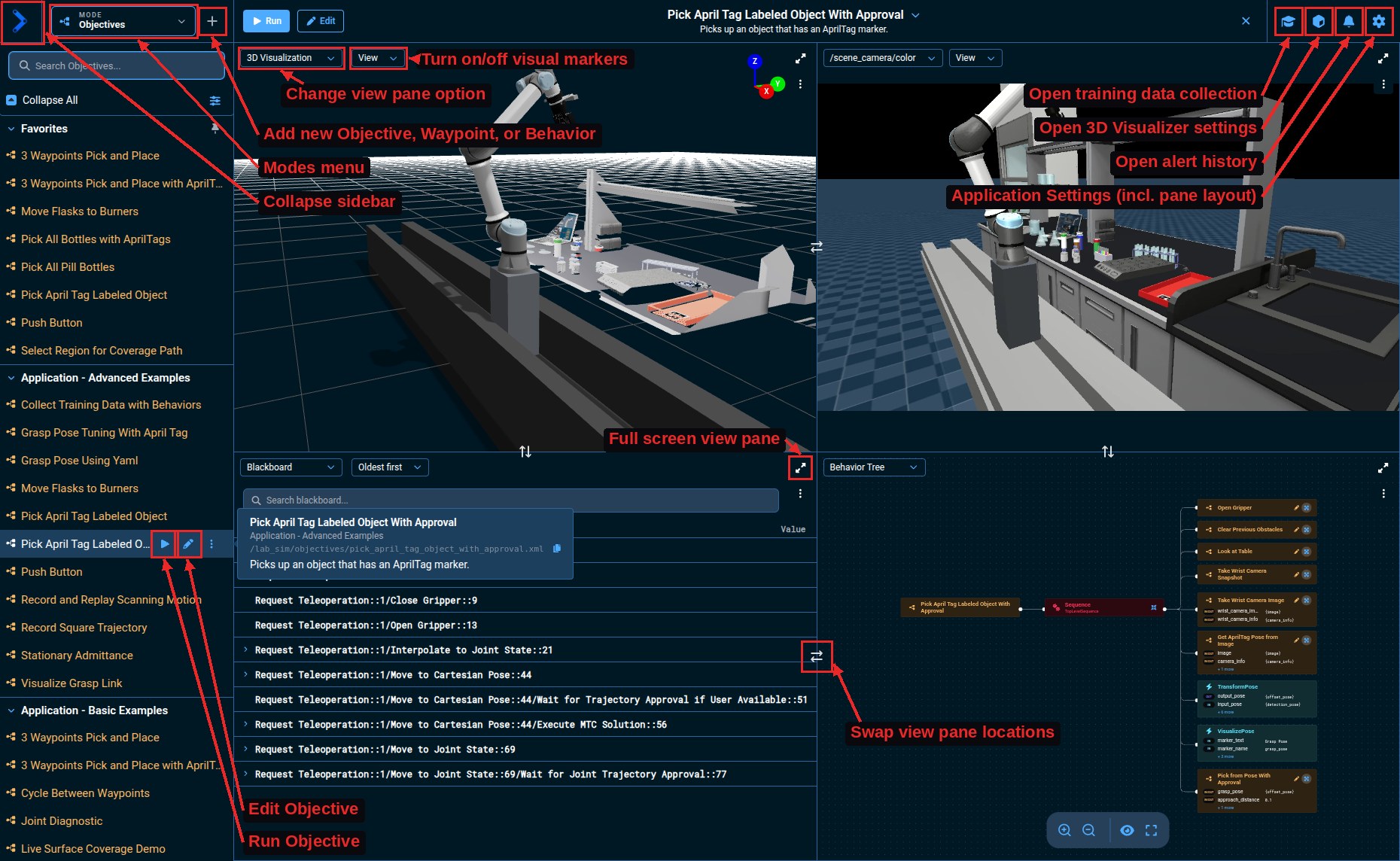
Try it yourself:
- Use the view controls in the top left of a view pane.
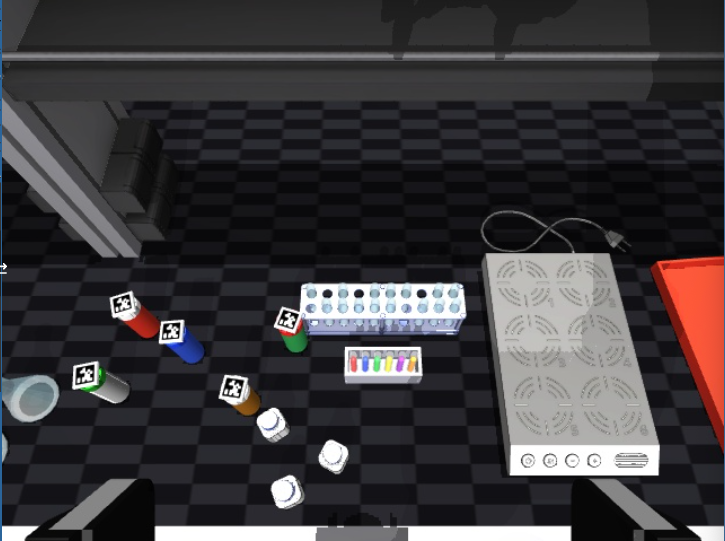
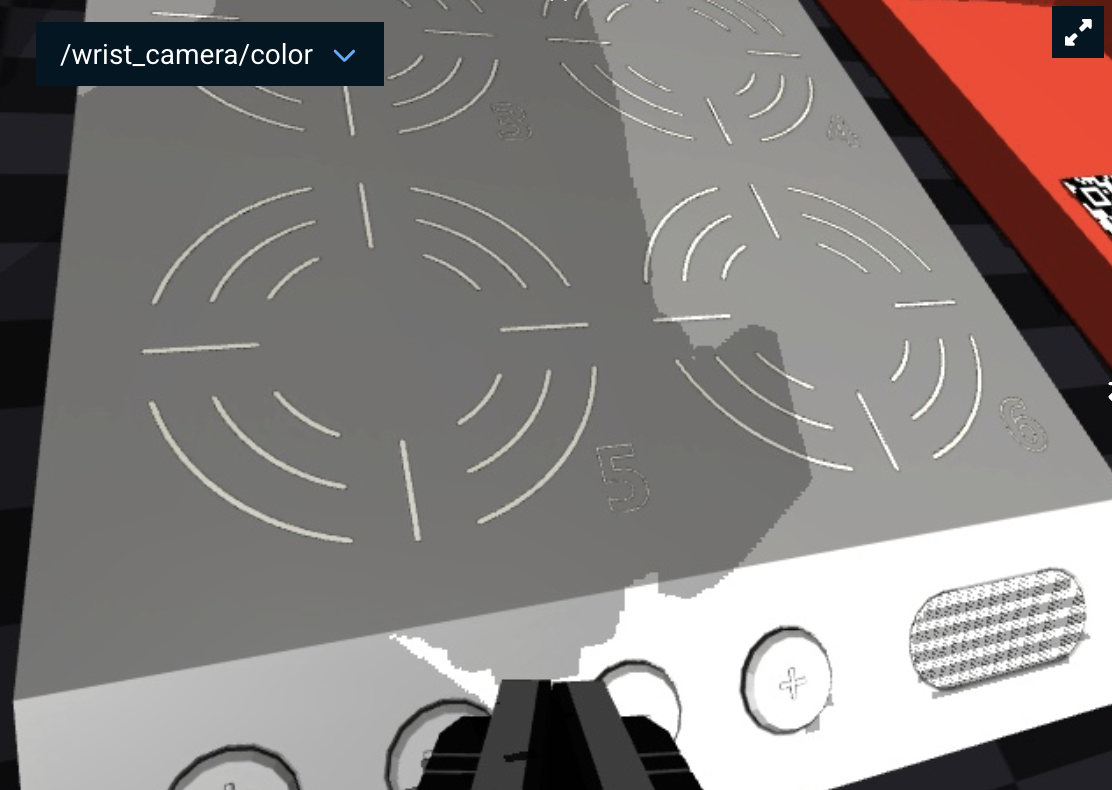
- Open the dropdown menu in the top left corner of the bottom right pane and switch the pane to
/wrist_camera/color. This will allow you to see the camera view of the camera mounted on the robot's wrist.
Next: Change the number of panes by opening Settings from the top navigation bar and choosing a layout under View > Layout. The layouts run from one pane up to six, ordered by pane count — pick the three-pane layout.
The seven presets are not the limit. Right-click any view pane to split it horizontally or vertically, or remove it, and build a layout of your own.
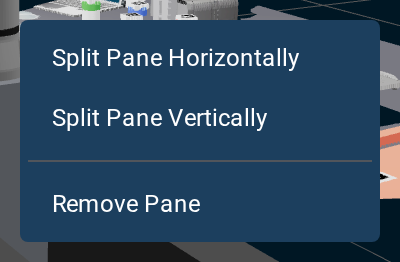
To learn more about each pane, check out the About the User Interface page.
Run your first Objective: Scanning the Environment
You might notice our virtual world in the 3D Visualizer is a bit empty - let's scan in the entire environment by running the Scan Scene - Multiple Point Clouds Objective. There are two ways to find it:
- Scroll the Objectives sidebar on the left. Objectives are grouped by category.
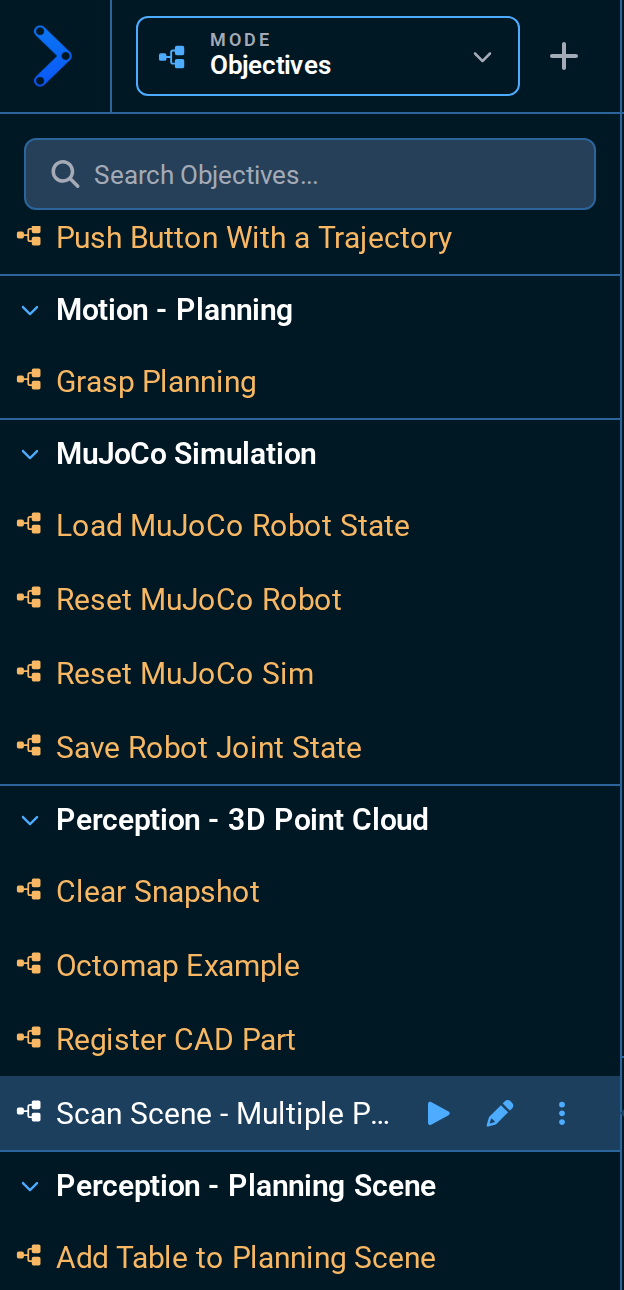
- Or type the name into the search box at the top of that sidebar, which is faster once you know what you are looking for.
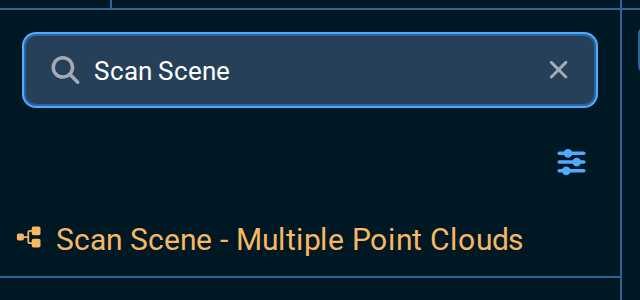
Once you find it, click the play icon next to Scan Scene - Multiple Point Clouds to run the Objective, and you should see:
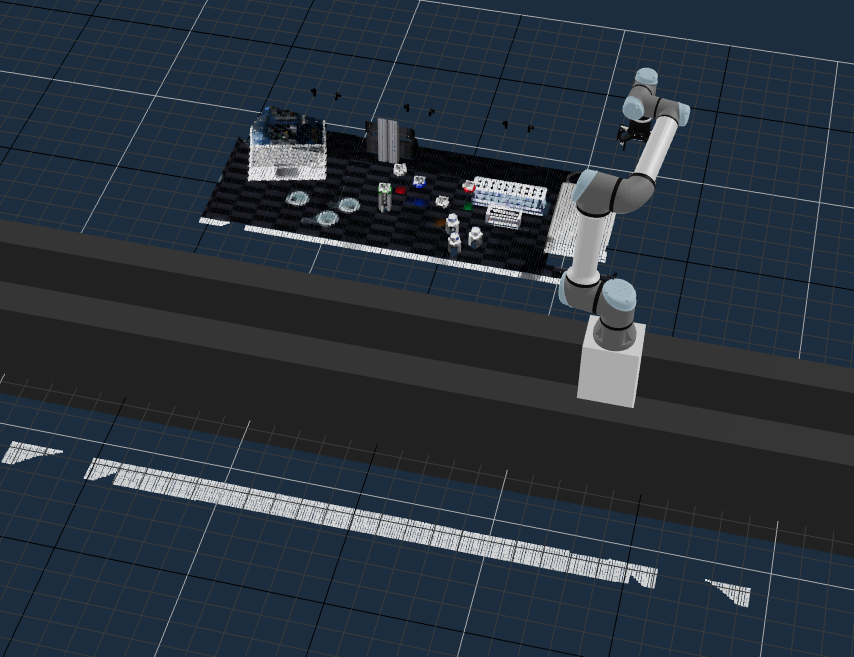
The planning scene is a representation of the robot's environment, including the robot itself, obstacles, and other objects. It is used by motion planners to determine valid paths and trajectories for the robot.
Obstacles can be added manually from the UI (keep-out zones), in Behavior Trees via planning scene manipulation Behaviors, or automatically from perception data by configuring the perception pipeline.
Running an example lab application
Open the left Objectives sidebar if it's not already open, then find the Move Flasks to Burners Objective — searching for it is quickest.
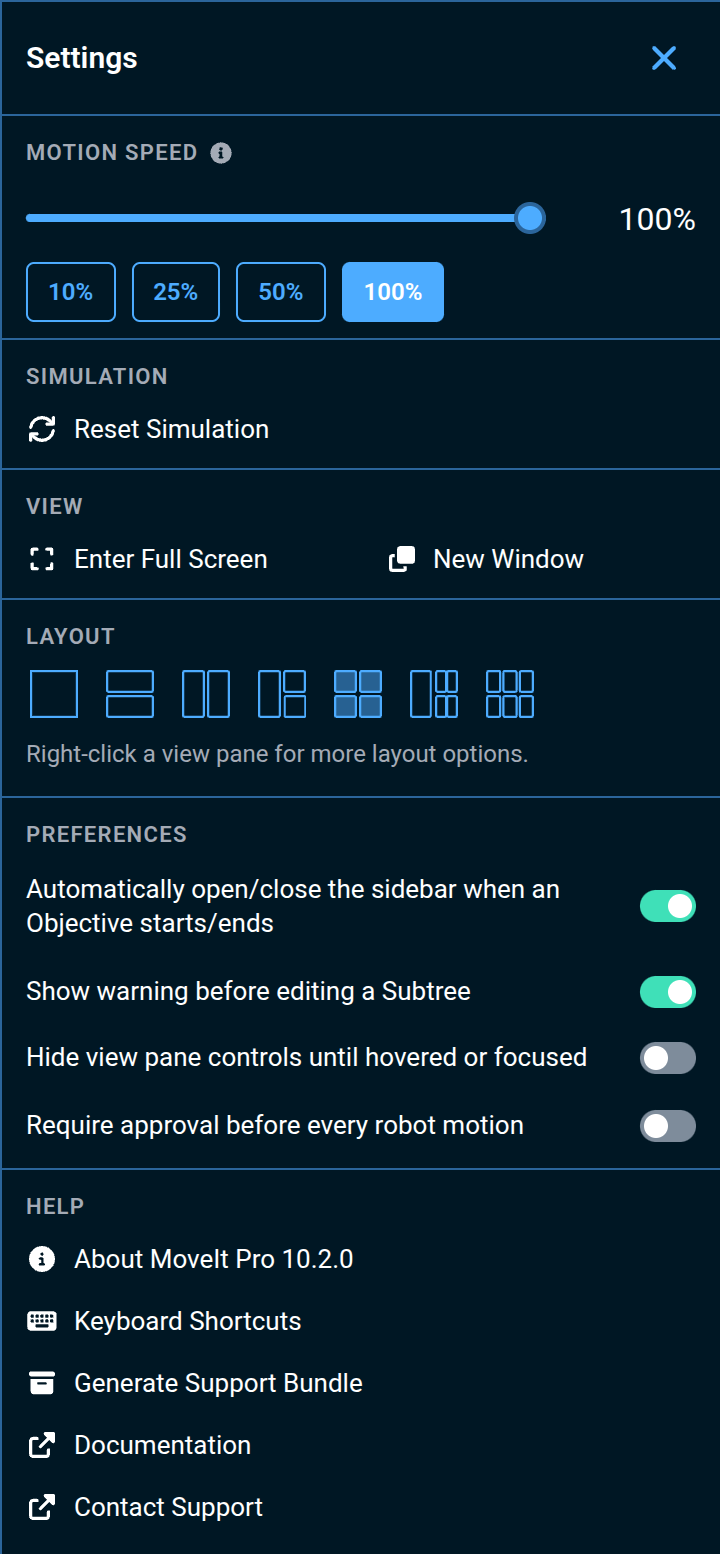
Close and reopen the sidebar with the Toggle Sidebar button at the far left of the toolbar — useful on a small screen. By default the sidebar closes when an Objective starts and reopens when it ends. To keep it where you leave it, open Settings and turn off Automatically open/close the sidebar when an Objective starts/ends under Preferences.
The pin icon next to Favorites is a separate control: it pins the Favorites section to the top of the sidebar so it stays visible while the rest of the list scrolls.
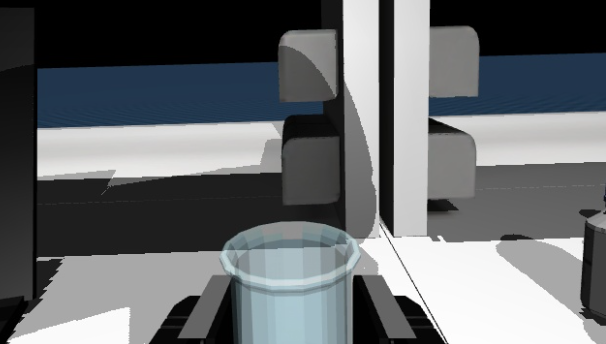
Click its play icon to run the Objective. You should see the robot arm pick up both flasks on the left side of the workspace and move them to the burner on the right.
Clearing the Planning Scene
Our point cloud is now out of date, because we've moved the flasks to a new location.
You can now run the Clear Snapshot Objective to reset the point cloud in the 3D Visualizer, since the robot has not 'perceived' the reset objects yet. Try that now.
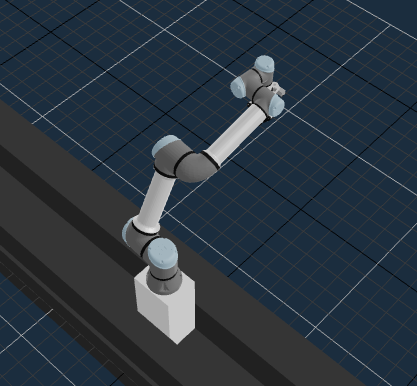
To update the view of the planning scene, run Scan Scene - Multiple Point Clouds again.
Stop looping Objectives
Some applications will run forever, until you tell it to stop. The 3 Waypoints Pick and Place Objective is a simple example like that - Run it now.
You should see it pick a small medicine bottle using hard-coded waypoints, repeating in a loop. This is open-loop, dead-reckoning motion: the waypoints are fixed and nothing re-checks where the bottle actually is, so any error in one pass carries straight into the next. Within the first few passes, the gripper will lose its grip and drop the bottle.
Let it run until that happens. Notice the loop keeps going with an empty gripper — nothing told it the pick failed. Then use the Stop Objective button on the top left to stop it.

That's expected, not a malfunction — hard-coded waypoints can't tell whether a pick succeeded. You'll see how detection addresses this later in this tutorial, and build your own in Tutorial 3.
In MoveIt Pro 10.2 and newer, optionally search the sidebar for 3 Waypoints Pick and Place with AprilTags. This Objective re-detects the bottle before every pick to avoid accumulating position errors between picks. On 10.0 or 10.1, skip this optional example and continue with the tutorial.
If you stopped the Objective while the robot was still holding the medicine bottle, simply run the Open Gripper Objective to release it.
Resetting the Simulation
What if we want to start over? Between the last few Objectives the robot has ended up in a different pose, the flasks are on the burners instead of their original positions, and the medicine bottle may not be where it started. This is a common situation during development when you want to iterate on an Objective multiple times.
Simulation reset is built into MoveIt Pro - simply click the gear icon menu in the top right and select Reset Simulation. This will restore all objects to their original positions.
To move the robot back to its original pose without resetting the entire simulation, you could instead run the Look at Table Objective.
This is an example of a very simple Behavior Tree that commands the robot to a named waypoint.
Using the Wrist Depth Camera
Many robots have multiple cameras, and MoveIt Pro can visualize all of them. The camera feed from the wrist camera can be used for close up manipulation tasks, and is a common tool used in many Objectives.
Let's take a pointcloud snapshot from this wrist camera.
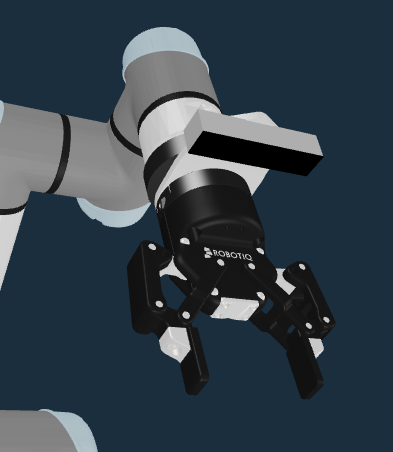
Run Take Wrist Camera Snapshot Objective and you should see a much smaller area show up as a point cloud.
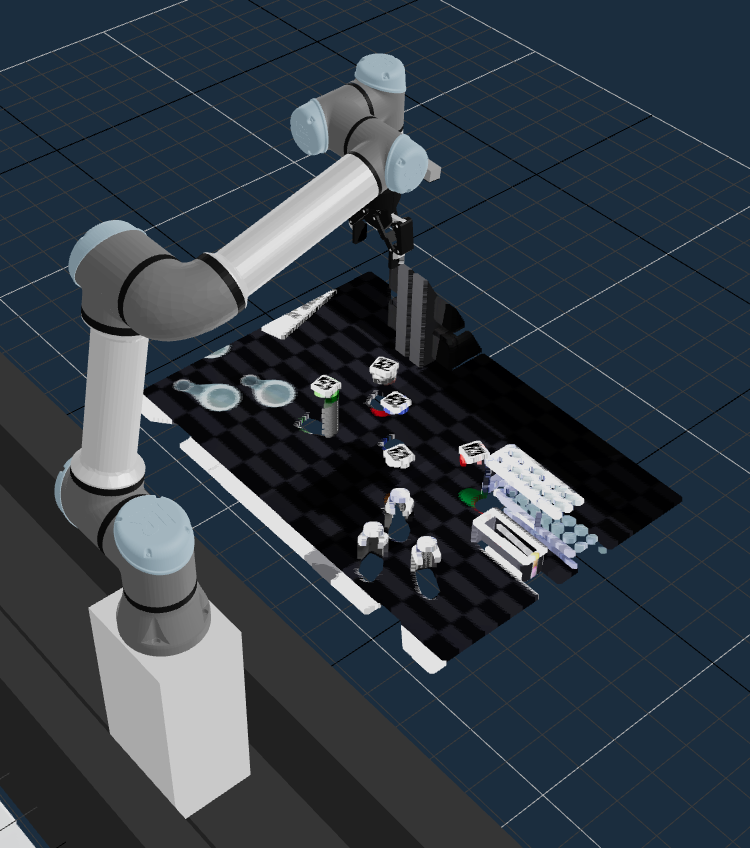
Adding Keep-out Zones
Let's make it harder, or maybe impossible, for the robot to plan an automatic trajectory between waypoints. We can do that by adding collision objects, or keep-out zones.
In motion planning, a collision object represents a physical item in the environment that the robot must avoid during motion. These objects are typically defined by their shape, size, and position in the planning scene and can include things like tables, walls, tools, or even other robots. Collision objects are used by the motion planner to ensure that generated paths are free of collisions, allowing the robot to move safely and efficiently through its workspace.
A keep-out zone is a virtual collision object you add to the planning scene through the UI. The motion planner treats it as a real obstacle, even though nothing physical is there. They're great for forcing failures in tutorials, defining no-go regions around the robot, or modeling fixtures the robot doesn't have a sensor for. See the Keep-Out Zones guide for the full reference.
Keep-out zones live in their own workspace. Open the Mode menu in the top left and select Planning Scene Editor.
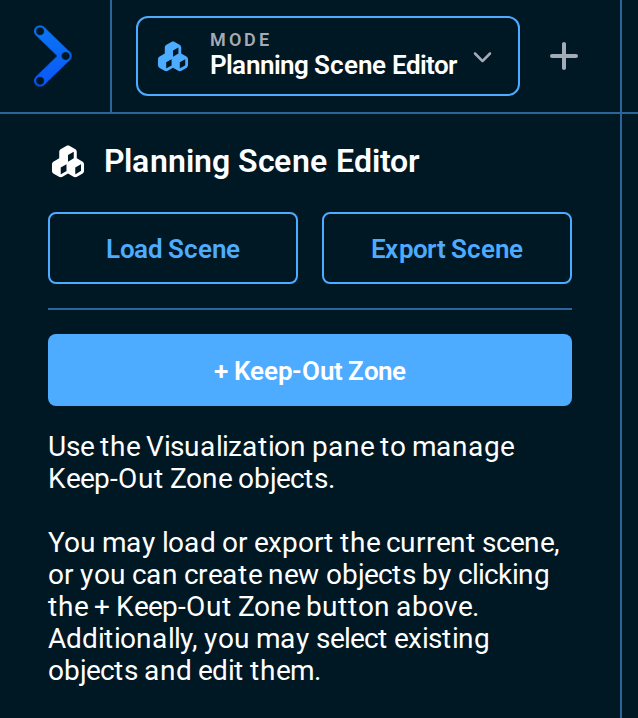
Click the + Keep-Out Zone button in the sidebar. You'll see a yellow wall appear in front of the robot with its interactive marker active. The wall is yellow because it is currently selected — click anywhere outside the wall in the 3D Visualizer to deselect it and the wall will turn green.
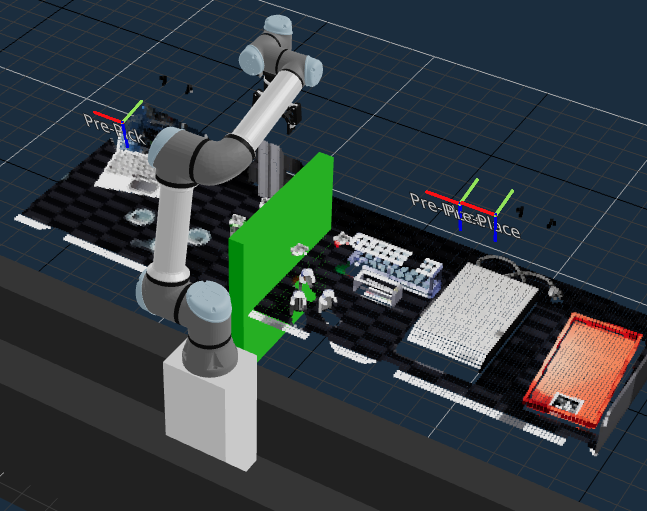
Re-run the Move Flasks to Burners Objective and observe the robot planning around the green wall. This is collision-aware motion planning! The robot automatically finds a collision-free path to reach its goal while avoiding the keep-out zone.
Next, let's make it impossible. Click on the wall and an "Interactive Marker" should appear (if it's not already selected):
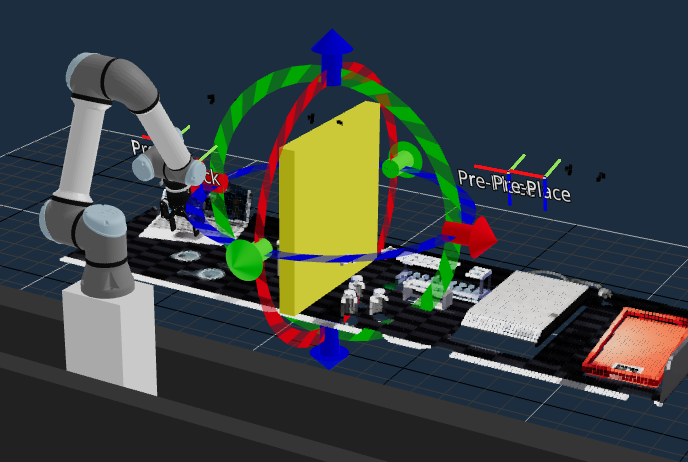
You could drag the arrows of the interactive marker to move the wall, but for a repeatable result use the Modify Selected Object panel that appears in the sidebar while the wall is selected. It has a drag control and an editable number field for each of size, position, and orientation. Enter these values to lay the wall flat as a lid over the flasks:
| Field | Value |
|---|---|
| Pitch (degrees) | 90 |
| X | -0.5 |
| Y | 0.5 |
| Z | 0.65 |
Leave the size and the other fields at their defaults. The zone should now hover just above the flasks:
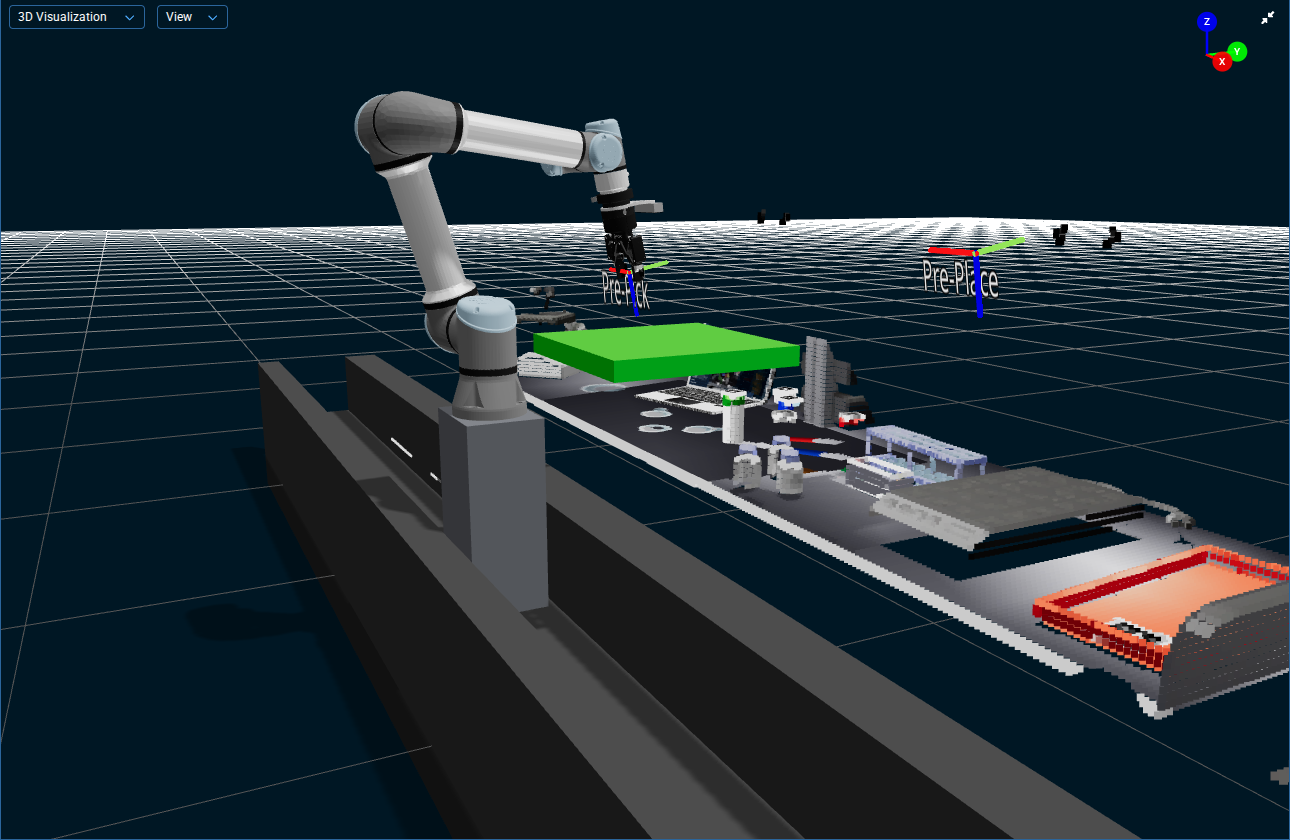
Re-run Move Flasks to Burners. The grasp pose for the first flask now sits inside the zone, so the Objective fails before the arm moves, and the 3D Visualizer marks the contact points with red spheres. Leave the zone in place: the next two sections use this failure.
To deselect the keep-out zone and hide the interactive marker, click anywhere outside the zone in the 3D Visualizer.
Alerts & Error Handling
With the zone lying over the flasks, Move Flasks to Burners fails with a PlanToJointGoal Error: the goal joint positions for the first pick collide with the keep-out zone, so the planner refuses them.
When errors occur, MoveIt Pro logs them to the Alert Sidebar. You can open it by clicking the bell icon in the top right of the toolbar:

This opens a sidebar showing a history of all Objective runs, including successes and failures with timestamps:
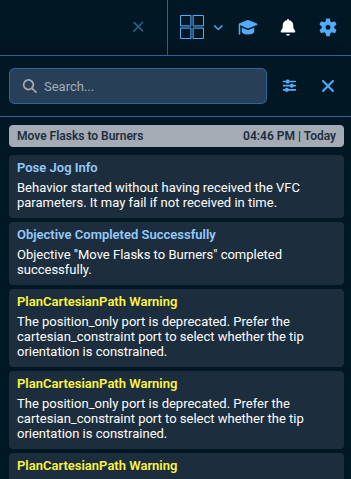
You can also filter alerts by severity and source (Runtime, Editor) using the Alert Settings icon in the top right of the sidebar. Severity is set separately for each surface: Toasts decides which alerts appear as a toast message in the corner of the screen, and Alert Sidebar decides which ones this list shows. Toasts are limited to Errors by default, and Debug is off on both. Both sources are on by default, so the Alert Sidebar lists Runtime and Editor alerts together. Whenever a severity the sidebar lists does not pop up, the bell icon carries an unread count instead, which turns red when any unread alert is an error. The count is independent of these filters — it counts every alert that arrived since you last opened the Alert Sidebar — and opening the sidebar clears it.
The bottom of the Alert Sidebar shows the directory on the Runtime host where the Runtime saves its logs, with a button to copy the path. It is hidden when the Runtime does not report one.
The Alert Sidebar is a useful tool for monitoring the status of your Objectives and diagnosing issues during development.
Finding the Failure in the Behavior Tree
The Alert Sidebar tells you what went wrong. The Behavior Tree tells you where.
With the failed run still on screen, click the Edit button in the top left of the menu bar. The editor opens on the branch that failed: every node on the path from the root down to the failed node gets a red border, the failed node itself pulses, and the editor opens centered on the node you were looking at in Run, at the same zoom, so you do not have to hunt through a large tree.
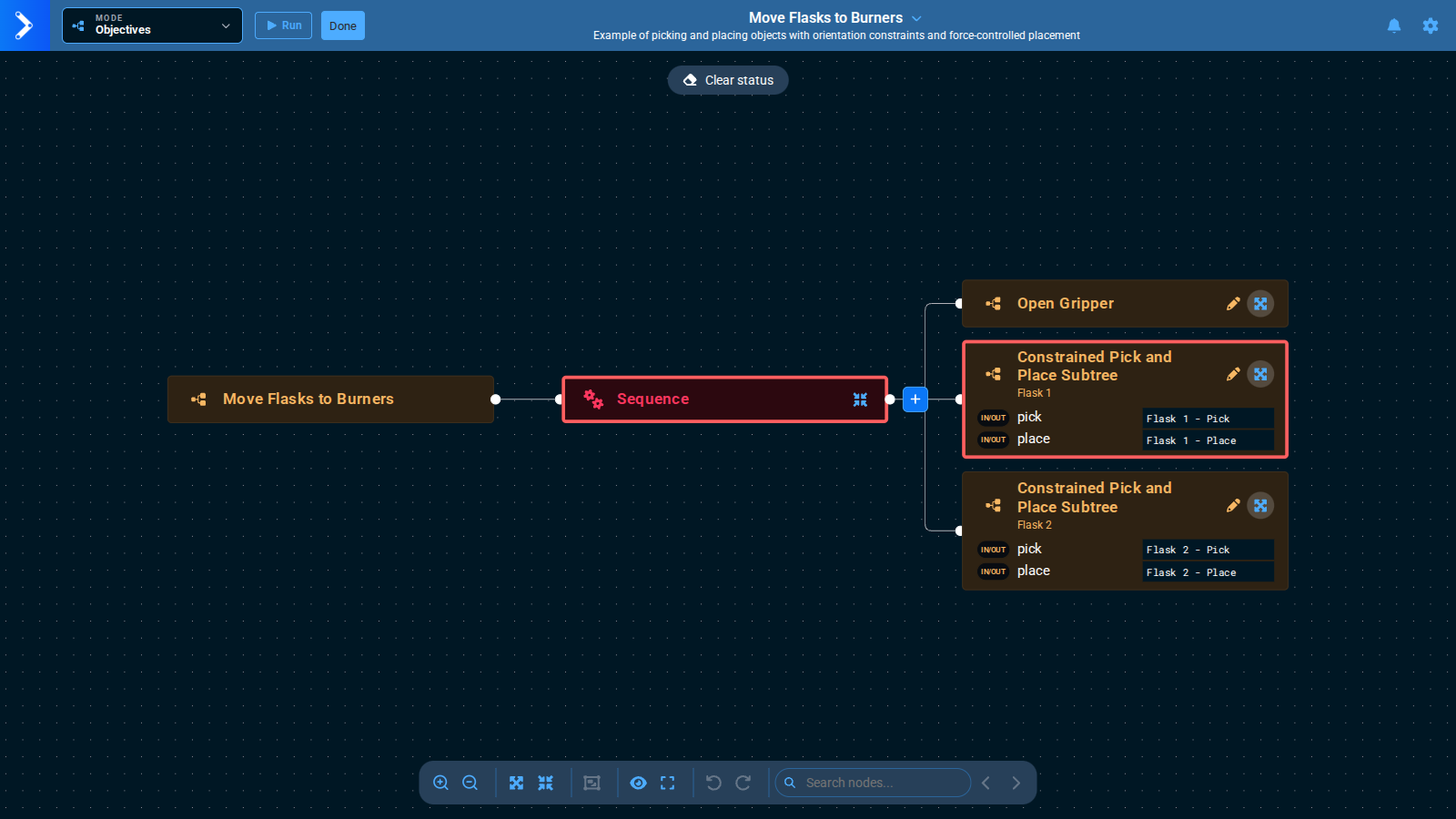
Here the outline runs from the Sequence to the first Constrained Pick and Place Subtree (Flask 1). The pick failed inside that Subtree, and the outline stops at the Subtree node because that is the deepest node this tree shows. The pencil icon on a Subtree node opens it, which you will use later in this tutorial.
The highlight stays on while you edit, so you can fix the tree with the failure still in view. Click Clear status at the top of the canvas when you no longer need it.
This also works for Objectives you did not write. When a shipped example fails on your robot, run it, click Edit, and follow the red border straight to the Behavior that needs attention.
Now remove the zone. Open the Mode menu and select Planning Scene Editor, click the zone to select it, and remove it by pressing Delete on your keyboard, or with the Delete button in the sidebar, which only appears while an object is selected. Then switch the Mode menu back to Objectives.
Editing the lab application
Adding a Breakpoint
Now let's learn how to pause an Objective at a specific point in its Behavior Tree using a breakpoint. This is useful for debugging or stepping through an Objective one Behavior at a time.
First, we need to open the Move Flasks to Burners Objective in edit mode.
Open the left Objectives sidebar if it's not already open, then select the Objective and click the Edit button on the top left of the menu bar.

You are now in edit mode, indicated by the blue bar at the top of the screen showing the Objective name.
You should see the full Behavior Tree for Move Flasks to Burners:
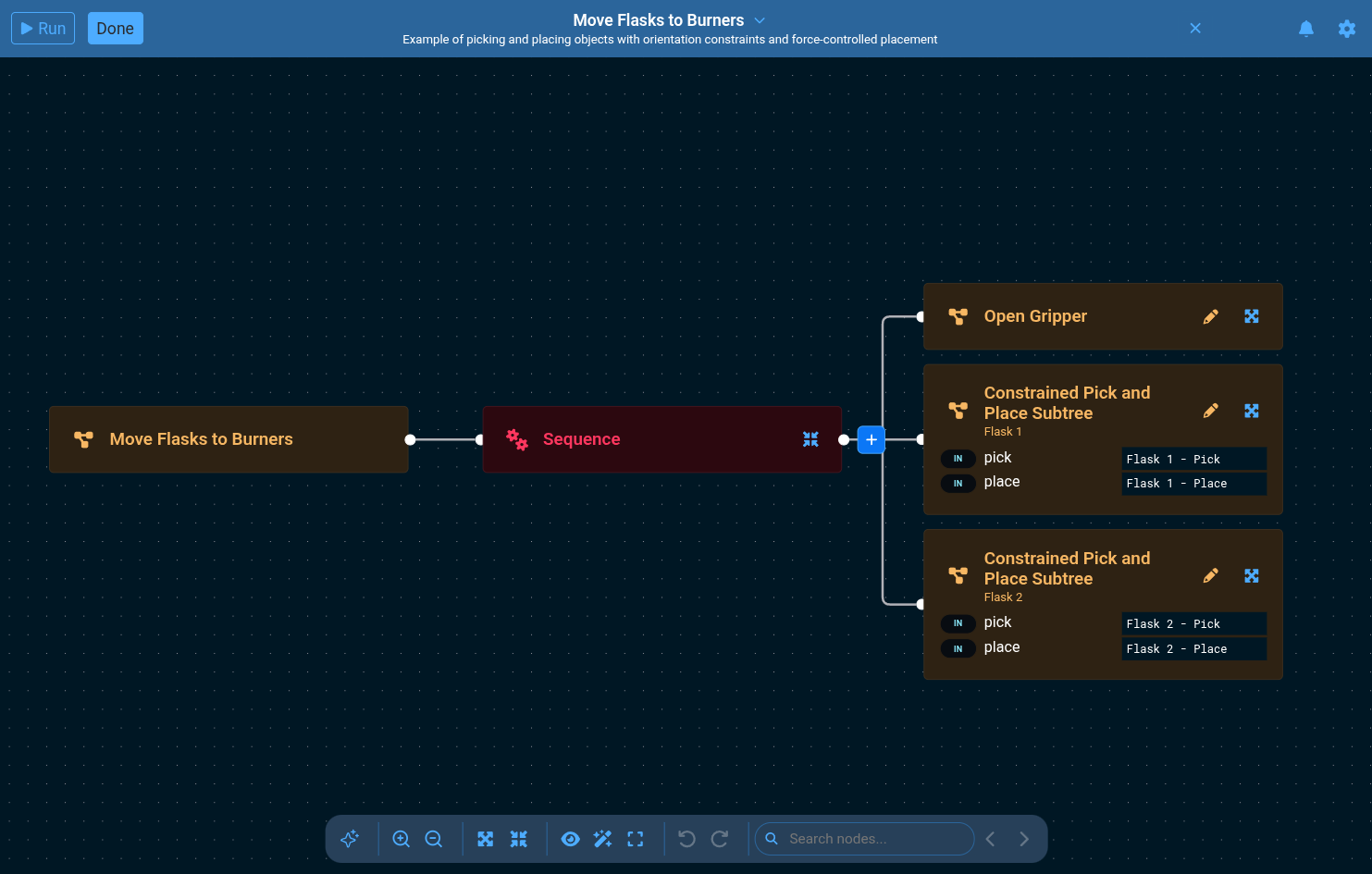
Our breakpoint feature is represented as a Behavior, so next we will learn what a Behavior is, and how to add one to the tree.
In the Behavior Tree concept, a Behavior, also known as a node in other domains, is the fundamental building block of a Behavior Tree. Each Behavior represents a single unit of a robot skill or control logic. It always returns a status — SUCCESS, FAILURE, or RUNNING—when ticked (i.e., executed). Behaviors can perform actions, evaluate conditions, manage flow between other nodes, or modify Behaviors. They fall into categories such as Action, Condition, Control, Decorator, and Subtree nodes. By combining and organizing Behaviors hierarchically, developers can create complex and reusable robot applications in a modular and maintainable way.
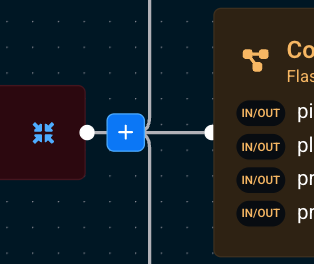
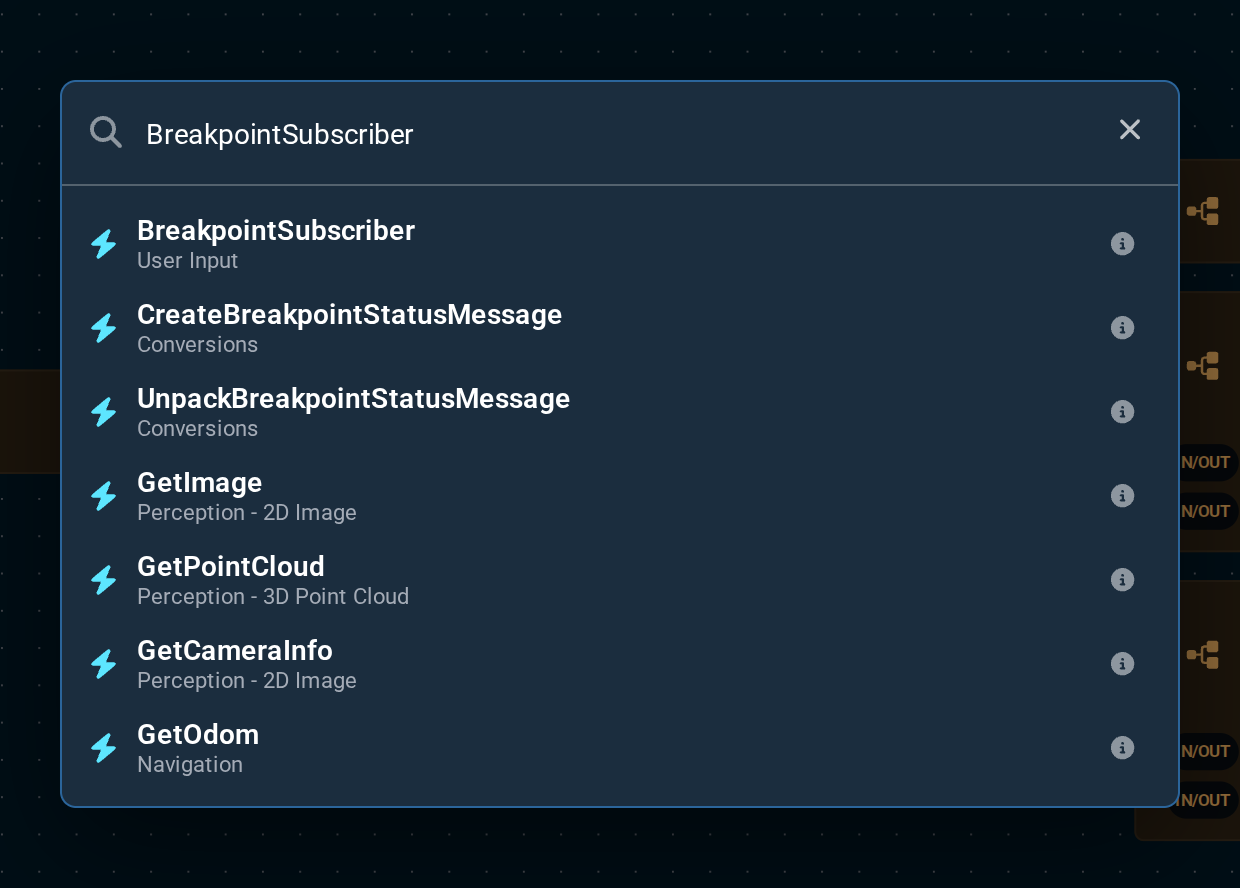
In MoveIt Pro, the recommended way to add Behaviors is using the blue plus button next to nodes in the Behavior Tree. Clicking it opens a search dialog where you can quickly find and add any Behavior.
You can also scroll through the full library of Behaviors on the left sidebar, or use the search bar at the top. However, the blue plus button is the fastest and most common workflow.
Click the blue plus button next to the Sequence node:
Search for "BreakpointSubscriber" and click the result to add it.
The BreakpointSubscriber will be added to the end of the Sequence, but we actually want to pause after picking the first flask.
Drag it so that it is placed right after the first Constrained Pick and Place node (Flask 1).
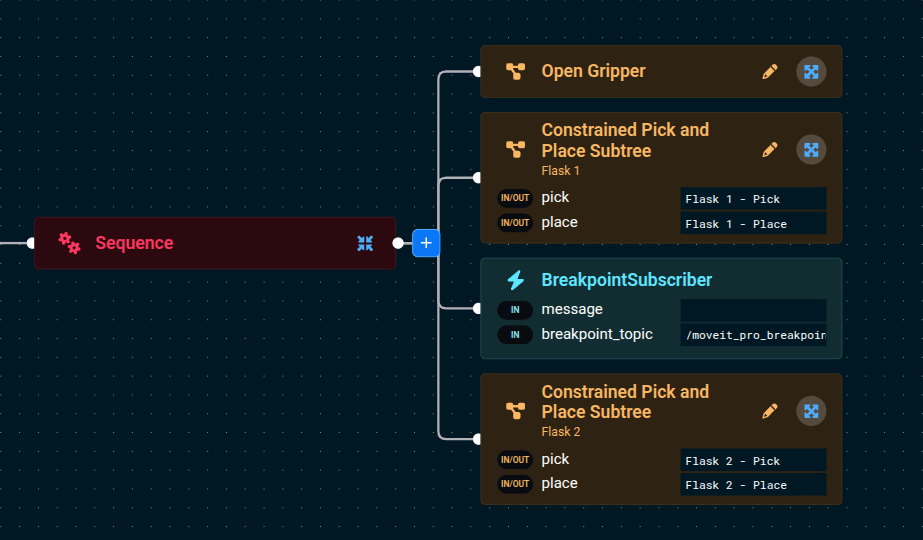
Now run the Objective. Execution stops when it reaches the BreakpointSubscriber, and a Breakpoint
prompt appears with two buttons: Resume carries on to the next Behavior, Stop cancels the
Objective. A short beep plays so you notice the pause even when you are looking elsewhere.
With the Objective paused you can inspect the robot, the planning scene, and the blackboard before deciding which button to press.
BreakpointSubscriber has an optional message port. Whatever you type there is shown under the
Breakpoint heading in the prompt, which is worth doing as soon as a tree has more than one
breakpoint in it. See the Breakpoints guide
for the command-line equivalent.
Turning on the Burner
Now let's build towards a full lab automation application. After moving the flasks to the burners, we also want to turn on the burner. Rather than building everything from scratch, we can reuse existing Objectives as Subtrees within our Behavior Tree.
Subtrees are modular components within a larger Behavior Tree that encapsulate a set of actions or decision logic. By allowing one Behavior Tree to reference another, Subtrees enable greater reusability, organization, and maintainability in complex robotic applications. They help abstract away lower-level details, reduce duplication of nodes, and make it easier to manage common sequences or Behaviors across different Objectives. In MoveIt Pro, Subtrees are especially useful for structuring sophisticated task plans in a clean and scalable way.
From the left Objective sidebar, run the Push Button Objective to see the robot attempt to push the button on the burner.
This Objective uses admittance/force control to push the button with an exact force.
Now let's add this Push Button Objective as a Subtree into our flasks application.
Go back to editing the Move Flasks to Burners Objective, click the blue plus button at the end of the Sequence, and search for Push Button to add it.
Congratulations — you've just built a longer, more capable lab automation application that moves flasks and turns on the burner!
Disabling/Skipping Behaviors
As you iterate on an application, you often want to skip parts that are slow or unrelated to what you're currently testing. MoveIt Pro lets you disable nodes in your Behavior Tree so they're skipped at runtime, without deleting them.
The Push Button Subtree we just added uses admittance control to press the burner with a precise force — accurate, but slow to watch on every run.
Let's skip it while we iterate on the rest of the application:
- Make sure you are still editing the
Move Flasks to BurnersObjective. - Click on the
Push ButtonSubtree node and find the icons that appear on top of the box. - Click on the Comment out (skip execution) icon.
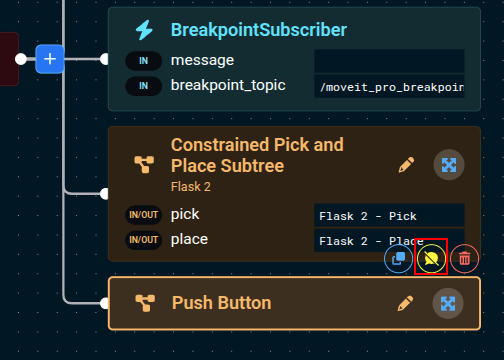
You should see the node change colors to indicate it's disabled.
The node also gains a _skipIf port set to true, which is what gets saved to the Objective's XML.
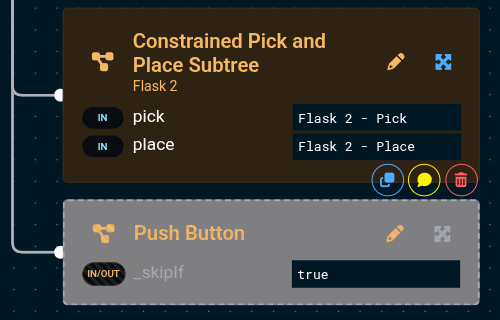
Now run the Objective — the flasks still move to the burners, but the button-push step is skipped, letting you iterate on the flasks portion much faster.
Renaming the Objective
Now that we've customized our lab application, let's rename it to something more personal:
- Open the
Move Flasks to BurnersObjective in edit mode. - Click on the Objective name in the blue bar at the top.
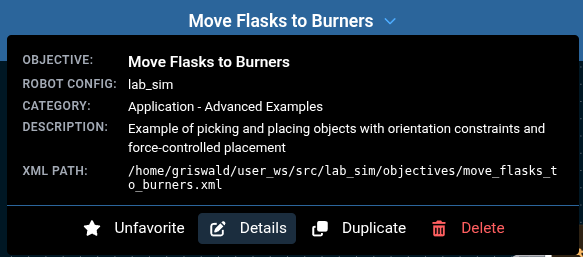
- Select Details to open the Edit Objective dialog, and rename it to something like
My Lab Automation. - Click Save.

Editing the Multi-Threaded Push Button Subtree
One of the powerful features of MoveIt Pro's Behavior Tree engine is its support for multi-threaded parallel execution. This means multiple Behaviors can run simultaneously, which is essential for real-world robotics where you often need to perform an action while monitoring safety conditions at the same time.
Let's explore the Push Button Subtree we added earlier and modify how hard it pushes the burner button by changing the force threshold parameter.
To start, click on the pencil icon on the Push Button Subtree node.
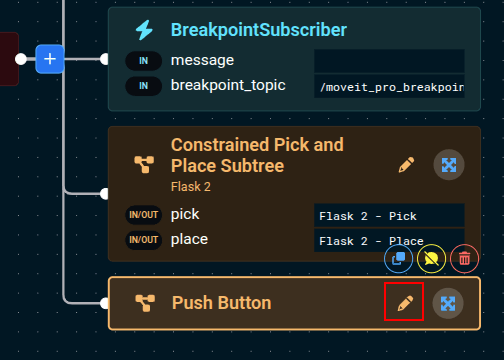
You should see a Parallel node near the core of the tree.
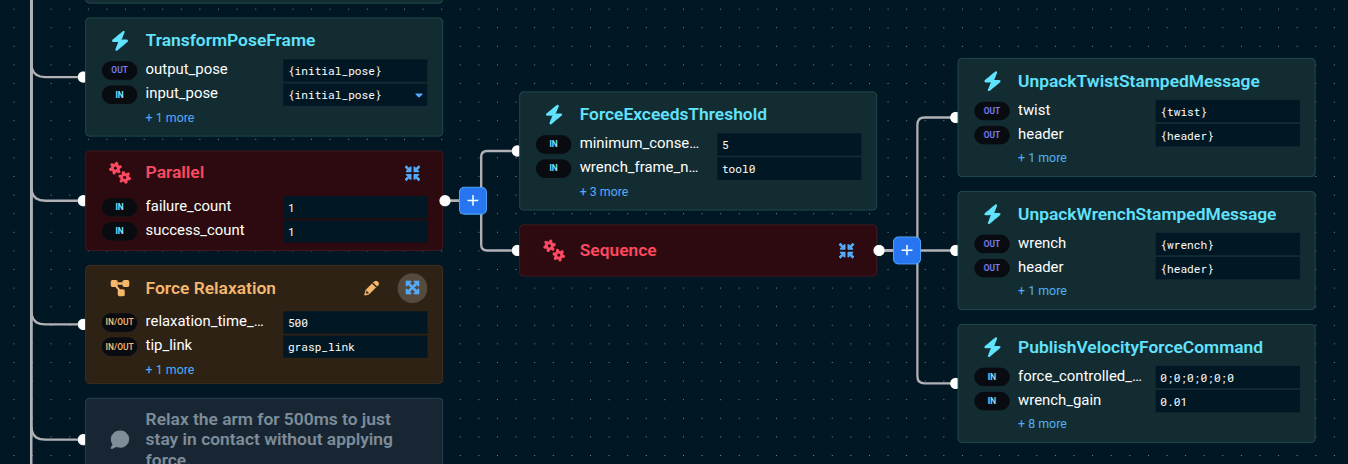
The Parallel node ticks all of its children concurrently. It can be configured with different success/failure policies — for example, succeeding when all children succeed, or stopping when any child fails. This is different from a Sequence, which runs children one at a time.
In this example, the Parallel node is running two things simultaneously:
- A velocity command that pushes the robot's end effector forward along the z-axis toward the burner button.
- A force monitor that continuously checks the force sensor and stops the motion if the detected force exceeds a threshold (20 N by default).
A Timeout decorator bounds this parallel push to 10 seconds. If the force threshold is not reached, it halts both branches and the Objective fails. The timeout applies to the push, not the approach or return motion.
This pattern is common in contact-rich tasks like pushing buttons, inserting pegs, or polishing surfaces — anywhere you need the robot to move while respecting force limits. Without parallelism, you would have to alternate between moving and checking, which is slower and less safe.
Try it yourself:
- Find the
force_thresholdparameter in theForceExceedsThresholdBehavior and increase it to 1000 N.
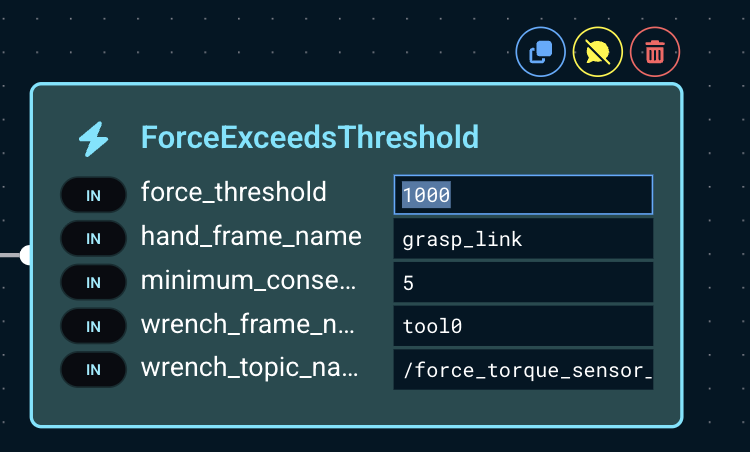
- Run the
Push ButtonObjective again. At 1000 N, the burner can move without the measured force reaching the threshold, so the push ends with a timeout failure. - Observe the burner moving while the robot pushes. Increasing a force threshold does not guarantee that contact will produce that force; the timeout keeps the robot from pushing indefinitely.
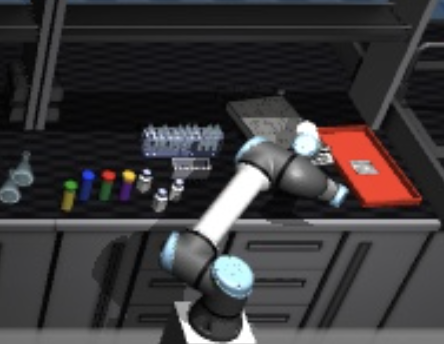
- Set the value back to 20 N, reset the simulation, and run
Push Buttonagain. The force monitor should now stop the push before the timeout, allowing the Objective to complete successfully.
MoveIt Pro's entire runtime is built to support multi-threading, so you can safely use Parallel nodes throughout your Objectives without worrying about thread safety issues in the built-in Behaviors.
There are different schools of thought on how to structure Behavior Trees. In this tutorial, we use many small, atomic Behaviors — each performing a single action like opening a gripper or moving to a waypoint. This granular approach makes it easy to learn, debug, and reuse individual skills. However, MoveIt Pro also supports building larger, self-contained subsystems with fewer nodes overall, which can be more practical for production applications. Both approaches are valid, and you can mix them as needed.
Perception-Based Picking with AprilTags
MoveIt Pro supports multiple perception approaches for autonomous manipulation. In this section, we'll use AprilTag fiducial markers for precise 6-DOF pose estimation to autonomously pick medicine bottles from the workspace.
What are AprilTags?
AprilTags are a type of visual fiducial marker — small, printed patterns that can be detected by a camera to estimate the precise 3D position and orientation (6 degrees of freedom) of a tagged object. They are widely used in robotics because they are fast to detect, robust to lighting changes, and provide accurate pose estimates.
In our lab simulation, each medicine bottle has an AprilTag attached to its cap. The robot uses its wrist camera to detect these tags, compute a grasp pose, and pick up the bottles.
Run the Pick All Bottles with AprilTags Objective
Open the left Objectives sidebar and search for Pick All Bottles with AprilTags. Click the play icon to run it.
This Objective continuously loops, detecting and picking one bottle per cycle until no more AprilTags are found in the workspace.
How It Works
Open the Objective in edit mode to see its Behavior Tree structure. Each cycle detects AprilTags and checks detection_count before picking. Successful detection with zero tags completes the Objective; detection or motion failures fail it. Each pick-and-place cycle is composed of these main steps:
Detect AprilTags on TableSubtree — Opens the gripper, moves to a top-down view of the table, captures a wrist camera image, and returns the AprilTag detections and their count.Pick from AprilTag DetectionsSubtree — When the count is positive, computes a grasp pose and uses MoveIt Task Constructor (MTC) to plan and execute the approach and close the gripper.- Retract — Plans and executes a Cartesian retract path away from the grasp location.
- Place in Tray — Moves to a precomputed drop-off pose above the tray, then uses velocity/force control to lower until contact.
- Release and Retract — Opens the gripper and retracts upward before the next cycle.
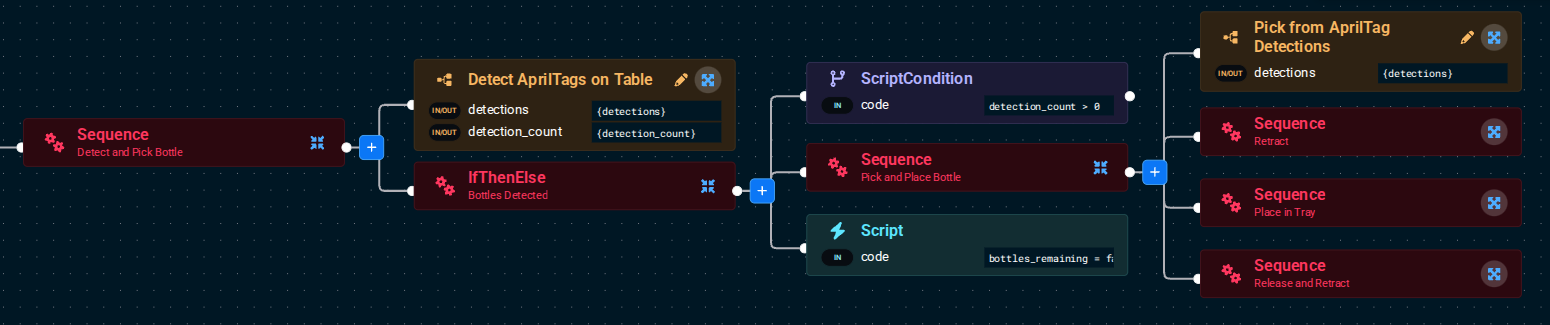
When the count is zero, the final Script sets bottles_remaining to false, ending the loop successfully.
Open this Objective in edit mode and click through each Subtree to see exactly which Behaviors are used. This is a great example of combining perception with dynamic motion planning, rather than relying on hard-coded waypoints.
View Parameters on the Blackboard
Now that you are editing parameters within Behavior Trees, we should mention that MoveIt Pro uses a blackboard to store and share data between Behaviors and Behavior Trees.
To view the state of the blackboard, choose Blackboard from the drop down menu in any view pane.
Then expand the arrow buttons to see the variables within each Subtree, and you should see a list of variables that are currently on the blackboard.
The Search blackboard... box matches scope names rather than variable names, so expand the scopes to find a specific variable.
Open the Pick from AprilTag Detections Subtree and find variables like detection_pose and offset_pose to see the pose data flowing between Behaviors as the robot detects and picks each bottle.
This tool is useful for debugging complex data flows within a Behavior Tree.
Building your own Objective
Create New Objective
Now we're ready to build our own custom Objective.
We're going to build a simple pick demo using a custom waypoint we'll create called Pick right bottle, along with some existing waypoints that ship with lab_sim.
To begin, select the + button to the left and click New Objective. This opens the Create New Objective dialog.
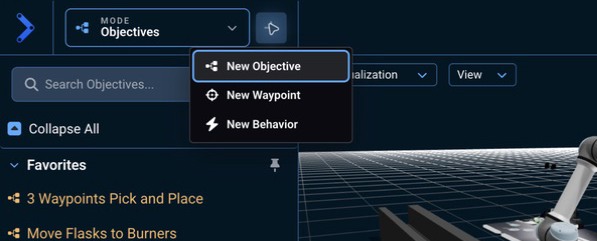
You'll also notice a New Behavior option in this menu. That will be covered in Tutorial 2, where you'll learn how to write custom C++ code that runs as a node in your Behavior Tree.
Enter My Pick and Place as the name.
For the category, create a new one called My Tutorials.
Categories are yours to define — on a real project you would typically use your company or organization's name. We use My Tutorials throughout these tutorials so the Objectives you create stay together, separate from the ones that ship with MoveIt Pro.
You can also provide an optional description, which we recommend. Try A simple pick demo using hardcoded waypoints.
The dialog has two more fields you can leave alone: Robot Config Package, already filled in with
the config you are running (lab_sim), and a Mark as favorite checkbox.
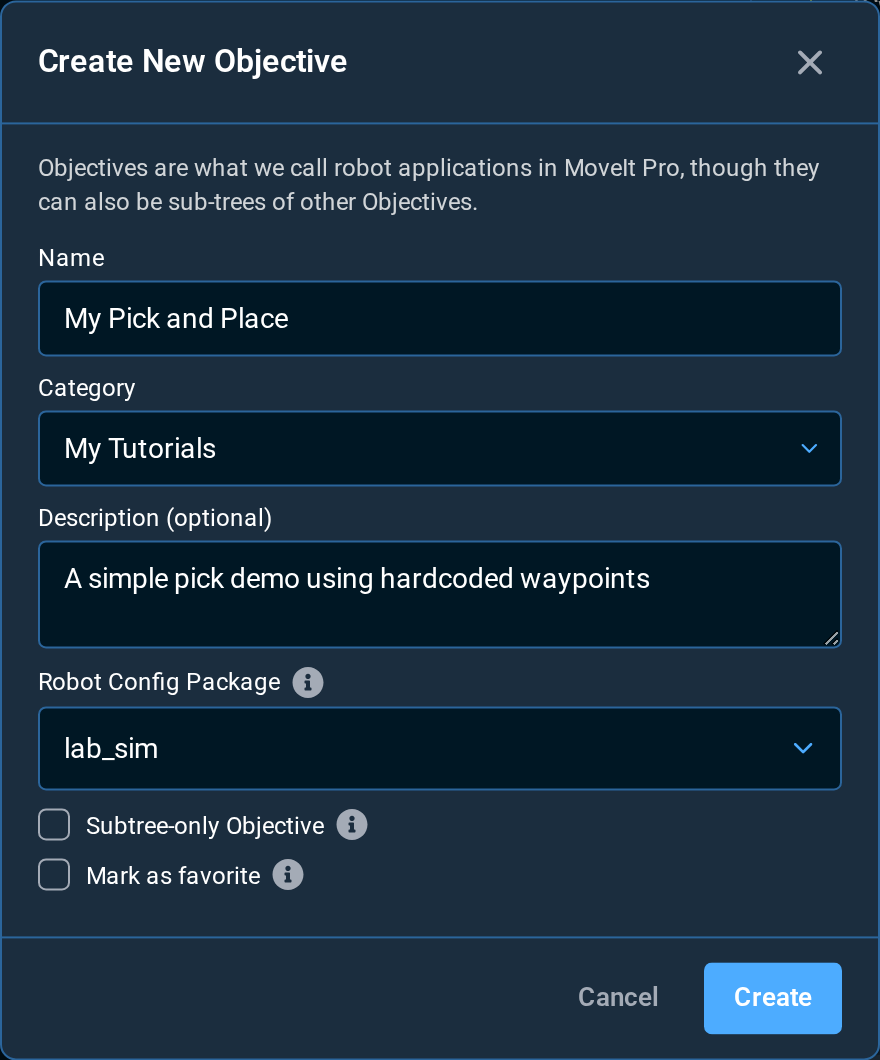
Leave the checkbox Subtree-only Objective unchecked. It specifies if an Objective can be executed. If an Objective is marked for usage as a Subtree only, then it is non-runnable, but can instead be used inside another Objective in the same way we use Behaviors.
Click the Create button. You should see a new, mostly empty Objective.
Adding Behaviors
New Objectives are instantiated with a simple Behavior Tree using the AlwaysSuccess Behavior. Without this AlwaysSuccess Behavior, it would be considered an invalid / malformed tree and would throw warnings.

Delete the AlwaysSuccess Behavior by clicking on it and either selecting the popup delete icon, or by pressing the Delete button on your keyboard.
Open Settings and select Keyboard Shortcuts for the full in-app reference.
The MoveIt Pro Behavior Tree editor includes an Undo/Redo button that can protect you from accidental deletions or other mistakes. You can find it in the icon bar centered along the bottom of the editor canvas. Try using this feature to undo and redo the deletion.
Now we are going to add our first Behavior.
Using the blue plus button, add the Move to Named Waypoint Behavior to our new tree.
Click on the Behavior and scroll to the bottom of the parameter sidebar to find the waypoint_name port dropdown selector.
Use the dropdown list to set the waypoint name to Look at Table.
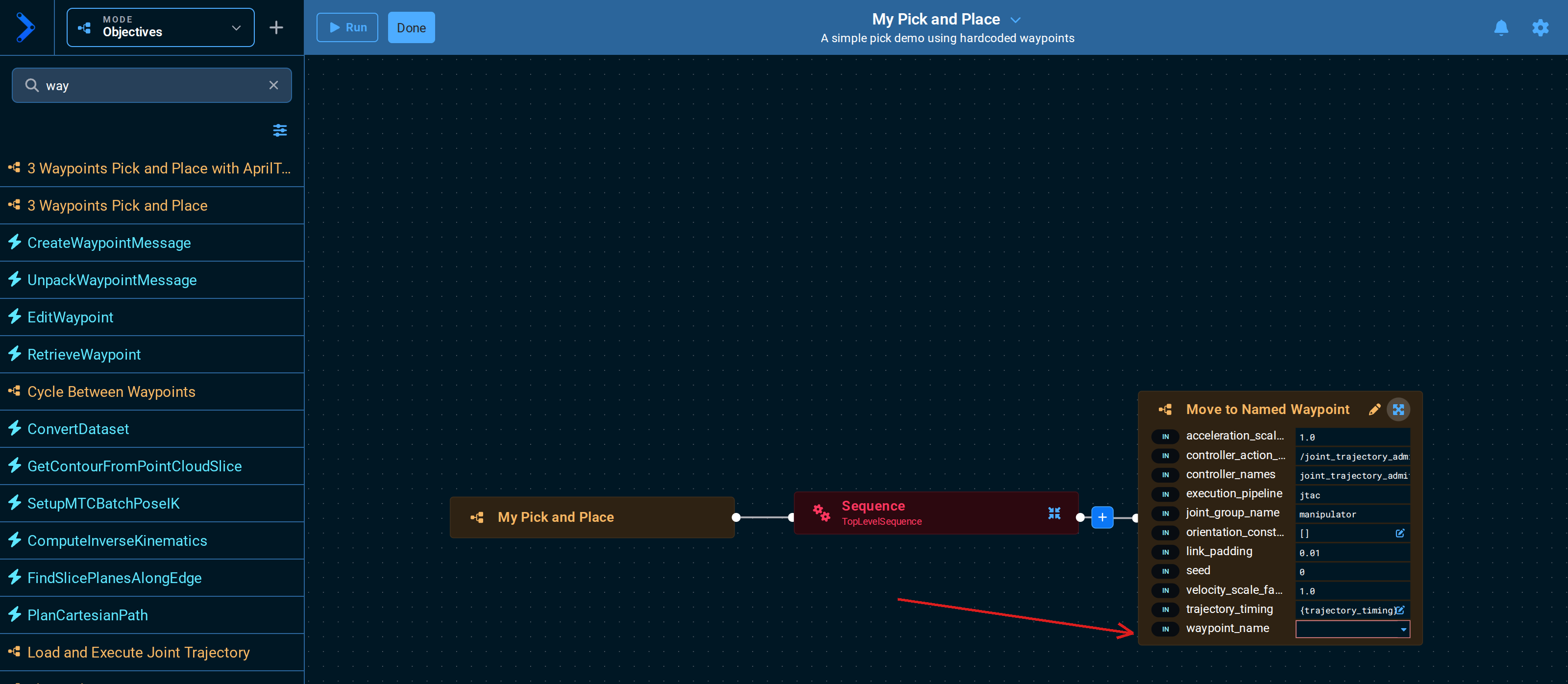
Each Behavior in an Objective has a name attribute that can be useful for identification. Let's set this Behavior's name to Look at Table.
By default, the Behavior Tree editor shows two ports per node, to keep nodes compact. The  button in the bottom icon bar opens a Port Visibility menu that sets how many to show: No ports, 1 port through 5 ports, or All ports. The screenshot above uses All ports.
Next, add a Clear Snapshot Behavior, then add a Take Wrist Camera Snapshot Behavior to the tree.
This will add a fresh point cloud to the 3D Visualizer when you run the Objective.
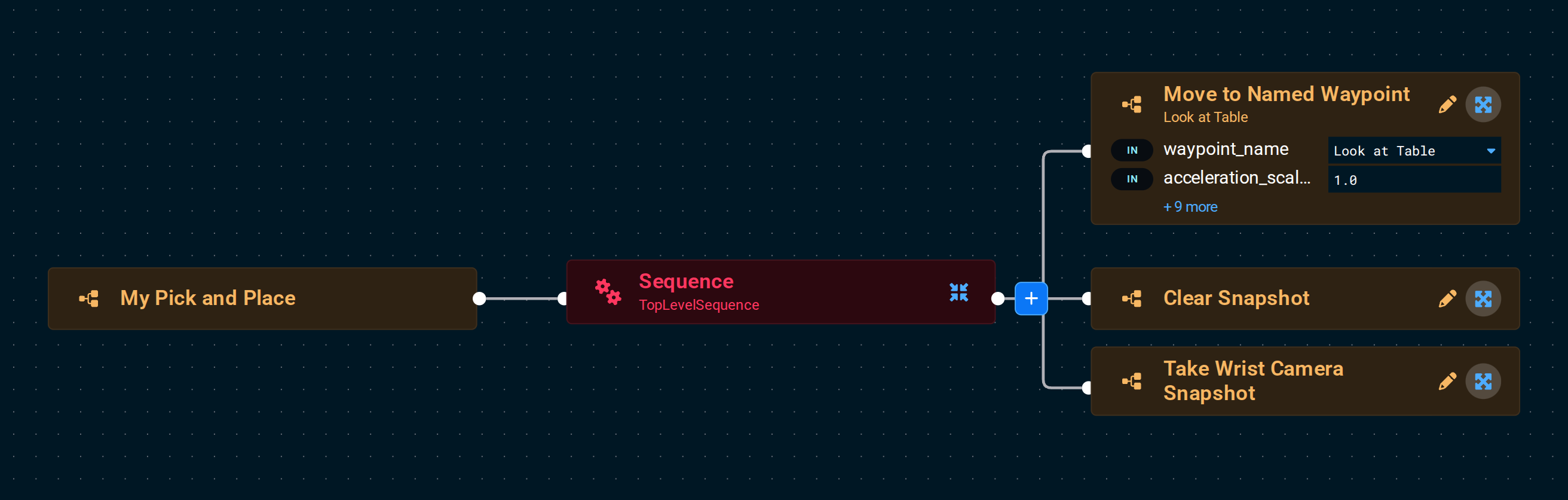
MoveIt Pro ships with 200+ Behaviors from the Behaviors Hub for all domains of robotics: motion planning, machine learning, inverse kinematics, Cartesian planning, real-time control, grasping, task planning, human in the loop teleop, and more. You are also encouraged to build your own custom Behaviors and plugins, which allows you to incorporate other ROS packages or third party capabilities with MoveIt Pro for unlimited potential.
We are going to add a few more Behaviors to complete the Objective. Below is a complete list of steps, including the ones we've already added in the above.
Full Behavior Sequence
Full sequence — each top-level bullet is a Behavior, with the port values to set indented below it:
Move to Named Waypointwaypoint_name:Look at Table
Clear SnapshotTake Wrist Camera SnapshotOpen Gripper- Make sure the gripper is open before we pick.
Move to Named Waypointwaypoint_name:Pick right bottle— a custom waypoint we will create below.
Close GripperMove to Named Waypointwaypoint_name:Home— returns the robot to a safe home position while holding the medicine bottle.
Creating a Waypoint with Teleoperation
To complete our Objective, we need a waypoint for where the robot should pick up the medicine bottle. We'll create this using MoveIt Pro's teleoperation — manual control of the robot through the UI.
MoveIt Pro provides many types of manual control for when a robot needs to be set up, diagnosed, or recovered. Teleoperation is also a key tool for AI data collection — by recording human demonstrations, you can generate training data for machine learning models.
| Method | Best For | Precision | Setup Required |
|---|---|---|---|
| Interactive Marker | Visual positioning, trajectory preview | Medium | None |
| Pose Teleop | Cartesian movements, end-effector positioning | High | None |
| Joint Teleop | Joint-specific movements, singularity avoidance | High | None |
| Waypoints | Returning to a pose you already saved | Exact | A saved waypoint |
| Game Controllers | Familiar interface to many users | Medium | Plug in USB |
| Meta Quest VR | Intuitive hardware-based teleop | Medium | Setup Guide |
For more details on each mode, see the UI-Based Teleoperation Guide. For hardware-based teleop, see the Gamepad Setup Guide or Meta Quest Setup Guide.
Open the Mode menu in the top left and select Teleoperation.
At the top of the left sidebar you'll find four tabs — Pose, Joint, IMarker, and Waypoints — one per manual control method. Click through them to see how the controls change. The first three correspond to the Pose, Joint, and Interactive Marker rows in the table above; Waypoints drives the robot to a waypoint you have already saved rather than jogging it freehand.

Two controls in this sidebar are worth knowing about before you start jogging the arm:
- Require Approval stages your motion on a translucent "ghost" robot first and waits for you to click Approve before the real arm moves. Available in the Joint and IMarker tabs.
- Game Controllers, at the bottom of the Pose and IMarker tabs, is where a USB gamepad or a Meta Quest is connected.
Waypoints are saved joint states that can be reused later in Objectives or standalone.
Now let's drive the robot to a grasp position and save it as a waypoint:
- Set the largest view pane to the
/wrist_camera/colorcamera view. - Open the gripper using the bottom buttons.
- Use various teleop modes to drive the robot arm to a grasp position that envelopes the medicine bottle on the right side of the table. We recommend using Pose teleoperation as the easiest mode for driving the arm around the medicine bottle.
Once you are happy with your robot's grasp position, save the robot's state by creating a waypoint:
- Open the + menu in the top left and select New Waypoint. The menu offers New Objective, New Waypoint, and New Behavior in every mode.
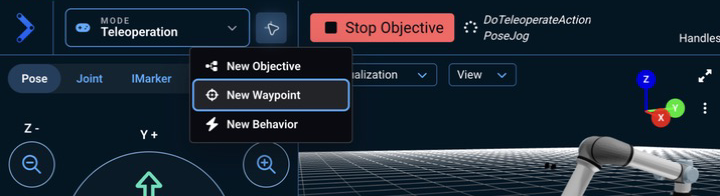
The dialog will open.
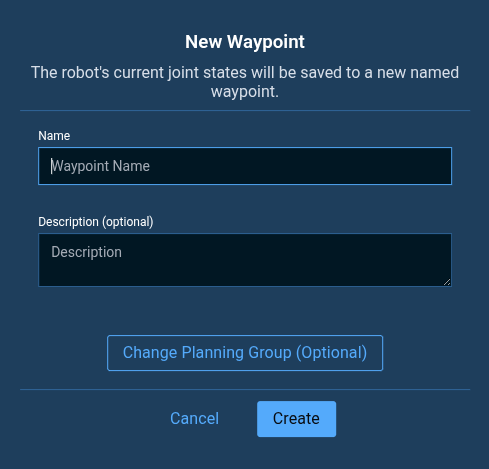
-
Name your new waypoint
Pick right bottle.tipYou can adjust which parts of the robot to save as a waypoint, by clicking the Change Planning Group button when adding a new waypoint. However, this is an advanced feature you do not need to worry about for now.
-
Click Create to finish creating your new waypoint.
-
Click the Stop Objective button in the top toolbar to stop the
TeleoperateObjective. The workspace stays in Teleoperation, so switch the Mode menu back to Objectives to return to the default view.
Finishing the Objective
Now go back to editing your My Pick and Place Objective and finish adding the remaining Behaviors from the sequence above.
Make sure to set the waypoint_name for each Move to Named Waypoint Behavior, including your newly created Pick right bottle waypoint.
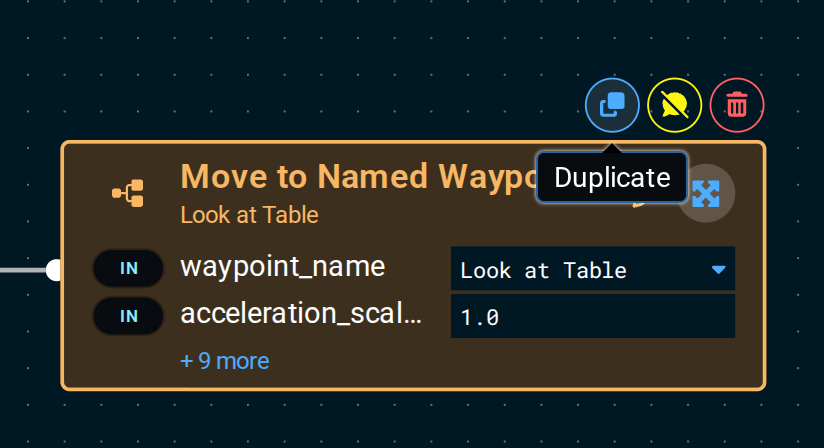
To save time, you can copy a Behavior instead of adding it again. Select the Behavior, then click the blue Duplicate icon in the toolbar above the node.
The Breakpoint toolbar button is not available in MoveIt Pro 10.1. To add a breakpoint, insert a BreakpointSubscriber Behavior as described in Adding a Breakpoint.
Take advantage of the build navigation buttons located on the bottom of the pane. The tree re-lays out automatically as you drag Behaviors into place, keeping it clean and organized.
Your completed Objective should look similar to this:
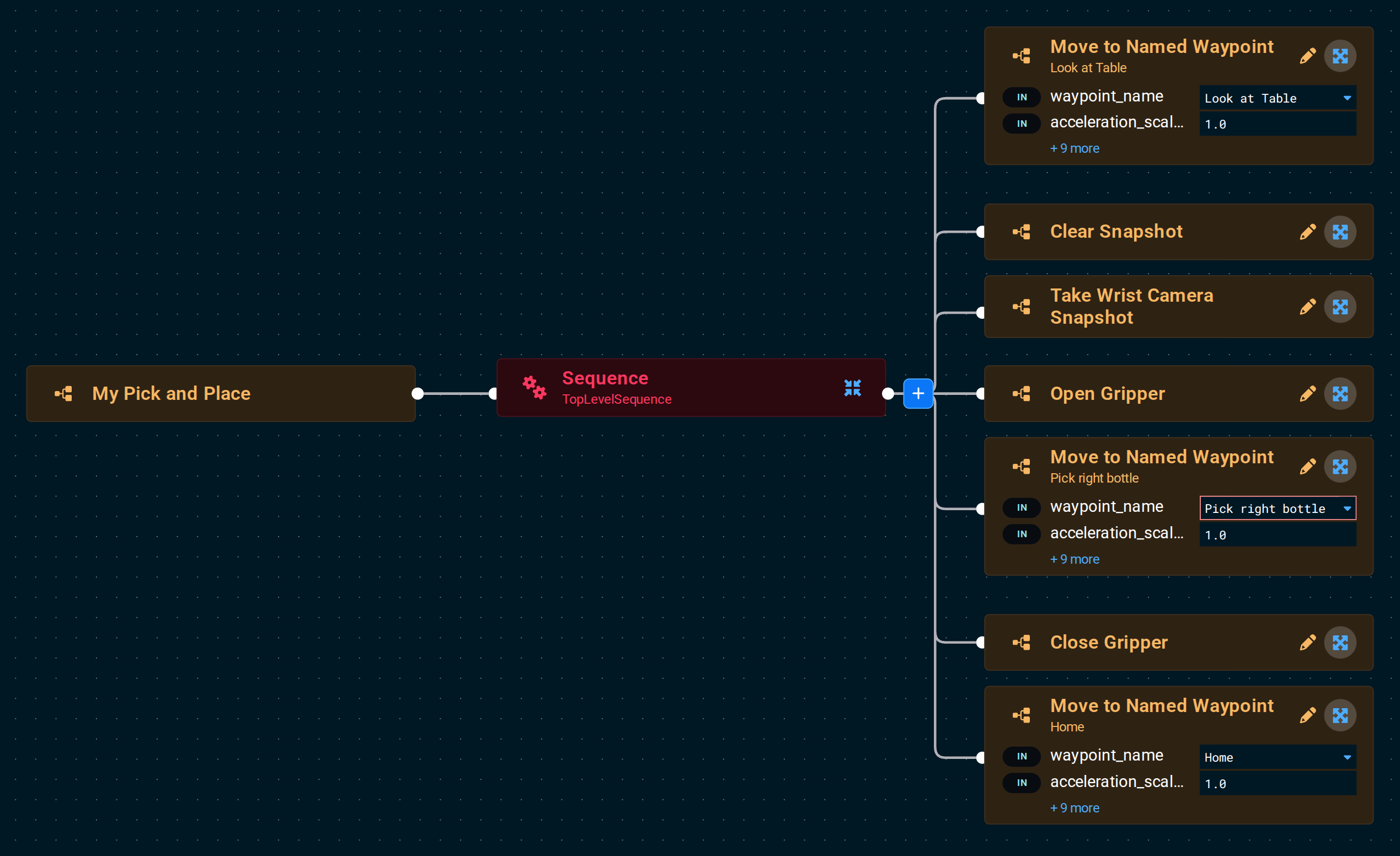
Run the Objective to make sure it works.
We should see the robot pick up the right medicine bottle! We realize this is a very basic example, but this is our intro tutorial. MoveIt Pro can do much more advanced applications that involve computer vision, reasoning, and machine learning.
Grouping Behaviors under a Sequence
Your Objective is a flat list of seven Behaviors, and it is already hard to see where the pick starts and ends. The editor can wrap neighboring Behaviors in a new Sequence for you, so the tree gains structure without rebuilding anything.
- Click
Open Gripper, then hold Ctrl (Cmd on macOS) and click theMove to Named WaypointforPick right bottleandClose Gripper. All three are now selected, and a Group Under Sequence button appears above the tree.
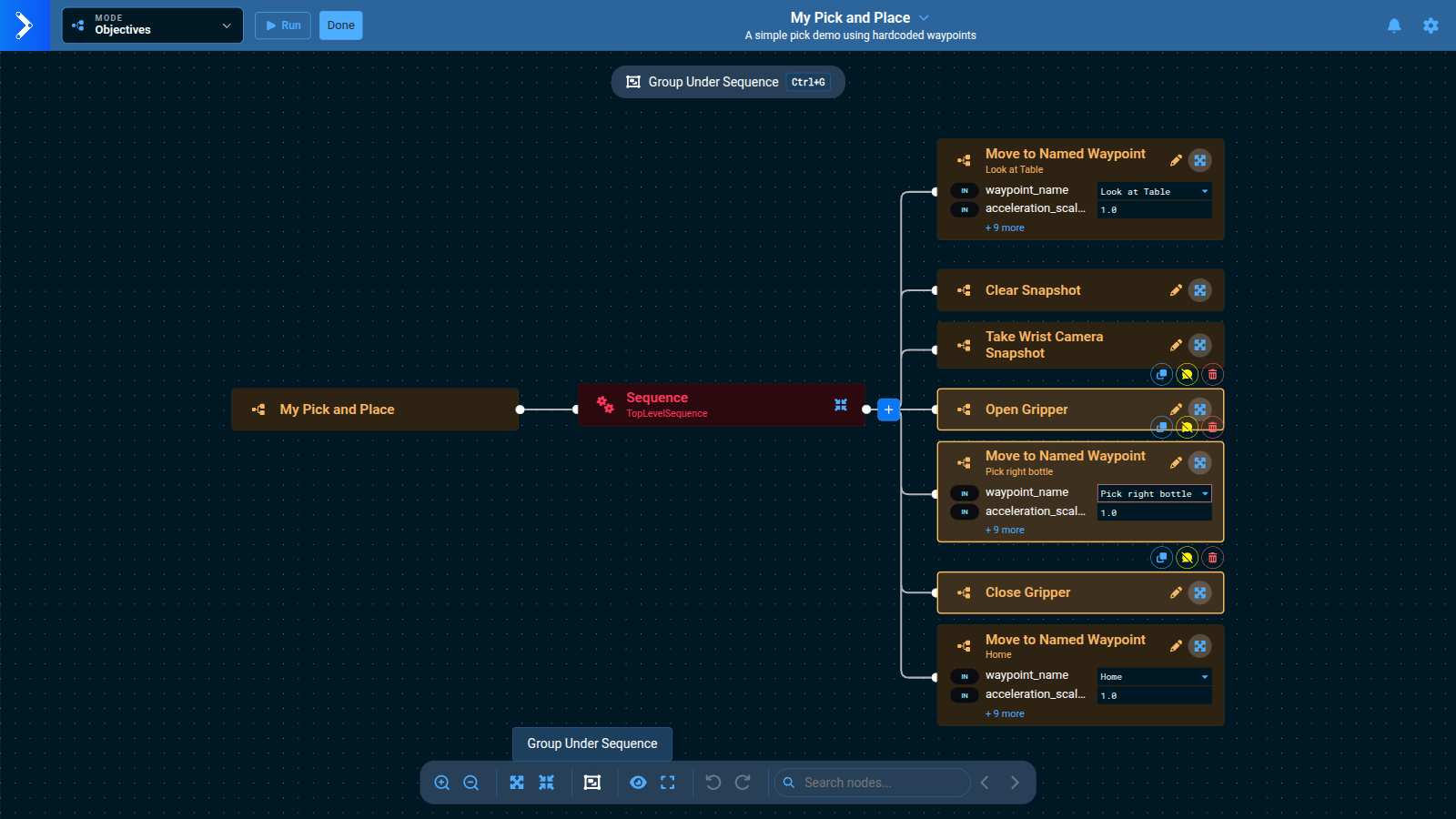
- Press Ctrl+G (Cmd+G on macOS), or click that button. The editor inserts a new
Sequencewhere the three Behaviors were and moves them under it, in the same order. - The new
Sequenceis selected, so name it now: typePickin the Name / Comment field of the sidebar and press Tab.
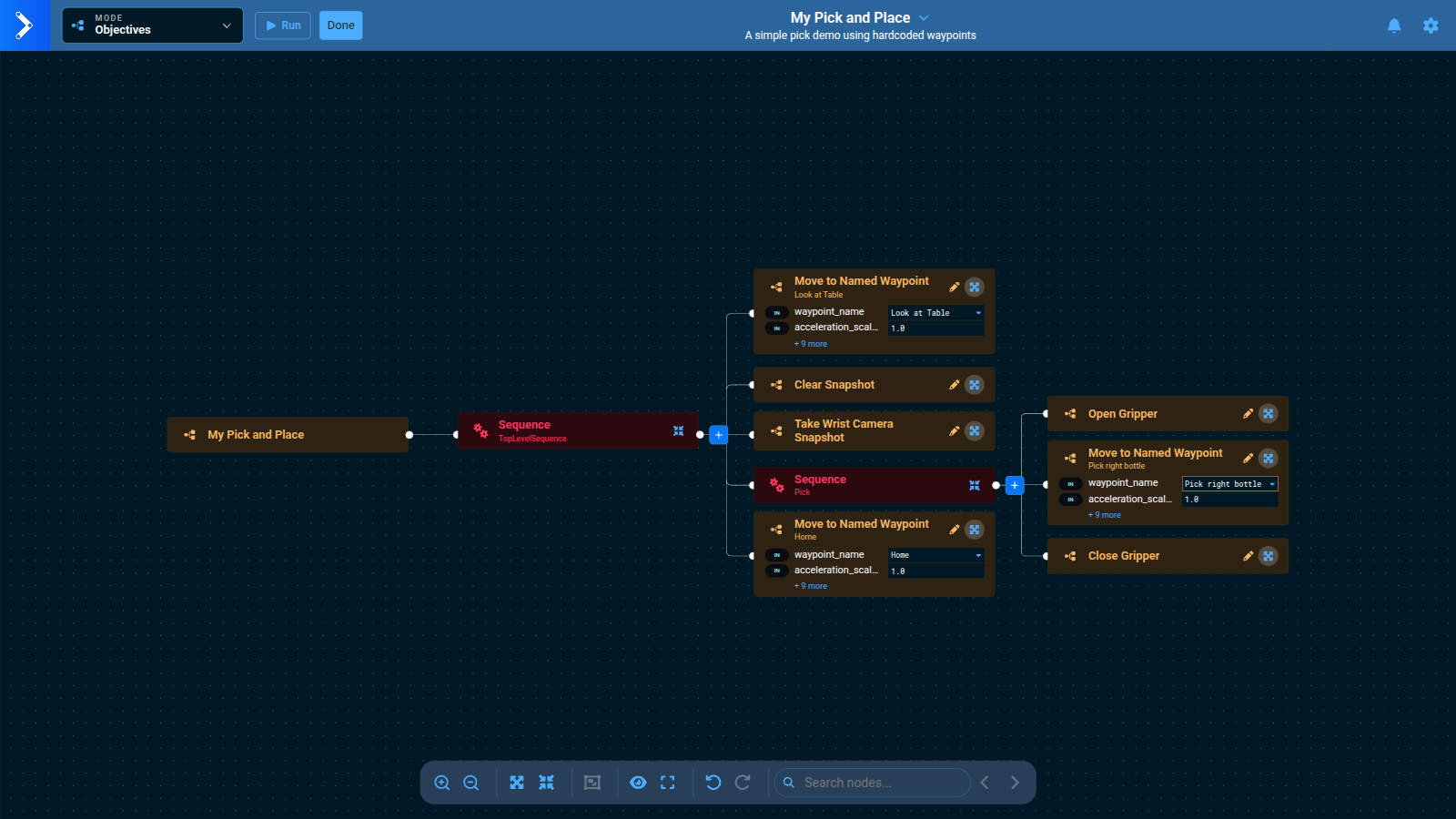
Run the Objective again. It behaves exactly as before, because a Sequence runs its children one after another, which is what the top-level Sequence was already doing. What changed is that the tree now says what those three Behaviors are for, and you can collapse, duplicate, or comment out the pick as one unit.
Grouping needs two or more nodes that share the same parent. If the button does not appear, check that everything you selected sits under the same Sequence. The sidebar also offers Convert to Subtree for a selected Sequence, which turns it into an Objective of its own. Tutorial 3 covers Subtrees in depth.
You can also edit Objectives using your favorite IDE / code editor, as all Behavior Trees are saved to file in plain text XML format. This needs a terminal on the Runtime computer, so it applies to self-hosted Runtimes only.
The Behavior Tree you just created can be found on your filesystem, and you can run the following command in terminal to see all available Objectives in lab_sim:
ls -1 ~/moveit_pro/moveit_pro_example_ws/src/lab_sim/objectives
Example contents of objectives folder
3_waypoint_pick_and_place.xml
add_point_cloud_to_vector.xml
add_poses_to_mtc_task.xml
add_waypoints_to_mtc_task.xml
apriltag_pick_object.xml
clear_previous_obstacles.xml
close_gripper.xml
constrained_pick_and_place_subtree.xml
create_pose_vector.xml
cycle_between_waypoints.xml
force_relaxation.xml
fuse_multiple_views_subtree.xml
And many more.
Great job on creating your first Objective! Before moving on to perception and machine learning, let's dive a little deeper into some Behavior Tree theory.
Behavior Tree Theory
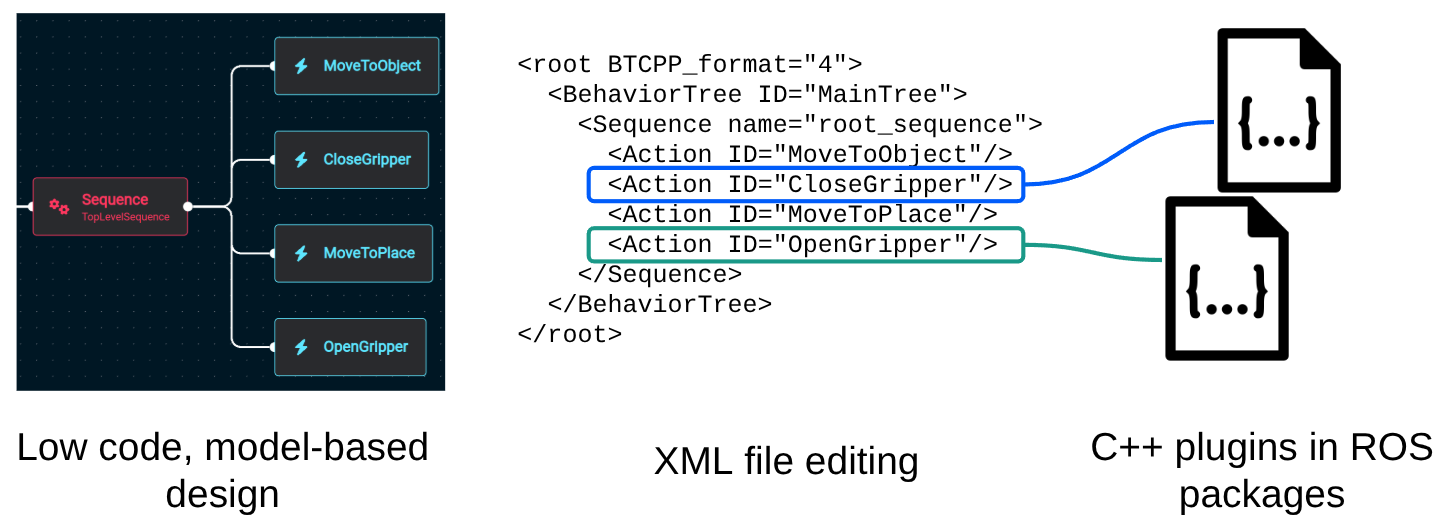
A Behavior Tree is a hierarchical, modular way to model decision-making logic. It is implemented in MoveIt Pro in a visual node-based, block-diagram-style workflow. At the highest level, the MoveIt Pro Desktop App offers an accessible and intuitive low-code development environment. The underlying Behaviors are implemented as customizable C++ plugins via ROS packages.
Nodes
Behavior Trees are built from nodes, and there are two broad families: internal nodes that decide how their children run, and leaf nodes that do the actual work.
Internal nodes have one or more children and control how those children run:
- Control nodes run their children in a set pattern. A Sequence runs them one after another, while a Parallel runs several of them at the same time.
- Decorator nodes have exactly one child and change how it behaves. For example, an Inverter flips its child's result (turning SUCCESS into FAILURE and FAILURE into SUCCESS), and a Delay waits a set amount of time before running its child.
Leaf nodes sit at the bottom of the tree and do the actual work:
- Action nodes perform a task, such as moving the arm or opening the gripper.
- Condition nodes check something, such as whether the gripper is holding an object, and answer yes or no.
Every time the tree runs, a signal called a "tick" travels down from the top. When a node is ticked, it reports back a status:
- SUCCESS
- FAILURE
- RUNNING — the task has started but needs more time to finish.
Condition nodes only ever report SUCCESS or FAILURE, since a check is answered right away.
For more information about Behavior nodes, please refer to our concepts page on Behavior Node Types
Data Sharing through Ports and the Blackboard
Behaviors communicate with each other via the Blackboard (key/value storage). To manage access to data, Behaviors can assign ports.
There are three types of ports:
- Input
- Output
- Bidirectional (Note: Subtree top-level ports carry no enforced runtime direction, but the editor preserves each port's authored direction.)
Ports can be assigned direct values (typically numbers or strings), or variables from the Blackboard, which is indicated by enclosing the variable name in curly brackets (e.g. {blackboard_variable} ).
Blackboard variables must exist before they can be used:
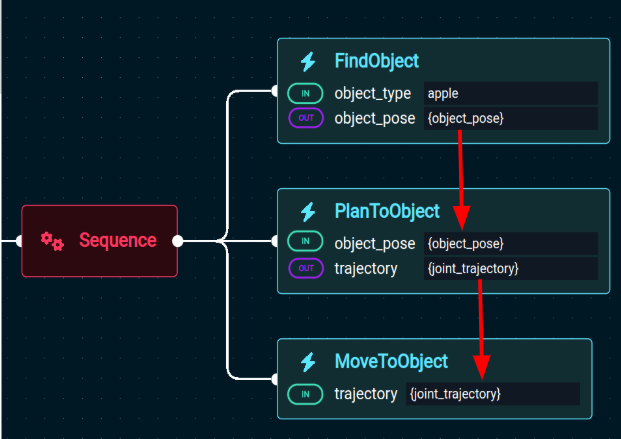
This concludes our Behavior Tree theory!
Using SAM3 AI Model
Reset the simulation so the bottles return to their original positions. Click the gear icon in the top right and select Reset Simulation, as you did earlier in this tutorial.
Run the ML Find Bottles on Table Objective
This Objective runs an ML model that requires a decent GPU and uses a significant amount of VRAM. It may not work on all machines, or may run very slowly on systems without a dedicated GPU.
It also needs the moveit_pro_sam3 package, which is only built once you accept Meta's SAM License. If you declined it, or installed without a terminal to prompt you, the Objective fails to load the model — see Accepting the SAM3 model license.
To see an example:
- Open the left Objectives sidebar and search for
ML Find Bottles on Table from Image Exemplar. Click the play icon to run it. - Wait for the Objective to complete.
- Use the dropdown menu in the top left of a view pane to switch it to
/masks_visualization. You should see something like the following:
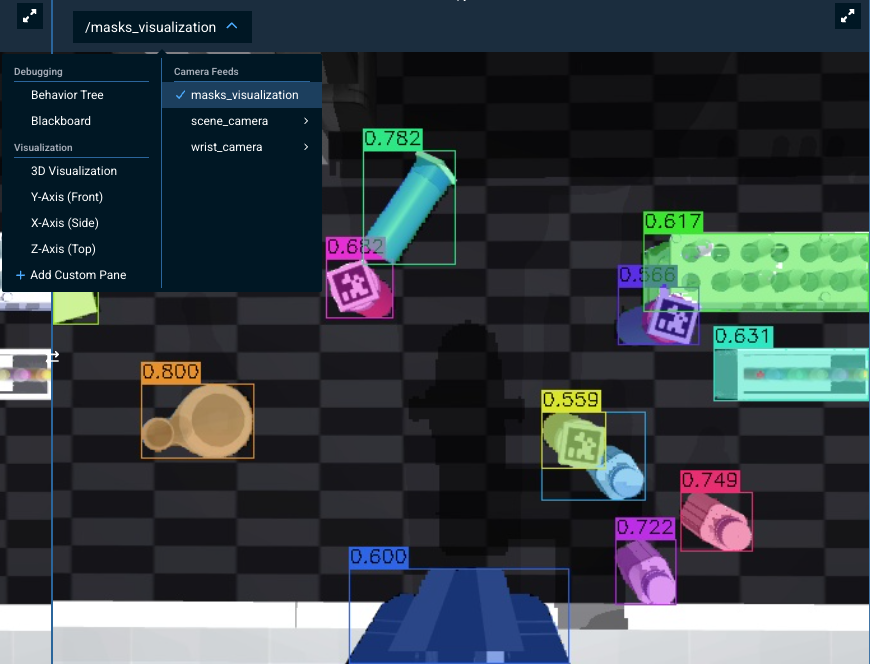
In Tutorial 3, we dive deeper into MoveIt Pro's ML and perception capabilities, including how to integrate your own custom ONNX models and build full ML-powered pick and place applications.
Saving your work
This section does not apply to MoveIt Pro Cloud users, where your work cannot be saved once the cloud session expires.
Wrapping up this tutorial, you may be curious how all these changes are stored and saved.
In this beginner tutorial we are working out of our basic moveit_pro_example_ws, which is stored on your computer at ~/moveit_pro/moveit_pro_example_ws.
Your changes are auto-saved to file, but you can also push it into the cloud using standard Git code repository practices.
To do this:
- Open a terminal explore the changes you have made:
cd ~/moveit_pro/moveit_pro_example_ws
git status # see the files you have changed
tree # explore the file structure of this repo
- Fork the moveit_pro_example_ws repo on Github, to your own account
- Connect your local workspace to your new fork
git remote set-url origin <url_of_your_new_fork>
- If you want to now save the changes:
git checkout -b my_pick_demo
git add -A
git commit -m "Adding My Pick and Place Objective"
git push origin my_pick_demo
Exploring More Robot Configs
Before continuing on to the next tutorial, feel free to explore other example robot configs provided in MoveIt Pro beyond lab_sim.
These example worlds showcase other hardware and various reference applications.
This section needs a terminal on the Runtime computer, so it applies to self-hosted Runtimes only. A Cloud deployment is fixed to the robot config it was provisioned with.
To do this:
- Bring down your current instance of MoveIt Pro with
Ctrl-C. - See all available configuration packages with the command
moveit_pro run --list. - Choose one, such as
moveit_pro run -c grinding_sim. - Within the UI, try out the various example Objectives from the sidebar.
Summary
By completing this tutorial, you've built a strong foundation in using MoveIt Pro—from running Objectives and teleoperating the robot, to creating your own pick-and-place application with keep-out zones, breakpoints, and AprilTag-based perception. You explored how to configure the user interface, use Behavior Trees for task logic, diagnose failures from the Alert Sidebar and the failed-branch highlight in the Behavior Tree editor, and integrate ML-based perception. In the next tutorial, you'll learn how to build on MoveIt Pro as a developer — including the runtime SDK, Python integrations, and how to build your own custom Behavior plugins.
Just completed our live training? We would love to hear your feedback on this course!
🎉 Congratulations, we're now ready to move to the next tutorial!