Breakpoints Usage
MoveIt Pro allows setting breakpoints wherever one wants to pause Objective execution, so you can investigate the state of the robot, the planning scene, and the blackboard part-way through a run.
Launch the Runtime and Desktop App
We assume you have already installed MoveIt Pro to the default install location. Start the MoveIt Pro Runtime using:
moveit_pro run -c lab_sim
Then launch or connect the separately distributed MoveIt Pro Desktop App. The Runtime does not serve a bundled user interface.
Adding Breakpoint to Objective
Select a node in the Behavior Tree editor and click Breakpoint in its node actions to break on it; Remove Breakpoint clears it. A node carrying a breakpoint is marked with a dot to the left of its type icon, which stays visible after you select something else.
The action is not offered on a node inside an expanded Subtree, because a breakpoint is saved with
the Objective that owns the node rather than the one you are editing — collapse the parent Subtree
and set it there instead. It is also absent on a Comment, which the tree never executes, and on a
BreakpointSubscriber you placed yourself, which needs no breakpoint of its own.
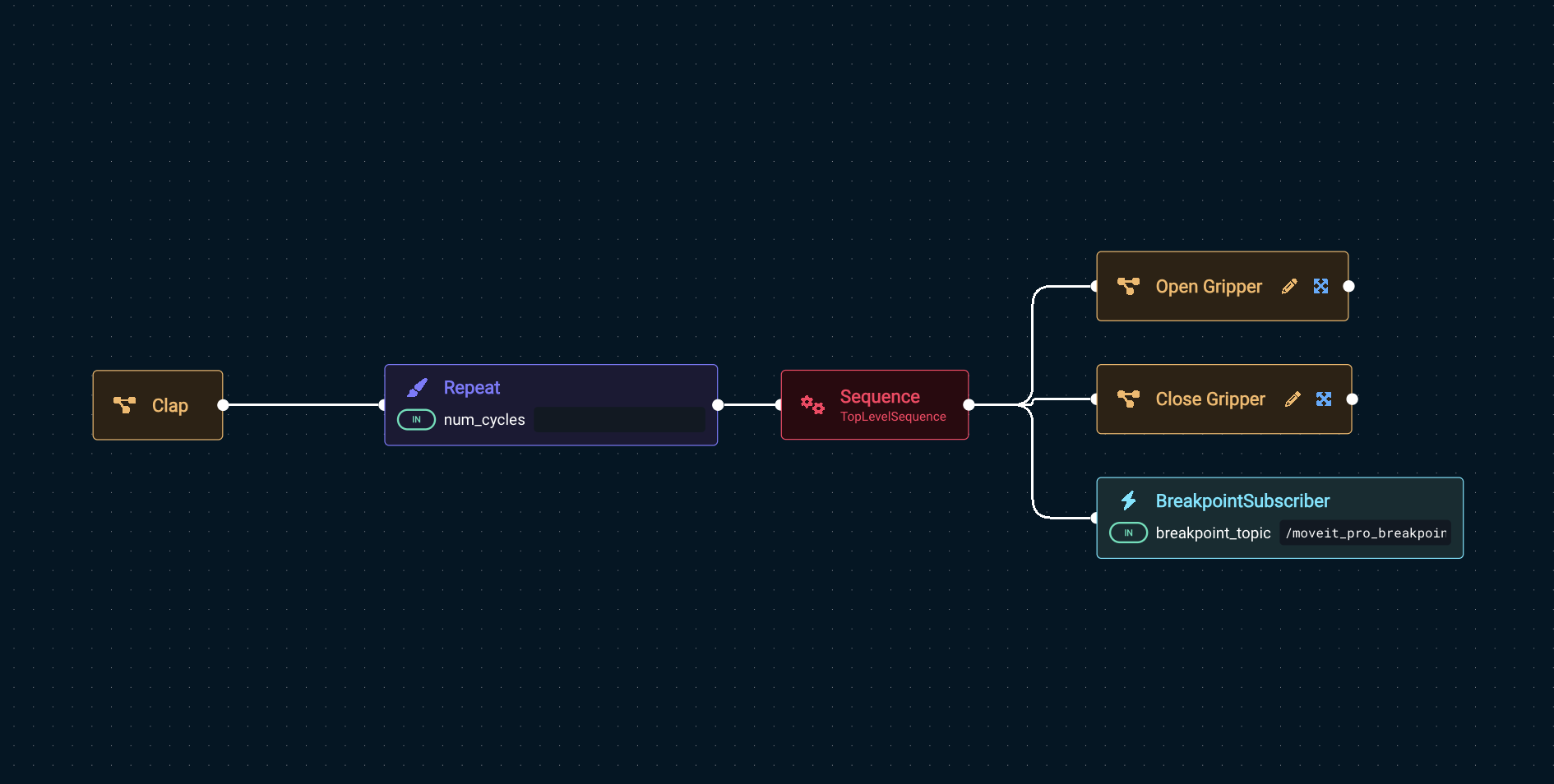
The toggle wraps the node in a Sequence with a BreakpointSubscriber in front of it, so you can build that shape by hand instead — add the Behavior BreakpointSubscriber to your Objective yourself.
Here is an Objective with a breakpoint.
A breakpoint pauses one branch, not the robot. Under a Parallel or ParallelAll the other
branches keep running while it waits, so motion does not stop — the editor warns you when you set
one there. Those nodes also halt whatever is still running once enough branches have succeeded or
failed, so the pause can be cancelled rather than resumed, and the prompt row disappears as if
someone had continued it. To stop the robot, use Stop in the prompt.
Under a reactive control node (ReactiveSequence, ReactiveFallback, WhileDoElse) the editor
refuses the breakpoint. Those nodes re-tick their children from the first every tick and halt the
ones that did not answer, so the pause cannot hold: the earlier branches run again while it waits,
and a Resume published while the branch is being rebuilt is lost. Set the breakpoint outside the
reactive node instead.
The editor refuses a breakpoint under a Timeout for a different reason: that node halts whatever
is still running once its time is up, and a pause lasts as long as you take. The breakpoint is
cancelled rather than resumed, and a recovery branch above it may run and move the robot. Under a
Switch the editor warns instead — the pause survives there unless the switch variable changes
while it waits, which cancels it the same way.
The editor also warns about a breakpoint in the cleanup branch of a Finally. When the Objective is stopped, Finally keeps running its cleanup branch until it finishes or the node's halt_timeout_msec runs out. A breakpoint paused in the cleanup holds the stop until you resume it, and if the time runs out first, the rest of the cleanup does not run.
A breakpoint pauses the tree, not the world. The robot can be jogged, objects can move, and perception keeps updating the planning scene while it waits. Plan after the breakpoint rather than before it: a trajectory computed before the pause no longer starts at the robot's current state, and a pose captured before it fails to transform once the pause outlives the TF buffer.
Set the optional message port to a short description of why the breakpoint is there. It is displayed
under the Breakpoint heading in the prompt.
Leave breakpoint_topic empty unless you want to choose the topic yourself. Empty, each breakpoint
gets a topic of its own, derived from where it sits in the Behavior Tree, so breakpoints paused at
the same time are resumed one at a time. Setting the port names the topic the breakpoint listens on
instead, and two breakpoints given the same name are treated as one — including naming
/moveit_pro_breakpoint, which asks for that one breakpoint to resume alongside every other.
Resuming Objective Execution After Encountering Breakpoint
When execution reaches a breakpoint, a Breakpoint prompt appears with a row for that breakpoint and a Resume button that continues it. A short beep plays alongside it. Stop cancels the whole Objective.
Breakpoints on separate branches of a tree can be paused at the same time. Each gets its own row and
its own Resume, so they are stepped one at a time; Resume All continues all of them at once,
both beneath the rows. A row whose breakpoint set no message is labelled with its topic, so the
rows stay distinguishable.
A breakpoint whose breakpoint_topic is empty answers on a topic derived from where its node sits in the tree, so renaming or moving that node changes it. Read the topic from the log line the Runtime prints when it pauses rather than writing it down. A tree nested deeply enough to overrun the length a topic name may have gets no topic of its own; the Runtime warns and that breakpoint resumes with the others. A breakpoint_topic you set yourself is used verbatim and never derived, so moving that node does not change it.
A breakpoint in a sequence resumes into the next one: Resume lets the Objective run on until it reaches the following breakpoint, which appears as a new prompt.
Command Line Interface to Step Through Breakpoints
Open an interactive Bash session with the MoveIt Pro Runtime Docker container:
moveit_pro shell
Enter the following command to continue Objective execution when an Objective is paused on a breakpoint Behavior.
ros2 topic pub --once /moveit_pro_breakpoint std_msgs/msg/Bool "{data: true}"
This resumes every breakpoint that answers the shared topic: the ones whose breakpoint_topic is
empty, and the ones an author set to /moveit_pro_breakpoint on purpose. To continue a single breakpoint, publish to its own topic instead — the Runtime logs which topic a breakpoint is waiting on when it pauses. A derived topic is unique to the breakpoint that derived it, so publishing there continues that one alone; a breakpoint_topic you set yourself is not, and every breakpoint carrying the same name continues together. Publish {data: false} on either to fail the branch the
breakpoint is in. That is not the same as stopping the Objective: a Fallback above the breakpoint
catches the failure and runs its recovery branch, which can move the robot. Use Stop in the
prompt to bring the Objective to a halt.