Collect Training Data with Behaviors
Use data-recording Behaviors when you want an Objective to collect its own demonstrations. This suits a task the robot can already perform on its own, whether scripted or driven by an existing policy: the Objective starts Trainer, runs the task, keeps a successful episode, and converts the dataset, with no manual timing on your part.
| Behavior | Role in the Objective |
|---|---|
| RecordEpisode | Starts a Trainer recording with a saved Training Config. |
| SaveEpisode | Keeps the current demonstration after the task succeeds. |
| StopRecording | Finishes the session, or safely discards an unsaved failed attempt. |
| ConvertDataset | Starts a background conversion to LeRobotDataset v3.0. |
Prerequisites
- Complete Collect VLA Training Data with Trainer first. It covers Training Config, datasets, recording, and conversion, which this guide assumes you know.
- Choose a runnable task Objective to record. This example wraps Pick the Red Block.
This guide continues in vla_sim, the configuration the previous guide uses.
Launch the Runtime and Desktop App
We assume you have already installed MoveIt Pro to the default install location. Start the MoveIt Pro Runtime using:
moveit_pro run -c vla_sim
Then launch or connect the separately distributed MoveIt Pro Desktop App. The Runtime does not serve a bundled user interface.
1. Build the wrapper Objective
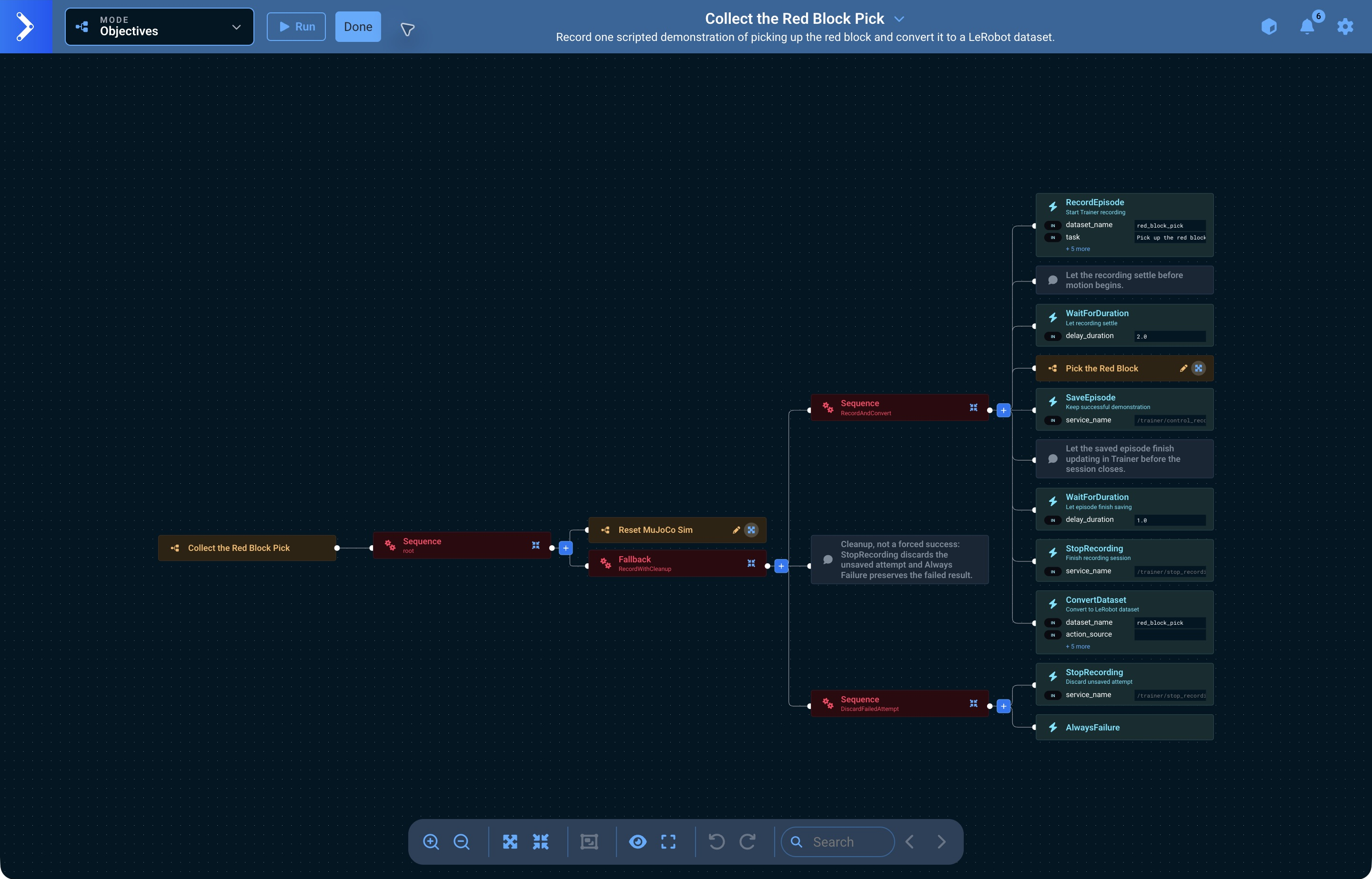
vla_sim ships the finished wrapper as Collect the Red Block Pick, so you can read the complete tree alongside the steps below.
Create an Objective. Name and Category are required and are yours to choose — this example uses Record Red Block Pick in the Application - Data Recording category. A wrapper is a collection tool rather than a demonstration of the robot's capability, so it reads better in its own recording category than beside Pick the Red Block, the task it records. A new Objective starts with a Sequence holding one AlwaysSuccess; delete the AlwaysSuccess, add the Reset MuJoCo Sim Subtree so every run begins from the same scene, then add a Fallback after it with two Sequence children:
- In the first Sequence, add these nodes in order:
- RecordEpisode
- WaitForDuration
- Pick the Red Block — your task, added as a Subtree
- SaveEpisode
- WaitForDuration
- StopRecording
- ConvertDataset
- In a second Sequence, add StopRecording followed by AlwaysFailure.
Any Objective can be nested inside another as a Subtree. Add one with the editor's + button and pick it from the node list by name, the same way you add a Behavior.
The second branch is deliberate cleanup, not a forced success. If the task fails before SaveEpisode, StopRecording discards that unsaved attempt and AlwaysFailure preserves the Objective's failed result. A failed pick is never labeled as a successful demonstration.
Set the main ports as follows:
| Node | Port | Example value |
|---|---|---|
| RecordEpisode | dataset_name | red_block_pick |
| RecordEpisode | task | Pick up the red block. |
| RecordEpisode | config_name | vla_sim |
| RecordEpisode | num_episodes | 1 |
| first WaitForDuration | delay_duration | 2.0 |
| second WaitForDuration | delay_duration | 1.0 |
| ConvertDataset | dataset_name | red_block_pick |
config_name is the name of the running configuration package. MoveIt Pro creates a Training Config under that name the first time anything references it, including this Objective's own RecordEpisode, so nothing needs creating by hand. It is written from discovery, and only once the robot is on the graph with a camera publishing; until then RecordEpisode fails with Training config 'vla_sim' not found. Leave camera_topics empty to use the cameras from it.
The short waits let recording settle before motion begins, and let the saved episode finish updating in Trainer before the session closes.
RecordEpisode takes FPS from the saved Training Config, not the Record tab's FPS override. To append to an existing dataset, its pinned FPS and other recording settings must match. If the Objective reports an FPS mismatch, edit the named Training Config's Default FPS to match the reported value, or use a new dataset_name in both RecordEpisode and ConvertDataset. Existing datasets keep their pinned settings.
The Subtree is added collapsed, so the tree shows the recording lifecycle with the whole picking task behind one node.
Select Done to save the Objective.
2. Record the task
Open Trainer and leave the Record tab visible, then select Run on the wrapper Objective. Do not select Start recording manually; RecordEpisode starts the same recording session and its status appears live in Trainer.
The task Subtree now performs the demonstration. SaveEpisode runs only after that Subtree succeeds, so the episode contains a completed pick rather than an unfinished attempt.
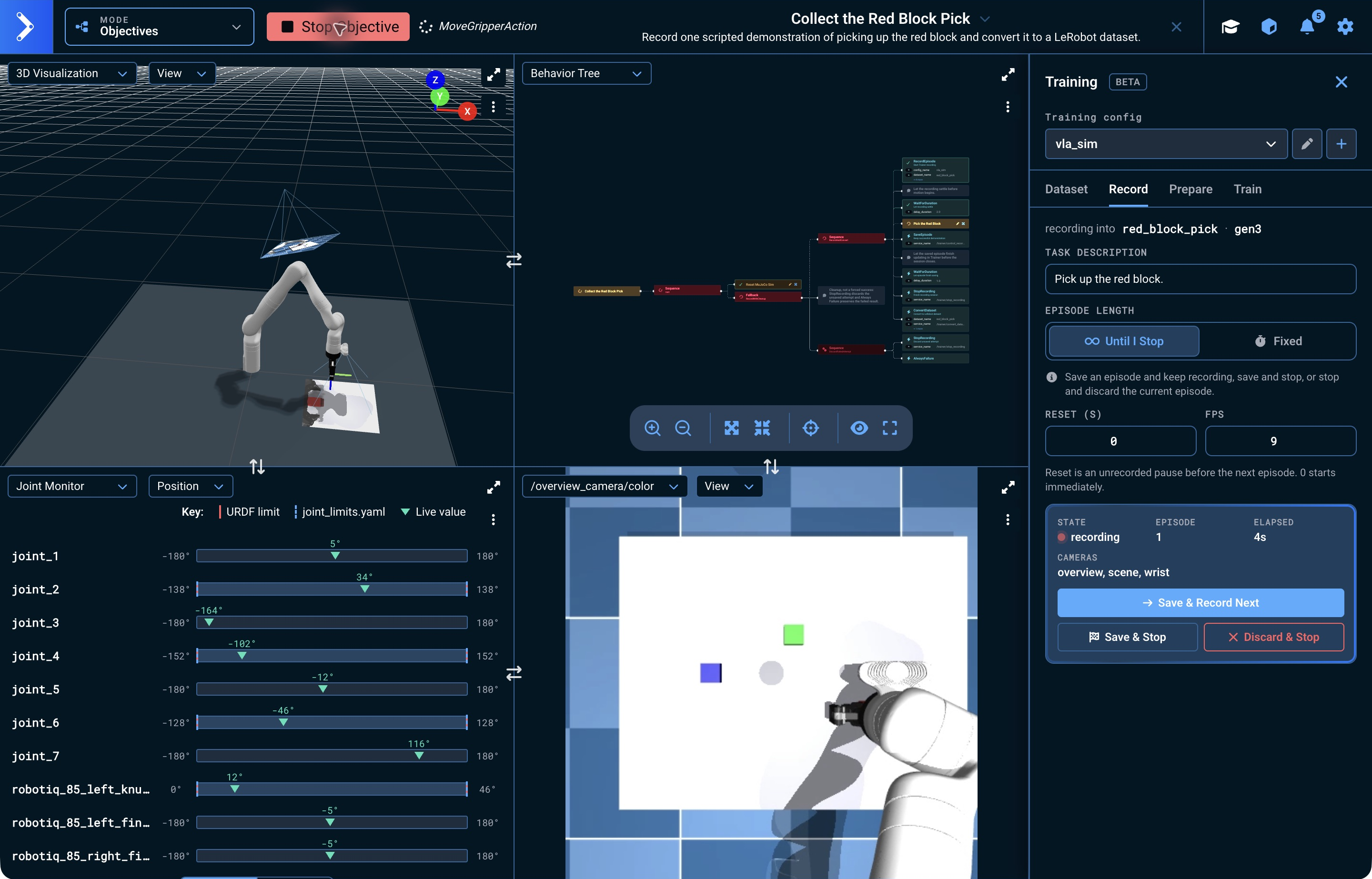
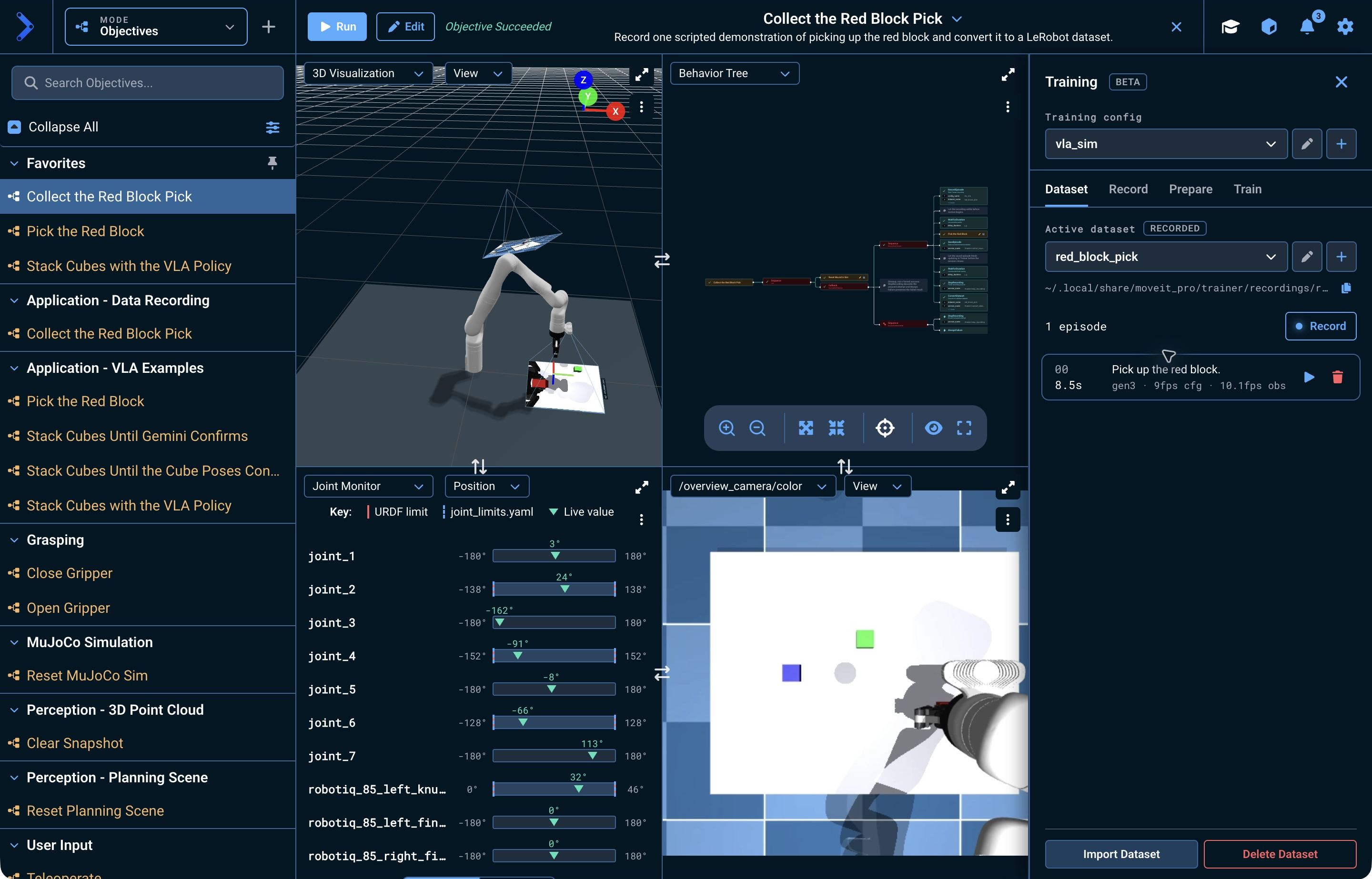
When the run completes, StopRecording finishes the session and registers the episode in the dataset.
3. Review the episode
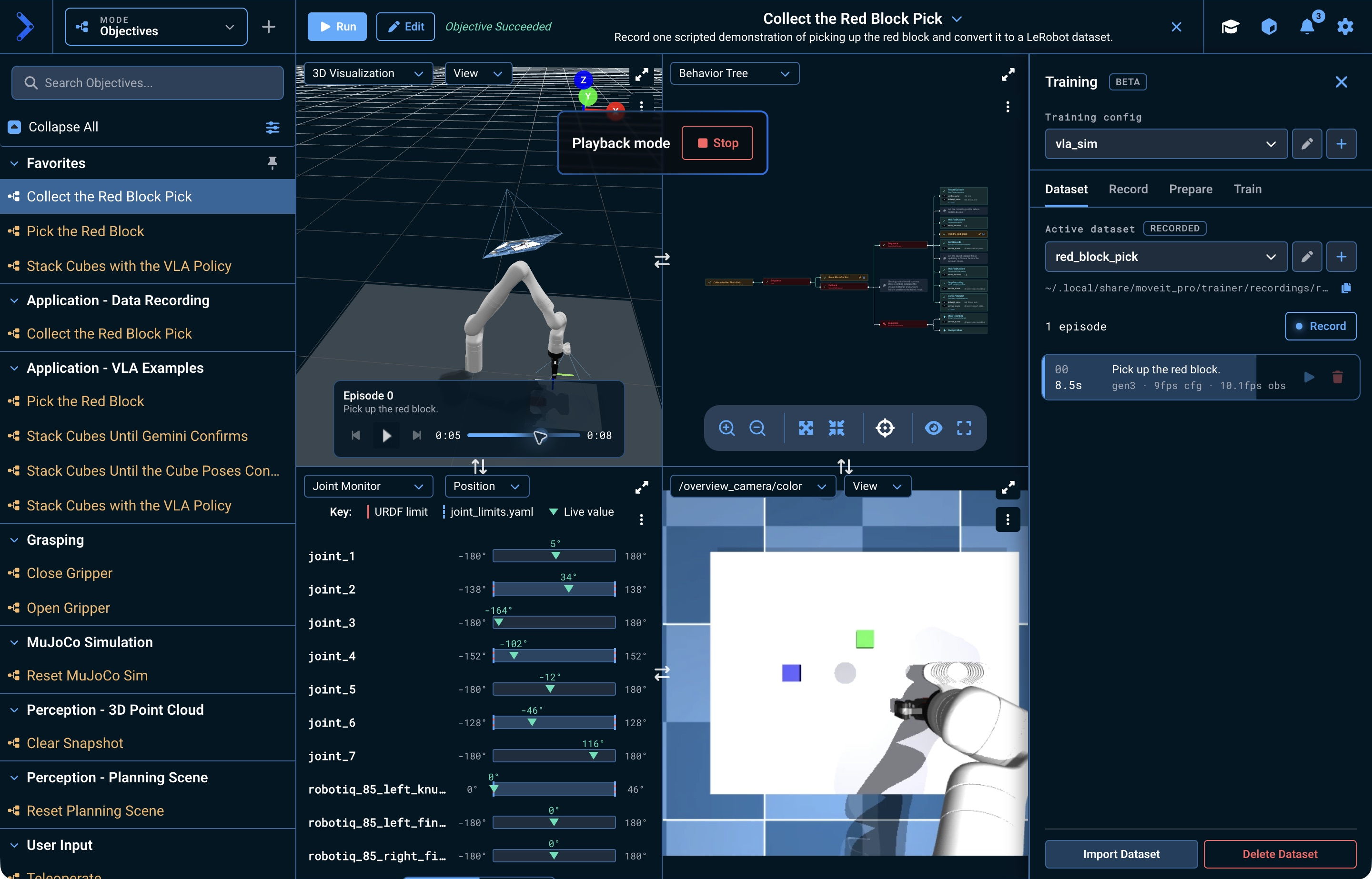
Open the Dataset tab and select the play button on the episode. Use play/pause and the timeline to inspect the recorded motion. Select Stop in the Playback mode card to return to the live robot.
Playback replays the recorded joint states and camera frames, and nothing else. The 3D Visualizer animates the arm from those joint states, but the block is not there to move with it: vla_sim keeps the cube in the simulation and surfaces only its pose on TF, so nothing puts it in the planning scene the 3D Visualizer draws. Watch a camera pane to see the pick actually happen.
Playback only reviews recorded data; it does not command the robot. For the same reason the two never run together: playback is refused while an Objective is executing, and an Objective started during playback stops it. Let the wrapper Objective finish before you play an episode.
4. Confirm the conversion
ConvertDataset uses the same dataset_name as RecordEpisode. It reads the camera topics, FPS, joint topics, and robot type the dataset was pinned to when it was recorded — not the Training Config's current values — and creates a sibling dataset named <dataset-name>-lerobot. Each episode is labeled with the task recorded with it, so a dataset holding more than one task converts with per-episode labels.
action_source depends on whether the configuration publishes commandsConversion labels each frame's action with the commanded joint positions from the pinned command topic, and refuses an episode whose command stream is empty or only mirrors the recorded state. vla_sim ships a joint_command_bridge node that republishes the trajectory controller's reference setpoint, with the jaw value its gripper Objectives latch, on that topic, so leave action_source empty and the dataset carries what the Objective actually commanded.
A configuration with no such publisher, which is every configuration that does not add one, needs action_source set to next_state, which labels each frame's action with the state of the following frame instead. Know what that label is: a position target one dataset frame (1/fps) later, not a per-control-cycle command; the episode's last frame is dropped because it has no following state; and a gripper's label is its measured position, so the grasp force of the demonstration is not in the labels. next_state also ignores any commands that were recorded, so leave the port empty wherever a command stream exists.
With command labels, ConvertDataset fails before starting a job if every recording split's MCAP summary confirms there are no messages on the pinned command topic, so a recording made without the command publisher running is caught immediately. That pre-flight check fires only when the summaries prove the topic is empty. A missing, unreadable, or inconsistent summary, and the check for commands that merely mirror measured state, are both left to the conversion job, which needs the decoded frames.
You do not start this conversion yourself: ConvertDataset already queued it when the Objective ran, and the Behavior reports success as soon as the job is accepted rather than when it finishes. Open the Prepare tab to watch it through to completion.
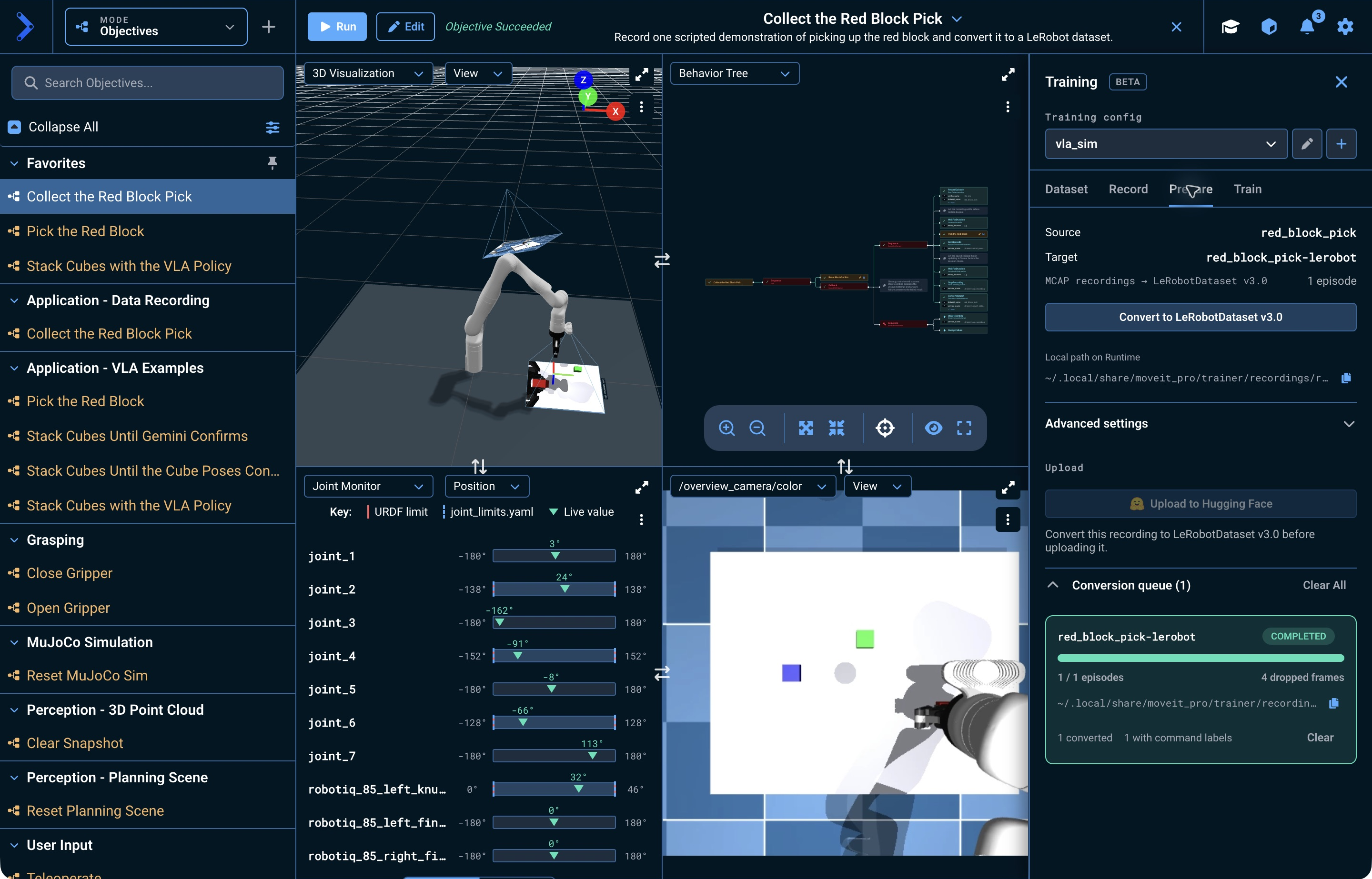
Example completed conversion in Trainer.
The converted dataset contains LeRobot data, meta, and videos folders at:
<TRAINER_DATA_ROOT>/recordings/red_block_pick-lerobot
<TRAINER_DATA_ROOT> is MOVEIT_PRO_TRAINER_DATA_ROOT when set, or ~/.local/share/moveit_pro/trainer by default.
To collect many episodes in one run, start RecordEpisode once with num_episodes set to the batch size. Wrap the demonstration in a RepeatUnlessFailureEachTick decorator with num_cycles set to the same number. Move the Reset MuJoCo Sim Subtree inside the decorator so each iteration starts from the keyframe rather than wherever the last attempt ended. Each iteration then resets the scene, runs the task Subtree, and calls SaveEpisode once the task succeeds. Place StopRecording and ConvertDataset after the decorator so the whole batch is closed and converted once, and keep the failure cleanup branch so a failed attempt is discarded and the batch stops for inspection.
Use RepeatUnlessFailureEachTick rather than Repeat, which is deprecated: it runs its loop inside a single tick, so an always-successful child can deadlock the tree.