Keepout Zones and Saving/Loading Planning Scene
The Keepout Zones feature is designed to quickly define regions in the workspace where the robot(s) is prohibited from entering or interacting. This is crucial for avoiding obstacles and ensuring safe operation in dynamic environments. This guide informs on how to create, manipulate, and manage keepout zones within the planning scene.
Keepout zones are implemented as 3D cubes in the planning scene. This how-to guide will walk through:
- Creating and visualizing keepout zones in the 3D planning scene.
- Manipulating keepout zones, including moving, rotating, and deleting them.
- Saving and loading keepout zone configurations to the planning scene.
Creating a Keepout Zone
You can create a keepout zone in the 3D planning scene by defining its size, orientation and position. This keepout zone will prevent the robot from moving into this region.
To create a keepout zone:
- Open the Mode menu in the top left of the MoveIt Pro Desktop App and select Planning Scene Editor.
- Click the + Keep-Out Zone button to create a new keepout zone.
- Adjust the size, position, and orientation parameters of the keepout zone. The parameters are as follows:
- Size: Set the width, height, and length of the keepout zone. Drag the jog strip beside each field, or type the value.
- Position: Set the x, y, and z coordinates to position the keepout zone in the workspace, the same way.
- Orientation: Use roll, pitch, and yaw sliders to rotate the keepout zone around its axes.
Dragging a jog strip raises or lowers its value by how far you drag, not by where you release, so a zone can be made any size and placed at any coordinate — there is no end of travel to reach. Hold Shift while dragging to move ten times finer, or click the strip and use the arrow keys to change the value one step at a time (Shift plus an arrow key for a tenth of a step).
Size stops at 0.01 m, the smallest box the planning scene accepts. The red stretch on a size strip marks the values below it, and slides into view from the left as the zone gets smaller, so the floor is visible on the ruler rather than announced only once you hit it.
Orientation keeps an ordinary slider, because roll, pitch, and yaw span the whole circle and the slider's ends are the real ends of the value.
Manipulating Keepout Zones
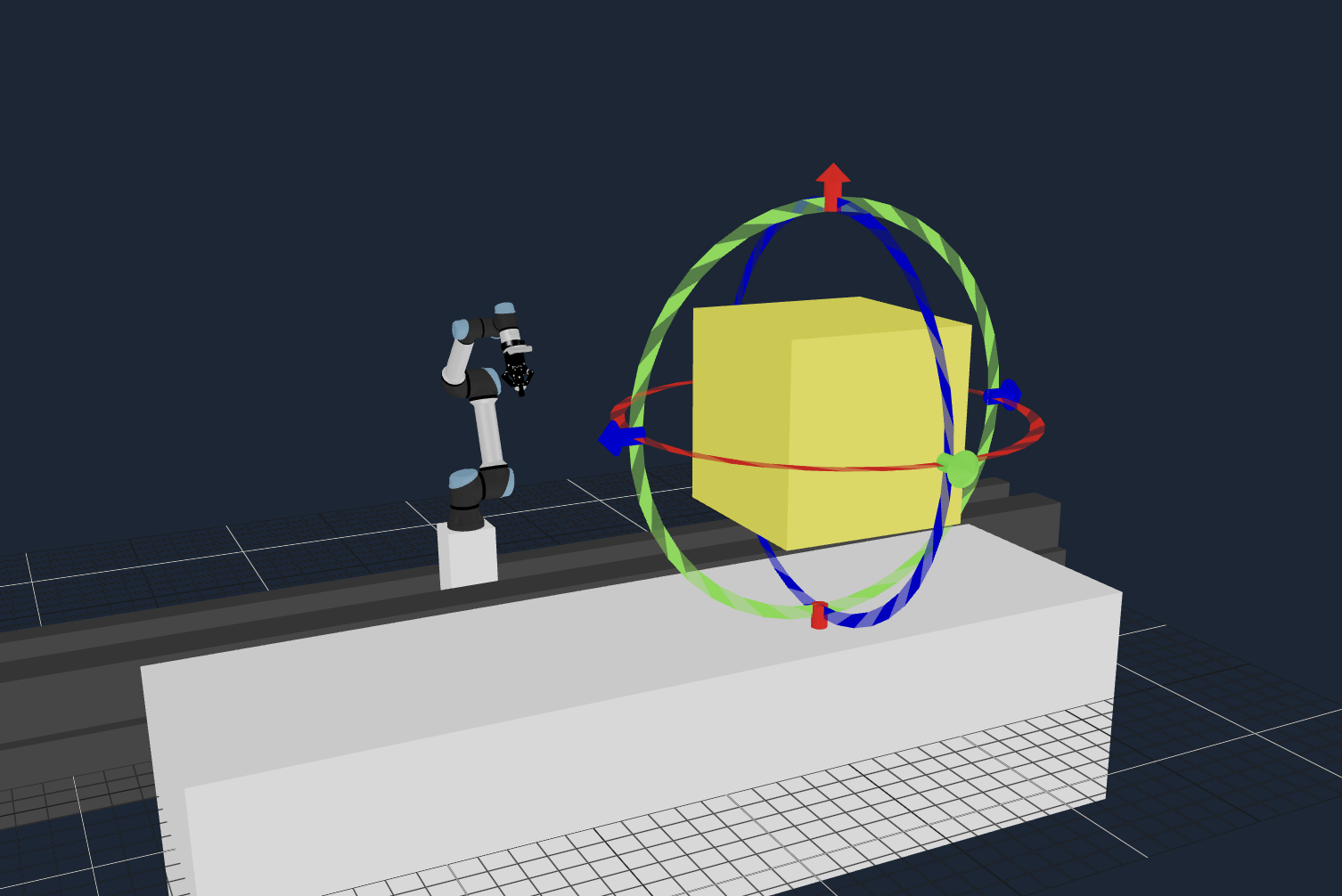
Once a keepout zone has been created, you can manipulate it further. It initially appears already selected as a yellow cube. You can move, rotate, or delete the keepout zone using the interactive marker that appears when the zone is selected. A deselected keepout zone will appear green, and when selected again it will turn yellow and the interactive marker will reappear.
- Move: Click and drag the keepout zone to a new position using the arrows on the outside of the interactive marker.
- Rotate: Use the circular interactive marker that appears on the edges of the keepout zone to adjust its rotation. Click and drag the circular handles to rotate the keepout zone around its axes.
- Delete: To remove a keepout zone, select it and press the Delete or Backspace key. Alternatively, click the Delete button in the side panel.
- Clone: To reuse a keepout zone's size and rotation, select it and click the Clone button in the side panel. The copy appears beside the original and becomes the selected zone, ready to be dragged into place.
Lock keepout zones, under View in the 3D Visualizer pane, takes selection and the interactive marker away from every keepout zone, so none of them can be clicked or dragged by accident. Creating or cloning a zone switches the lock off, because the new zone arrives selected and ready to place. While teleoperation is active, creating a zone does not switch the lock off.
Saving and Loading Keepout Zones
After defining your keepout zones, you can save them to a configuration file:
- Click the Export Scene button in the Planning Scene Editor sidebar.
- Provide a file name and click Save.
To load a previously saved planning scene, including keepout zones:
- Click the Load Scene button in the Planning Scene Editor sidebar.
- Select the configuration file to be uploaded.
- Click the Load button. (ensure that the current planning scene is saved as this load will overwrite it)