Integrate with Gemini VLM
This guide explains how to use Google Gemini from inside a MoveIt Pro Behavior Tree to perform high-level visual reasoning over camera images.
Launch the Runtime and Desktop App
We assume you have already installed MoveIt Pro to the default install location. Start the MoveIt Pro Runtime using:
moveit_pro run -c lab_sim
Then launch or connect the separately distributed MoveIt Pro Desktop App. The Runtime does not serve a bundled user interface.
What is Google Gemini?
Google Gemini is a family of multimodal large language models from Google. The Gemini API accepts a text prompt together with one or more images and returns a text response. The same model can answer freeform questions about an image, identify objects, count items, describe a scene, or return structured data such as 2D pixel coordinates of features it locates.
In a robotics context this is useful when a task is too open-ended for a classical perception pipeline. Examples include:
- High-level scene reasoning: "Is the door open or closed?", "Which drawer is empty?", "Has the bin been emptied?".
- Open-vocabulary localization: "Find every loose bolt on the panel", "Locate the red emergency button", "Point to all the green tomatoes".
- Inspection and triage: "List any defects you see in this part", "Which of these bottles is mislabeled?".
For perception tasks that need pixel- or sub-pixel-level precision, Gemini is best used as a coarse first stage that hands off to dedicated vision Behaviors (e.g. mask refinement, pose estimation).
Prerequisites
To use Gemini from MoveIt Pro you need a Google Gemini API key.
-
Outbound internet access. The MoveIt Pro Runtime container must be able to reach
generativelanguage.googleapis.comover HTTPS. Air-gapped or tightly firewalled deployments cannot use this Behavior; choose a local alternative instead. -
Follow the Get a Gemini API key instructions to create a key in Google AI Studio. The free tier supports vision-capable models (e.g.
gemini-robotics-er-2-preview) at low rate limits, which is sufficient for prototyping. -
Make the key available to the Runtime as an environment variable named
GOOGLE_GEMINI_API_KEY. The MoveIt Pro production stack passes this variable through from the host into the container automatically, so there are two equivalent ways to set it:-
Production / persistent: add the key to your
.envfile alongsideMOVEIT_LICENSE_KEY:GOOGLE_GEMINI_API_KEY=your-key-here -
One-off / development: export it in the shell where you run
moveit_pro run:export GOOGLE_GEMINI_API_KEY="your-key-here"
Treat the API key as a secretDo not commit your API key to source control. Keep it in
.env(which is gitignored) or in a secrets manager. -
-
Review Google's pricing and rate limits for the model you plan to use. The free tier is rate-limited to a small number of requests per minute and per day, so design Behavior Trees that call Gemini sparingly rather than every tick. Google retires model names over time, so set
model_namein Objectives you deploy. You then fix a retired default by editing the Objective, without updating MoveIt Pro.
The GetPoints2DFromGeminiQuery Behavior
MoveIt Pro ships with the GetPoints2DFromGeminiQuery Behavior, which sends a text prompt and a ROS image to Gemini and parses the response as a list of normalized 2D image points.
| Data Port Name | Direction | Type | Description |
|---|---|---|---|
prompt | input | std::string | The user-facing prompt. Should ask Gemini to find, locate, or point to features in the image. |
image | input | sensor_msgs::msg::Image | The image to send to Gemini. JPEG-encoded internally before transmission. |
model_name | input | std::string (optional) | Gemini model identifier. Defaults to gemini-robotics-er-2-preview. |
save_debug_image | input | std::string (optional) | Filesystem path. If non-empty, an annotated copy of the input image with detected points is written there. |
response | output | std::string | Gemini's human-readable narrative answer to the prompt. |
detected_points | output | std::vector<geometry_msgs::msg::PointStamped> | Normalized 2D points parsed from the response. Each point's x and y are in [0, 1]; z is always 0. |
detected_labels | output | std::vector<std::string> | Short labels Gemini attached to each point, in the same order as detected_points. Entries can be empty. |
The Behavior constrains Gemini to return schema-conformant JSON with two fields: narrative (the human-readable answer placed on the response port) and points (a list of objects with normalized coordinates and a short label, split into the detected_points and detected_labels ports).
It does this using the Gemini API's structured output feature, so the response is guaranteed to be well-formed without any client-side fence stripping or prose tolerance.
You write your task in natural language and the Behavior takes care of the response format.
The header (frame ID and timestamp) of each PointStamped is copied from the input image, so downstream Behaviors can transform the points into other frames using the camera intrinsics and any TF tree the image was captured against.
Writing prompts that produce points
Because the appended suffix asks Gemini for image locations, the prompt must describe something Gemini can answer with 2D points. For example:
- "Find every screw head on this panel."
- "Locate the red and green LEDs."
- "Point to each ripe tomato."
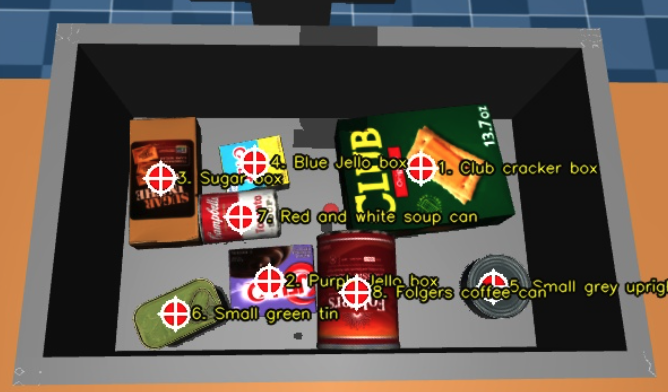
The prompt can also ask Gemini to tag each point with metadata such as an object ID, color, or class name; those tags surface on the detected_labels output port in the same order as detected_points. For example, "Locate every block and label each one with its color" will populate detected_labels with values like "red", "blue", and "green" aligned 1:1 with the points.
For example, the 2D points in the image below were generated by prompting Gemini how to pick up every individual item using a suction cup gripper:
Prompts that do not ask for locations (for example, "Describe this image" or "Count the objects") will still execute: the narrative comes back on the response port and detected_points will be empty.
For guidance on coordinate conventions, reference images, hallucination control, and evaluating prompt changes, see VLM Prompting Best Practices.
Using the Behavior in a Behavior Tree
A typical Behavior Tree using GetPoints2DFromGeminiQuery looks like:
MoveToWaypoint— move the robot so the camera sees the workspace.GetImage— grab the latest RGB image from the camera topic.GetPoints2DFromGeminiQuery— send the image and your prompt to Gemini.- Downstream Behaviors that consume the
detected_pointsvector. Because the points are normalized to[0, 1], multiply by the image dimensions to convert to pixel coordinates, then optionally back-project into 3D using a depth image andGetCameraInfo.GetPoseFromPixelCoordstakes the normalized coordinates directly. PointGetImageat an undistorted (rectified) image and wire that camera'sCameraInfoto thecamera_infoport so the point cloud can come from a different camera than the image.
For debugging, set the save_debug_image port to a path such as /tmp/gemini_overlay.jpg. Each tick will overwrite that file with the input image annotated with red circles at each detected point, plus the labels Gemini assigned. This is helpful while iterating on prompts.
Latency and rate limits
Each call to Gemini takes between roughly one and several seconds depending on image size, prompt length, and the selected model.
The Behavior is asynchronous and returns RUNNING until the request completes, so it does not block the rest of the Behavior Tree from being ticked.
Because of API rate limits, do not call this Behavior on every tick of a high-frequency loop. Use it inline at decision points, or behind a ForEach/Repeat decorator that throttles invocations.
The WaitForConditionFromGeminiQuery Behavior
WaitForConditionFromGeminiQuery asks Gemini a yes/no question about the latest image from a camera topic, at most once per poll_period_sec, until the answer is yes. It returns RUNNING while it waits, then logs the question and Gemini's reason and returns SUCCESS. No and uncertain answers count as no. Each question uses a frame that arrived after the previous question's frame. It returns FAILURE when it waits longer than message_timeout_sec for a new frame or keeps failing calls for that long, or when the frames cannot be converted to a color image. A failed call is logged and tried again on the next poll.
| Data Port Name | Direction | Type | Description |
|---|---|---|---|
question | input | std::string | A yes/no question about the image. |
image_topic | input | std::string | The sensor_msgs/Image topic to sample on each poll. |
poll_period_sec | input | double (optional) | Minimum seconds from the start of one question to the start of the next. Defaults to 3.0. When an answer takes longer than the period, the next question follows as soon as the answer and a newer frame have arrived. Each question is one request. |
model_name | input | std::string (optional) | Gemini model identifier. Defaults to gemini-robotics-er-2-preview. |
message_timeout_sec | input | double (optional) | How long the Behavior keeps retrying after a failed call, or waiting for a new frame, before returning FAILURE. Checked between calls, so a call in flight is never cut short. The pause between attempts counts toward this window. Defaults to 10.0. A negative value waits forever. |
Pick a camera that does not move with the task and keeps the region of interest in view for the whole run; a wrist camera shows mostly the gripper once it closes. The Behavior sends a camera frame to Google at full resolution on every poll while it runs, so a downscaled image topic cuts upload time, cost, and the CPU spent receiving frames. In a test with a 1280x720 frame, the default model answered in 3 to 5 s. A free-tier key is capped at a small number of requests per day per model, so it covers one short run. Use a paid key beyond that.
Run it next to a long-running Behavior under a Parallel with success_count="1" and failure_count="1". When Gemini answers yes, the Parallel halts the other Behavior and returns SUCCESS. With failure_count="1", a camera stall or calls that keep failing for longer than message_timeout_sec also halt the other Behavior, and the Parallel returns FAILURE.
<Control ID="Parallel" success_count="1" failure_count="1">
  <Action ID="ExecutePolicy" prompt="stack the blue cube on the green cube" />
  <Action ID="WaitForConditionFromGeminiQuery" question="Is the blue cube resting on top of the green cube, with the gripper not holding it?" image_topic="/scene_camera/color" />
</Control>
End a Policy Run on a Signal walks through this pattern with a runnable vla_sim Objective.
This is task logic, not a safety function. The stop comes after the scene changes by the longer of one poll period and one Gemini round trip, plus one more round trip. That is about six to ten seconds with the defaults, and later when a call fails. An emergency stop belongs in the robot's hardware safety chain. Do not use this Behavior to detect a person entering the cell or a part slipping from the gripper. A yes describes a frame that is several seconds old by the time the tree sees it. Confirm a consequential step with a direct measurement, such as the gripper width.
Implementing your own Gemini-based Behavior
The GetPoints2DFromGeminiQuery Behavior is built on top of a small, reusable C++ utility namespace that you can use to build other Gemini-backed Behaviors with different response formats — for example, returning bounding boxes, free-text classifications, or polygon outlines.
The utilities live in the moveit_pro_behavior ROS package under the header moveit_pro_behavior/utils/gemini_utils.hpp and the moveit_pro::behaviors::gemini namespace. Add moveit_pro_behavior to your package's find_package calls and link against the gemini_utils CMake target to use them.
Sending a request and parsing the response
gemini_utils provides these building blocks:
encodeToBase64— base64-encodes a JPEG byte buffer for Gemini'sinline_datafield.postJsonToGemini— posts a JSON body to Gemini, readingGOOGLE_GEMINI_API_KEYfrom the environment.parseGeminiResponse— extracts the innertextfield from Gemini's response envelope.buildGeminiRequestBody— builds a request body pre-wired for the{narrative, points}schema used byGetPoints2DFromGeminiQuery.buildGeminiYesNoRequestBodyandparseYesNoResponse— the{answer, reason}yes/no pair used byWaitForConditionFromGeminiQuery.
If your custom Behavior needs a different response schema — bounding boxes, classifications, polygon outlines, etc. — build the request body yourself rather than calling buildGeminiRequestBody or buildGeminiYesNoRequestBody.
Use the Gemini API's structured output feature to pin the response shape:
#include "moveit_pro_behavior/utils/gemini_utils.hpp"
#include <behaviortree_cpp/contrib/json.hpp>
#include <tl/expected.hpp>

namespace gemini = moveit_pro::behaviors::gemini;

// 1. Build a request body that pins the response to your own schema.
nlohmann::json request;
request["contents"][0]["parts"][0]["text"] = prompt;
request["contents"][0]["parts"][1]["inline_data"]["mime_type"] = "image/jpeg";
request["contents"][0]["parts"][1]["inline_data"]["data"] = gemini::encodeToBase64(jpeg_bytes);
request["generationConfig"]["responseMimeType"] = "application/json";
request["generationConfig"]["responseSchema"] = /* your schema, e.g. {boxes: [{x, y, w, h}]} */;

// 2. POST the request.
const auto http_response = gemini::postJsonToGemini(gemini::kDefaultModelName, request.dump());
if (!http_response.has_value())
{
  return tl::make_unexpected(http_response.error());
}

// 3. Extract the inner text — guaranteed to be JSON matching your schema.
const auto text = gemini::parseGeminiResponse(*http_response);
if (!text.has_value())
{
  return tl::make_unexpected(text.error());
}

// 4. Parse with a plain nlohmann::json::parse — no fence stripping or prose tolerance needed.
const auto boxes_json = nlohmann::json::parse(text.value());
// ... extract your schema's fields and populate the Behavior's output ports.
Pinning responseMimeType to application/json and supplying a responseSchema means Gemini is contractually bound to emit schema-conformant JSON, so your parser does not need to tolerate markdown fences, surrounding prose, or coordinate drift. Handle refusals and safety filters separately: parseGeminiResponse already surfaces them via finishReason in its error string, and the top-level error object in the HTTP body covers auth and quota failures.