AprilTag Pose Estimation Benchmarking
To learn more about how to use April Tags, see this grasping how to guide or this tutorial Fiducial Marker Detection with AprilTags
This how-to guide will walk through how to run and visualize an AprilTag Benchmarking example to evaluate the accuracy of fiducial pose estimation.
Launch the Runtime and Desktop App
We assume you have already installed MoveIt Pro to the default install location. Start the MoveIt Pro Runtime using:
moveit_pro run -c april_tag_sim
Then launch or connect the separately distributed MoveIt Pro Desktop App. The Runtime does not serve a bundled user interface.
Important: AprilTag Configuration in Simulation
When using AprilTags in simulated configurations that use the MoveIt Pro Simulator, it is critical to understand how tag size affects pose estimation accuracy.
When creating AprilTag textures for simulation, be wary that AprilTag size is measured by the black square pattern only.
Passing in the incorrect tag_size will lead to inaccurate pose estimates.
If you use an AprilTag texture that includes a white margin, make sure to measure the size of the black pattern.
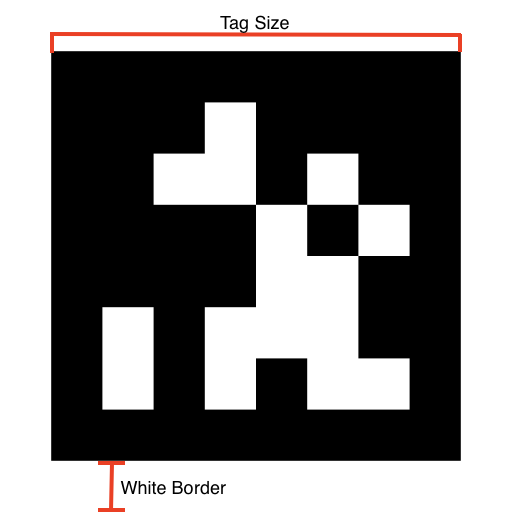
For example, in the moveit_pro_example_ws, the AprilTag images have a white border that make up 20% of the texture's dimensions, so the expected size of the tag on a square MuJoCo surface is 80% of the square's side length.
One other common mistake is that the MJCF modeling language uses half-sizes for defining some geometric objects. If you are determining the AprilTag size from a MJCF box geom object, make sure to double the size value.
1. Collect AprilTag Estimation Data
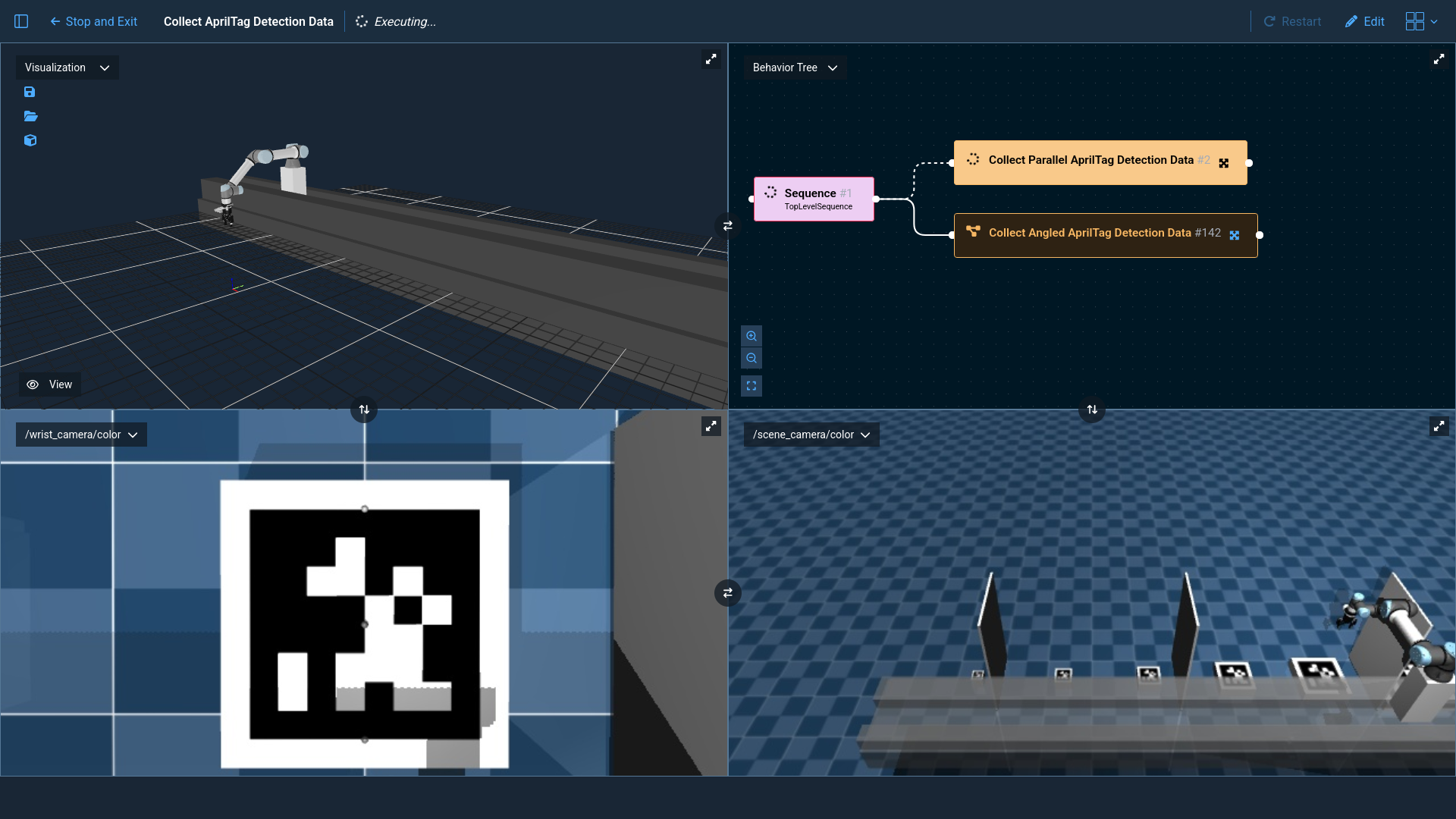
Run the Collect AprilTag Detection Data Objective. This Objective will run AprilTag detection on each of the 6 tags in
the workspace 20 times: 10 with the wrist camera parallel to the tag and 10 with the wrist camera angled 45 degrees
relative to the tag. The deviation of each detection from ground truth will be recorded and saved to YAML files for
analysis in the next step.
2. Analyze AprilTag Estimation Data
While Pro is running, enter the container.
moveit_pro shell
Navigate to the april_tag_sim/scripts directory.
cd ~/user_ws/src/april_tag_sim/scripts
Ensure the required Python packages are installed.
pip install -r requirements.txt
Run the analysis script with python.
python3 analyze_apriltag_data.py
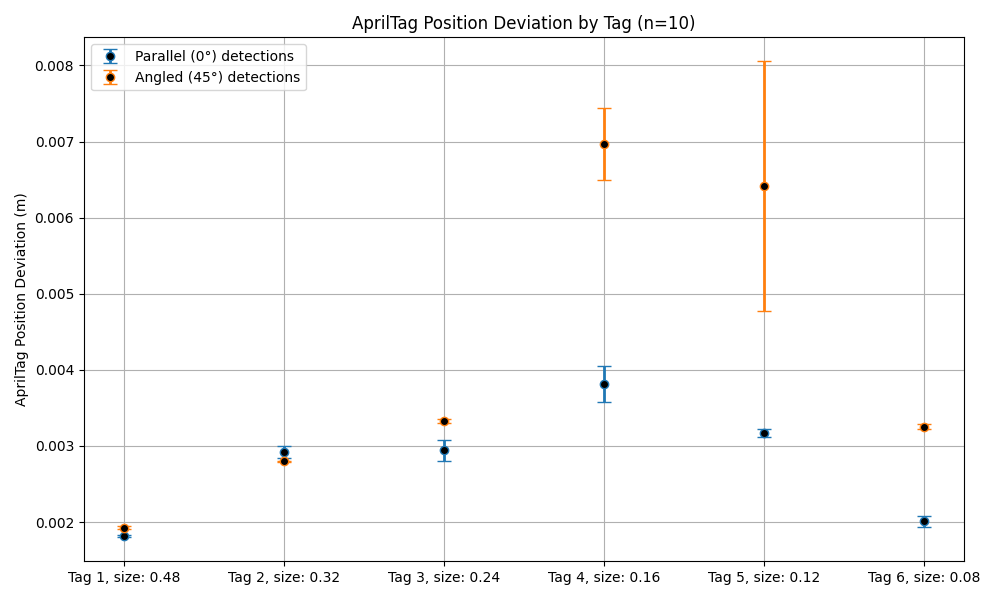
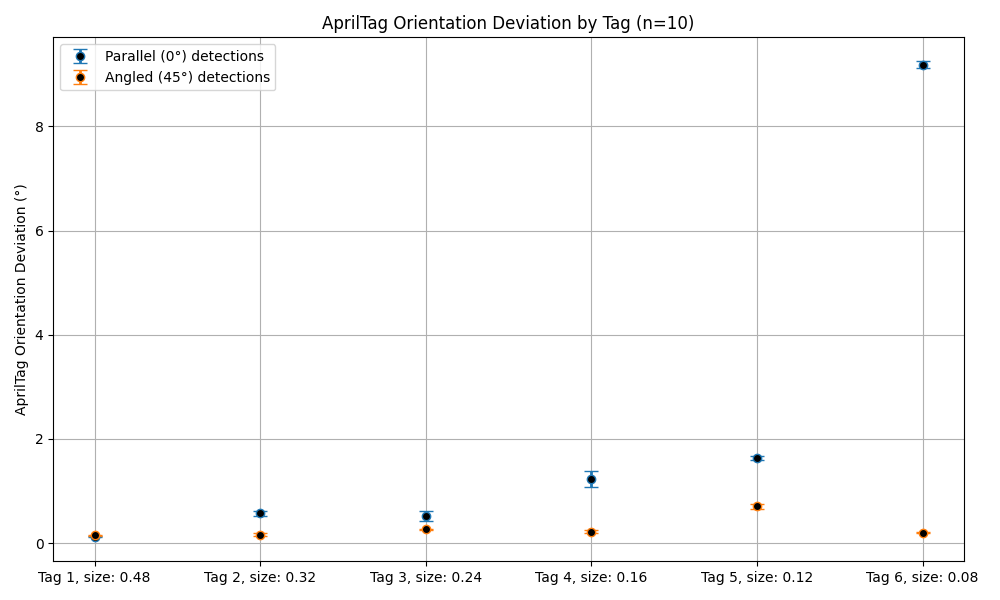
This script will read the data recorded in the previous step and generate plots like the following.