Image Segmentation using Machine Learning
For this example, we will demonstrate image segmentation using machine learning with MoveIt Pro. ML-based image segmentation plays a crucial role in robotics by enabling precise perception of the environment. In object pose estimation, segmentation differentiates objects of interest from the background, which can be leveraged for 3D position and orientation in 3D space. This 3D pose estimation enables autonomous robotic grasping and manipulation in an unstructured scene.
Setup
MoveIt Pro offers several Behaviors for image segmentation using ML models:
-
The
GetMasks2DFromPointQueryBehavior segments images using point prompts. Point prompts are user-defined spatial cues that guide segmentation by indicating object locations. These prompts help refine masks, especially in ambiguous or complex scenes. -
The
GetMasks2DFromExemplarBehavior segments images with text, bounding-box, or image-exemplar prompts. See Multimodal Segmentation with SAM3 for details.
Image inputs are given with a sensor_msgs/msg/Image message, and mask outputs are returned in a moveit_studio_vision_msgs::msg::Mask2D message, which is defined in the MoveIt Pro SDK.
The unique strengths of each segmentation Behavior make them suitable for different applications.
Launch the Runtime and Desktop App
We assume you have already installed MoveIt Pro to the default install location. Start the MoveIt Pro Runtime using:
moveit_pro run -c kitchen_sim
Then launch or connect the separately distributed MoveIt Pro Desktop App. The Runtime does not serve a bundled user interface.
Performing 2D Image Segmentation
Once you have your robot config running, you can create a simple Objective in MoveIt Pro that moves to a predefined location and performs segmentation.
MoveToWaypoint(or equivalent) to move to the predefined location.GetImageto get the latest RGB image message from a camera stream.GetPointsFromUserto interactively get a point prompt.GetMasks2DFromPointQueryto segment the image.PublishMask2Dto visualize the masks.
To run an example, execute the Objective Segment Image from Point, and once requested, select one of the stove burners.
The mask will appear in a new UI under the topic /masks_visualization.
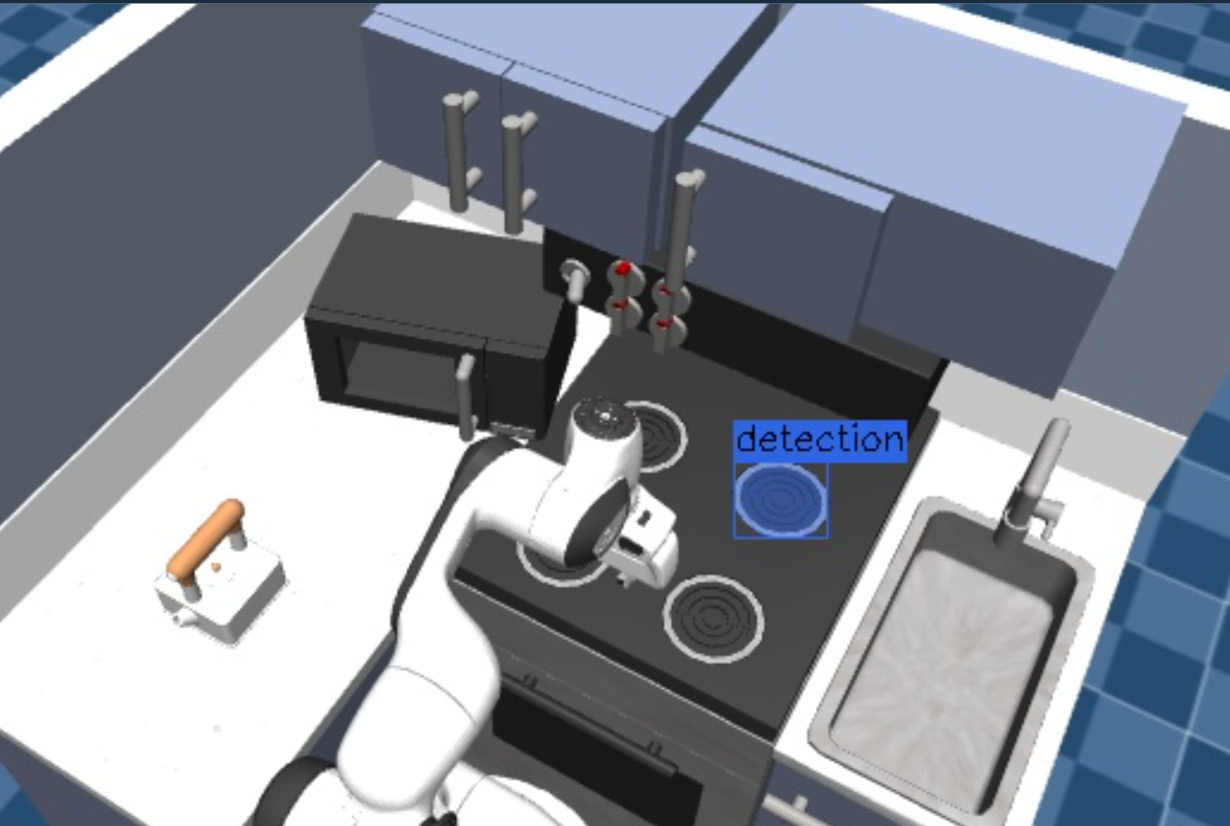
Extracting 3D Masks and Fitting Geometric Shapes
The segmentation Behaviors outputs a list of masks, of ROS message type moveit_studio_vision_msgs/msg/Mask2D.
Many other Behaviors in MoveIt Pro can consume masks in this format for further processing.
For example, we can extend our Objective to convert the 2D segmentation masks to 3D point cloud segments by using the following Behaviors.
GetPointCloudandGetCameraInfoto get the necessary information for 2D to 3D segmentation correspondence.GetMasks3DFromMasks2D, which accepts the 2D masks, point cloud, and camera info to produce a set of 3D masks.ForEachto loop through each of the detected masks.GetPointCloudFromMask3Dto get a point cloud fragment corresponding to a 3D mask.SendPointCloudToUIto visualize each point cloud segment above in the UI.
To run an example, execute the Segment Point Cloud from Point Objective, and click on the kettle.
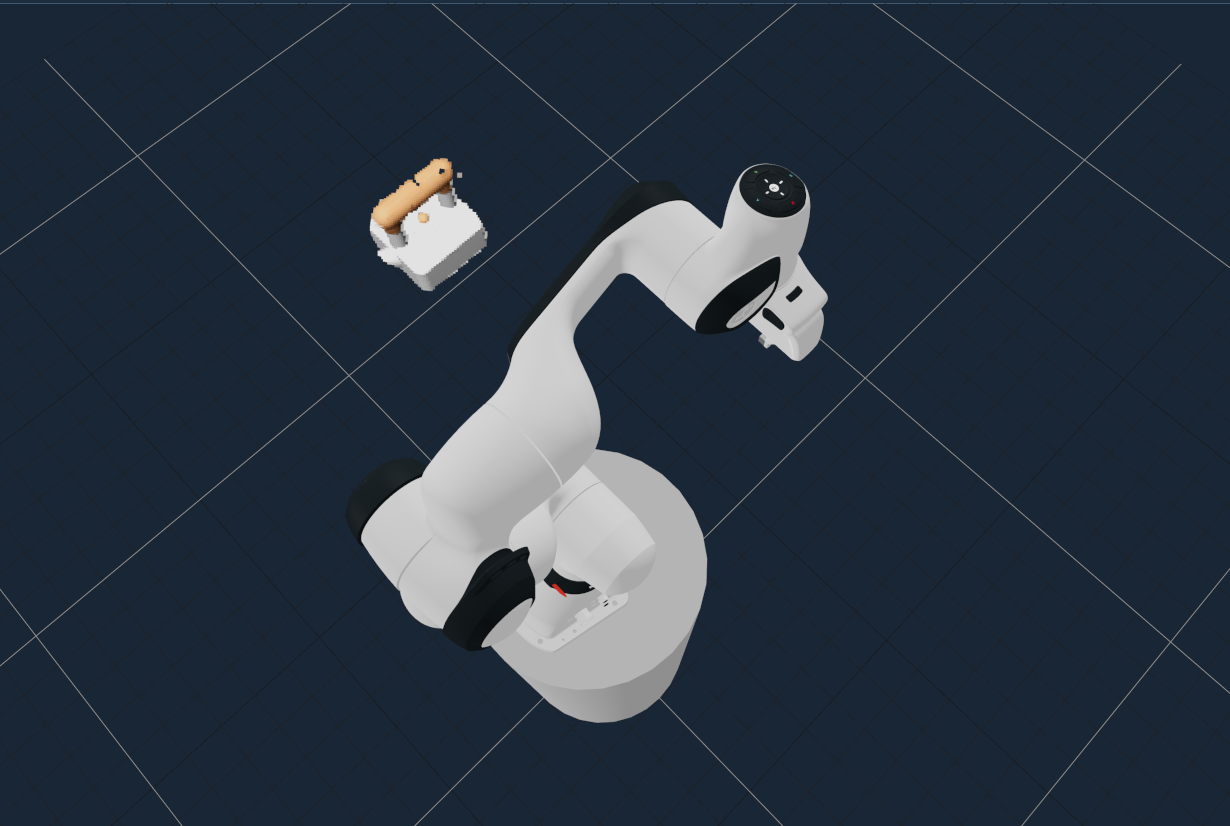
You can additionally extract graspable objects from the 3D masks and fit geometric shapes, using the following Behaviors.
GetGraspableObjectsFromMasks3Dto convert the 3D mask representations to graspable object representations, which include a cuboid bounding volume by default.ForEachto loop through each of the graspable objects.UnpackGraspableObjectMessageto extract the collision object from each graspable object.AddCollisionObjectto add each collision object to the planning scene, which also visualizes it (and its corresponding geometry) in the UI.
For example, run the Objective Generate Graspable Object and this time click on a shelf handle bar.
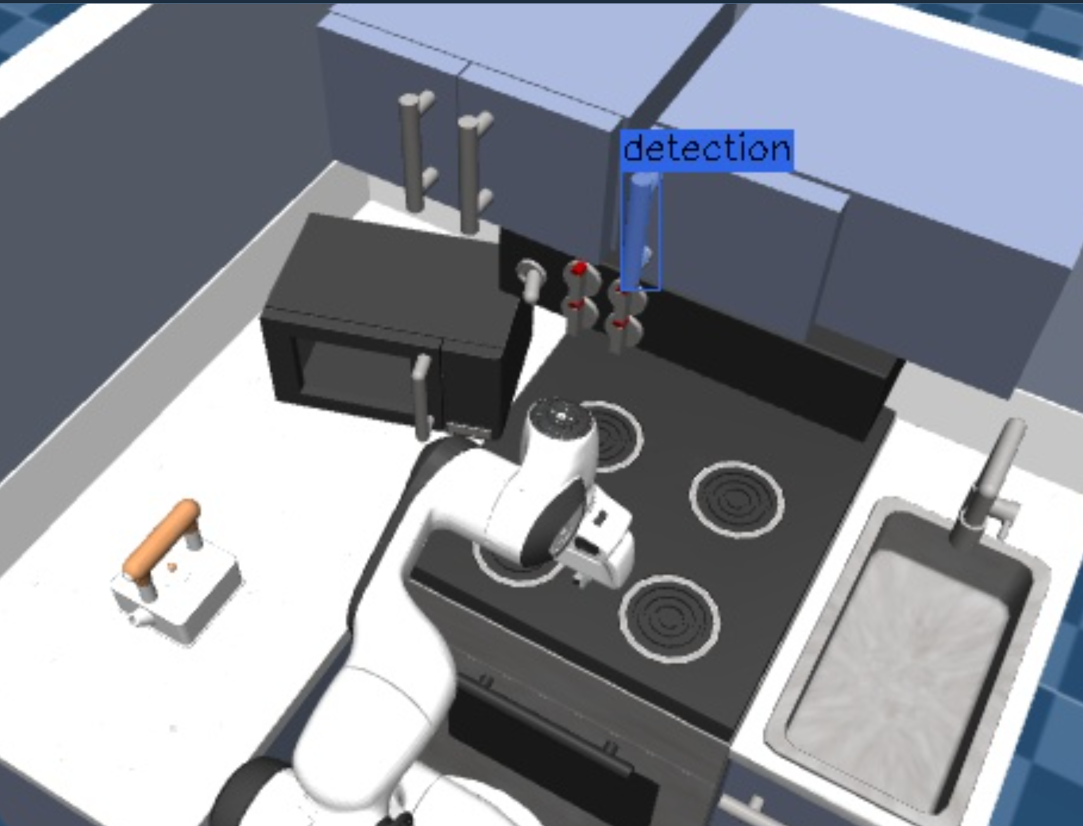
A graspable object for the handle will be generated in the Visualization panel.
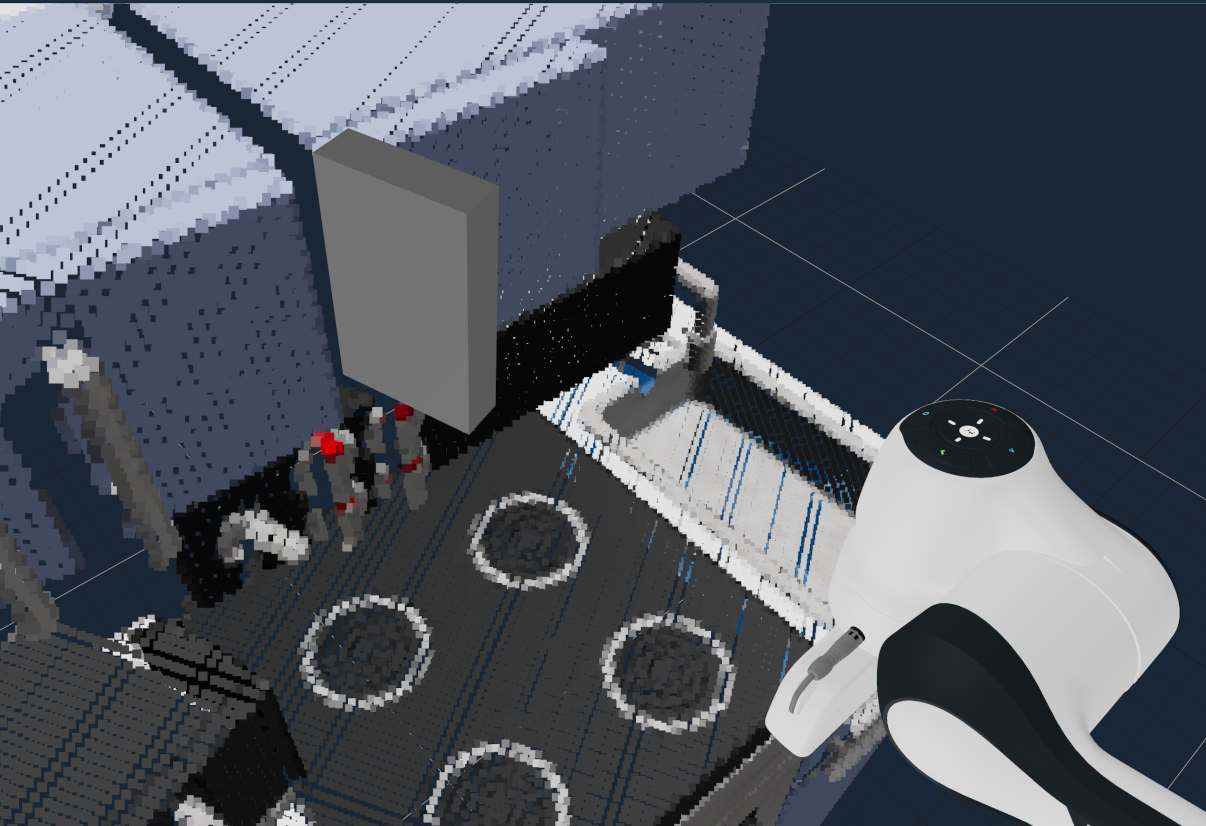
Grasping an Object from a Pose
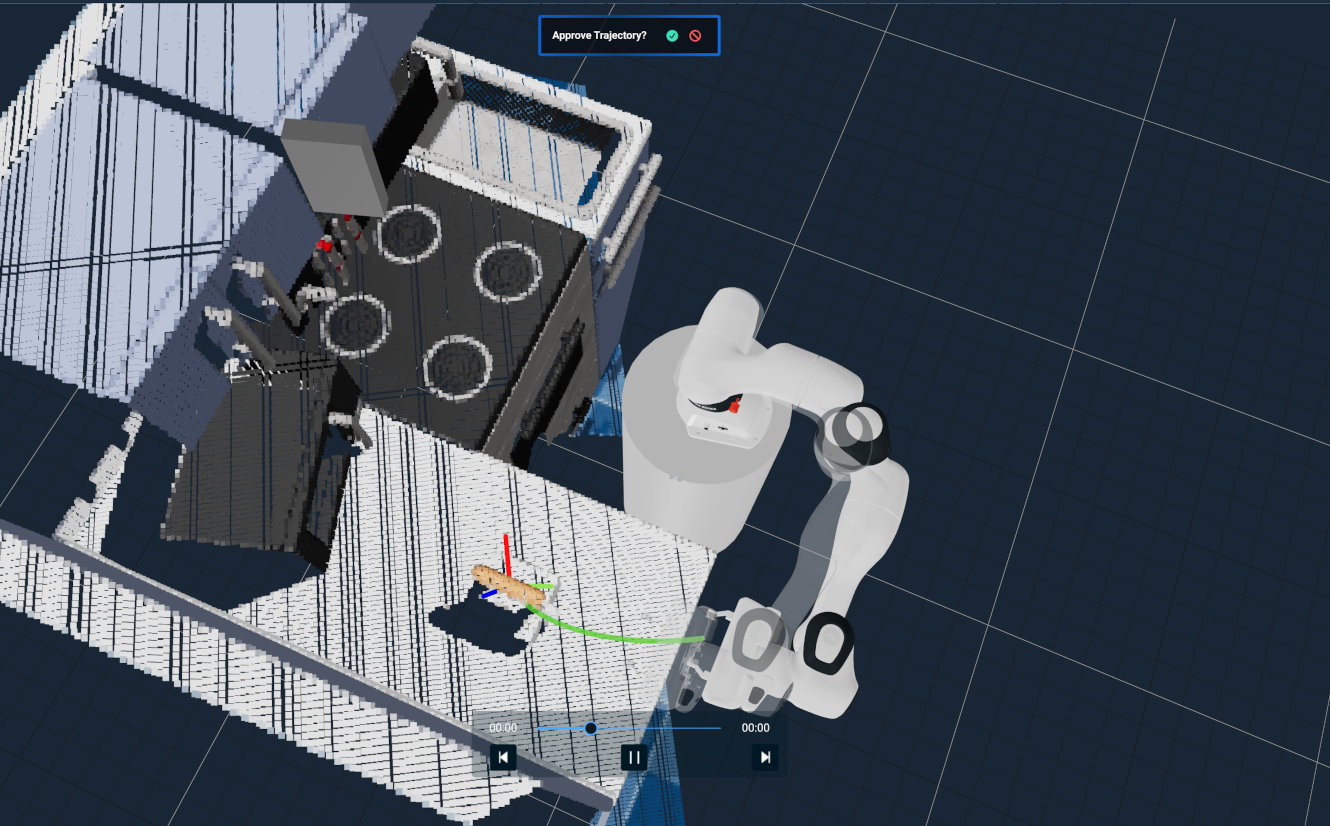
We can also generate grasp poses directly from the point cloud fragments in addition to creating graspable objects. For each fragment, we can extract the centroid pose and use motion planning to reach the desired pose.
ForEachandPushBackVectorto collect a vector of the point cloud fragmentForEachandGetCentroidFromPointCloudto loop over all of the fragments and generate centroid posesPlan Move To Poseor equivalent to plan to the target pose
To run this example, execute the Grasp Object from Point Objective and click on the Kettle.
Next Steps
Once you have detected 3D objects from 2D image segmentation, you can use the poses and shape of the detected objects for motion planning tasks. Some examples include pushing buttons, opening doors, or performing inspection paths around objects of interest.