Debug Task Constructor Planning Pipelines
MoveIt Task Constructor (MTC) planning pipelines perform a large-scale search for feasible solutions across numerous candidates. Some candidates are expected to fail (e.g., due to unreachable targets), while others may succeed. MTC systematically explores all options to determine a sequence of feasible steps needed to complete the task.
When MTC fails to find a solution —or even when it succeeds— introspecting intermediate solutions and identifying points of failure is often essential.
MTC pipelines are planned with the PlanMTCTask Behavior (see the Pick and Place tutorial using MTC for details).
Once that Behavior is executed, the details of the candidates that MTC evaluated are available for introspection.
MoveIt Pro includes an MTC Debugger that works in both the desktop app and MoveIt Pro Cloud (which is simulation only and cannot be connected to robot hardware).
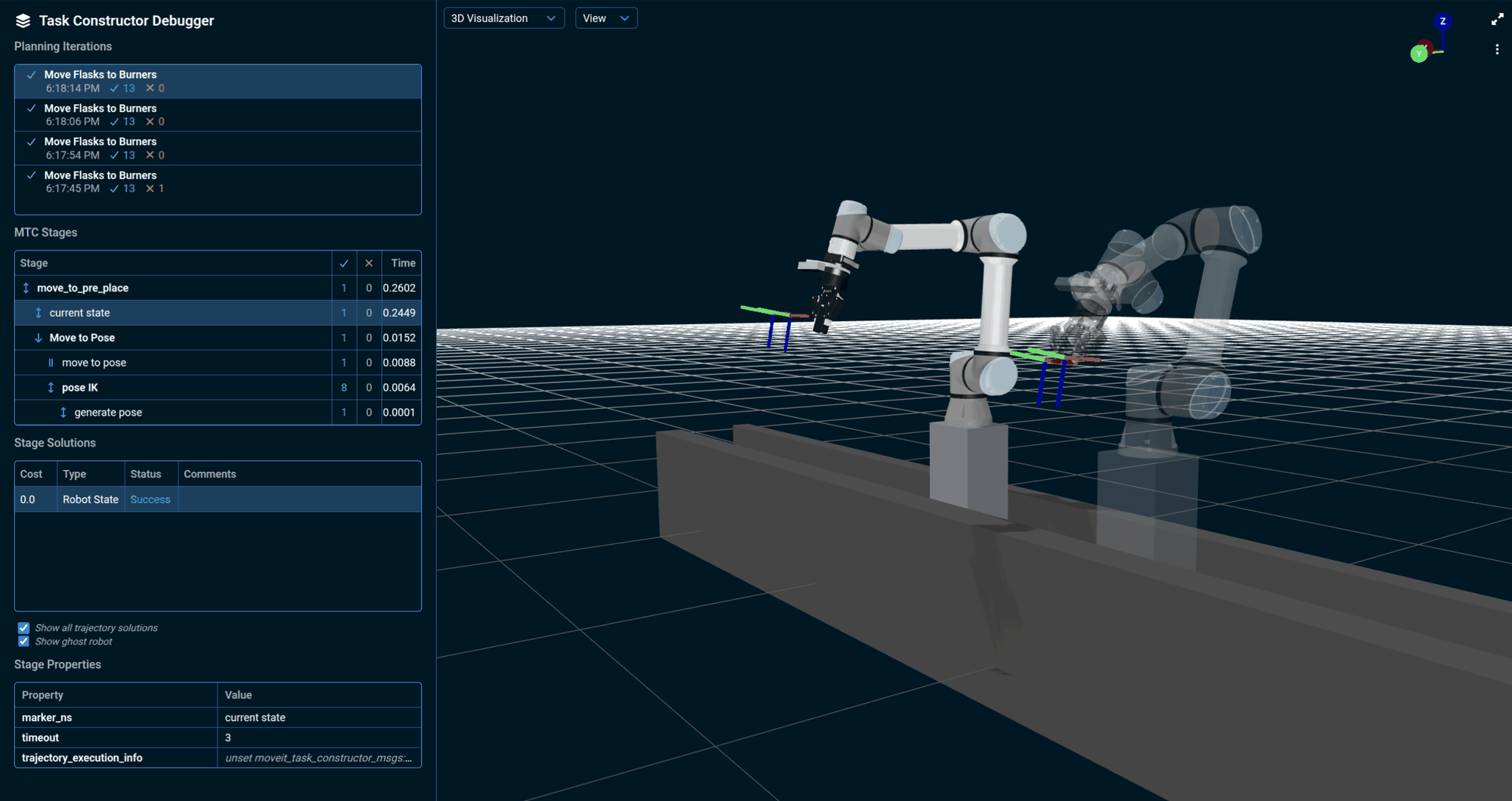
After running an Objective that uses PlanMTCTask, open it by selecting Task Constructor Debugger from the Mode menu in the top left, or by clicking the debugger icon on a PlanMTCTask Behavior in the Behavior Tree view pane.
The debugger opens as a left sidebar listing the session's planning iterations; selecting one shows its stage tree with each stage's success and failure counts and compute time, the solutions for the selected stage with their cost and comments explaining why individual candidates failed, and the selected stage's properties.
Select a solution to preview its trajectory in the 3D Visualizer.
The RViz2 MTC plugin is deprecated and may be removed in a future release; prefer the browser-based debugger above. For local deployments, MoveIt Pro can still launch an RViz2 session with the MTC plugin already enabled:
moveit_pro rviz
That opens RViz2:
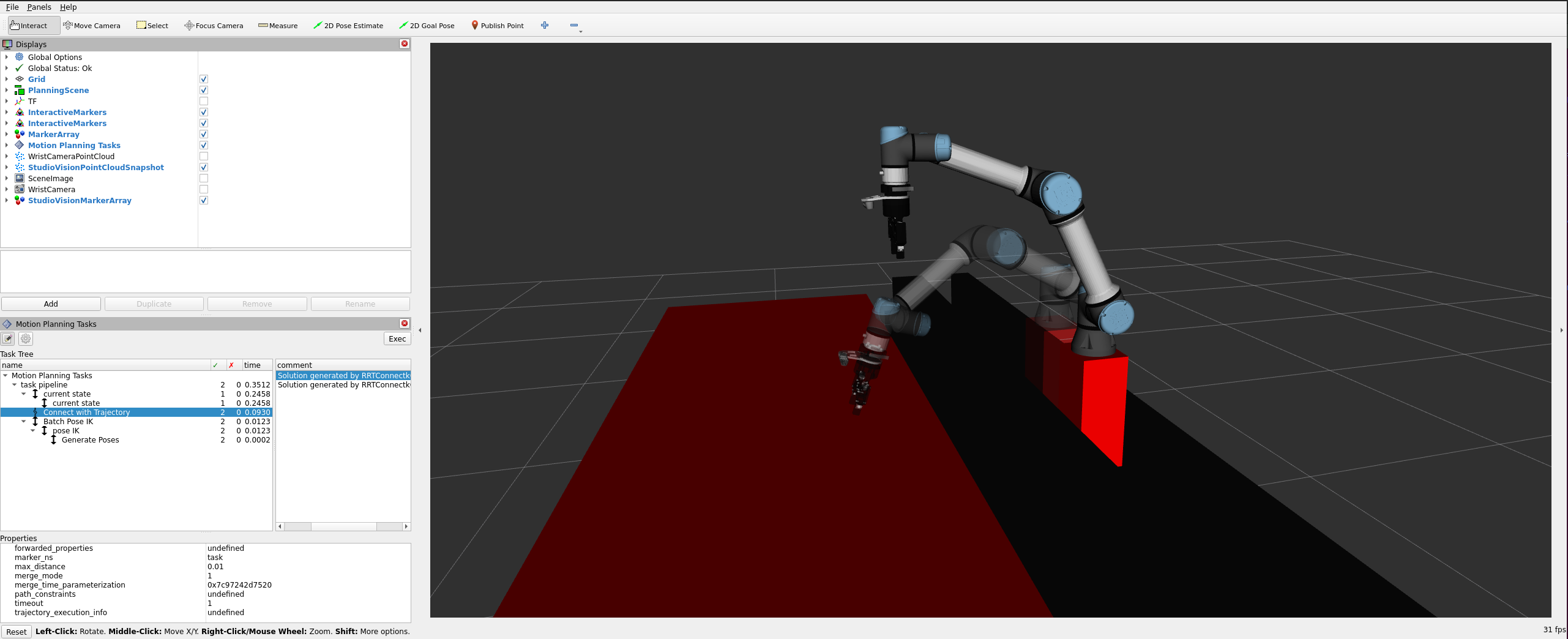
In the bottom left pane, you will see a tree of MTC tasks with details about the inputs and outputs of every stage. By clicking on specific solutions, you can visualize them in the RViz2 visualization window. In addition, the RViz2 MTC plugin will keep a history of all the plans being solved, so you can easily go back in the history to introspect previous plans.
Disabling introspection to reduce memory
The debugging described above relies on MTC introspection, which is enabled by default. With introspection on, each MTC task retains everything it evaluated (every successful and failed candidate, and the planning scene captured at each one) for as long as the task object is alive. Because a task stays on the Objective's blackboard for the rest of the run, an Objective that plans many MTC tasks, or a single task over a large planning scene, accumulates this data and can consume a large amount of memory, in extreme cases exhausting it.
The InitializeMTCTask Behavior exposes an enable_introspection input port (default true). Set it to false on a task to free its stored planning scenes and solutions once planning completes (whether it succeeds or fails), instead of retaining them for the rest of the run. This keeps memory use flat across an Objective that plans many MTC tasks.
Disabling introspection turns off the debugging tools described on this page for that task: the task will not appear in the in-app MTC Debugger or the RViz2 MTC plugin, and SaveMTCTaskInspection will skip it. It also makes a failed plan's alert less detailed: you still see which stage failed and its attempt counts, but not the specific per-stage reason (for example the collision or IK message). Leave introspection enabled while developing an Objective, and disable it only for tasks whose memory cost is a problem in production.