Install MoveIt Pro
Application Platform
From a fresh terminal to a moving robot simulation.
A license key is required to run the MoveIt Pro Application Platform; if you do not already have one emailed to you, please contact us for more information. By downloading the MoveIt Pro Application Platform software you are agreeing to the Terms and Conditions and acknowledging our Privacy Policy.
Product Family Overview
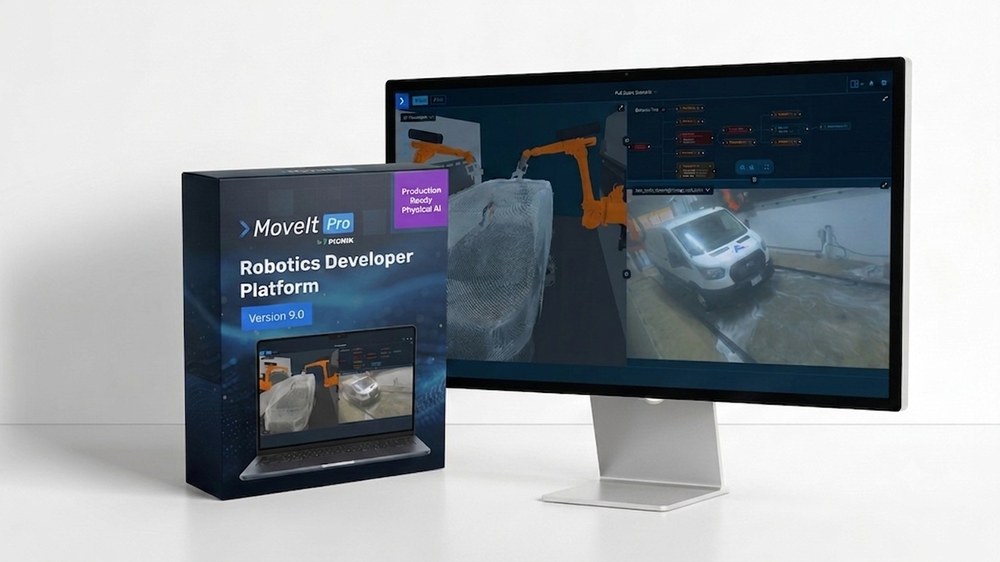
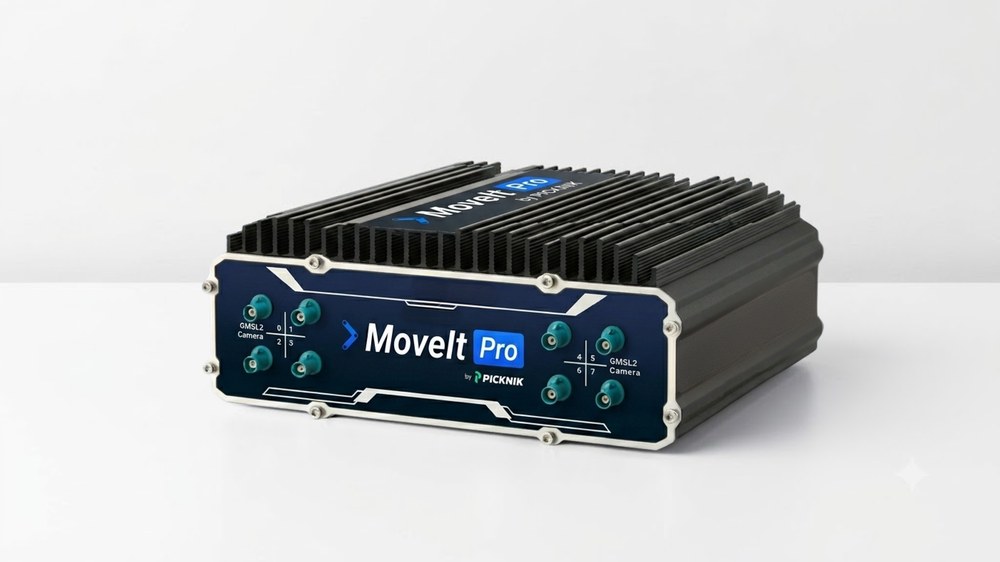
MoveIt Pro is the Application Platform: the Desktop App you work in, the Runtime that executes on the robot, and Core underneath it. The Desktop App connects to a Runtime rather than containing one, and each product has differing hardware and software requirements.
| MoveIt Pro Desktop App | MoveIt Pro Runtime | MoveIt Pro Core |
|---|---|---|
 |  |  |
|
|
|
System Requirements
The MoveIt Pro Desktop App ships installers for Linux today, with macOS and Windows coming in 10.1.0, and asks little of the computer it runs on. The MoveIt Pro Runtime is the demanding half, especially with simulation enabled, and is not intended for older or consumer-grade computers.
See MoveIt Pro Technical Specifications for the full computer requirements, with and without simulation.
Installation
Install two components:
-
Download and install the MoveIt Pro Desktop App for the operating system of the computer you will work from:
Desktop app installers are published for download starting with MoveIt Pro 10.0.
-
Install the MoveIt Pro Runtime on the computer that will control the robot. Choose that Runtime host's operating system below.
MoveIt Pro 10.0 requires the desktop app and Runtime to use the same release. The desktop app does not update automatically, so install new releases manually. You can keep multiple app releases installed when your Runtimes use different versions. See Connect with the MoveIt Pro Desktop App for remote, multi-Runtime, and multi-version connections.
- Ubuntu
- Debian
- Fedora
- PopOS
- macOS
- Windows
Ubuntu Desktop 24.04 is the recommended host operating system for the MoveIt Pro Runtime. Ubuntu 26.04 is also supported as a host operating system. Current MoveIt Pro containers run Ubuntu 24.04 with ROS 2 Jazzy.
Docker Setup
MoveIt Pro uses Docker to avoid installing ROS or MoveIt on your host machine, and will not affect any existing ROS workspaces or configurations you may have. Check if you already have Docker by running in a terminal:
docker run hello-world
If Docker is already installed, click here.
We do not currently support Docker Desktop due to its separate network stack.
Make sure that your Docker version is from Docker's Apt repositories - the versions from Canonical are very old. You can check this by running
apt-cache policy docker-compose-plugin
and making sure that the installed version (marked with ***) is from https://download.docker.com/linux/ubuntu, not a domain under ubuntu.com.
If Docker is not installed, click here.
We recommend two ways to install Docker:
Easiest
Simply copy paste the below commands into your terminal:
sudo apt-get install curl
curl -fsSL https://get.docker.com -o get-docker.sh
sudo sh get-docker.sh
sudo groupadd docker
sudo usermod -aG docker $USER
sg docker "newgrp $(id -gn)"
More Advanced Follow Docker's official documentation:
- Docker's convenience script
- Docker's post-installation steps to ensure you can run without
sudoprivileges.
Finally
To ensure permissions settings take effect for all terminal sessions, log out and back in to your computer.
Finally, verify that you can run Docker commands without sudo.
docker run hello-world
NVIDIA Setup
Configure NVIDIA GPUs (only if you have an NVIDIA GPU)
The NVIDIA Container Toolkit is required for MoveIt Pro to use an NVIDIA GPU. On CPU-only hosts, MoveIt Pro's deterministic algorithms still work, but ML examples run much more slowly. AMD hosts instead require the AMD Container Toolkit described in the Ubuntu installation tab and the detailed GPU configuration guide.
Install the nvidia-container-toolkit.
For more information, or to verify that the toolkit is installed properly, see Configure GPU Acceleration.
AMD Setup
Configure AMD GPUs (only if you have an AMD GPU)
The AMD Container Toolkit is required for MoveIt Pro 10.0 to use an AMD GPU on a supported amd64 host. You do not need to install ROCm on the host because the MoveIt Pro Runtime image includes the required ROCm libraries. If the CLI detects AMD hardware without amd-container-runtime, it stops with installation guidance; configure the toolkit before continuing.
Confirm that your host meets the AMD Container Toolkit requirements, then install the toolkit by following AMD's Quick Start Guide. Configure the Docker runtime and generate its Container Device Interface (CDI) specification:
sudo amd-ctk runtime configure
sudo mkdir -p /etc/cdi
sudo amd-ctk cdi generate
sudo systemctl restart docker
sudo amd-ctk cdi validate
On an amd64 host, verify the installation before starting MoveIt Pro:
docker run --rm --runtime=amd \
  -e AMD_VISIBLE_DEVICES=all \
  rocm/rocm-terminal rocm-smi
For more information, see Configure GPU Acceleration.
Install MoveIt Pro Runtime
To install, run in a terminal:
sudo apt install curl
curl -fLo /tmp/moveit-pro-9.4.1-any.deb https://download.picknik.ai/moveit-pro/moveit-pro-9.4.1-any.deb
sudo apt install /tmp/moveit-pro-9.4.1-any.deb
moveit_pro run
Debian Bookworm and Trixie are supported, especially for real-time operating system needs.
Docker Setup
On Debian, follow Docker's official Debian installation guide.
NVIDIA Setup
Configure NVIDIA GPUs (only if you have an NVIDIA GPU)
The NVIDIA Container Toolkit is required for MoveIt Pro to use an NVIDIA GPU. On CPU-only hosts, MoveIt Pro's deterministic algorithms still work, but ML examples run much more slowly. AMD hosts instead require the AMD Container Toolkit described in the Ubuntu installation tab and the detailed GPU configuration guide.
Install the nvidia-container-toolkit.
For more information, or to verify that the toolkit is installed properly, see Configure GPU Acceleration.
Install MoveIt Pro Runtime
To install, run in a terminal:
sudo apt install curl
curl -fLo /tmp/moveit-pro-9.4.1-any.deb https://download.picknik.ai/moveit-pro/moveit-pro-9.4.1-any.deb
sudo apt install /tmp/moveit-pro-9.4.1-any.deb
moveit_pro run
Fedora 43 and 44 are Tier 2 supported Linux distributions for the MoveIt Pro Runtime. You may encounter issues not seen on Ubuntu or Debian.
Docker Setup
On Fedora, follow Docker's official Fedora installation guide.
NVIDIA Setup
Configure NVIDIA GPUs (only if you have an NVIDIA GPU)
The NVIDIA Container Toolkit is required for MoveIt Pro to use an NVIDIA GPU. On CPU-only hosts, MoveIt Pro's deterministic algorithms still work, but ML examples run much more slowly. AMD hosts instead require the AMD Container Toolkit described in the Ubuntu installation tab and the detailed GPU configuration guide.
Install the nvidia-container-toolkit.
For more information, or to verify that the toolkit is installed properly, see Configure GPU Acceleration.
Install MoveIt Pro Runtime
To install, run in a terminal:
sudo dnf install curl
curl -fLo /tmp/moveit-pro-9.4.1-1.noarch.rpm https://download.picknik.ai/moveit-pro/moveit-pro-9.4.1-1.noarch.rpm
sudo dnf install /tmp/moveit-pro-9.4.1-1.noarch.rpm
moveit_pro run
PopOS is considered a Tier 2 supported Linux distro for MoveIt Pro, you may run into issues with NVIDIA GPUs.
Docker Setup
MoveIt Pro uses Docker to avoid installing ROS or MoveIt on your host machine, and will not affect any existing ROS workspaces or configurations you may have. Check if you already have Docker by running in a terminal:
docker run hello-world
If Docker is already installed, click here.
We do not currently support Docker Desktop due to its separate network stack.
Make sure that your Docker version is from Docker's Apt repositories - the versions from Canonical are very old. You can check this by running
apt-cache policy docker-compose-plugin
and making sure that the installed version (marked with ***) is from https://download.docker.com/linux/ubuntu, not a domain under ubuntu.com.
If Docker is not installed, click here.
We recommend two ways to install Docker:
Easiest
Simply copy paste the below commands into your terminal:
sudo apt-get install curl
curl -fsSL https://get.docker.com -o get-docker.sh
sudo sh get-docker.sh
sudo groupadd docker
sudo usermod -aG docker $USER
sg docker "newgrp $(id -gn)"
More Advanced Follow Docker's official documentation:
- Docker's convenience script
- Docker's post-installation steps to ensure you can run without
sudoprivileges.
Finally
To ensure permissions settings take effect for all terminal sessions, log out and back in to your computer.
Finally, verify that you can run Docker commands without sudo.
docker run hello-world
NVIDIA Setup
Configure NVIDIA GPUs (only if you have an NVIDIA GPU)
The NVIDIA Container Toolkit is required for MoveIt Pro to use an NVIDIA GPU. On CPU-only hosts, MoveIt Pro's deterministic algorithms still work, but ML examples run much more slowly. AMD hosts instead require the AMD Container Toolkit described in the Ubuntu installation tab and the detailed GPU configuration guide.
Install the nvidia-container-toolkit.
For more information, or to verify that the toolkit is installed properly, see Configure GPU Acceleration.
Install MoveIt Pro Runtime
To install, run in a terminal:
sudo apt install curl
curl -fLo /tmp/moveit-pro-9.4.1-any.deb https://download.picknik.ai/moveit-pro/moveit-pro-9.4.1-any.deb
sudo apt install /tmp/moveit-pro-9.4.1-any.deb
moveit_pro run
On macOS, run the MoveIt Pro Runtime inside Ubuntu in a Parallels Desktop virtual machine. The MoveIt Pro Desktop App runs natively on the Mac. Once Parallels and an Ubuntu VM are installed, follow the standard Ubuntu setup below from inside your VM.
A Parallels VM can use the GPU for graphics, but not for AI inference, so AI models fall back to the CPU, which is very slow. Use macOS for exploring and developing with MoveIt Pro only.
- Follow the instructions to install Parallels on your Mac.
- Follow the instructions to install Ubuntu 24.04 Linux in a Parallels VM
- Once the installation is finished, adjust the VM's allocated Hardware settings:
- Shut down the VM via the Actions menu and select Shut Down
- From the "Parallels Desktop" application select the Windows menu and select Control Center
- Open the Settings menu from the gear icon of your Ubuntu virtual machine.
- Select the Hardware tab in the configuration window.
- Select CPU and Memory and select at least 8 processors and 12 GB of RAM for optimal performance.
- Restart the VM to continue installing MoveIt Pro. Docker Setup (inside your Ubuntu VM)
MoveIt Pro uses Docker to avoid installing ROS or MoveIt on your host machine, and will not affect any existing ROS workspaces or configurations you may have. Check if you already have Docker by running in a terminal:
docker run hello-world
If Docker is already installed, click here.
We do not currently support Docker Desktop due to its separate network stack.
Make sure that your Docker version is from Docker's Apt repositories - the versions from Canonical are very old. You can check this by running
apt-cache policy docker-compose-plugin
and making sure that the installed version (marked with ***) is from https://download.docker.com/linux/ubuntu, not a domain under ubuntu.com.
If Docker is not installed, click here.
We recommend two ways to install Docker:
Easiest
Simply copy paste the below commands into your terminal:
sudo apt-get install curl
curl -fsSL https://get.docker.com -o get-docker.sh
sudo sh get-docker.sh
sudo groupadd docker
sudo usermod -aG docker $USER
sg docker "newgrp $(id -gn)"
More Advanced Follow Docker's official documentation:
- Docker's convenience script
- Docker's post-installation steps to ensure you can run without
sudoprivileges.
Finally
To ensure permissions settings take effect for all terminal sessions, log out and back in to your computer.
Finally, verify that you can run Docker commands without sudo.
docker run hello-world
Install MoveIt Pro Runtime (inside your Ubuntu VM)
Then install the MoveIt Pro Runtime by running in a terminal:
sudo apt install curl
curl -fLo /tmp/moveit-pro-9.4.1-any.deb https://download.picknik.ai/moveit-pro/moveit-pro-9.4.1-any.deb
sudo apt install /tmp/moveit-pro-9.4.1-any.deb
moveit_pro run
When using Parallels, your Docker daemon may occasionally need restarts to resolve DNS lookup failures when installing or upgrading MoveIt Pro.
There is a known issue where your network configuration can become degraded in long-running virtual machines.
You can address this each time by restarting the virtual machine, or by running this command: sudo systemctl restart docker.
Install the MoveIt Pro Desktop App (on your Mac, outside the VM)
Return to macOS, install the desktop app, and connect it to the Runtime in the Ubuntu VM. The app authenticates the Runtime's current TLS certificate during connection setup. See Run the Runtime in Parallels on macOS for direct-network and SSH-tunnel connection steps.
The macOS desktop app installer arrives in MoveIt Pro 10.1.0. Until it ships, the download list offers Linux installers only.
On Windows, run the MoveIt Pro Runtime inside Ubuntu in Windows Subsystem for Linux (WSL). The MoveIt Pro Desktop App runs natively on Windows. Once WSL and an Ubuntu distribution are installed, follow the standard Ubuntu setup below from inside your WSL Ubuntu shell.
The MoveIt Pro Runtime requires WSL 2, which depends on the Hyper-V components that ship with the Pro, Pro for Workstations, Enterprise, or Education editions of Windows 10 (version 2004 / build 19041 or later) and Windows 11.
Windows Home is not supported. If you are on Home, upgrade to Windows Pro (or another edition above) before continuing — WSL has been observed to fail on Home edition because it lacks the full Hyper-V Manager that WSL 2 relies on.
Enable WSL
-
Confirm hardware virtualization is enabled in your system BIOS/UEFI (Intel VT-x or AMD-V). On most modern PCs this is on by default.
-
Open PowerShell or Windows Terminal as Administrator (right-click → Run as administrator).
-
Install WSL with the default Ubuntu distribution:
wsl --installThis enables the WSL and Virtual Machine Platform features, downloads the WSL 2 kernel, and installs Ubuntu.
-
Restart Windows when prompted.
-
After reboot, launch the Ubuntu app from the Start menu and complete the initial UNIX username and password setup.
For full Microsoft instructions, see the official WSL installation guide.
Install Ubuntu from the Microsoft Store (alternative)
If wsl --install did not install Ubuntu automatically, or you want a specific Ubuntu version, install it from the Microsoft Store:
- Ubuntu 24.04 LTS on the Microsoft Store (recommended)
Open the Microsoft Store, search for Ubuntu, click Install, then launch the app to finish the username and password setup. You can also list and install distributions from the command line:
wsl --list --online
wsl --install -d Ubuntu-24.04
Docker Setup (inside WSL Ubuntu)
MoveIt Pro uses Docker to avoid installing ROS or MoveIt on your host machine, and will not affect any existing ROS workspaces or configurations you may have. Check if you already have Docker by running in a terminal:
docker run hello-world
If Docker is already installed, click here.
We do not currently support Docker Desktop due to its separate network stack.
Make sure that your Docker version is from Docker's Apt repositories - the versions from Canonical are very old. You can check this by running
apt-cache policy docker-compose-plugin
and making sure that the installed version (marked with ***) is from https://download.docker.com/linux/ubuntu, not a domain under ubuntu.com.
If Docker is not installed, click here.
We recommend two ways to install Docker:
Easiest
Simply copy paste the below commands into your terminal:
sudo apt-get install curl
curl -fsSL https://get.docker.com -o get-docker.sh
sudo sh get-docker.sh
sudo groupadd docker
sudo usermod -aG docker $USER
sg docker "newgrp $(id -gn)"
More Advanced Follow Docker's official documentation:
- Docker's convenience script
- Docker's post-installation steps to ensure you can run without
sudoprivileges.
Finally
To ensure permissions settings take effect for all terminal sessions, log out and back in to your computer.
Finally, verify that you can run Docker commands without sudo.
docker run hello-world
Install MoveIt Pro Runtime (inside WSL Ubuntu)
Then install the MoveIt Pro Runtime by running in a terminal:
sudo apt install curl
curl -fLo /tmp/moveit-pro-9.4.1-any.deb https://download.picknik.ai/moveit-pro/moveit-pro-9.4.1-any.deb
sudo apt install /tmp/moveit-pro-9.4.1-any.deb
moveit_pro run
Install the MoveIt Pro Desktop App (on Windows, outside WSL)
Return to Windows, install the desktop app, and connect it to the Runtime in WSL. The app authenticates the Runtime's current TLS certificate during connection setup.
The Windows desktop app installer arrives in MoveIt Pro 10.1.0. Until it ships, the download list offers Linux installers only.
For the full system requirements see also the MoveIt Pro Tech Specs.
First Run
Frontend key
The MoveIt Pro CLI automatically creates and securely stores a unique frontend key for the Runtime. You do not need to create or export one before the first launch.
If the desktop app asks for the key, run this command on the Runtime computer:
moveit_pro frontend-key
Copy the displayed value into the desktop app.
The desktop app checks the Runtime's TLS certificate automatically during setup; normal desktop users do not need to install or approve a certificate. See Endpoint Security for key rotation, custom certificates, and direct-client setup.
When you run MoveIt Pro for the first time, it presents several setup prompts. For this quick start, accept the recommended settings by entering Y.
MoveIt Pro then downloads and builds the required Docker images and user workspace. Keep the terminal open until the Runtime reports that it is ready. Go get a coffee or tea ☕.
Experiencing issues installing or running MoveIt Pro?
You can use moveit_pro run -v to see more verbose output, which can be helpful for debugging if for some reasons things don't work right away for you.
For other issues, questions, or feedback:
- Check out our extensive Troubleshooting Guide
- Contact PickNik support
Choosing a robot configuration package
The last configuration step in the terminal should have you choose the robot configuration package. We recommend you choose hangar_sim as the first reference application to explore, as it demonstrates a full mobile manipulation robot using a UR5e robot arm on a Clearpath Ridgeback wheeled base.
If you have an existing MoveIt Pro user workspace and robot config, you can set that instead of the default example workspace using the command:
moveit_pro configure --config-package my_config_package --user-workspace path/to/workspace
See the documentation on Advanced Run Commands to learn more.
You can also explore moveit_pro --help for more info.
MoveIt Pro Bringup
Keep the Runtime terminal open, then follow Connect with the MoveIt Pro Desktop App to connect to the running Runtime.
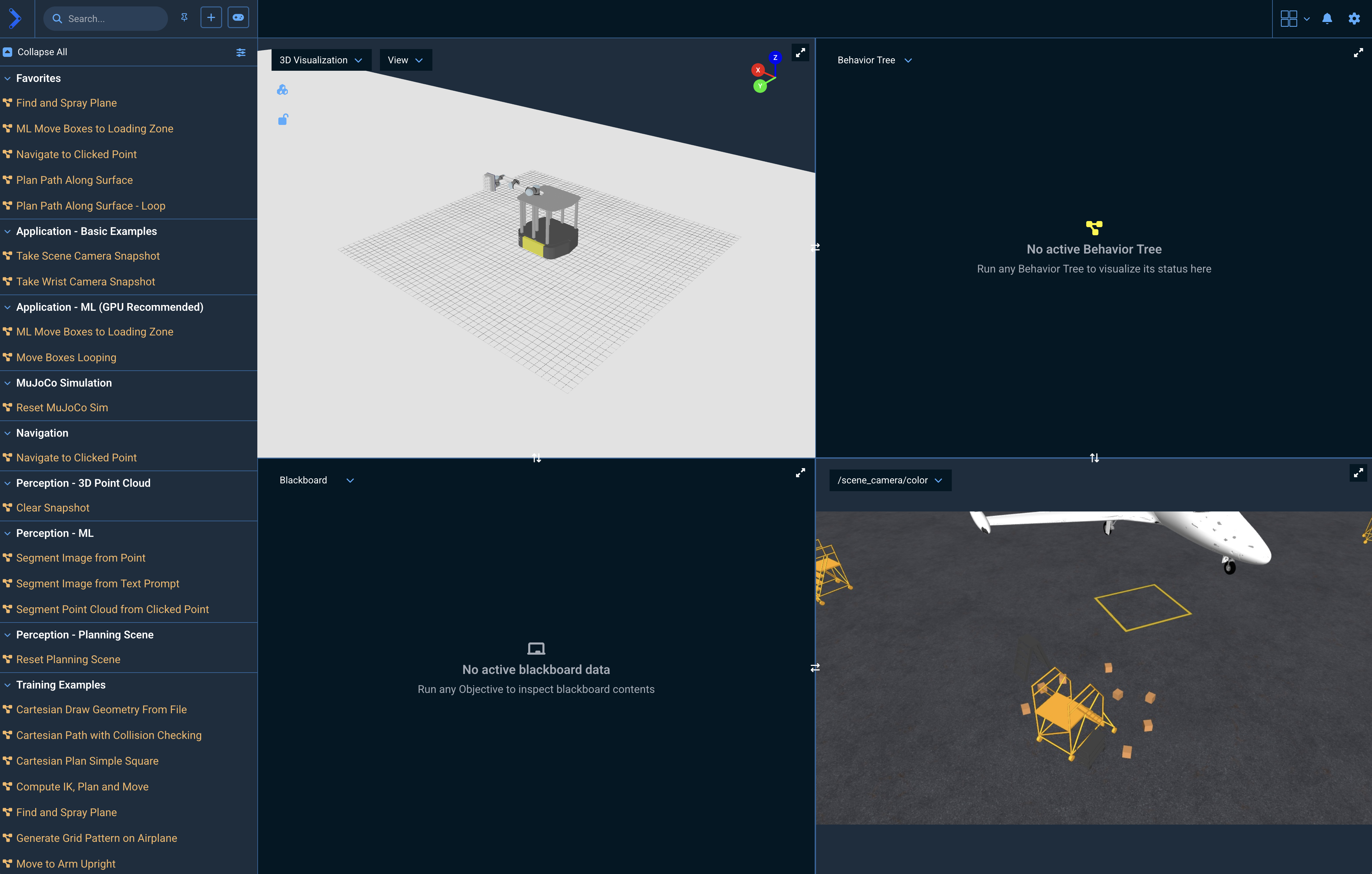
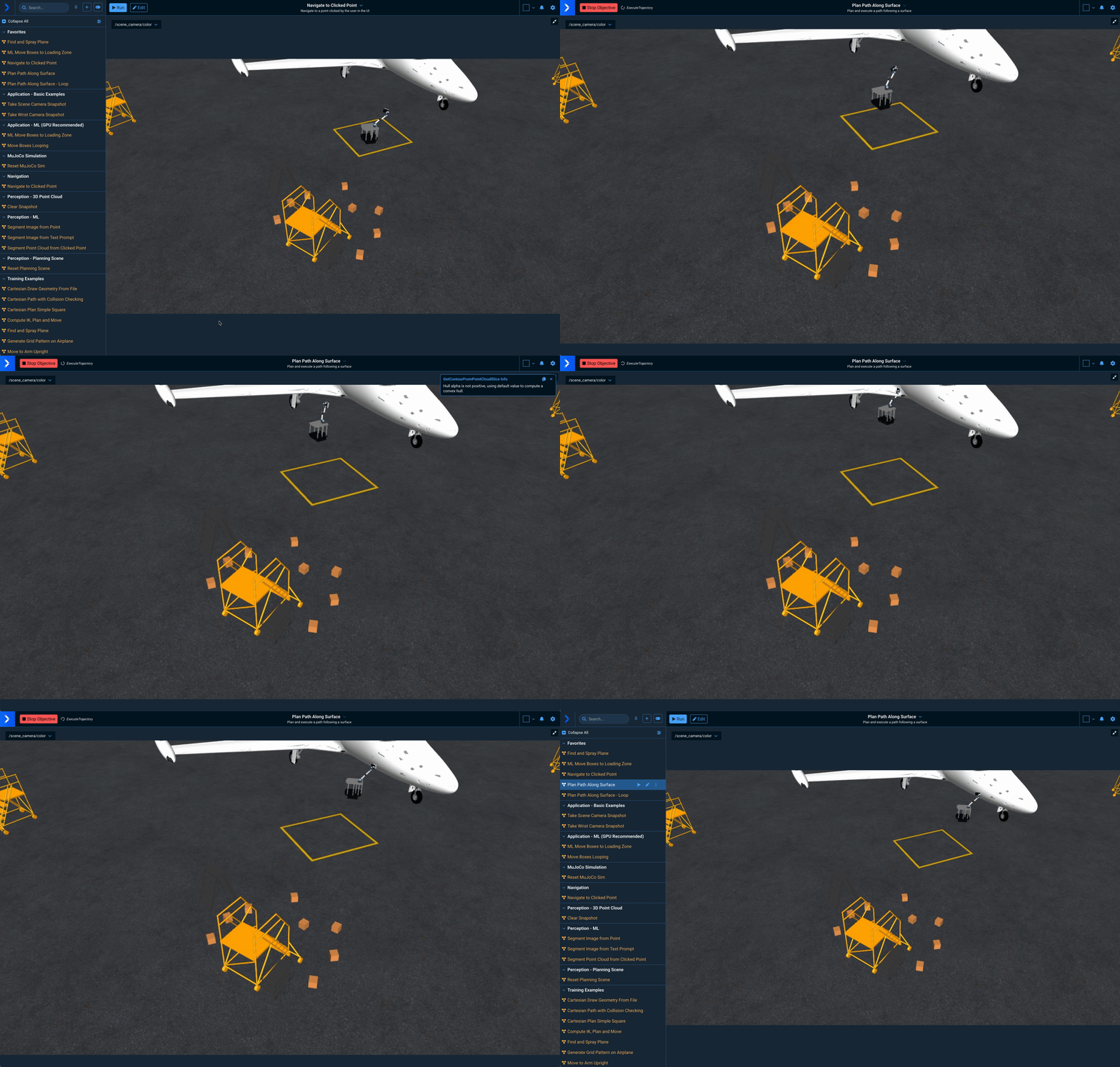
After connecting, you should see the following:
Start An Example Application
To quickly see an example application (an "Objective") click the Run button on the Plan Path Along Surface Objective under the Training Examples section of the Objectives sidebar on the left.
You should then see the robot drive to the side of the airplane body, scan it, and then begin a basic spraying operation. It also demonstrates whole body control - coordinating the arm with the wheels simultaneously.
Code when you need it, UI when you don’t.
You can also use our Programmatic SDKs to integrate the MoveIt Pro Runtime with your software application or company-specific graphical UI. The desktop app is optional.
Additionally, you can visualize your robot through other tools like RViz, Foxglove, or Rerun:
moveit_pro rviz
Explore other example robot configs
MoveIt Pro ships with more than eight example robot configuration packages that you can explore as reference applications. The source code is automatically downloaded from the moveit_pro_example_ws GitHub repository and is available locally at ~/moveit_pro/moveit_pro_example_ws.
These example worlds serve as a starting point you can use for configuring and creating your own robotics applications:
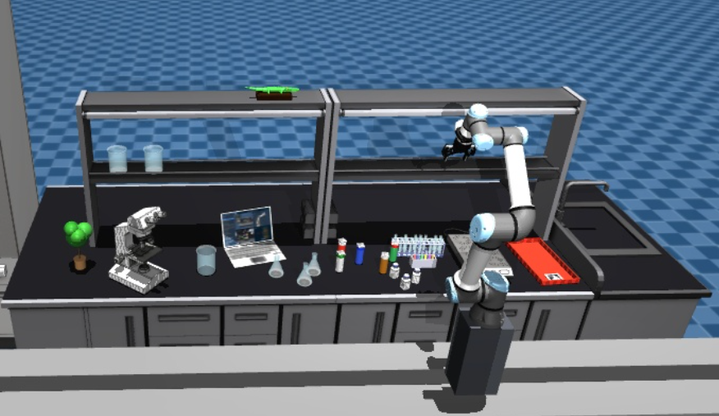 lab_sim
Single arm on linear rail in laboratory environment.
moveit_pro run -c lab_sim
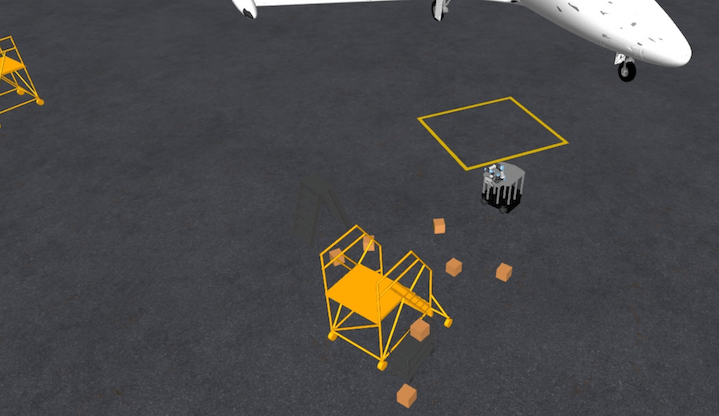 hangar_sim
Mobile manipulator moving cargo boxes in an airplane hangar.
moveit_pro run -c hangar_sim
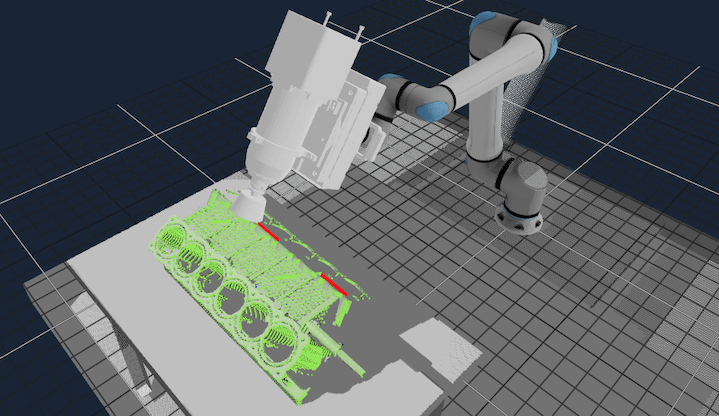 grinding_sim
Engine block machining example with PushCorp end effector on UR10e.
moveit_pro run -c grinding_sim
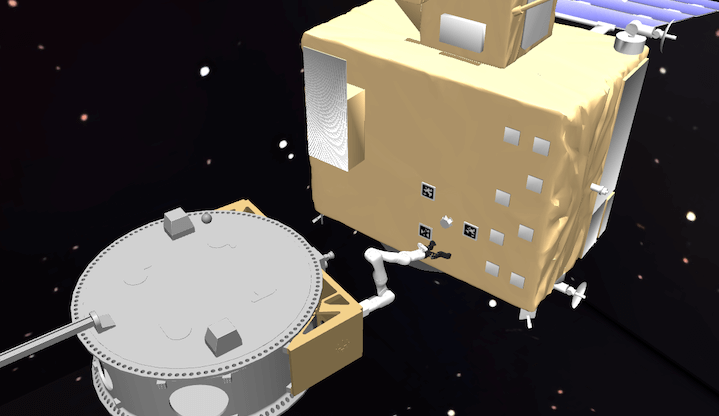 space_satellite_sim
Client and servicer space vehicles performing grappling operation.
moveit_pro run -c space_satellite_sim
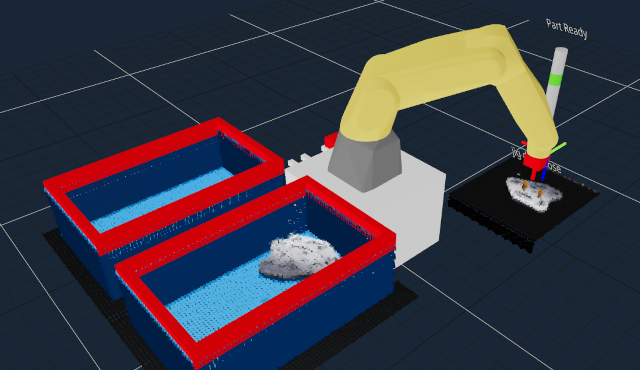 factory_sim
Tool changing and bin picking example for fixed-base industrial arm.
moveit_pro run -c factory_sim
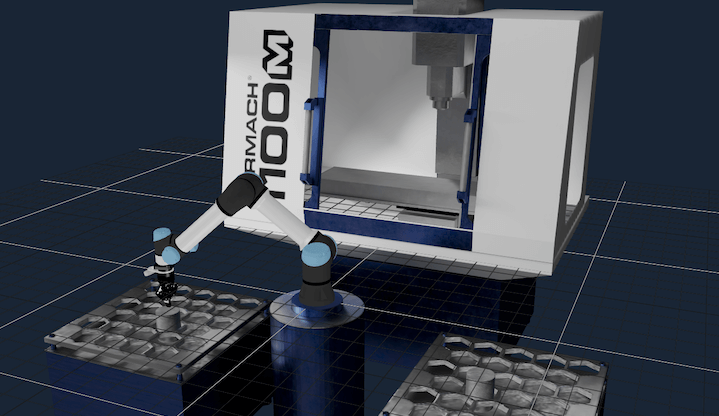 mock_sim
Machine tending demonstration, without high fidelity simulator.
moveit_pro run -c mock_sim
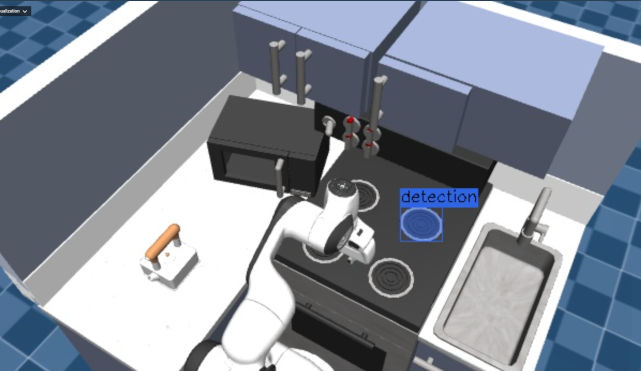 kitchen_sim
ML models demonstration with a Franka arm.
moveit_pro run -c kitchen_sim
 dual_arm_sim
Cartesian writing and wiping demonstration with dual Franka arms.
moveit_pro run -c dual_arm_sim
Click on the Next button below to continue through the four getting started tutorials.