Breakpoints Usage
MoveIt Pro allows setting breakpoints wherever one wants to pause Objective execution, so you can investigate the state of the robot, the planning scene, and the blackboard part-way through a run.
Launch the Runtime and Desktop App
We assume you have already installed MoveIt Pro to the default install location. Start the MoveIt Pro Runtime using:
moveit_pro run -c lab_sim
Then launch or connect the separately distributed MoveIt Pro Desktop App. The Runtime does not serve a bundled user interface.
Adding Breakpoint to Objective
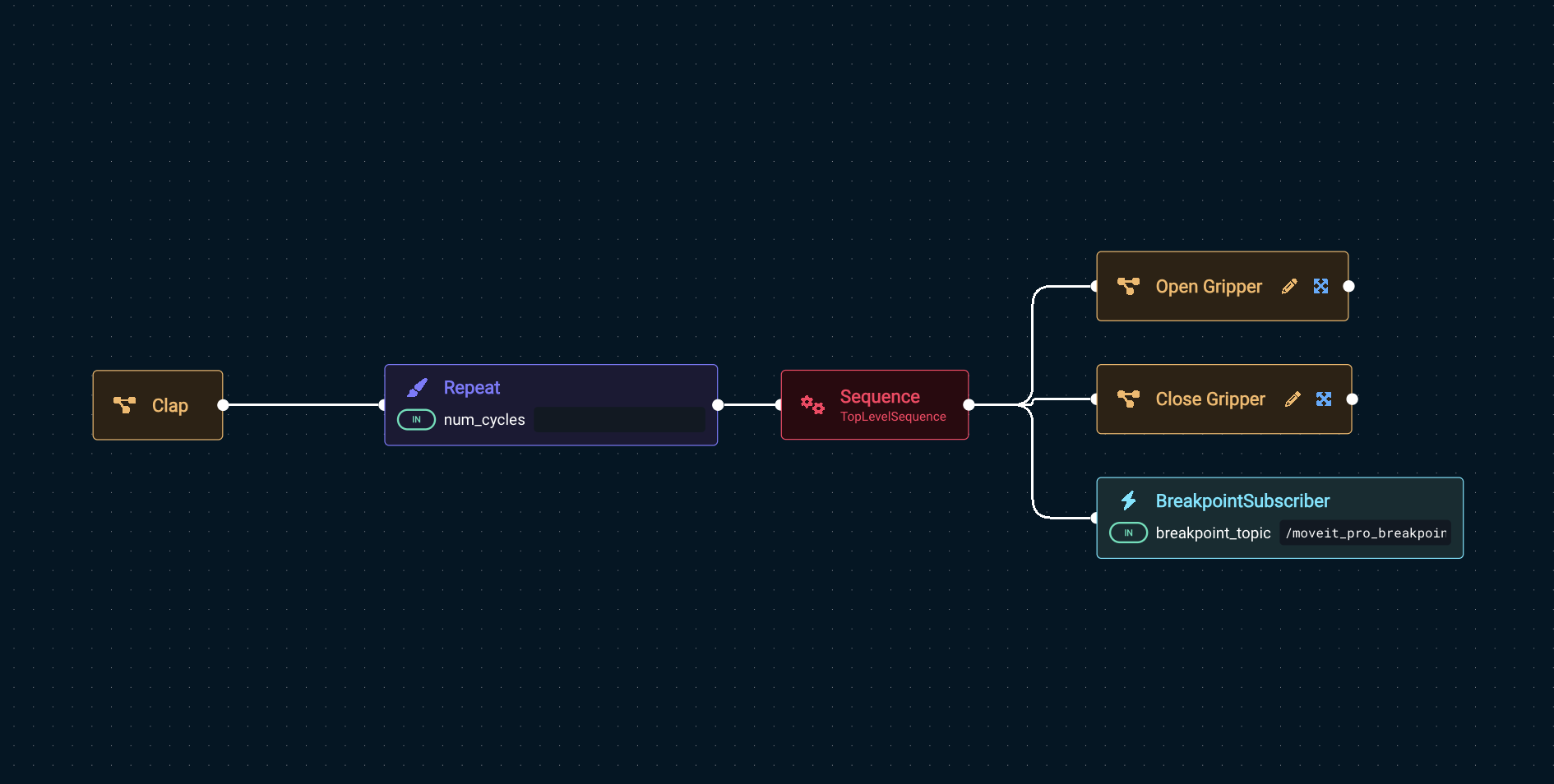
Add the Behavior BreakpointSubscriber to your Objective to add breakpoints.
Here is an Objective with a breakpoint.
Set the optional message port to a short description of why the breakpoint is there. It is displayed
under the Breakpoint heading in the prompt, which keeps the pauses distinguishable once a tree has
more than one.
Resuming Objective Execution After Encountering Breakpoint
When execution reaches the breakpoint, a Breakpoint prompt appears with two buttons: Resume continues to the next Behavior, and Stop cancels the Objective. A short beep plays alongside it.
Command Line Interface to Step Through Breakpoints
Open an interactive Bash session with the MoveIt Pro Runtime Docker container:
moveit_pro shell
Enter the following command to continue Objective execution when an Objective is paused on a breakpoint Behavior.
ros2 topic pub --once /moveit_pro_breakpoint std_msgs/msg/Bool "{data: true}"