Create Custom View Panes in the MoveIt Pro Desktop App
Custom View Panes allow you to add your own control panels, buttons, or web content as view panes in the MoveIt Pro canvas. You can embed same-host web applications or HTML files from a robot configuration package alongside the built-in visualization and debugging tools. This is ideal for hardware-specific controls your robot might need, like monitoring actuator faults, temperatures, or other statuses. It can also be used for high-level application data like picks per minute, current job, etc.. This guide will walk you through creating your first custom view pane, from adding it through the UI to creating a simple static HTML page.
Choose Where the Pane Runs
Pane content can be served from either computer in a desktop deployment:
| Pane location | URL | ROS access |
|---|---|---|
| Runtime ROS package, usually the robot configuration package (recommended) | /api/packages/<package>/web/<file> | Desktop app: supported. Browser: display only; for ROS, use a separate HTTPS server on the application hostname. |
| Separate server on the Runtime computer | http(s)://<runtime-host>:<port>/<file> | Supported over HTTPS. The server must be reachable from the desktop client. |
| Separate server on the desktop client computer | http(s)://127.0.0.1:<port>/<file> | Desktop app only; supported over HTTPS. |
An absolute pane must use the desktop app or connected Runtime hostname and a different origin from MoveIt Pro. HTTP absolute panes are display-only; enabling ROS access requires HTTPS.
<package> is the ROS package name. Users edit <package>/web/<file> in their user workspace and install that web/ directory from the package's CMakeLists.txt. The Runtime serves the installed copy through /api/packages/...; that URL is not an editable filesystem location.
Add a Custom View Pane via URL
The simplest way to add a custom view pane is to use an approved backend-local path.
To add a custom view pane, open the view selector dropdown in any canvas area and click the Add/Edit Panes button at the bottom of the menu.
In the modal:
- Enter an optional pane name.
- Enter
/api/packages/my_robot_config/web/status.html. For an absolute HTTP(S) URL, the desktop app allows the app or connected-Runtime hostname; a browser deployment allows only the application hostname. For example:http://127.0.0.1:8000/page.html. - Click +. Under Existing Custom Panes, enable ROS access only if the pane needs ROS topics (see ROS Integration). An absolute pane with ROS access must use HTTPS; browser deployments also require a distinct origin.
- Click Done. The pane appears in the view selector.
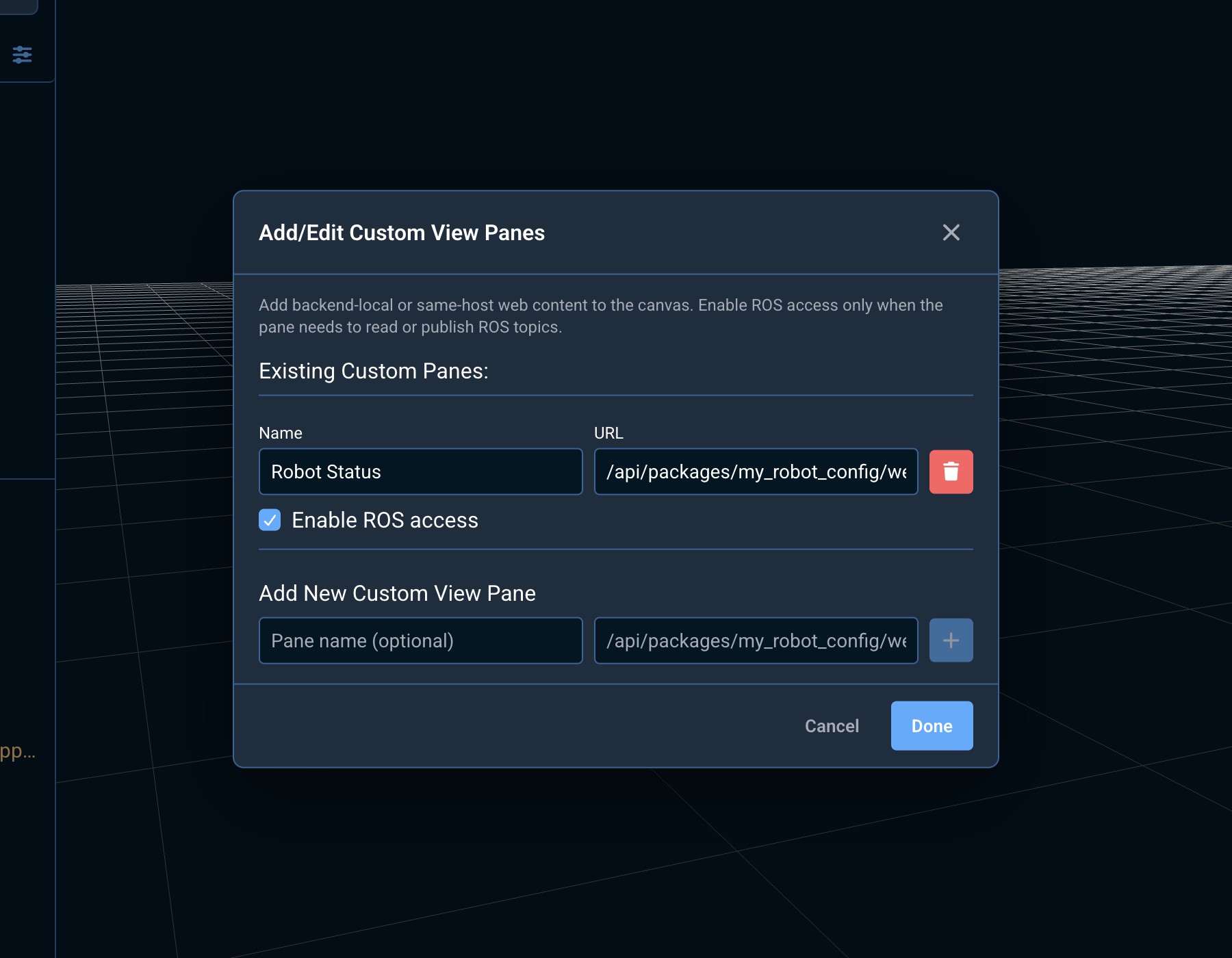
Done writes the pane list to the active robot configuration's frontend_settings.yaml.
Reopen the modal to add, edit, or remove panes.
Built-in Example
MoveIt Pro ships with a built-in example custom view pane that displays live joint states. No extra hosting is required — it is served automatically when MoveIt Pro is running.
To try it out, add a custom view pane with the following URL:
/joint-states-monitor-example.html
In the desktop app, enable ROS access so the pane can subscribe through the MoveIt Pro Web bridge (see ROS Integration). In a browser, this Runtime package pane can display static content but cannot access ROS, so the joint-state example does not update. Once enabled in the desktop app, the pane displays a live table of joint positions with slider visualizations and near-limit warnings.
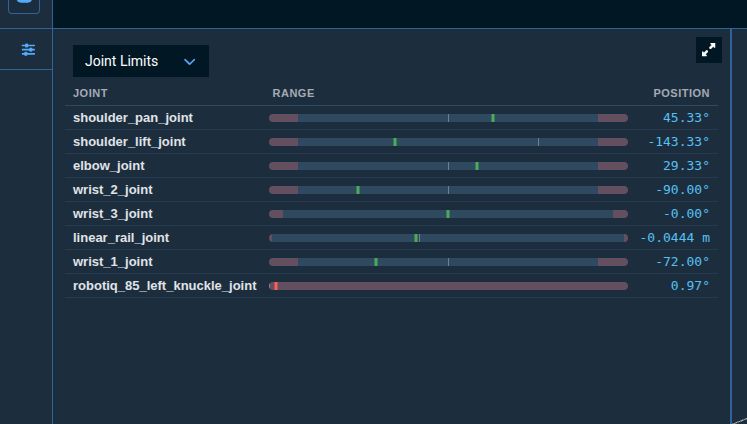
This example demonstrates several patterns useful for building your own panes:
- Subscribing to ROS topics (
/joint_states,/robot_description) using theIframeROSClientSDK - Parsing URDF data to extract joint limits
- Throttling DOM updates with
requestAnimationFrame - Styling to match the MoveIt Pro dark theme
- Using
padding-top: 52pxto avoid content being hidden behind the pane overlay bar
You can view the source at src/web/frontend/public/joint-states-monitor-example.html in the MoveIt Pro repository.
Create Your Own HTML File
The shortest path is to ship a static HTML file in your robot configuration package. Use a separate HTTP server only for a dynamic web application.
Step 1: Create an HTML file
Create a file called my-custom-pane.html:
<!DOCTYPE html>
<html lang="en">
<head>
    <meta charset="UTF-8">
    <meta name="viewport" content="width=device-width, initial-scale=1.0">
    <title>My Custom Pane</title>
    <style>
        body {
            font-family: Arial, sans-serif;
            padding: 20px;
            background-color: #1a1a1a;
            color: #ffffff;
        }
        h1 {
            color: #4a9eff;
        }
    </style>
</head>
<body>
    <h1>My Custom Hardware Interface</h1>
    <button type="button">Reset Hardware</button>
</body>
</html>
Step 2: Add the file to your robot configuration package
Save the file as <your_config_pkg>/web/my-custom-pane.html and install the directory from CMakeLists.txt:
install(
  DIRECTORY web
  DESTINATION share/${PROJECT_NAME}
)
Step 3: Add the pane in MoveIt Pro
Follow the steps in Add a Custom View Pane via URL using:
/api/packages/<your_config_pkg>/web/my-custom-pane.html
Alternative: Serve a web application on the desktop client
On the computer running the desktop app, start a local HTTP server from the directory containing your HTML file:
python3 -m http.server 8000 --bind 127.0.0.1
Then add the pane using the full URL:
http://127.0.0.1:8000/my-custom-pane.html
This HTTP example is display-only. Use a trusted HTTPS server to enable ROS access.
Auto-Launch the Pane Server with the Runtime
The manual python3 -m http.server above is fine for one-off prototyping, but a pane that ships in your robot configuration package usually wants the HTTP server to start and stop with the rest of the MoveIt Pro Runtime stack — no extra terminal, no operator step, no "did anyone start the pane server?" on every restart.
This section walks through the conventions for embedding such a server in your config package, and where to hook the include so it fires under both the production (moveit_pro run) and the developer (agent_robot.app) launch flows.
Conventions
| Setting | Recommended value | Why |
|---|---|---|
| File layout | <config_pkg>/launch/serve_custom_view_panes.launch.py + <config_pkg>/scripts/serve_custom_view_panes.py | Predictable name across configs. One small launch file declares args and runs the script via ExecuteProcess; the script wraps http.server.SimpleHTTPRequestHandler. |
| Default port | 8731 | Sits in MoveIt Pro's internal port range. Avoids 8000/8080 collisions with python3 -m http.server examples, pnpm dev, and other dev tooling. |
| Default bind | 127.0.0.1 | Keeps the unauthenticated pane server on the Runtime host. It is not reachable from a separate desktop client. For split-host topologies, explicitly override this with 0.0.0.0 and protect access with firewall rules, ACLs, or a trusted overlay network like Tailscale. |
| Restart safety | Track the pane server PID or process group and terminate only that process before binding | A crashed Runtime that left the server alive would otherwise cause EADDRINUSE on next launch. Never terminate an arbitrary process identified only by its listening port. |
Example launch file
<config_pkg>/launch/serve_custom_view_panes.launch.py:
from launch import LaunchDescription
from launch.actions import DeclareLaunchArgument, ExecuteProcess
from launch.conditions import IfCondition
from launch.substitutions import LaunchConfiguration, PathJoinSubstitution
from launch_ros.substitutions import FindPackageShare


def generate_launch_description():
    script = PathJoinSubstitution([
        FindPackageShare("<your_config_pkg>"),
        "scripts",
        "serve_custom_view_panes.py",
    ])
    return LaunchDescription([
        DeclareLaunchArgument("serve_custom_view_panes", default_value="true"),
        DeclareLaunchArgument("custom_view_panes_port", default_value="8731"),
        DeclareLaunchArgument("custom_view_panes_bind", default_value="127.0.0.1"),
        ExecuteProcess(
            condition=IfCondition(LaunchConfiguration("serve_custom_view_panes")),
            cmd=[
                "python3", "-u", script,
                LaunchConfiguration("custom_view_panes_port"),
                LaunchConfiguration("custom_view_panes_bind"),
            ],
            name="serve_custom_view_panes",
            output="screen",
        ),
    ])
The companion scripts/serve_custom_view_panes.py is a small wrapper around http.server.SimpleHTTPRequestHandler. Record the server PID or process group and, before binding, terminate only that tracked process. If PID tracking is unavailable, verify both the process owner and executable before signaling it; a port number alone does not identify the pane server. Mark the script executable and install it from your CMakeLists.txt:
install(
  PROGRAMS scripts/serve_custom_view_panes.py
  DESTINATION share/${PROJECT_NAME}/scripts
)
Where to hook the include
The launch file above only auto-starts if it's included somewhere in the Runtime launch tree. There are two candidate places, and the choice matters:
Recommended: hook it via the config.yaml driver-launch path.
hardware:
  additional_driver_launch_file:
    package: "<your_config_pkg>"
    path: "launch/serve_custom_view_panes.launch.py"
The MoveIt Pro Runtime's generate_robot_drivers_launch_description() loads additional_driver_launch_file in both production (moveit_pro run) and developer (agent_robot.app) flows, so the pane server starts in both. If your driver launch file already includes other actions (drivers, cameras, Nav2, etc.), keep it as a Python launch file and add an IncludeLaunchDescription(PythonLaunchDescriptionSource(...)) for the pane launch alongside the rest.
URL Requirements
Custom view panes support two explicit URL policies:
- Backend-local panes:
/api/packages/<package>/web/<file>and the bundled/joint-states-monitor-example.html. In the desktop app, MoveIt Pro loads these assets through a dedicated isolated origin. Relative scripts, styles, and images must also live under the package'sweb/directory. - Absolute web panes: The desktop app accepts
http://orhttps://URLs whose hostname matches the app or connected Runtime. Browser deployments require the application hostname. The URL must use a different origin from the MoveIt Pro app; a separate port is typical.
Document-relative (./, ../), protocol-relative (//host), URLs with embedded credentials, other Runtime routes, and non-HTTP schemes are rejected. The desktop app pins every pane navigation and redirect to its initially approved exact origin. In browser deployments, pane authors must keep navigations on the application hostname.
Security Considerations
Custom view panes run in sandboxed iframes with the following security features:
- Minimal sandbox: Iframes receive
allow-scripts; panes already on a separate origin also receiveallow-same-origin. Forms, popups, and browser feature permissions are not granted. - Isolated credentials: Panes do not receive the frontend key, desktop APIs, or unrestricted access through the desktop gateway. A Runtime package pane displayed in a browser receives an opaque origin so it cannot read application credentials.
- Explicit ROS capability: A pane receives ROS access only when Enable ROS access is selected and its origin is addressable. Absolute panes with ROS access must use HTTPS. In browser deployments, Runtime package panes are display-only; serve the pane from a separate HTTPS port on the application hostname when it needs ROS.
When creating custom view panes:
- Only load content from trusted sources
- Validate and sanitize any user input in your HTML/JavaScript
- Use HTTPS for every absolute pane with ROS access
Next Steps
Now that you've created your first custom view pane, you can:
- Add more complex HTML content with CSS styling
- Include JavaScript for interactive features
- Enable ROS access to interact with ROS topics through the MoveIt Pro Web bridge (see ROS Integration)