Multimodal Segmentation with SAM3
MoveIt Pro supports SAM2-based segmentation with point prompts (GetMasks2DFromPointQuery) and CLIPSeg-based text prompts, covered in the ML Image Segmentation guide. SAM3 (Segment Anything Model 3 with Detection) replaces CLIPSeg with higher quality masks and adds multimodal prompts through the GetMasks2DFromExemplar Behavior. With SAM3 you can:
- Segment objects from text prompts with better mask quality than CLIPSeg
- Find objects matching a visual example ("find things that look like this") using image exemplars
- Narrow results when text alone is too ambiguous (e.g., combine a text prompt with an exemplar to find only the square bottles)
- Combine text, image exemplars, and bounding boxes in a single inference pass
What is SAM3?
SAM3 uses a 4-model architecture (compared to SAM2's 3 models):
- Vision Encoder — Processes the input image into multi-scale feature maps
- Text Encoder — Converts a text prompt into features the decoder can use
- Geometry Encoder — Converts bounding box prompts (with image features) into spatial features
- Decoder — Combines all features to predict segmentation masks, bounding boxes, and confidence scores
The key difference from SAM2 is that SAM3 has native text understanding and a separate geometry encoder, allowing it to combine text, boxes, and visual features in a single inference pass.

Prompt Types
SAM3 supports three prompt types that can be used individually or combined:
Text Prompts
A short noun phrase describing what to find. For example, "an object", "bottles", or "square pill bottle". Text prompts are the simplest way to get started and work well for common objects. Note that SAM3 text prompts work best as noun phrases describing object appearance (e.g., "a player in white"), not spatial relationships or instructions.
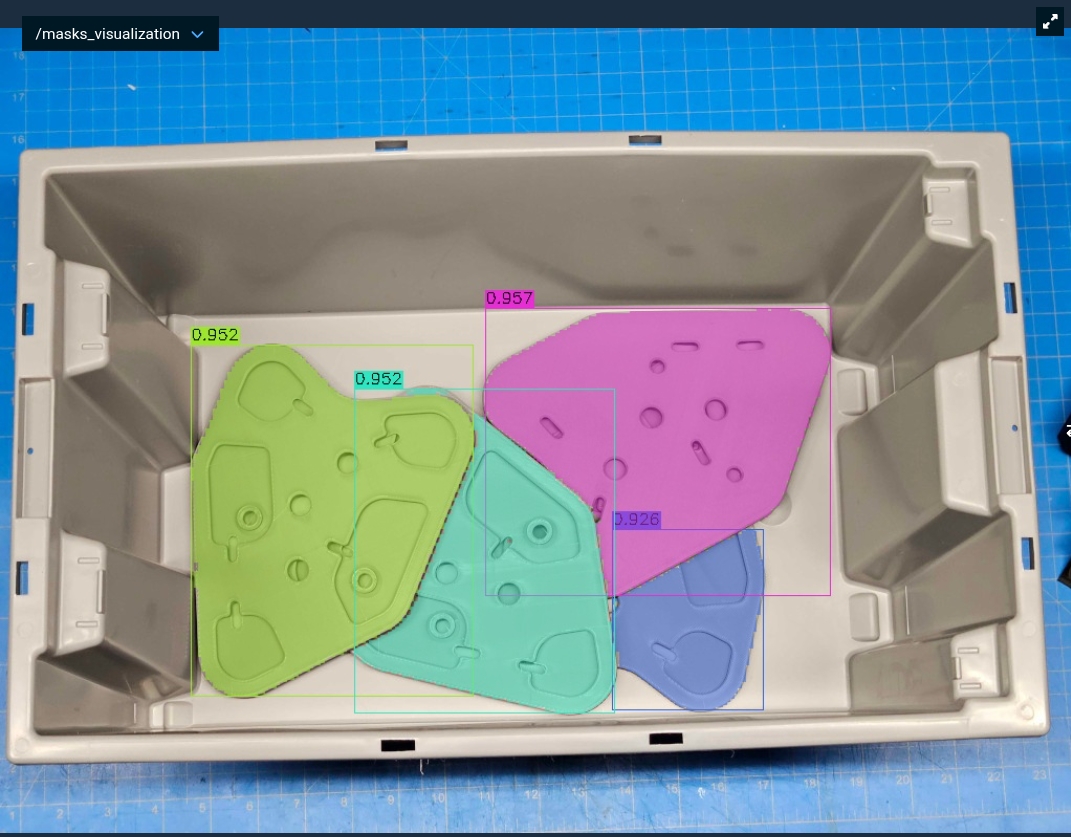
Segmentation results using the text prompt "triangular grey part with holes".
Bounding Boxes
Unlike SAM2 where a bounding box segments everything inside it, SAM3 bounding boxes act as visual prompts — the model finds objects similar to what's inside the box elsewhere in the image. This makes a bounding box on the image itself equivalent to an in-image exemplar: "find more things like what's in this box." You can create boxes using the CreateBoundingBox2D, CreateBoundingBoxes2D, or CreateBoundingBoxFromOffset Behaviors.
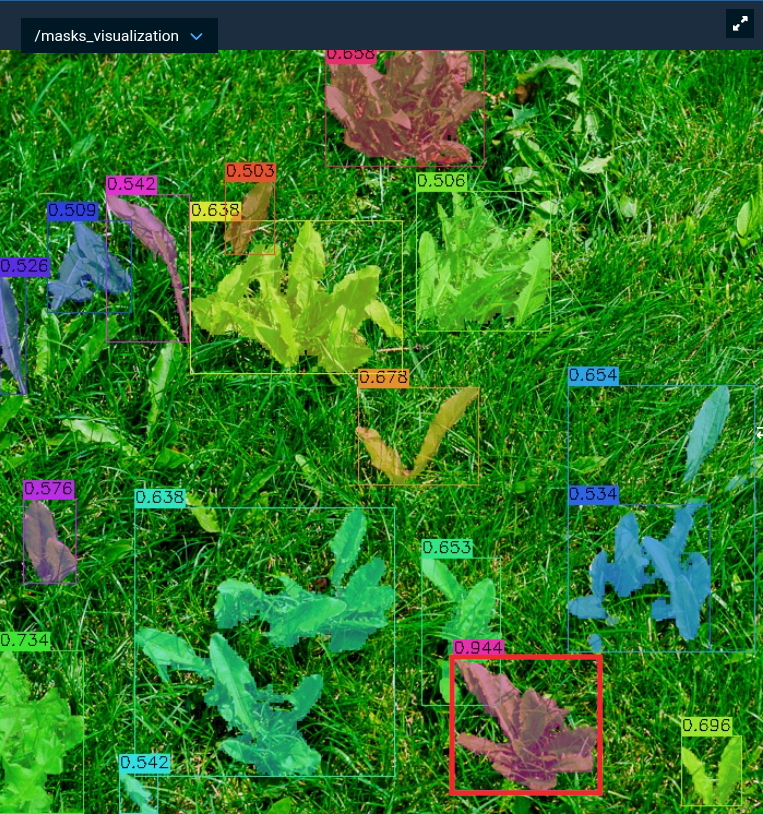
A bounding box drawn around a single weed (red box) prompts SAM3 to find similar weeds throughout the image.
Image Exemplars
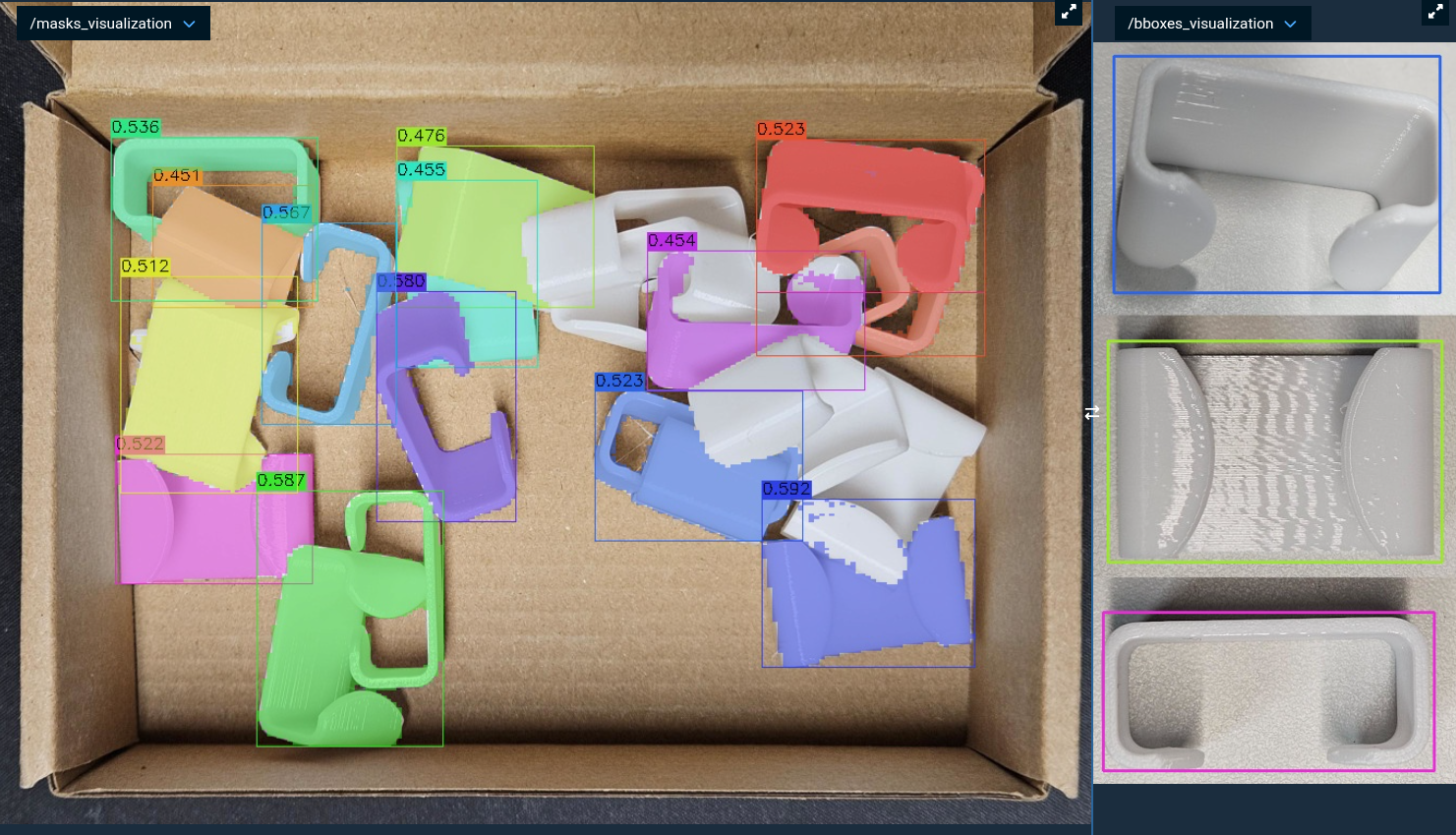
A reference image showing what you want to find, paired with bounding boxes identifying the object(s) of interest within it. The model builds a combined image with your target scene and the exemplar side-by-side, using the bounding boxes to understand what to look for. The exemplar can be a single object with one bounding box, or a composite image with multiple bounding boxes — as long as all boxes represent the same kind of thing. This is powerful when the object is hard to describe in words but easy to show.
Combining Prompts
For the best results, combine text and exemplar prompts together. The text gives semantic context ("what kind of thing") while the exemplar gives visual specifics ("what it looks like").
Launch MoveIt Pro
We assume you have already installed MoveIt Pro to the default install location. Launch the application using:
moveit_pro run -c lab_sim
Text Prompt Segmentation
The simplest way to use SAM3 is with a text prompt. The "ML Find Objects on Table" Objective demonstrates this.
The Behavior Tree flow is:
Look at Table— Moves the arm so the wrist camera faces the tableTake Wrist Camera Image— Captures an RGB image from the wrist cameraGetMasks2DFromExemplar— Runs SAM3 inference with a text promptPublishMask2D— Visualizes the detected masks
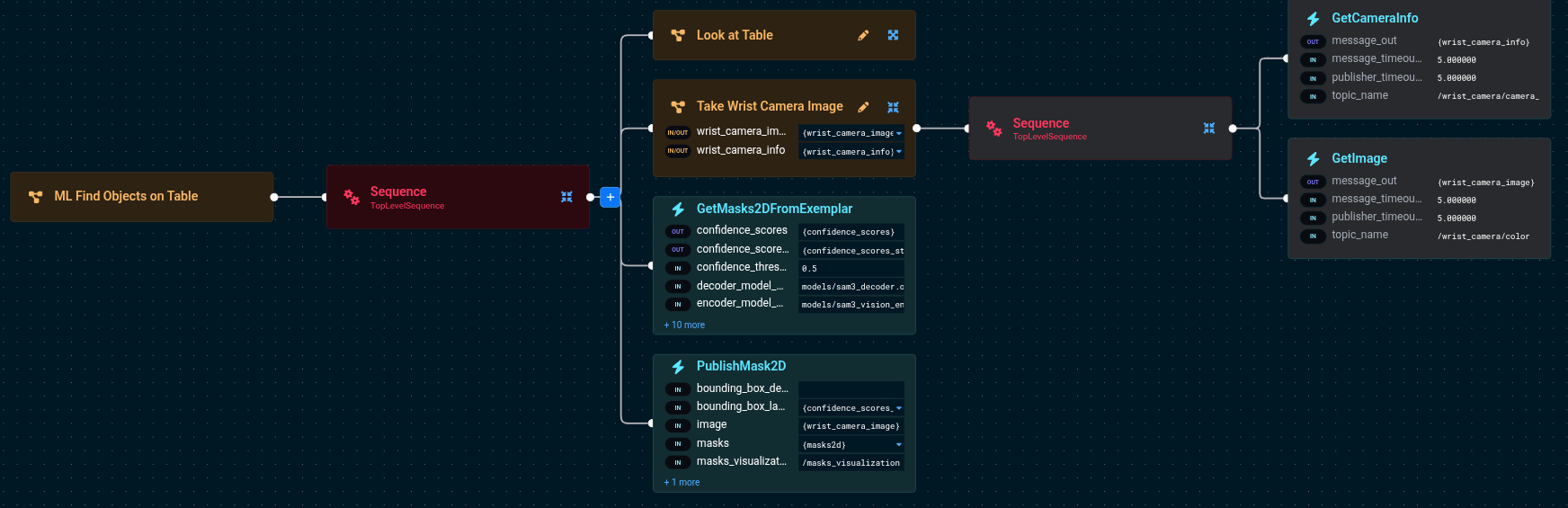
The key port values for GetMasks2DFromExemplar are:
GetMasks2DFromExemplar:
- target_image={wrist_camera_image}
- text_prompt=an object
- confidence_threshold=0.5
- model_package=lab_sim
- encoder_model_path=models/sam3_vision_encoder.onnx
- decoder_model_path=models/sam3_decoder.onnx
- geometry_encoder_model_path=models/sam3_geometry_encoder.onnx
- text_encoder_model_path=models/sam3_text_encoder.onnx
Run the Objective and check the /masks_visualization topic to see the detected objects with their confidence scores.
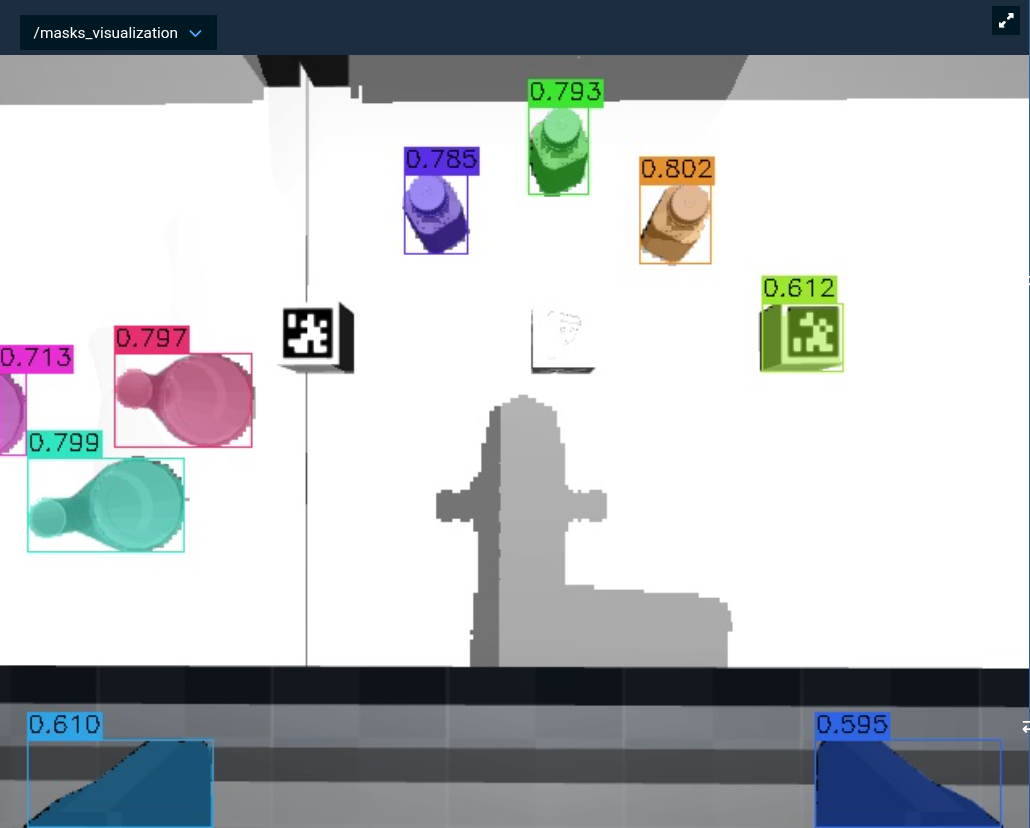
SAM3's text encoder accepts a maximum of 32 tokens (30 content tokens plus start/end tokens). You can fit a fairly detailed description — for example, "grey triangular part with three large holes with bosses and five small holes and three subtle depressions near each of the three corners and small several slots a" is exactly 30 content tokens. Keep prompts short and specific for best results.
Try changing the text_prompt to be more specific (e.g., "bottles" or "pill bottles") and observe how the results change. More specific prompts generally yield fewer but more relevant detections.
Testing Prompts Without the Robot
Before tuning prompts on a live robot, you can iterate faster by loading images from files. The "ML Segment Bottles from File" Objective demonstrates this.
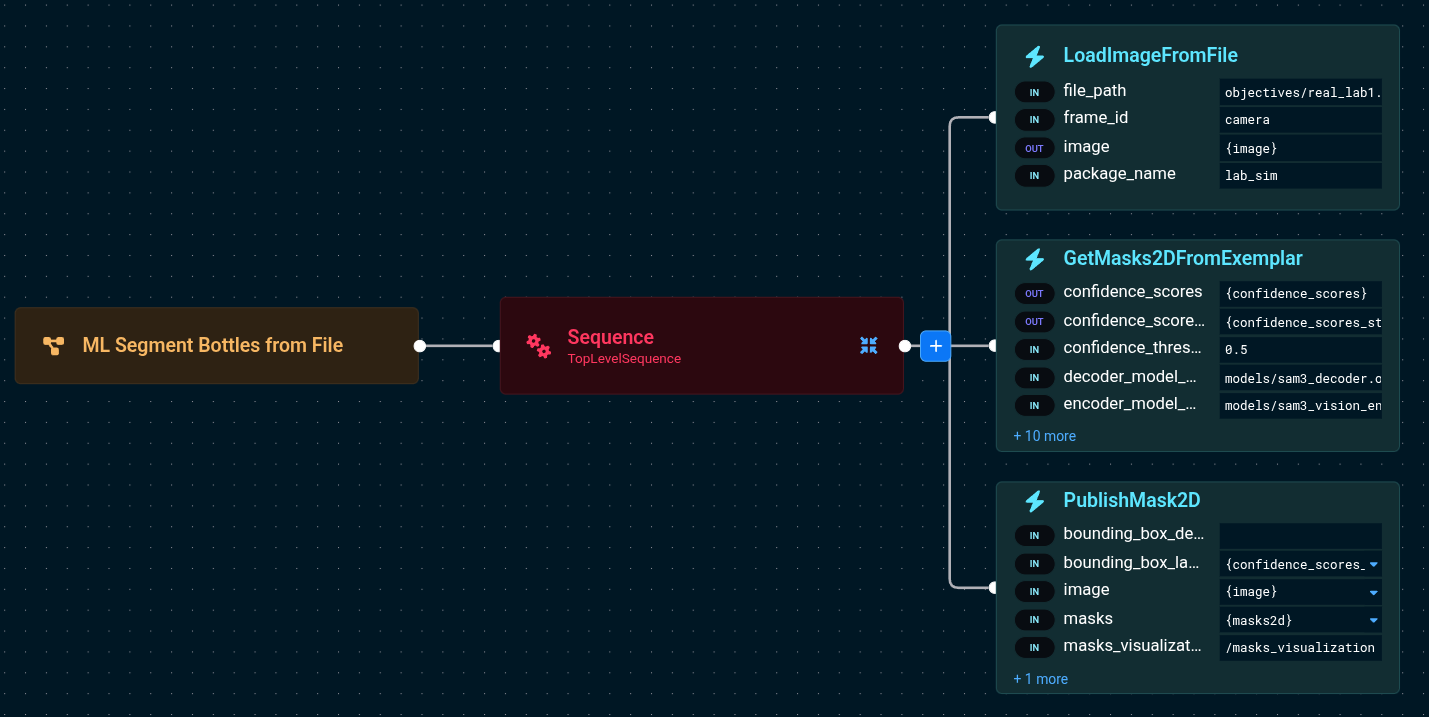
LoadImageFromFile:
- file_path=objectives/real_lab1.png
- package_name=lab_sim
- image={image}

GetMasks2DFromExemplar:
- target_image={image}
- text_prompt=bottles
- confidence_threshold=0.5
This loads a static image of a laboratory table and runs SAM3 on it. Since no robot motion is involved, you can quickly experiment with different text prompts and confidence thresholds to find what works best for your objects.
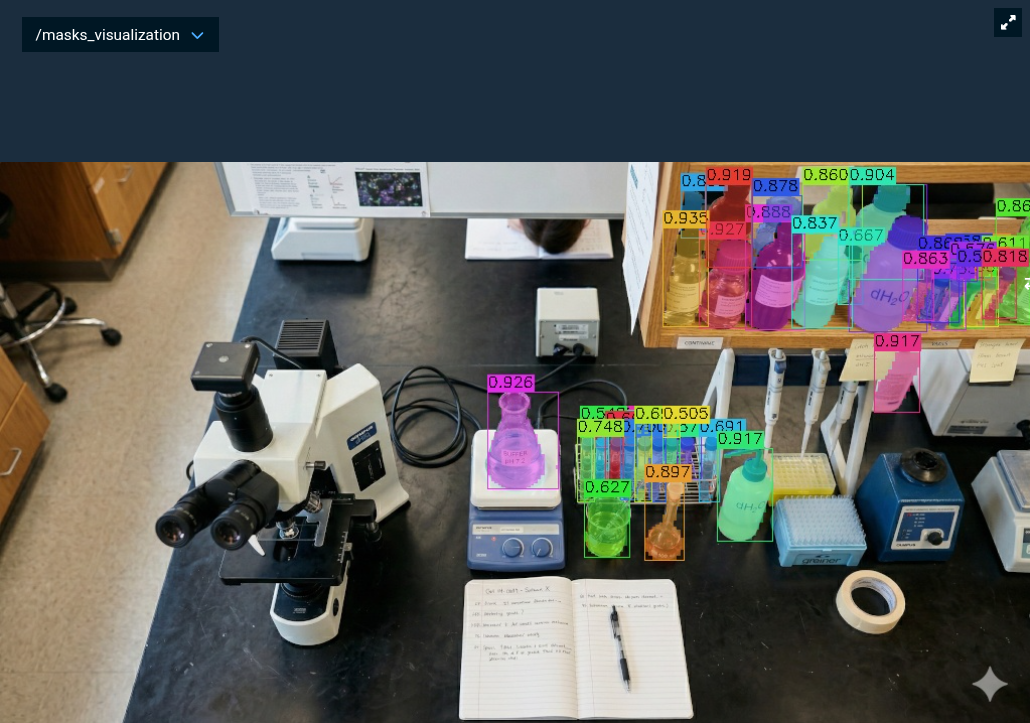
Image Exemplar Segmentation
When text prompts aren't specific enough, image exemplars let you show the model exactly what you're looking for. The "ML Find Bottles on Table from Image Exemplar" Objective demonstrates this.
Preparing an Exemplar
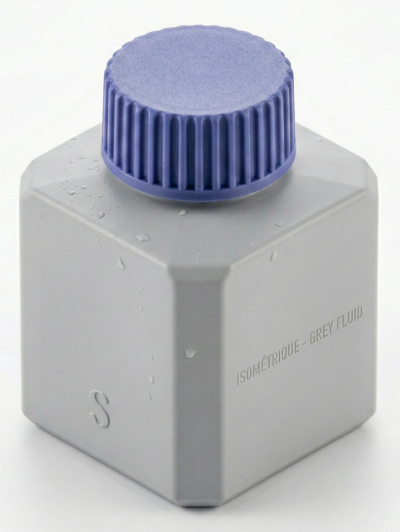
An exemplar is a cropped photo of the object you want to find. For best results:
- Crop tightly around the object with minimal background
- Use a real photo, not a CAD render
- The exemplar doesn't need to be from the same camera or lighting conditions
The lab_sim config includes an example exemplar at src/lab_sim/objectives/square_bottle1.png — a photo of a square pill bottle.
Building the Objective
The Behavior Tree flow is:
LoadImageFromFile— Loads the exemplar imageCreateBoundingBoxFromOffset— Generates a bounding box covering the exemplar (with optional padding)Move to Waypoint— Positions the camera to see the objectsTake Wrist Camera Image— Captures the target sceneGetMasks2DFromExemplar— Runs SAM3 with both the exemplar and bounding boxesPublishMask2D— Visualizes detected masksPublishBoundingBoxes2D— Visualizes the exemplar with its bounding box for debugging
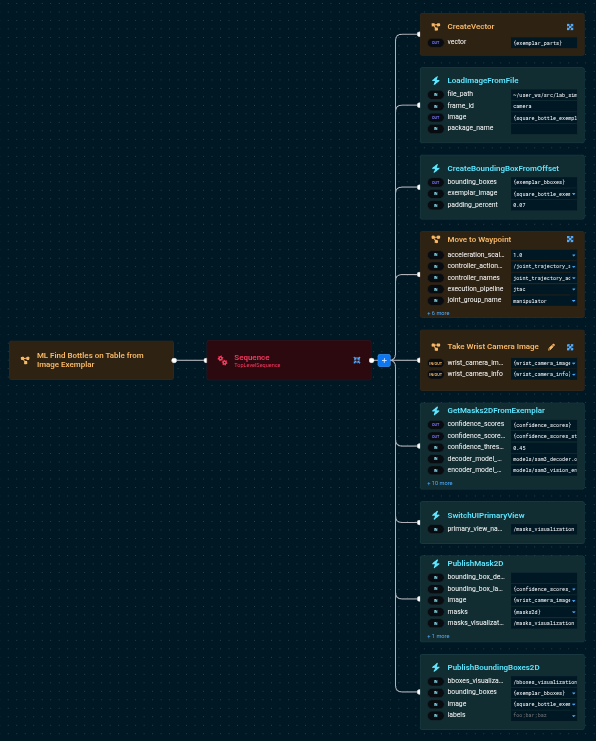
The key port values are:
LoadImageFromFile:
- file_path=objectives/square_bottle1.png
- package_name=lab_sim
- image={square_bottle_exemplar}

CreateBoundingBoxFromOffset:
- exemplar_image={square_bottle_exemplar}
- bounding_boxes={exemplar_bboxes}
- padding_percent=0.07

GetMasks2DFromExemplar:
- target_image={wrist_camera_image}
- exemplar_image={square_bottle_exemplar}
- exemplar_bboxes={exemplar_bboxes}
- confidence_threshold=0.45
Notice that the exemplar_image and exemplar_bboxes ports are now provided. The Behavior automatically constructs a combined image (target + exemplar side-by-side) for inference.
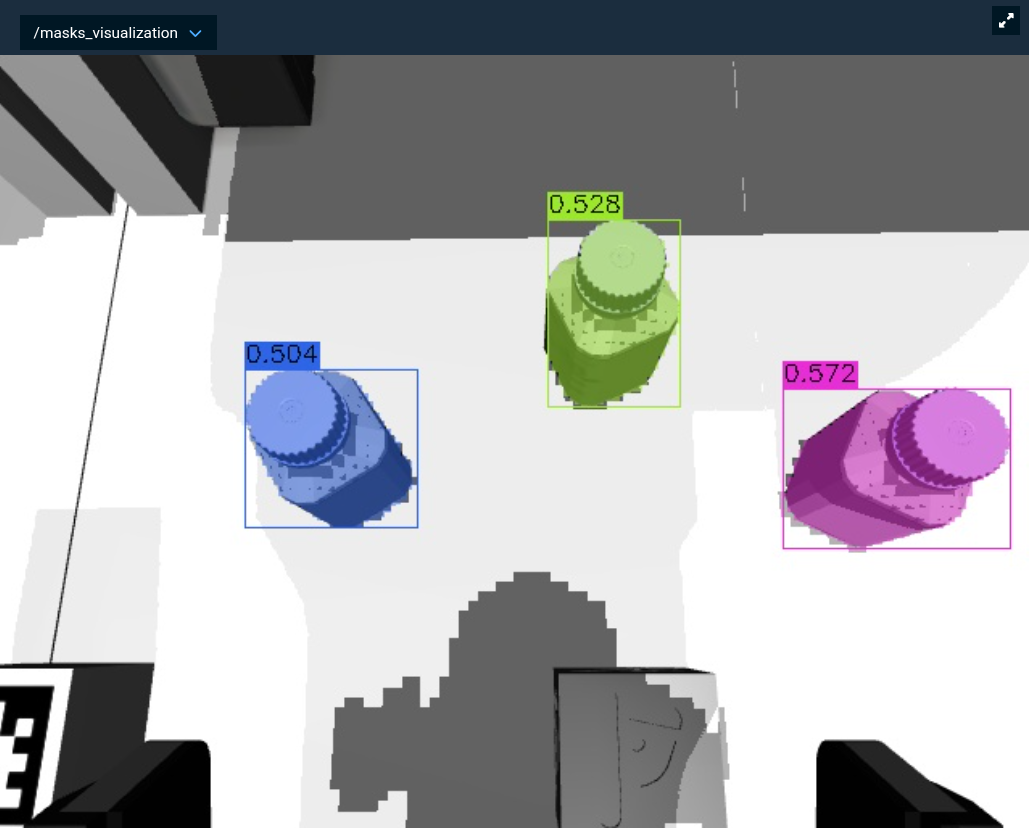
How Exemplar Inference Works
Under the hood, the GetMasks2DFromExemplar Behavior:
- Resizes the exemplar to match the target image height (preserving aspect ratio)
- Concatenates the target and exemplar images side-by-side into a single combined image
- Scales and offsets the exemplar bounding boxes to their position in the combined image
- Runs SAM3 inference on the combined image with the geometry prompts
- Crops the output masks back to only the target image region
This means the model sees both the exemplar and the target in a single pass, allowing it to match visual features between them.
Combining Text and Exemplar Prompts
For the most robust detection, provide both a text prompt and an exemplar image:
GetMasks2DFromExemplar:
- target_image={wrist_camera_image}
- text_prompt=square bottle
- exemplar_image={square_bottle_exemplar}
- exemplar_bboxes={exemplar_bboxes}
- confidence_threshold=0.45
The text prompt provides semantic guidance while the exemplar provides visual specificity.
Debugging with Bounding Box Visualization
The PublishBoundingBoxes2D Behavior publishes the exemplar image with its bounding boxes overlaid to the /bboxes_visualization topic. Use this to verify that the bounding boxes are correctly positioned on the exemplar — if they're off, the model will get incorrect geometry prompts.
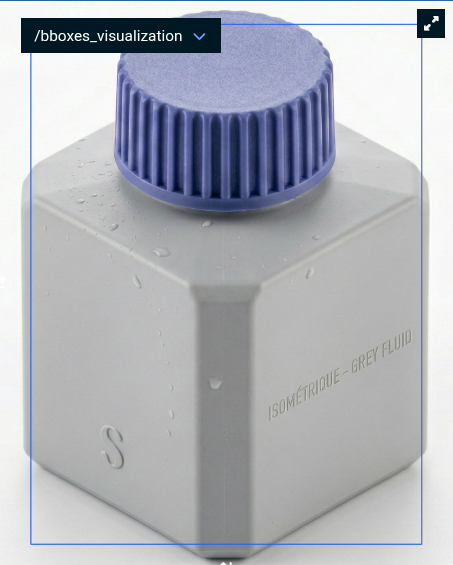
Tuning Parameters
Confidence Threshold
The confidence_threshold parameter filters detections by their confidence score (0.0 to 1.0).
0.5: Good starting point for text-only prompts (the port default is0.0, which keeps all masks)0.45: Slightly more permissive, good for exemplar-based detection0.3: Catches more objects but may include false positives0.7: Strict, only high-confidence detections
Bounding Box Padding
The padding_percent parameter on CreateBoundingBoxFromOffset insets the bounding box from the exemplar image borders. The value is the fraction of each dimension trimmed from each edge (range [0.0, 0.5)).
0.0: Box covers the full exemplar image exactly0.05(default): Trims 5% from each edge, box is 90% of the image0.15: Trims 15% from each edge, box is 70% of the image
Higher values crop further into the object, which can sometimes improve results — it forces the model to focus on the object's core features rather than edges or background that may bleed into the exemplar image. If your exemplar includes background around the object, increasing the inset helps exclude it. Experiment with different values for your objects.
Model Package
The model_package port specifies which ROS package contains the ONNX model files. The models are expected under a models/ directory within that package. The lab_sim package ships with SAM3 models included.
Next Steps
SAM3 and SAM2 serve different scenarios. SAM3 handles text prompts, image exemplars, and bounding boxes, while SAM2 provides interactive point-based segmentation (e.g., clicking on objects). Both produce high-quality masks and feed into the same downstream pipeline. SAM3 also replaces CLIPSeg for text-based segmentation with significantly better mask quality, though CLIPSeg may still be faster on some hardware.
- ML Image Segmentation — Convert 2D masks to 3D point cloud segments and fit geometric shapes
- ML Grasping — Use segmented point clouds for ML-based grasp planning
- ML Automasking — Automatically segment all objects in a scene without prompts (uses SAM2)
Technical Reference
SAM3 vs SAM2
| Aspect | SAM2 | SAM2 Automasking | SAM3 | CLIPSeg |
|---|---|---|---|---|
| Prompt types | Points + Boxes | None (grid-based) | Text + Boxes + Exemplars | Text |
| Text support | No | No | Yes | Yes |
| Models | 3 (encoder, prompt encoder, decoder) | 3 (same as SAM2) | 4 (vision, text, geometry, decoder) | 2 (CLIP encoder, CLIPSeg decoder) |
| Input resolution | 1024x1024 | 1024x1024 | 1008x1008 | 352x352 |
| Best for | Interactive point-click segmentation | Promptless scene discovery | Flexible multimodal detection | Legacy text segmentation |
ONNX Model Files
SAM3 uses four ONNX model files:
sam3_vision_encoder.onnx— Image encoding (largest model)sam3_text_encoder.onnx— Text prompt encodingsam3_geometry_encoder.onnx— Bounding box encodingsam3_decoder.onnx— Mask prediction
GPU Recommendations
SAM3 benefits significantly from GPU acceleration. On CPU-only machines, inference will be slower but functional (ONNX Runtime uses all available cores). A warning will appear in the UI log panel when running without a GPU.