Restrict Desktop App Access
Use access modes to reduce accidental changes from a MoveIt Pro Desktop App used for running Objectives or monitoring a station. Full Access is the default.
| Mode | Available actions |
|---|---|
| Full Access | Edit, run, stop, and reset Objectives; use Teleoperation, the Planning Scene Editor, and Training. |
| Operator | Run, stop, and reset Objectives; answer prompts from a running Objective; reset the arm after a protective stop. Objective editing and management, Teleoperation, the Planning Scene Editor, and starting a Training recording are unavailable. |
| Read-Only | Watch the Runtime and adjust views, panes, and layout. Running or stopping Objectives, answering their prompts, starting a Training recording, and changing robot state are unavailable. |
In Operator and Read-Only modes, an active Training recording keeps its Stop and Save controls available.
Access modes apply to every window of the installed Desktop App and every Runtime it connects to. The current restricted mode appears in each window title.
Set an Access Mode
- On the connection screen, select the gear icon labeled Desktop App Settings.
- Under Access Mode, select Operator or Read-Only. The first time you restrict access, create and confirm a password of at least six characters.
- Select Switch Permissions, then connect to a Runtime.
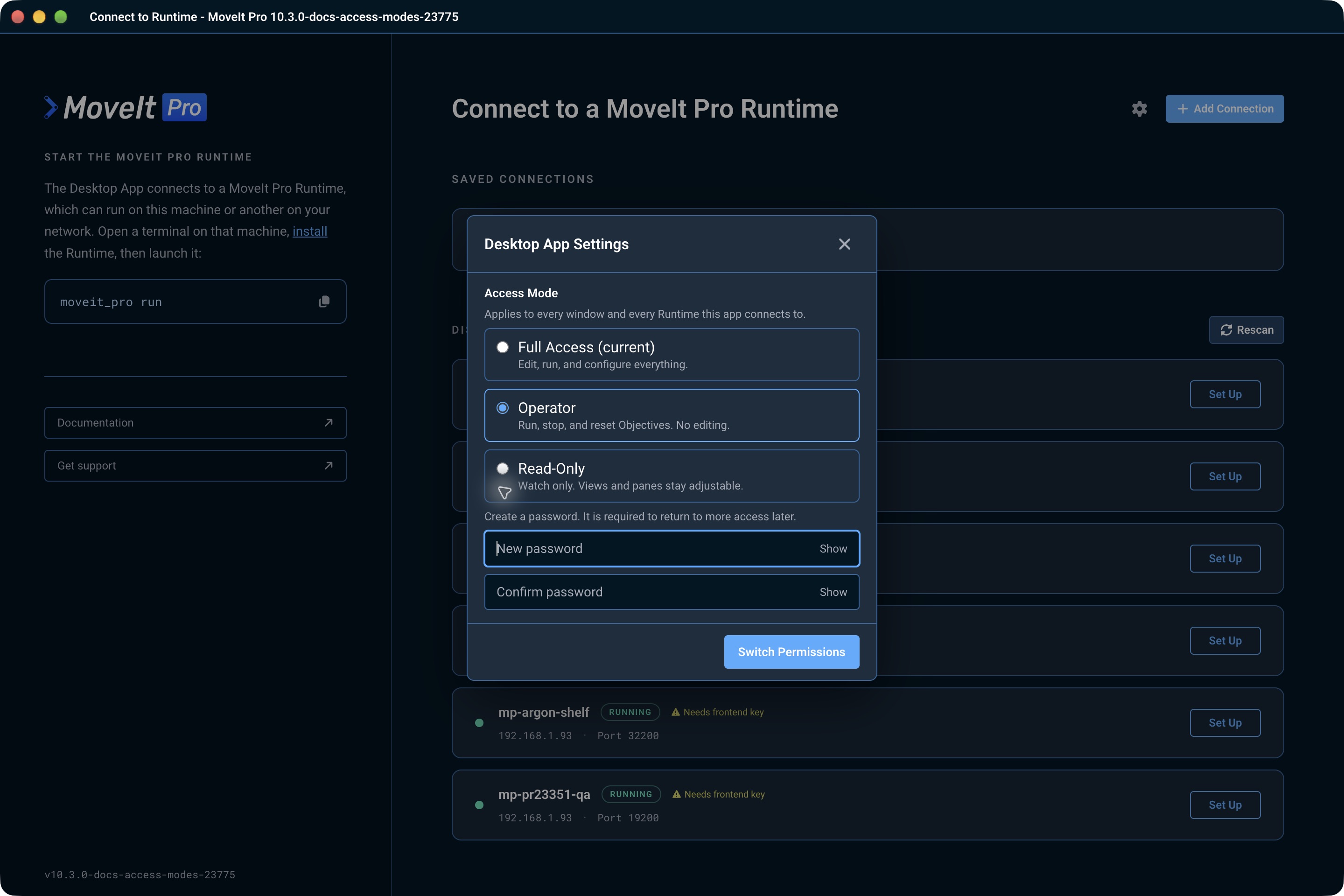
To change modes later, return to the connection screen. While connected, open Settings in the top navigation bar and select Switch Runtime Connection. Open Desktop App Settings, select the new mode, and select Switch Permissions. Moving to a mode with more access requires the password; moving to a more restricted mode does not. Change Password is available in Desktop App Settings after a password has been created and requires the current password.
Access modes restrict actions in the installed Desktop App. They do not authorize requests at the Runtime: someone with direct Runtime access can still send requests outside the app. The web app does not apply these modes. Use them to prevent accidental actions on a shared station, not as a security boundary.