Navigate to a Goal with Replanning
The Navigate to Clicked Point with Replanning Objective demonstrates how MoveIt Pro can use Nav2's built-in replanning capability to dynamically update the robot's path when new obstacles appear in the local costmap.
Unlike Navigate to Clicked Point, which computes a single path and follows it without adaptation, this Objective continuously replans as the environment changes — making it better suited for dynamic environments.
Launch the Runtime and Desktop App
We assume you have already installed MoveIt Pro to the default install location. Start the MoveIt Pro Runtime using:
moveit_pro run -c hangar_sim
Then launch or connect the separately distributed MoveIt Pro Desktop App. The Runtime does not serve a bundled user interface.
1. Run the Objective
- In the Objectives panel, select the
Navigate to Clicked Point with ReplanningObjective.
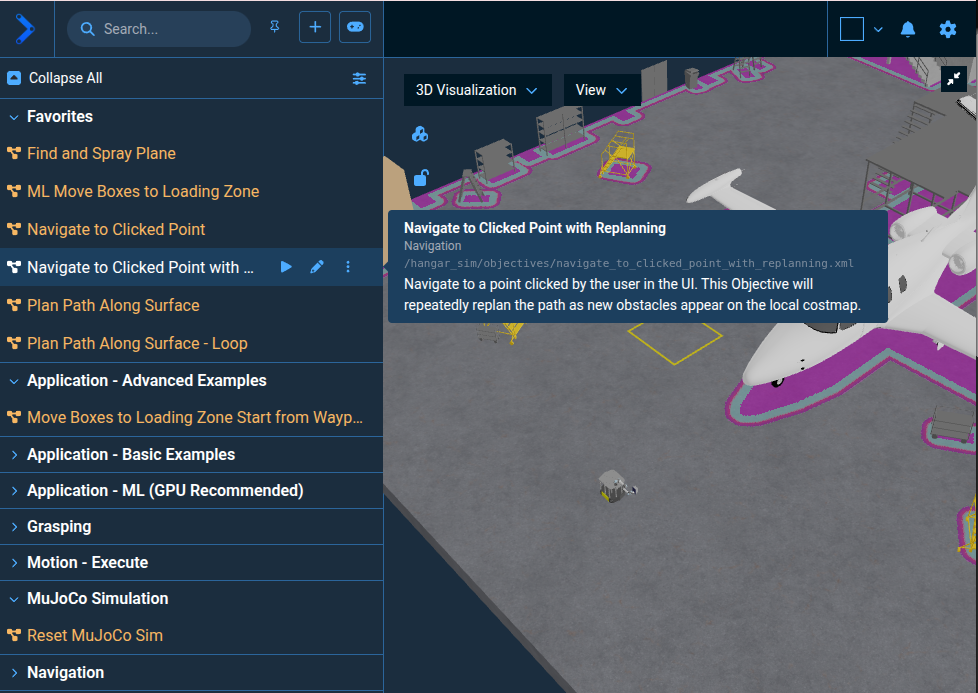
- Click Run, then when prompted, click a point in the Visualization view to set the navigation goal.
- The robot begins navigating and replans its path automatically as new obstacles appear in the local costmap.
To stop navigation before the robot reaches the goal, click Stop Objective.
2. How It Works
Comparison with Navigate to Clicked Point
The original Navigate to Clicked Point Objective follows a plan-then-execute workflow:
ComputePathToPoseActioncomputes a single global path to the goal.WaitForUserPathApprovaldisplays the computed path and waits for user confirmation.FollowPathActionfollows the approved path. If a new obstacle appears mid-execution, navigation fails.
The Navigate to Clicked Point with Replanning Objective replaces these three Behaviors with a single NavigateToPoseAction. This Behavior sends the goal directly to Nav2's /navigate_to_pose action server, delegating all planning, path following, and recovery to Nav2.
The Nav2 Replanning Behavior Tree
The NavigateToPoseAction passes Nav2's navigate_to_pose_w_replanning_and_recovery.xml Behavior Tree to the action server. See the Nav2 Behavior Tree documentation for full details.
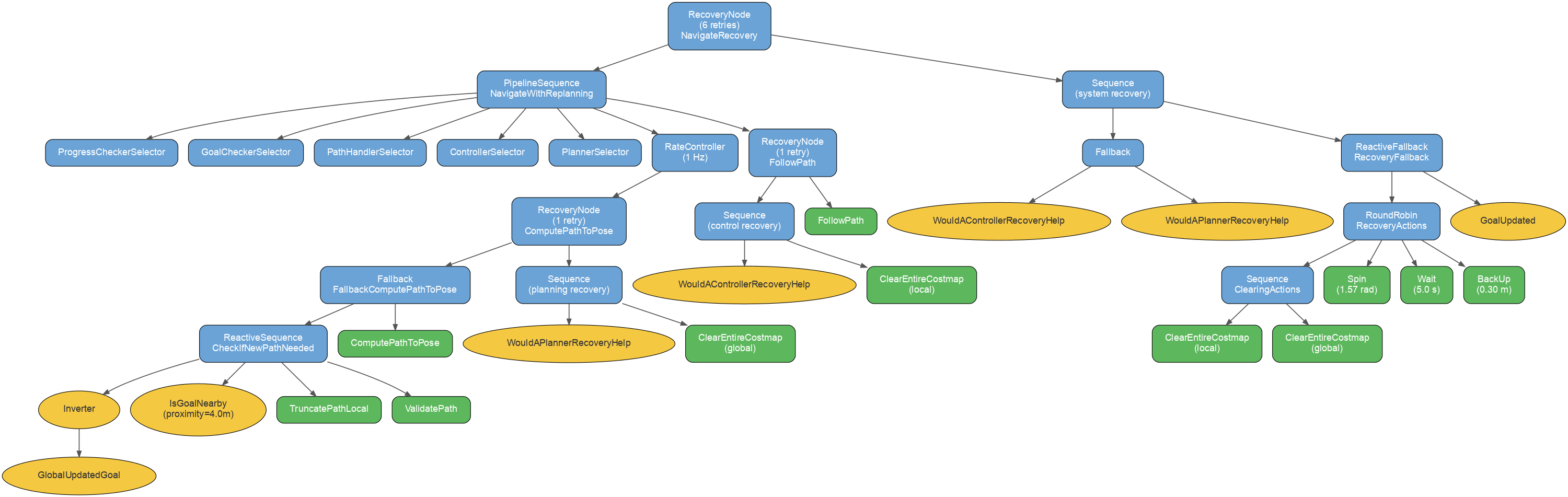
| Color | Node type |
|---|---|
| Blue | Control nodes (Sequence, Fallback, RecoveryNode, etc.) |
| Green | Action nodes (ComputePathToPose, FollowPath, Spin, etc.) |
| Yellow | Condition nodes (IsGoalNearby, GlobalUpdatedGoal, etc.) |
This tree provides:
- Continuous replanning — the global path is recomputed roughly every second while the robot moves, incorporating the latest obstacle data from the local costmap.
- Layered recovery — if planning fails, the global costmap is cleared; if path following fails, the local costmap is cleared. The tree retries up to 6 times before declaring failure.
- Fallback Behaviors — after repeated failures, Nav2 attempts recovery Behaviors: spinning in place, waiting, and backing up.
The video below shows the Objective running with the local costmap updating in real time as the robot navigates and replans around obstacles.
The MoveIt Pro Desktop App subscribes to the /plan topic and displays the replanned path in the Visualization view as Nav2 updates it. The Nav2 planner must publish to /plan for this visualization to work. Note that the NavFn planner used in hangar_sim does this by default. The path has its own Global Plan toggle in the View menu, on by default and remembered per browser, so check it there before concluding the planner is silent. The same menu enables the Local Plan overlay and the live local and global costmaps.