Tutorial 2 - Build with an AI Agent and MCP
💪 Level: Intermediate
Tutorial Overview
This tutorial teaches the recommended extension and integration workflow using an AI agent and the release-matched MoveIt Pro MCP server. For the manual workflow using the CLI, Runtime SDK, and C++, follow Tutorial 5.
By the end, you will understand how to:
- Select and inspect one MoveIt Pro workspace, robot configuration package, and Runtime.
- Use robot configuration package inheritance and identify the files that define it.
- Create, build, test, and inspect a custom C++ Behavior plugin.
- Author and validate an Objective that connects Behavior ports through the blackboard.
- Start, observe, and cancel an Objective through MCP and the Runtime SDK.
- Distinguish persistent Objective edits from per-run parameter overrides.
The agent performs MoveIt Pro operations through MCP. The same workflow works with simulated and physical robot configuration packages. This tutorial uses lab_sim so you can focus on the development flow.
Prerequisites
- Complete Tutorial 1.
- Install MoveIt Pro 10.2 or later.
- Configure the MoveIt Pro CLI for the standard example workspace at
~/moveit_pro/moveit_pro_example_ws, the installer default. - Install one supported AI client.
- Install the MoveIt Pro Desktop App and keep it available for visual checkpoints.
Use a local or SSH host-user MCP connection. Shared HTTPS connections provide inspection tools and cannot create files, build, launch, or command motion.
Connect Your AI Agent
For everyday use, register moveit_pro mcp serve without target options. For example, Claude Code connects with:
claude mcp add --scope user moveit-pro -- moveit_pro mcp serve
Each new session selects the running Runtime, or uses your MoveIt Pro CLI configuration when none is running. If several Runtimes are running, the client's working directory can select a workspace; add --instance <name> if the target is still ambiguous. A session keeps its target until you reconnect. See MCP connection setup for other clients.
For this tutorial, use one of the commands below instead. The two extra options select the new robot configuration package (--config-package mcp_walkthrough_sim) and its dedicated Runtime (--instance mcp-walkthrough). The agent creates that package later, so it cannot be selected from a running Runtime yet. The workspace comes from your MoveIt Pro CLI configuration. If that is not the tutorial workspace, add --workspace "$HOME/moveit_pro/moveit_pro_example_ws".
- Claude Code
- Claude Desktop
- Codex
- Pi
-
Run:
claude mcp add --scope user moveit-pro -- moveit_pro mcp serve --config-package mcp_walkthrough_sim --instance mcp-walkthrough -
Enter
/mcpin Claude Code and confirm thatmoveit-prois connected.
-
Run:
moveit_pro mcp install --client claude-desktop --config-package mcp_walkthrough_sim --instance mcp-walkthrough -
Restart Claude Desktop and confirm that the MoveIt Pro tools are available.
-
Run:
codex mcp add moveit-pro -- moveit_pro mcp serve --config-package mcp_walkthrough_sim --instance mcp-walkthrough -
Enter
/mcpin Codex and confirm thatmoveit-prois connected.
-
Run:
pi mcp add moveit-pro -- moveit_pro mcp serve --config-package mcp_walkthrough_sim --instance mcp-walkthrough -
Start Pi, or enter
/reloadin a running session, then enter/mcpand confirm thatmoveit-prois connected.
By default, Pi does not ask for approval before it calls a MoveIt Pro tool, including tools that build, launch, and run Objectives. See Restrict a host-user session to narrow what it can do.
If your AI agent runs on another computer, follow Connect over SSH, keeping this tutorial's --config-package mcp_walkthrough_sim and --instance mcp-walkthrough options on the remote moveit_pro mcp serve command, then return here.
Understand the Development Loop
The MCP connection selects the target for every agent operation:
| Setting | Tutorial value | Purpose |
|---|---|---|
| Workspace | ~/moveit_pro/moveit_pro_example_ws | ROS packages and source code |
| Robot configuration package | mcp_walkthrough_sim | Robot, environment, Objectives, and extensions |
| Instance | mcp-walkthrough | Runtime processes, ports, logs, and execution state |
The loop is:
If a step fails, send this prompt before changing anything:
Diagnose why this MoveIt Pro target is not ready. Inspect its capabilities, job output, launch output, and recent logs. Identify the first causal failure and recommend one next action. Do not start or stop another Runtime.
To stop this tutorial's named Runtime, first confirm that no Objective is executing, then run this on the Runtime computer:
moveit_pro down --instance mcp-walkthrough
Know the Main CLI Commands
MCP handles the routine workflow, but these commands remain useful for direct development and recovery:
| Command | Use |
|---|---|
moveit_pro run --help | List launch options |
moveit_pro run -w <workspace> -c <package> -v | Launch a robot configuration package with verbose output |
moveit_pro run -c <package> --instance <name> | Launch an isolated named Runtime |
moveit_pro run --list-instances | Show named instances and their endpoints |
moveit_pro shell --instance <name> | Enter a running Runtime container with its workspace sourced |
moveit_pro dev | Start a development container without launching a robot configuration package |
moveit_pro rviz | Open the legacy RViz debug view for the default deployment |
This tutorial uses a named Runtime and the MoveIt Pro Desktop App. Run moveit_pro --help to discover other commands.
Inspect the Target
Send:
Inspect the selected MoveIt Pro target without changing it. Confirm the workspace, robot configuration package, Runtime instance, identity, permissions, and readiness.
On a first run, check that:
- The target identifies
mcp-walkthroughandmcp_walkthrough_sim. - The principal type is
local_os_user. - The scopes include
runtime:config,runtime:build,runtime:test,runtime:launch, andruntime:execute. WORKSPACE,VALIDATOR,LOGS,TOOLCHAIN, andHOST_CONTROLare ready.- The active configuration and Runtime are unavailable because the destination package has not been created or launched.
Ignore a suggestion to build the missing destination package at this point. Create it in the next step.
On a fresh workspace or after upgrading MoveIt Pro, build the existing workspace once before continuing:
Build the entire bound workspace and follow the job to completion. Report the first actionable failure.
Later steps select only the package that changed.
Create the Robot Configuration Package
Send:
Create the bound
mcp_walkthrough_simrobot configuration package based onlab_sim. Do not overwrite an existing package. Explain what it inherits and stop before building.
Open src/mcp_walkthrough_sim/config/config.yaml and find:
based_on_package: "lab_sim"
The agent created a ROS package in the bound workspace. Its config.yaml inherits the UR5 robot, simulated lab, controllers, Objectives, and Waypoints from lab_sim. Files in mcp_walkthrough_sim can override only the parts that differ.
Build and launch it:
Build only
mcp_walkthrough_sim, follow the job to completion, then launch the bound Runtime and wait until it is ready. Stop and report the first failure.
The package-scoped build passes --packages-up-to mcp_walkthrough_sim to colcon, including its workspace dependencies. The Runtime now has the inherited configuration but no custom Behavior yet.
Connect the Desktop App
On the Runtime computer, run:
moveit_pro run --list-instances
moveit_pro frontend-key
Open the MoveIt Pro Desktop App, select Add Connection, and enter the address, REST API port listed for mcp-walkthrough, and frontend key. See Connect to a Runtime for details.
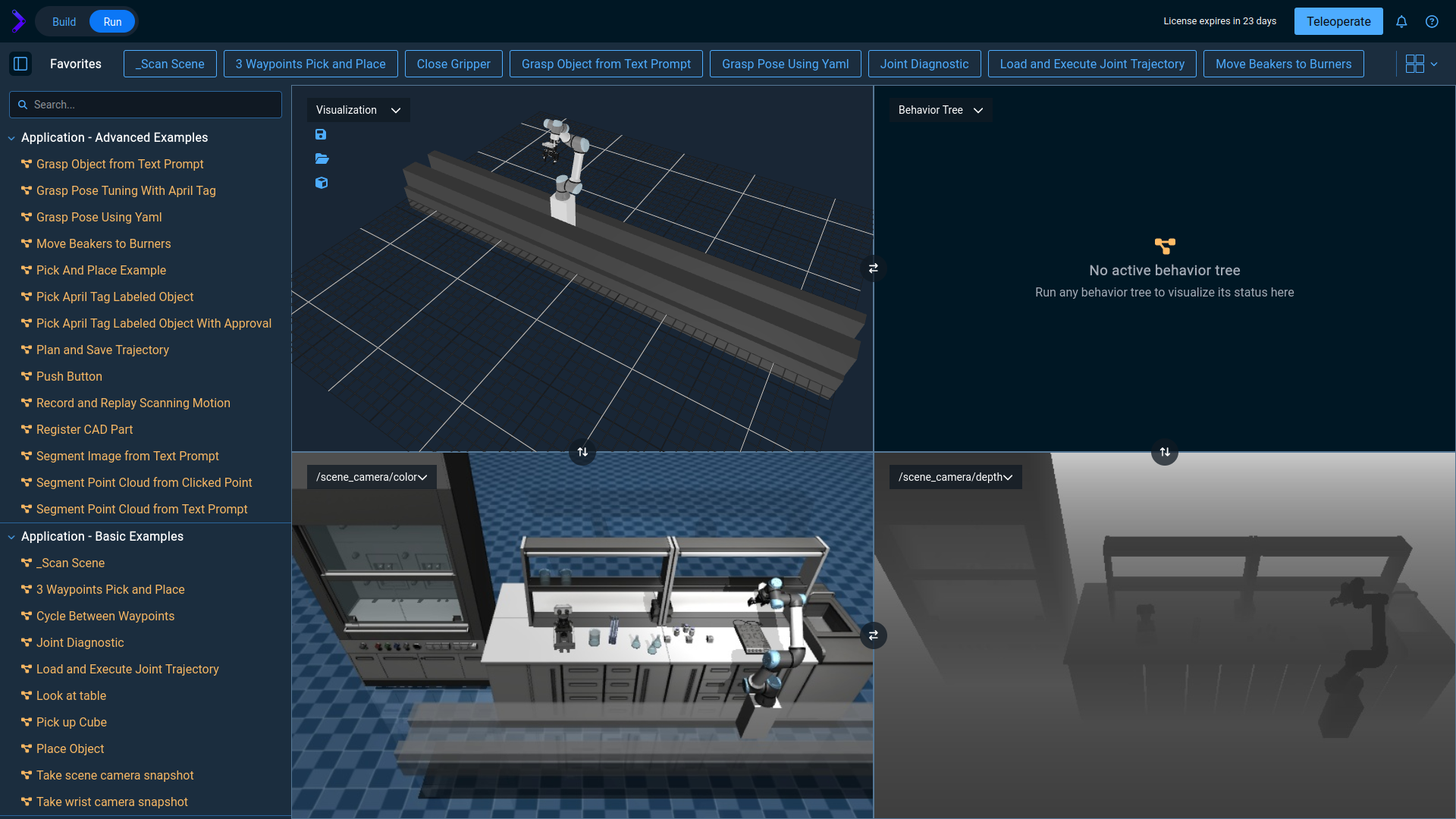
Confirm that the UR5, lab scene, Objectives, and Waypoints match lab_sim. Keep the app open for the remaining checkpoints.
Create a Custom Behavior
Send:
Create a package named
mcp_tutorial_behaviorwith a synchronous C++ Behavior class namedTutorialVelocityScaleand the exact registered Behavior IDTutorial Velocity Scale. Add required double inputsvelocity_minandvelocity_maxand a double outputvelocity_scale_factor. Alternate between the limits on each tick, rejectvelocity_mingreater thanvelocity_max, write the selected value to the output port, and publish it as an info notification. Add focused tests for the limits and alternating output. Stop before building.
Record the exact Behavior ID returned by the agent. You will use it in the Objective.
The agent used the release-matched Behavior authoring guide and package template. Open these generated files:
- The header declares the ports in
providedPorts(). src/register_behaviors.cppregisters the exact Behavior ID.behavior_plugin.yamldescribes the plugin to MoveIt Pro.- The test source checks the Behavior logic; the template also checks registration.
MoveIt Pro merges behavior_plugin.yaml from packages in the workspace, so mcp_walkthrough_sim/config/config.yaml does not need a plugin entry.
Build and test the new package:
Build only
mcp_tutorial_behavior, then test only that package. Follow both jobs to completion and report the first actionable failure.
The build uses --packages-up-to mcp_tutorial_behavior, including workspace dependencies. The test job also uses --packages-select mcp_tutorial_behavior so only that package is tested.
Restart the Runtime and Find the Behavior
A running Runtime does not hot-load a newly compiled C++ plugin. Confirm that no Objective is executing, then run:
moveit_pro down --instance mcp-walkthrough
Send:
Launch the bound Runtime and wait until it is ready. Find the exact registered Behavior ID returned during creation and report its description, node type, and ports. Do not run motion.
Compare the reported ports with providedPorts() in the generated header. In the Desktop App Objective editor, search for Tutorial Velocity Scale and confirm the same description and three ports appear.
Create and Validate the Objective
Send:
Create an Objective named
MCP Joint Exerciseinmcp_joint_exercise.xmlunderMy Tutorials. Use the existing joint diagnostic Objective as a reference. First move themanipulatortoLook at Table. Then loop betweenWrist 2 MinandWrist 2 Max, calling the exact custom Behavior ID returned earlier before each wrist move and passingvelocity_scale_factorto that motion. Expose root blackboard inputsvelocity_minandvelocity_maxwith defaults of 0.2 and 0.6. Usecollision_check_paramsto override scene link padding to 0.0 for both wrist moves. Verify the Waypoints and ports, fully validate the Objective against the Runtime, save it, and stop before running it.
The setup move puts the robot in a repeatable starting pose. Zero link padding prevents the diagnostic wrist Waypoints from being rejected by additional self-collision padding.
The agent used the Runtime's plugin manifest to validate every Behavior ID, node type, and port before writing the XML. Open src/mcp_walkthrough_sim/objectives/mcp_joint_exercise.xml and find the custom Behavior ID, the two blackboard inputs, the output connection, and collision_check_params="[{override_scene_link_padding: true, link_padding: 0.0}]" on both wrist moves.
Objective XML loads dynamically, so saving later XML changes does not require another build or Runtime restart.
Run, Observe, and Cancel
Before the run, open a second terminal:
moveit_pro shell --instance mcp-walkthrough
ros2 topic echo /objective_server_heartbeat --once
Send:
Ask me before starting
MCP Joint Exercise. Retain its goal ID, confirm that exact run is executing, report which joints are moving, and find the current velocity-scale notification or first execution error. Then cancel that goal and report its terminal state.
While the Objective is running, execute the heartbeat command again. Its Objective name, per-run execution ID, and status should change. In the Desktop App, watch the UR5 alternate between the wrist Waypoints at different speeds and check the alert history for the selected scale.
Run and cancel the Objective several times. Each run should begin at Look at Table, alternate between both wrist Waypoints without a self-collision error, and end in CANCELED.
MCP sends a DoObjectiveSequence goal to the Runtime's /do_objective ROS 2 action. Retaining the goal ID allows the agent to observe and cancel the exact run.
Change the Persistent Defaults
Send:
Update
MCP Joint Exerciseso the default velocity limits are 0.1 and 0.4. Preserve everything else, fully validate the complete Objective, use its current revision to avoid overwriting concurrent edits, and confirm the saved result. Do not rebuild or restart the Runtime.
To see info notifications as toast popups, open Alert Settings from the bell drawer, enable Info under Toasts, and close the Alert Sidebar.
Run it again and compare the motion and notification values. This edit changes the saved Objective. The revision check rejects the write if another editor saved a newer version first.
Use the Runtime SDK
MCP is convenient for agent-driven work. Application code controls the same Runtime through /do_objective, using moveit_studio_sdk_msgs/action/DoObjectiveSequence.
From a shell in the named Runtime, start the finite Look at Table Objective directly:
moveit_pro shell --instance mcp-walkthrough
ros2 action send_goal /do_objective moveit_studio_sdk_msgs/action/DoObjectiveSequence \
  "{objective_name: 'Look at Table'}"
Only one Objective executes at a time. A new valid goal preempts the current run. For exact cancellation, an application retains its goal handle.
The following rclpy client starts MCP Joint Exercise with one-run velocity limits, then cancels the same goal. Save it as start_mcp_joint_exercise.py in the workspace root.
start_mcp_joint_exercise.py
import time

import rclpy
from rclpy.action import ActionClient
from rclpy.signals import SignalHandlerOptions
from action_msgs.msg import GoalStatus

from moveit_studio_sdk_msgs.action import DoObjectiveSequence
from moveit_studio_sdk_msgs.msg import BehaviorParameter


def override(name: str, value: str) -> BehaviorParameter:
    parameter = BehaviorParameter()
    parameter.description.name = name
    parameter.string_value = value
    return parameter


# Keep ROS available while a Ctrl-C runs the cancellation cleanup below.
rclpy.init(signal_handler_options=SignalHandlerOptions.NO)
node = rclpy.create_node("mcp_joint_exercise_client")
client = ActionClient(node, DoObjectiveSequence, "/do_objective")

try:
    if not client.wait_for_server(timeout_sec=60.0):
        raise RuntimeError("Objective server is not ready")

    goal = DoObjectiveSequence.Goal()
    goal.objective_name = "MCP Joint Exercise"
    goal.parameter_overrides = [
        override("velocity_min", "0.15"),
        override("velocity_max", "0.35"),
    ]

    send_future = client.send_goal_async(goal)
    rclpy.spin_until_future_complete(node, send_future)
    goal_handle = send_future.result()
    if not goal_handle or not goal_handle.accepted:
        raise RuntimeError("Objective was rejected")

    result_future = goal_handle.get_result_async()
    try:
        time.sleep(10)
    finally:
        cancel_future = goal_handle.cancel_goal_async()
        rclpy.spin_until_future_complete(node, cancel_future, timeout_sec=10.0)
        if not cancel_future.done():
            raise RuntimeError("Cancellation timed out; inspect the Runtime before continuing")
        response = cancel_future.result()
        if response is None or not response.goals_canceling:
            raise RuntimeError("Cancellation was not accepted; inspect the exact goal status")

        rclpy.spin_until_future_complete(node, result_future, timeout_sec=30.0)
        if not result_future.done():
            raise RuntimeError("Goal has not stopped; inspect the Runtime before continuing")
        result = result_future.result()
        if result is None or result.status != GoalStatus.STATUS_CANCELED:
            raise RuntimeError("Goal ended without confirming cancellation; inspect its result")
        print("The exact goal reached CANCELED")
finally:
    node.destroy_node()
    rclpy.shutdown()
Run it from the Runtime shell:
cd ~/user_ws
python3 start_mcp_joint_exercise.py
The client waits for the action server, sends a goal, retains its handle, overrides two root blackboard values for that run, and confirms cancellation of the same goal. Once the goal is accepted, Ctrl-C during the wait also attempts cancellation before closing ROS. A timeout or rejected cancellation requires checking the Runtime before continuing. The saved defaults remain 0.1 and 0.4.
See Run an Existing Objective for complete native and Web Bridge clients. See Passing Parameters to Objectives at Runtime for supported types and Subtree targeting.
Stop the Tutorial Runtime and MCP Session
Ending an MCP session does not stop the Runtime or a running Objective, so stop them in this order:
-
Ask the agent to call
get_execution_status. If the tutorial Objective is still running, have the agent cancel itsgoal_idwithcancel_objectiveand wait until that goal reaches a terminal state. If a different Objective is running, leave the Runtime running. -
On the Runtime host, as the account that owns the workspace, stop the named Runtime:
moveit_pro down --instance mcp-walkthrough -
Disable this tutorial's MCP server in your AI client to end the session. Claude Code starts a new session on its next tool call after a session ends, so disabling the server is what keeps it closed.
To check which MCP sessions are still connected, run this on the computer and account that run the MCP server (the SSH host for an SSH connection):
moveit_pro mcp session list
An orphaned entry belongs to an MCP server that stopped without cleaning up, for example after being force-killed, and the next MCP session you start on that host removes it. See List MCP Sessions.
Summary
You inspected an MCP target, created an inherited robot configuration package, and verified it in the Desktop App. You then created, built, tested, and loaded a C++ Behavior plugin; authored and validated an Objective around its ports; and controlled that Objective through MCP, the heartbeat topic, the ROS 2 CLI, and rclpy.