About the User Interface
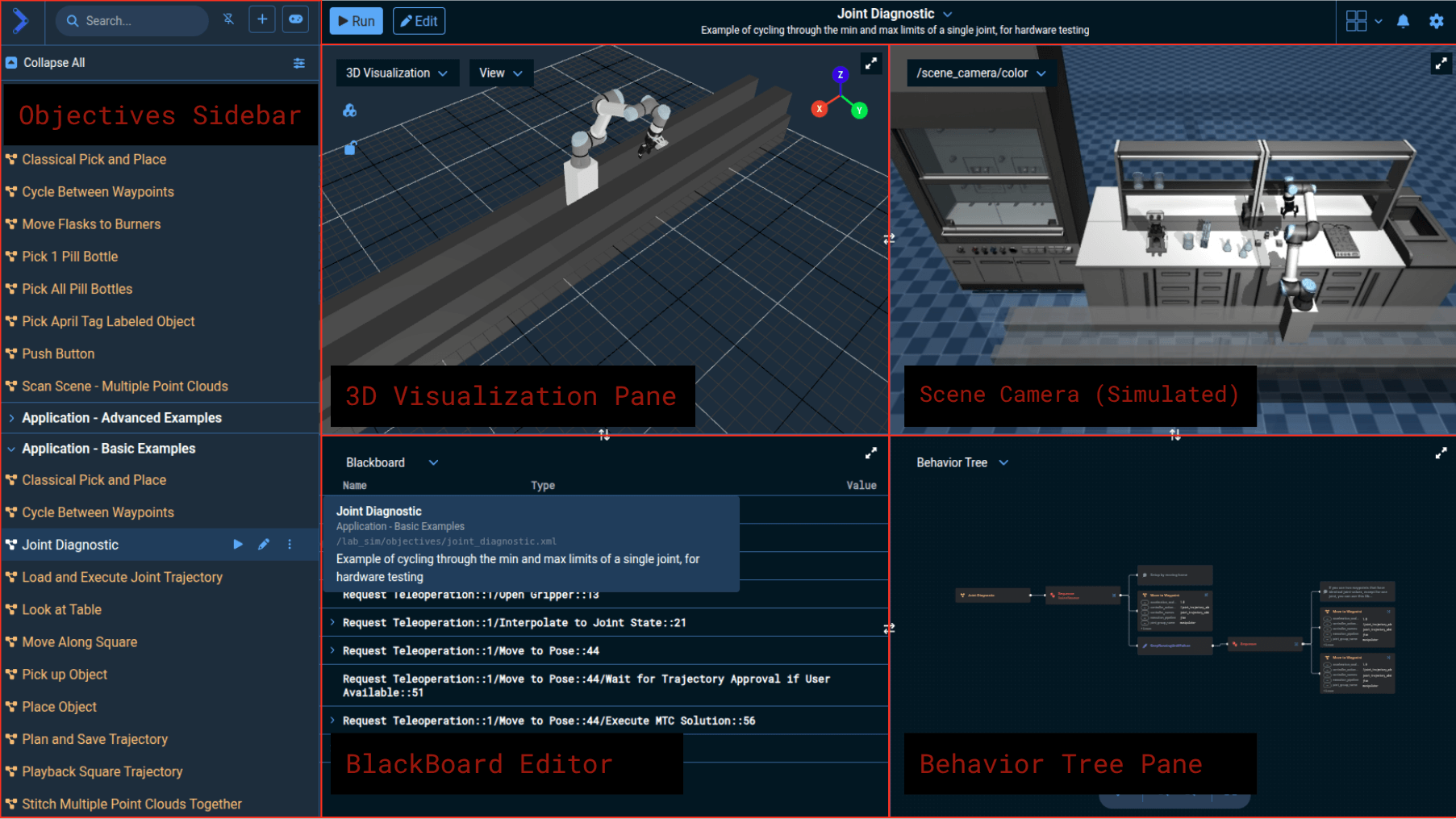
The MoveIt Pro user interface is composed of configurable view panes that provide different perspectives on your robot's state and environment.
Customizing the Panes
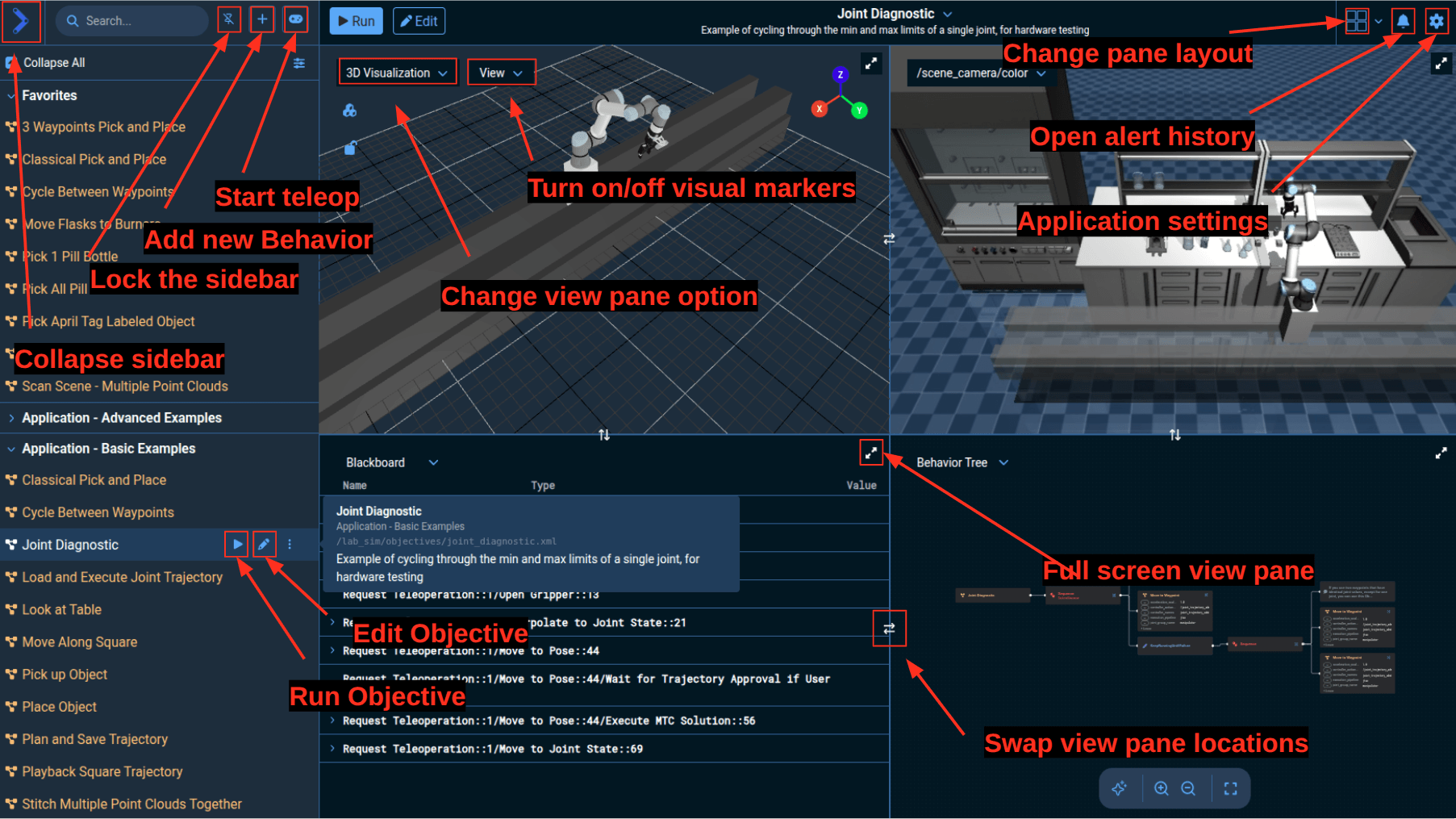
Your configuration of panes may vary depending on previously saved settings. You can change which content is displayed in each pane using the dropdown menu, and adjust the number of panes using the Pane Layout menu in the top right.
Pane Layout
To change the number of visible panes, click the Pane Layout menu in the top right corner. You can choose from several layout options, including 1 through 6 pane configurations.

Changing a View Pane
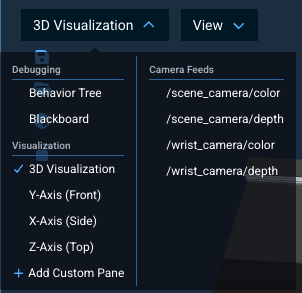
To change the content displayed in any pane, click on the dropdown menu at the top of that pane. A list of available views will appear, including camera feeds, the 3D Visualization, Behavior Tree, Blackboard, and more. Select the desired view to switch that pane's content.
3D Visualization Pane
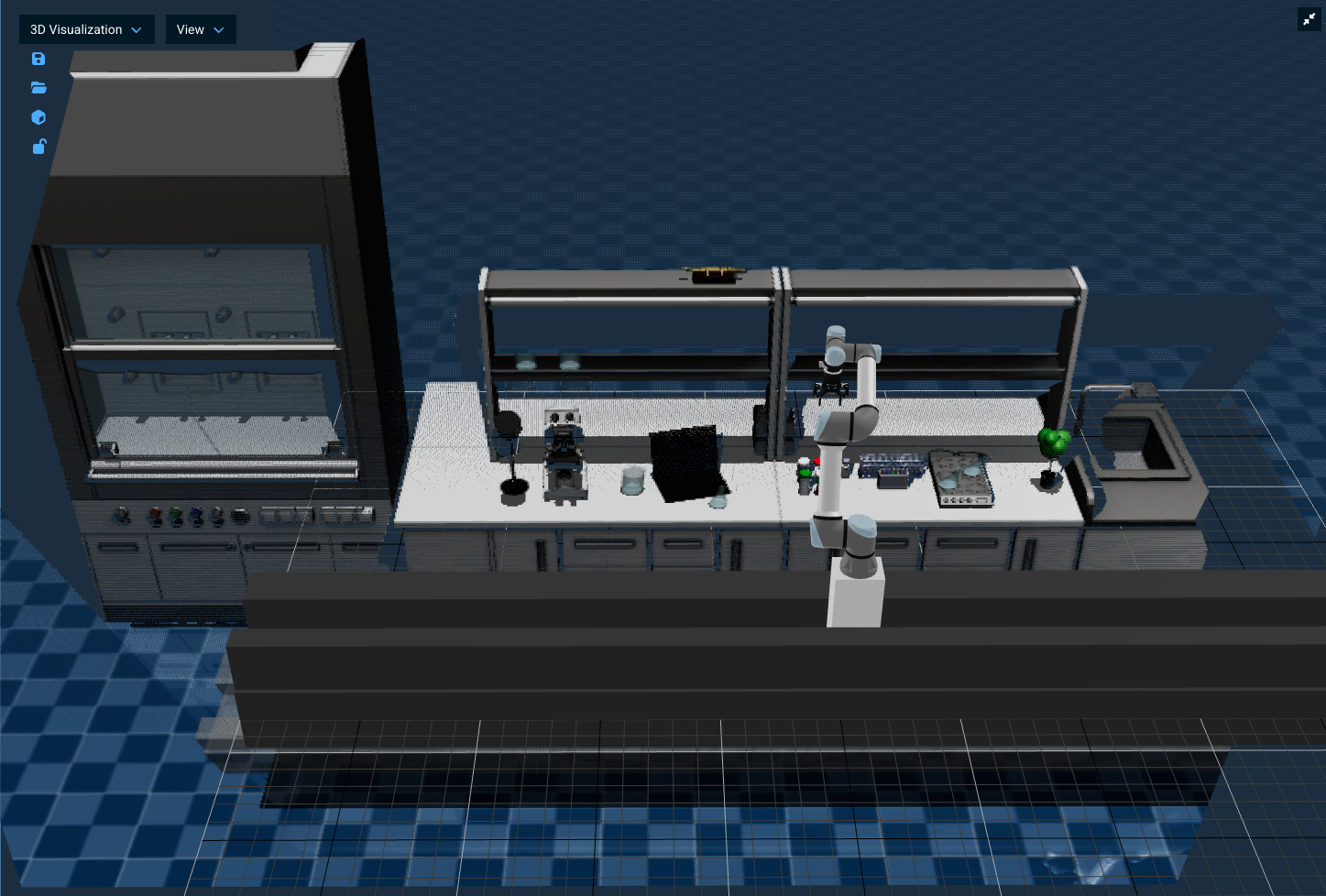
Displays a rendering of what the robot understands of the world, similar to the common Rviz visualizer in ROS. In MoveIt Pro this understanding of the world is stored in a Planning Scene. The Planning Scene is a combination of our robot's URDF model, point clouds, octomaps, meshes, and geometric primitives. These data sources are used to avoid collision with the robot and the world.
The view of the scene can be adjusted by clicking within the pane and dragging the mouse around. The left mouse button rotates the scene, and the right mouse button drags the scene.
Orthographic View Modes
In addition to the default 3D perspective view, MoveIt Pro provides three orthographic views along the X, Y, and Z axes. These allow you to view the robot and scene from multiple perspectives simultaneously, which is useful for precise alignment and debugging.
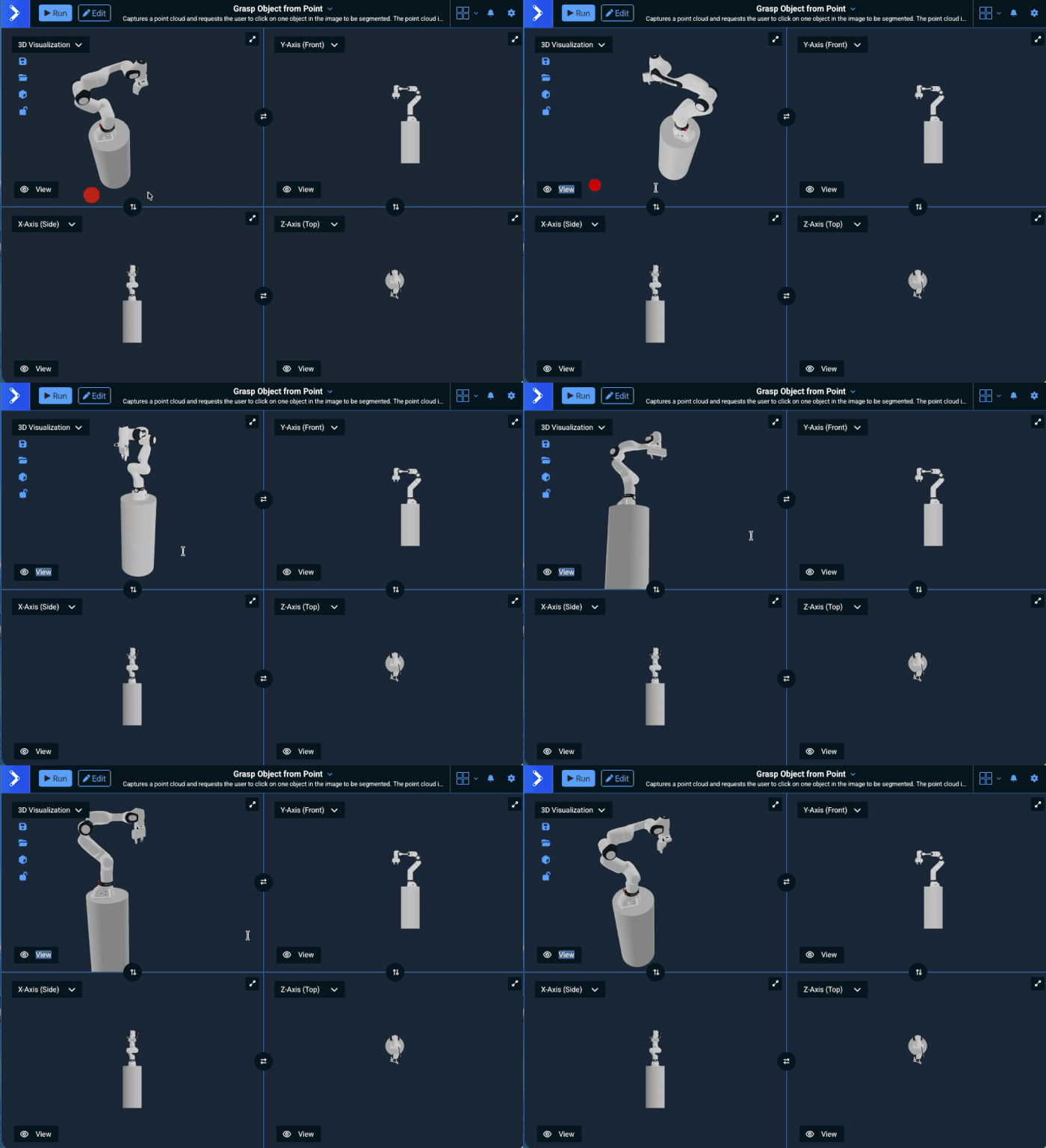
The different views can be selected from the view dropdown menu in any pane.
Camera Feeds
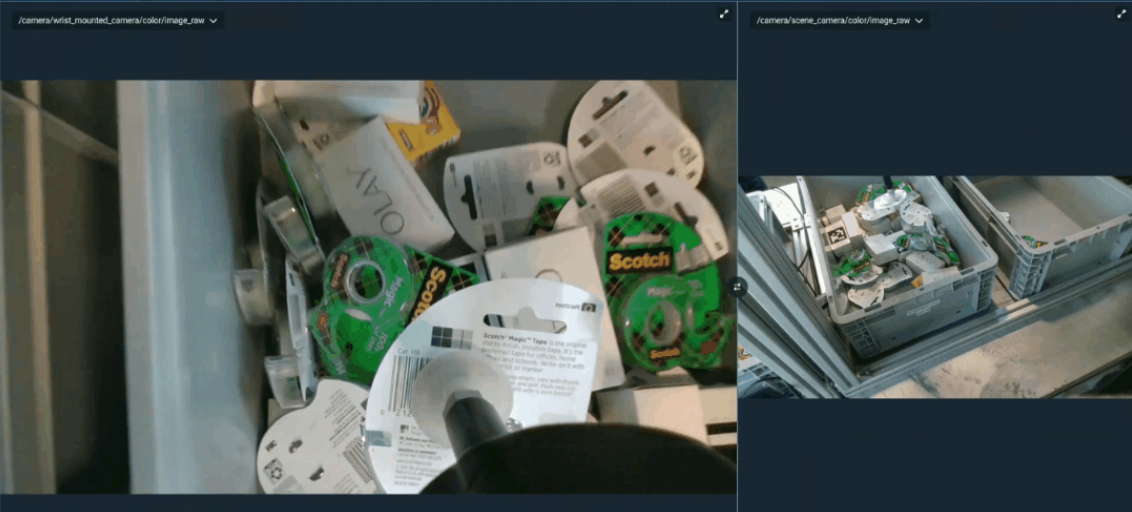
The /scene_camera/color, /scene_camera/depth, /wrist_camera/color, and /wrist_camera/depth panes show the camera feeds from the underlying simulator. If you were connected to hardware, these cameras would show the real world and not simulations.
Behavior Tree Pane
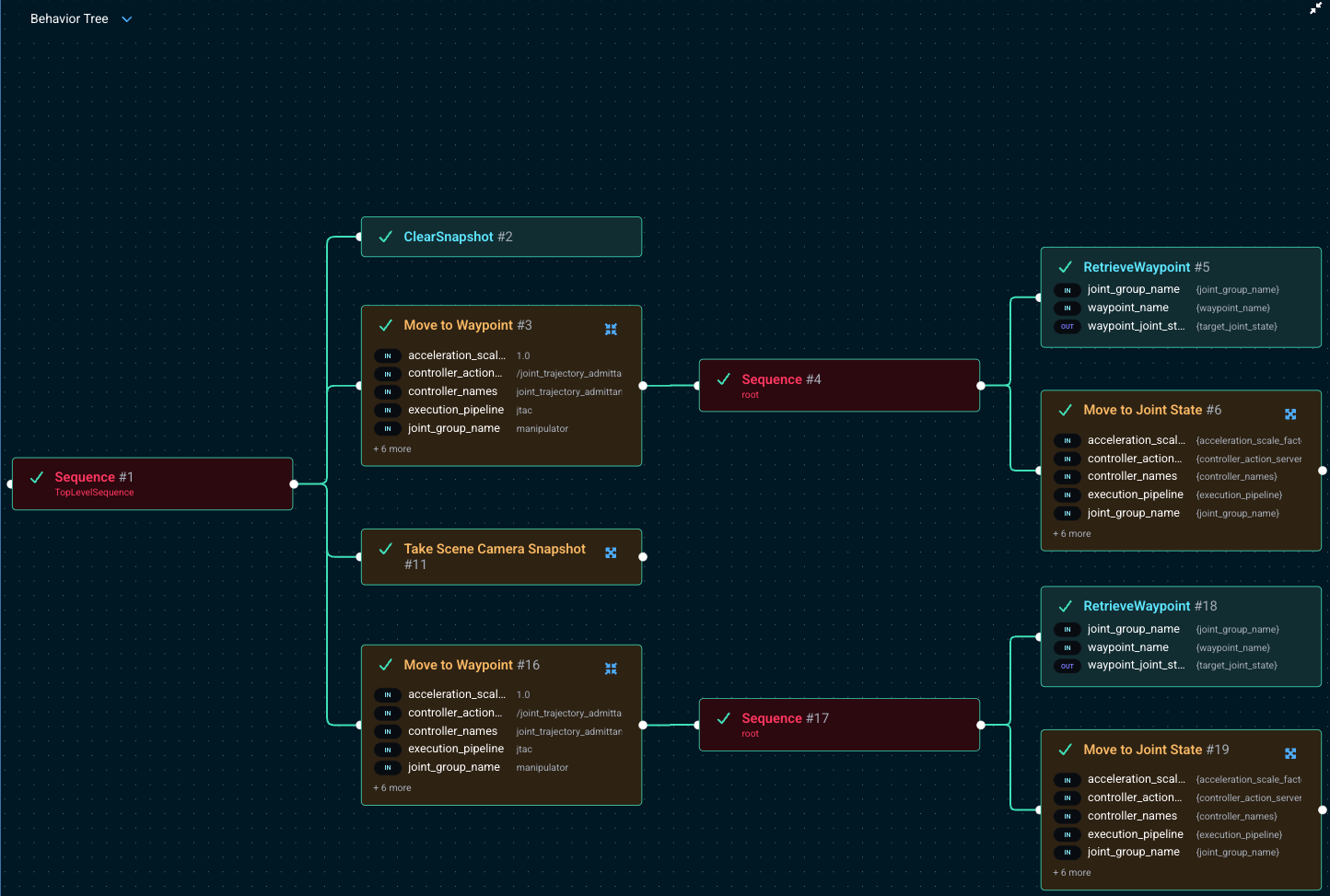
In this pane the most recently run Objective is shown, if any. While running an Objective, this pane will highlight which Behavior is currently executing, which is useful for debugging and introspection.
Blackboard Pane
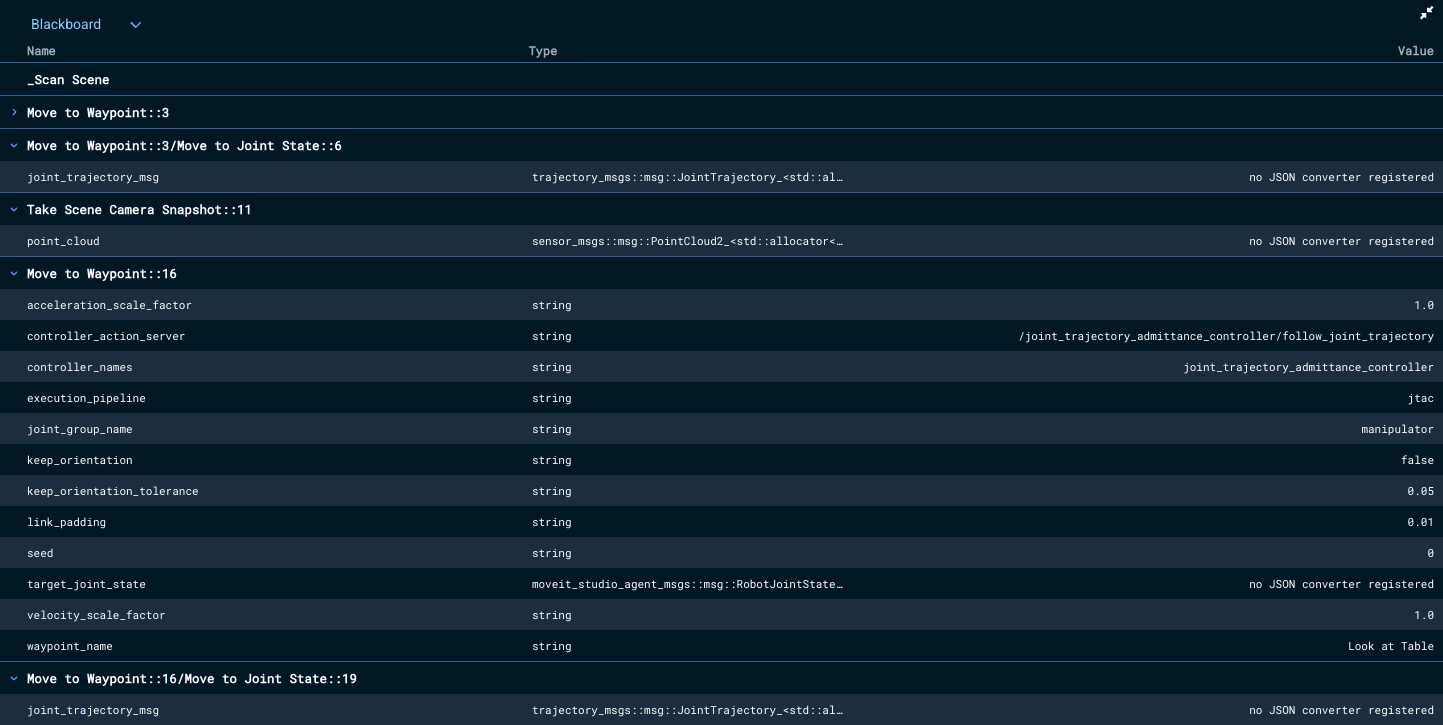
This pane shows the variables being passed around on the Behavior Tree blackboard. These parameters are the key data that is passed around between Behavior nodes.
Custom View Panes
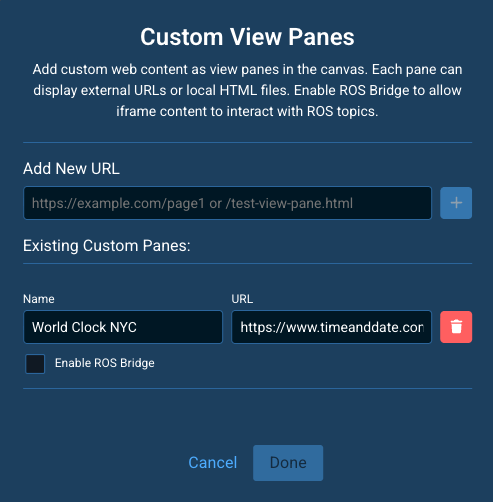
MoveIt Pro also supports embedding custom iframe-based view panes into the UI. This allows you to integrate external dashboards, tools, or custom web applications directly into the MoveIt Pro interface. See Creating Custom View Panes for details.