Planners and Solvers
In this high level concepts page we discuss the different planners, solvers, and controllers that are in MoveIt Pro. This page is intended to dive in deeper beyond the higher level overview of motion planning in Tutorial 4.
Our API documentation describes specific controllers such as the Joint Trajectory Admittance Controller, Velocity Force Controller, or Joint Velocity Controller.
ProRRT
The ProRRT planner is a sampling-based planning algorithm based on the Rapidly-exploring Random Tree (RRT) Connect algorithm that is designed to efficiently find a path between a start and goal configuration in a configuration space. An example of this is below:
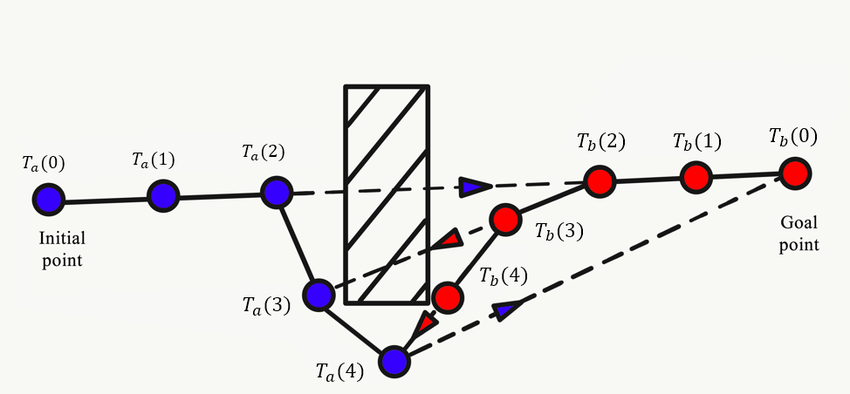
It is optimized for high-dimensional spaces and can handle complex constraints.
There is no concept of 'cost' in ProRRT, other than infinite cost on paths that collide.
Behaviors utilizing ProRRT include our MTC labeled Behaviors such as SetupMTCPlanToJointState, and other standalone planning Behaviors such as PlanToJointGoal.
Cartesian Planning
The Cartesian planner in MoveIt Pro utilizes a variety of solvers such as Path Inverse Kinematics and Velocity Inverse Kinematics to achieve Cartesian velocities and paths with desired end-effector positions in Cartesian space.
Path Inverse Kinematicsis used to compute position commands to follow a Cartesian end-effector trajectory for many inspection and manufacturing tasks. This solver is accessed via thePlanCartesianPathBehavior and you can read about example applications in our Cartesian Path Following guide.Velocity Inverse Kinematicsis used to stream velocity commands to track a frame for tracking and grappling tasks. This solver is accessed via theComputeVelocityToAlignWithTargetBehavior and you can read about example applications in our Visual Servoing guide.
Pose Inverse Kinematics
Our PoseIK implementation is used to determine specific Poses of a chain of links.
This is the Solver utilized in most teleoperation modes and the above mentioned ProRRT Planner.
MoveIt Pro ships with a highly optimized pose inverse kinematics solver, called PoseIK.
This document describes PoseIK and how to configure it as the default IK solver.
PoseIK
PoseIK is a highly efficient implementation of a Jacobian-based Newton-Raphson Inverse Kinematics Solver for MoveIt Pro.
PoseIK offers significant benefits over other IK solvers:
- Performance:
PoseIKis orders of magnitude faster than existing open-source solvers. - Deterministic:
PoseIKis deterministic and will always return the same solution for the same input. - Support for cost functions:
PoseIKsupports cost functions to optimize the solution based on user-defined criteria. - Support for multiple end-effectors:
PoseIKcan solve IK for multiple end-effectors simultaneously, even if those end-effectors are on kinematic chains that share common links (e.g. a humanoid torso with two arms).
The solver shows significant performance gains compared to KDL and TRAC_IK. These are the average solve times, in milliseconds, for three common robots:
| Solve times (ms) | KDL | TRAC_IK | PoseIK |
|---|---|---|---|
| panda | 1.58 | 0.306 | 0.0421 |
| fanuc | 3.28 | 0.489 | 0.0416 |
| Kinova Gen3 | 1.073 | 0.386 | 0.0321 |
These numbers were obtained using the ik_benchmarking package on a 12th Gen Intel(R) Core(TM) i7-12700H, 2.7 GHz, under the same conditions.
Solve modes
Two solve modes are implemented:
first_found: In this mode the solver will return as soon as a solution is found. It won't try to optimize for any cost. Use this mode if you care about solve speed and don't have a preference on the solution.optimize_distance: In this mode the solver will always run for a given period of time, in order to find better solutions, even if one was found already. The solver will prefer solutions closer to the seed (initial joint configuration) in joint-space. Use this mode if your application can afford spending additional time in IK in exchange for better solutions.
The solve mode can be configured via the solve_mode config parameter, to be included in the YAML config file (see example above).
See this guide for information on how to configure PoseIK as the default IK solver in your workspace.
A Behavior to compute Inverse Kinematics
To see an example in action, start MoveIt Pro using moveit_pro run -c multi_arm_sim and run the Multi-tip Pose IK Example Objective.
The ComputeInverseKinematics Behavior uses PoseIK to compute Inverse Kinematics for a given set of Cartesian-space goals.
The Behavior can solve IK for a single end-effector (most typical case) or multiple end-effectors simultaneously.
It takes the planning group name as input, as well as the desired end-effector poses and corresponding tip link names to compute IK for.
It outputs the joint states for the given planning group that achieve the desired end-effector poses.
Then you can command the robot to move to those joint configurations with other Objectives like Move To Joint State.
Computing Inverse Kinematics as part of an MTC Task
To see an example in action, start MoveIt Pro using moveit_pro run -c lab_sim and run the Grasp Planning Objective.
MoveIt Pro includes a Behavior called SetupMTCBatchPoseIK that can be used to evaluate a set of IK goals for a given planning group.
MTC will then use PoseIK to compute IK for each goal in the set, and rank the solutions based on a cost function (typically joint-space distance to the current robot configuration).
The solutions are then fed into the larger planning pipeline for further processing.
A typical use case of this Behavior is to find a feasible grasp / place pose amongst a set of candidate poses. This Behavior only supports a single end-effector at the moment (i.e. kinematic chains).
Our PoseIK based Behaviors can be modified to handle cost, but only via the C++ API in a custom Behavior. To write your own custom Behavior, see this guide
Custom Planners
MoveIt Pro can be configured to incorporate custom planners by wrapping them into Custom Behaviors. E.g. to integrate cuMotion, you would pull the cuMotion libraries in your workspace and write your own custom "PlanWithCuMotion" Behavior.