Gamepad Teleoperation Setup Guide
MoveIt Pro provides comprehensive teleoperation capabilities to manually control your robot when needed. Whether you need to fine-tune positioning, escape from stuck situations, or collect waypoints for future use, MoveIt Pro offers multiple teleoperation methods to suit different use cases.
MoveIt Pro also provides four UI-based teleoperation modes (Interactive Marker, Pose, Joint, and Waypoints) that require no additional hardware. See the UI-Based Teleoperation Guide for details.
Supported Controllers
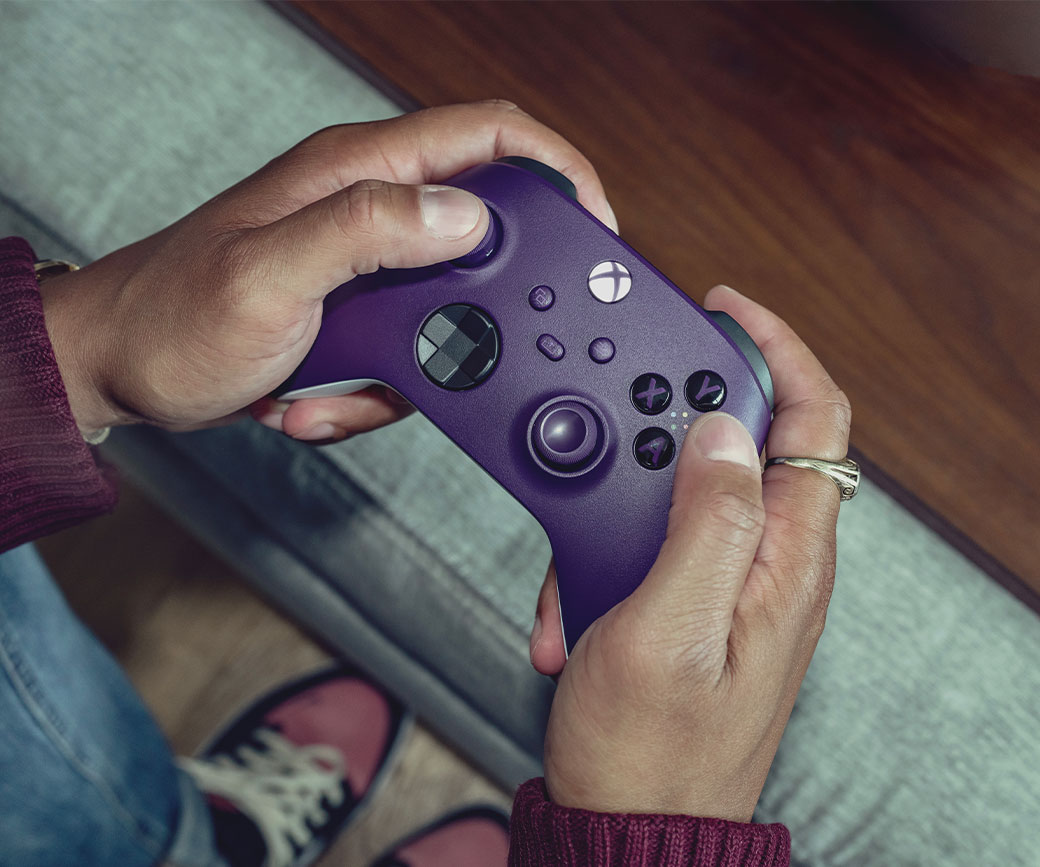
MoveIt Pro supports standard USB game controllers, including Xbox controllers, and provides intuitive mapping for robot control.
- Xbox 360 Controller: Full support over USB or wireless connections
- Xbox One Controller: Compatible over wired connections with no additional setup
- Generic USB gamepads: Most standard USB game controllers work out of the box
Setup Requirements
- Simply plug in your USB controller when MoveIt Pro UI is launched
- MoveIt Pro uses your browser's built-in game controller support
- For Xbox One wireless dongles, xow is required
Control Mapping
Game controllers typically provide:
- Left stick: Translational movement (X/Y axes)
- Right stick: Rotational movement (X/Y axes)
- Triggers: Z-axis translation (up/down)
- Bumpers: Z-axis rotation
MoveIt Pro does not work with game controllers in headless mode.
Other Hardware Teleoperation Devices
For other hardware-based teleoperation options, see:
Choosing the Right Teleoperation Method
| Method | Best For | Precision | Setup Required |
|---|---|---|---|
| Interactive Marker | Visual positioning, trajectory preview | Medium | None |
| Pose Teleop | Cartesian movements, end-effector positioning | High | None |
| Joint Teleop | Joint-specific movements, singularity avoidance | High | None |
| Game Controllers | Familiar interface to many users | Medium | Plug in USB |
| Haply Haptic | Force-sensitive tasks, delicate manipulation | Very High | Setup Guide |
| Meta Quest VR | Intuitive hardware-based teleop | Medium | Setup Guide |
To see all our supported hardware, including controllers and haptic devices, please visit our hardware ecosystem page.